Administrative Units in Entra: Because Not Everyone Needs to Reset Dave’s Password
Administrative units are the Microsoft Entra feature that lets you hand out admin rights to part of your tenant instead of the whole thing. They are also one of the most underused features in Entra ID, which is odd, because the usual alternative is much worse.
Picture a multi-academy trust with eight schools in one tenant. The technician at one primary school needs to reset a teacher’s password, so somebody grants them Helpdesk Administrator. They can now reset passwords for every non-admin user in all eight schools, including the trust’s finance team and Dave from accounts.
Administrative units (AUs) fix that by scoping the role assignment to a defined set of users, groups or devices. Same role, much smaller blast radius, and far fewer awkward phone calls from the head teacher at 7:45am.
This guide covers what administrative units do (and don’t do), licensing, which roles you can scope, a step-by-step build in the portal and in Microsoft Graph PowerShell, PIM, and the gotchas I wish I’d known first.
Never miss a guide: subscribe here and check out my YouTube channel.
The short version (for anyone whose tea is going cold)
- Administrative units scope role assignments, so a Helpdesk Administrator can only reset passwords for users inside their unit.
- They don’t scope policies such as Conditional Access, and they don’t stop people browsing the directory.
- Creating AUs is free. Each AU-scoped admin needs Microsoft Entra ID P1, and AUs with dynamic membership rules need P1 for every user member.
- Build them under Entra ID > Roles & admins > Admin units, then assign roles from the AU’s Roles and administrators page.
- Add PIM (P2) so scoped roles are eligible rather than permanent.
- Need to stop tenant-wide admins touching certain accounts? That’s a restricted management AU.
In this guide
What are Microsoft Entra administrative units?
An administrative unit is a container in Microsoft Entra ID that can hold users, groups or devices. On its own it changes nothing. The useful part comes when you assign a Microsoft Entra role with the AU as its scope, because the role’s permissions then apply only to members of that AU.
So a Helpdesk Administrator scoped to the Burnley Primary AU can reset passwords for non-admin users in that AU and nobody else. Assign the same role at tenant scope and it reaches everyone the role normally covers. Same role definition, very different reach.
The old version of this post called an AU a security boundary. That was wrong, and I’ve fixed it. A regular AU limits what scoped admins can do, but it doesn’t stop a Global Administrator or a tenant-wide User Administrator from managing the same accounts.
| Administrative units do | Administrative units don’t |
|---|---|
| Limit where a scoped role’s permissions apply | Scope Conditional Access, Intune or other policies |
| Hold users, groups and devices | Nest inside each other |
| Let one object sit in up to 30 AUs | Stop users browsing the directory with default permissions |
| Work with the supported built-in roles and custom roles | Restrict Global Administrators (unless restricted management is on) |
| Filter the user list for scoped admins in the Microsoft 365 admin centre | Scope device management in Intune |
Groups behave in a way that surprises people. Adding a group to an AU brings the group itself into scope (its name and membership), not the users inside it. If you want a scoped User Administrator to reset those users’ passwords, add the users to the AU directly.
Why use administrative units to delegate Entra administration?
The short answer is least privilege. Most tenants start with a couple of Global Administrators doing everything, then hand tenant-wide roles to the helpdesk as the organisation grows. Every one of those accounts becomes a juicy target, because compromising it gives an attacker reach across the whole directory.
Scoped roles shrink that reach. Here are some realistic patterns:
- Schools and trusts: one AU per school. The technician gets Password Administrator for that school’s users and Cloud Device Administrator for its devices, so they can reset staff passwords, disable a lost laptop or read its BitLocker recovery key without touching the other schools.
- Regional service desks: the Manchester desk gets Helpdesk Administrator scoped to a North West AU, so it resets passwords for North West users only. (The old version of this post said they would reset passwords for devices. Devices don’t have passwords, they have problems.)
- Departments: a Finance AU containing the finance groups, with Groups Administrator scoped to it, lets the finance IT champion manage their own group memberships.
- Licensing: License Administrator scoped to a business unit lets that unit’s admin assign and remove licences for their own people.
Which roles can be scoped to an administrative unit?
Not every role works with AU scope. These are the built-in roles you can assign with administrative unit scope, plus any custom role that includes at least one permission for users, groups or devices.
| Role | What it can do inside the AU |
|---|---|
| Authentication Administrator | View, set and reset authentication methods for non-admin users |
| Attribute Assignment Administrator | Read and update custom security attribute assignments |
| Attribute Assignment Reader | Read custom security attribute assignments |
| Cloud Device Administrator | Enable, disable and delete devices, and read BitLocker recovery keys |
| Groups Administrator | Manage all aspects of groups in the AU |
| Helpdesk Administrator | Reset passwords for non-admin users |
| License Administrator | Assign, remove and update licence assignments |
| Password Administrator | Reset passwords for non-admin users |
| Printer Administrator | Manage printers and printer connectors in Universal Print |
| Privileged Authentication Administrator | View, set and reset authentication methods for any user, admin or not |
| SharePoint Administrator | Manage Microsoft 365 groups in the AU, plus some site properties |
| Teams Administrator | Manage Microsoft 365 groups and team members for groups in the AU |
| Teams Devices Administrator | Manage Teams certified devices |
| User Administrator | Manage users and groups, including password resets for limited admins |
For the helpdesk-style roles, password resets, authentication method changes and edits to sensitive properties only work on users who don’t hold admin roles. That’s deliberate. You don’t want a school technician resetting the password of a Global Administrator who happens to sit in the school’s AU.
Good to know: Global Administrator, Privileged Role Administrator and Conditional Access Administrator aren’t on the list. Tenant-wide roles stay tenant-wide, which is exactly how it should be.
Licensing and prerequisites for administrative units
| Requirement | What you need |
|---|---|
| Create administrative units | Microsoft Entra ID Free |
| Members of an AU with assigned membership | Microsoft Entra ID Free |
| Each admin holding an AU-scoped role | Microsoft Entra ID P1 or P2 |
| Users in AUs with dynamic membership rules | Microsoft Entra ID P1 for each unique user (devices need no licence) |
| Eligible (just-in-time) scoped roles | Microsoft Entra ID P2 or Microsoft Entra ID Governance for PIM |
| Role to create AUs and assign scoped roles | Privileged Role Administrator (least privileged) |
| Scripting | Microsoft Graph PowerShell SDK |
The dynamic membership licence counts unique users across all dynamic membership AUs, and you need at least that many P1 licences in the tenant. Microsoft 365 E3 and Business Premium include P1, and E5 includes P2.
How to set up administrative units in Microsoft Entra in 7 steps
Step 1: Plan your administrative units
Spend ten minutes with a cup of tea before you click anything. AUs can’t be nested, so you can’t build a neat tree of trust, school and year group. Every AU sits at the same level, and dynamic rules are only as good as your HR attributes.
Pick one axis per AU (site, department or region) and a naming convention you’ll still understand in two years, such as AU-School-Burnley or AU-Region-NorthWest. One object can belong to up to 30 AUs, so overlapping structures are fine.
Step 2: Create the administrative unit
- Sign in to the Microsoft Entra admin centre as at least a Privileged Role Administrator.
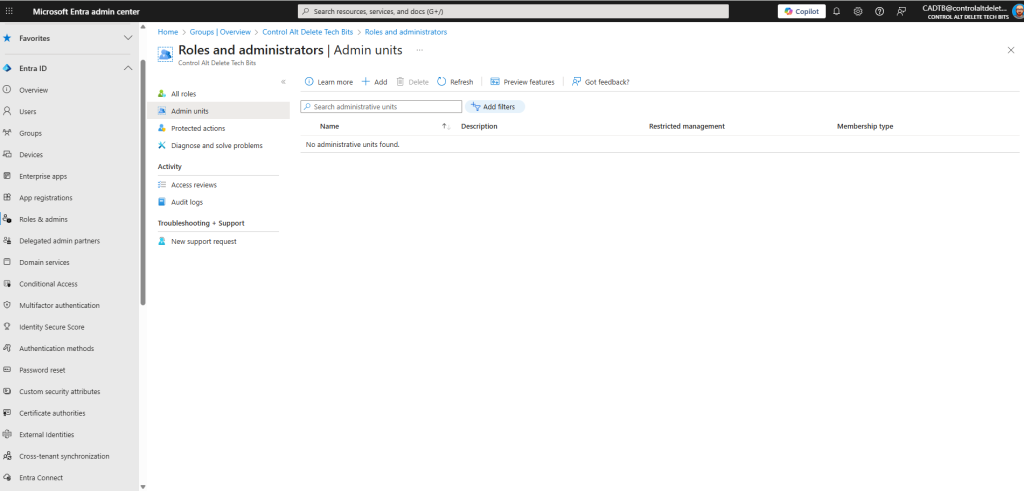
- Browse to Entra ID > Roles & admins > Admin units.
- Select Add.
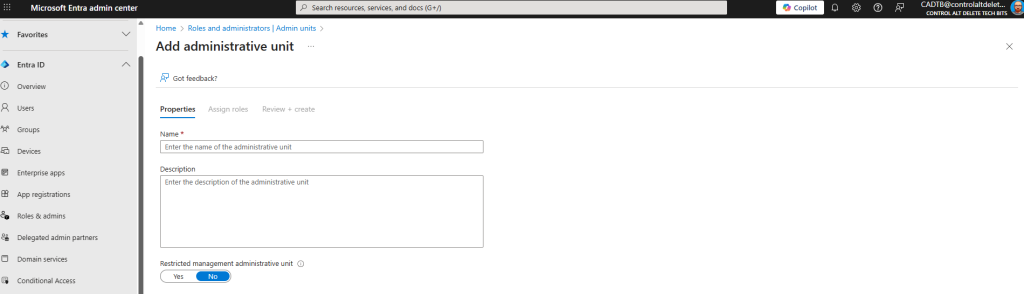
- Enter a Name and a Description that explains who belongs in it.
- Leave Restricted management administrative unit set to No unless you specifically need it. You can’t change it after creation.
- Optionally assign roles on the Assign roles tab, then select Review + create and Create.
Step 3: Add members manually
- Open the AU from Entra ID > Roles & admins > Admin units.
- Select Users, Groups or Devices.
- Select Add member, Add or Add device.
- Pick the objects and choose Select.
For bigger lists, open Users > Bulk operations > Bulk add members inside the AU and upload the CSV template with one UPN per row. You can also work the other way round: open a user, group or device, select Administrative units, then Assign to administrative unit.
Step 4: Use dynamic membership rules instead
Manual membership works right up until someone joins and nobody tells IT, which in my experience is always. Dynamic membership rules keep the AU up to date from user or device attributes.
- Open the AU and select Properties.
- In the Membership type list, choose Dynamic User or Dynamic Device.
- Select Add dynamic query, build the rule, then select Save.
- Select Save on the Properties page and Yes to confirm.
A user rule for one school might look like this:
(user.companyName -eq "Burnley Primary") -and (user.accountEnabled -eq true)And a device rule based on a naming convention:
(device.displayName -startsWith "BURN-")Tip: one AU can use dynamic membership rules for users or for devices, not both, and dynamic rules for groups aren’t supported. For a school, create two AUs (one for staff and pupils, one for devices) and scope the right role to each.
Once an AU uses dynamic membership, you can’t add or remove members by hand. To include one awkward exception, add an -or clause to the rule. Rules can be up to 3,072 characters, which is plenty unless you’re doing something you shouldn’t.
Step 5: Assign a role scoped to the administrative unit
- In Entra ID > Roles & admins > Admin units, open the AU.
- Select Roles and administrators. You’ll only see roles that support AU scope.
- Select the role, for example Helpdesk Administrator.
- Select Add assignments, choose the users or role-assignable group, then select Add.
Assign to a role-assignable group rather than individuals where you can. When the technician leaves, you remove them from one group and the scoped role goes with them.
Step 6: Make the scoped role eligible with PIM
Standing admin rights, even scoped ones, are still standing admin rights. With Microsoft Entra ID P2 or ID Governance, Privileged Identity Management (PIM) lets you make AU-scoped assignments eligible, so the technician activates the role when needed and it expires afterwards.
- Browse to Entra ID > Roles & admins and select the role, for example User Administrator.
- Select Add assignments.
- Select the user or group, set the scope to administrative units and pick your AU.
- Choose Eligible as the assignment type, set the duration and select Assign.
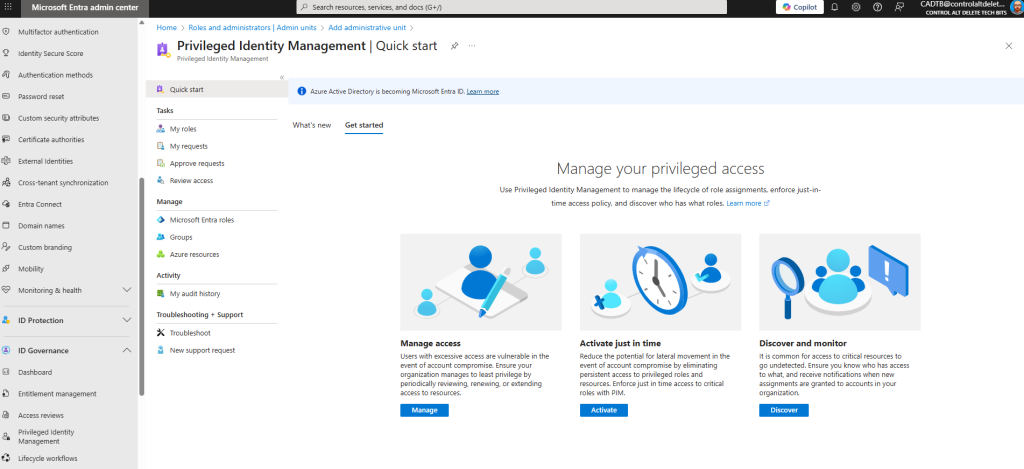
Then set the activation rules under ID Governance > Privileged Identity Management > Microsoft Entra roles > Roles. Select the role, then Role settings > Edit, and require MFA, a justification, a ticket number or approval, with an activation maximum duration between 1 and 24 hours.
Gotcha: PIM role settings belong to the role, not the scope. Change the Helpdesk Administrator settings for one school and you’ve changed them for every Helpdesk Administrator assignment in the tenant, tenant-wide ones included.
Step 7: Test as the delegated admin
Don’t assume it works. Open an InPrivate window, sign in as the scoped admin and try three things:
- Reset the password of a non-admin user inside the AU. This should work.
- Try the same on a user outside the AU. The option should be missing or the action should fail.
- Open the Microsoft 365 admin centre and check the user list only shows people from their AUs.
The scoped admin can still browse other users in the Entra admin centre, because default user permissions allow it. Seeing isn’t managing, but warn them first or you’ll get a worried Teams message before lunch.
Create administrative units with Microsoft Graph PowerShell
Clicking through the portal is fine for one school. For eight, script it. This uses the Microsoft Graph PowerShell SDK (not the old AzureAD or MSOnline modules) to create an AU, add a user and assign Helpdesk Administrator scoped to the AU.
# Requires the Microsoft Graph PowerShell SDK
Connect-MgGraph -Scopes "AdministrativeUnit.ReadWrite.All","RoleManagement.ReadWrite.Directory","User.Read.All"

# 1. Create the administrative unit
$auParams = @{
    DisplayName = "AU-School-Burnley"
    Description = "Staff and pupils at Burnley Primary"
}
$au = New-MgDirectoryAdministrativeUnit -BodyParameter $auParams

# 2. Add a user as a member
$member = Get-MgUser -Filter "userPrincipalName eq 'olavi.king@contoso.com'"
New-MgDirectoryAdministrativeUnitMemberByRef -AdministrativeUnitId $au.Id -OdataId "https://graph.microsoft.com/v1.0/users/$($member.Id)"

# 3. Get the Helpdesk Administrator directory role (activate it if needed)
$roleName = "Helpdesk Administrator"
$role = Get-MgDirectoryRole -Filter "displayName eq '$roleName'"
if (-not $role) {
    $template = Get-MgDirectoryRoleTemplate | Where-Object { $_.DisplayName -eq $roleName }
    $role = New-MgDirectoryRole -RoleTemplateId $template.Id
}

# 4. Assign the role scoped to the administrative unit
$tech = Get-MgUser -Filter "userPrincipalName eq 'tech.burnley@contoso.com'"
$scopedParams = @{
    roleId         = $role.Id
    roleMemberInfo = @{ id = $tech.Id }
}
New-MgDirectoryAdministrativeUnitScopedRoleMember -AdministrativeUnitId $au.Id -BodyParameter $scopedParams
The scoped role member call needs the ID of an activated directory role, which is why the script activates the role from its template if nobody holds it yet. If you would rather work with role definitions, New-MgRoleManagementDirectoryRoleAssignment with a DirectoryScopeId of /administrativeUnits/ plus the AU’s ID does the same job.
How to prove your administrative units are working
Trust, but verify, preferably before the auditor asks. In the portal, open the AU, select Roles and administrators, open a role and select Assignments. For one person, open the user and select Assigned roles to see each role and its scope.
In PowerShell, these checks list who holds scoped roles in an AU, every active AU-scoped assignment in the tenant, and any eligible ones waiting in PIM:
# Scoped role holders for one administrative unit
Get-MgDirectoryAdministrativeUnitScopedRoleMember -AdministrativeUnitId $au.Id |
    Select-Object RoleId, @{ n = "Member"; e = { $_.RoleMemberInfo.DisplayName } }

# Every active role assignment scoped to an administrative unit
Get-MgRoleManagementDirectoryRoleAssignment -All |
    Where-Object { $_.DirectoryScopeId -like "/administrativeUnits/*" } |
    Select-Object PrincipalId, RoleDefinitionId, DirectoryScopeId

# Eligible (PIM) assignments live here instead
Get-MgRoleManagementDirectoryRoleEligibilitySchedule -All |
    Where-Object { $_.DirectoryScopeId -like "/administrativeUnits/*" } |
    Select-Object PrincipalId, RoleDefinitionId, DirectoryScopeId
Administrative unit gotchas (and how to dodge them)
Gotcha: Conditional Access policies that target Directory roles don’t apply to AU-scoped role assignments. If your “phishing-resistant MFA for admins” policy targets Helpdesk Administrator, your scoped helpdesk staff aren’t covered, so put them in a group and target the group.
Admins inside an AU. Helpdesk-style scoped roles can’t reset passwords or change authentication methods for users who hold admin roles. That’s by design, so there’s no point raising a ticket about it.
Guests and service principals. They don’t get directory read permissions by default, so an AU-scoped role does nothing for them until you also assign Directory Readers (or similar) at tenant scope.
Intune. Administrative units don’t scope device management in Intune. Use Intune role-based access control with scope tags for that side of the house.
Limits. An object can belong to at most 30 AUs, and dynamic groups plus dynamic membership AUs can’t exceed 15,000 per tenant.
Deleting an AU. Remove the scoped role assignments first, otherwise you’ll be tidying up orphans later like it’s Windows 98 and the registry all over again.
Restricted management administrative units: when you need a real lock
Regular AUs control who else can manage a set of objects. Restricted management AUs go further and stop tenant-level admins modifying the members unless they hold a role scoped to that AU. That suits executive accounts and sensitive security groups.
There are trade-offs. The setting is fixed at creation, there’s a limit of 100 per tenant, and only users, devices and security groups are supported. Global Administrators can still add and remove members and assign themselves a scoped role, so treat it as a guard rail rather than a moat.
I go through the setup in my restricted management administrative units guide.
Should you use Microsoft Entra administrative units?
If your tenant has more than one site, school, region or department with its own IT people, yes. Administrative units are the cleanest way to stop handing tenant-wide roles to people who only look after one corner of the organisation.
If you have 25 users and one IT person who is also the office manager, probably not yet. You’ll spend more time maintaining AUs than they save, and that time is better spent on break glass accounts and phishing-resistant MFA.
For everyone in between, start with one AU, one scoped Helpdesk Administrator and PIM on top. Expand once it works and nobody has rung you at 4:55pm on a Friday.
Microsoft Entra administrative units FAQs
Are administrative units a security boundary?
No. A regular administrative unit scopes role assignments, but tenant-wide admins can still manage its members. Restricted management administrative units are the stronger option when you need to stop tenant-level admins changing specific objects.
What licence do administrative units need?
Creating administrative units is free. Each admin with an AU-scoped role needs Microsoft Entra ID P1, and AUs with dynamic membership rules need a P1 licence for every unique user member.
Can administrative units scope Conditional Access policies?
No. Administrative units scope admin roles only, and Conditional Access policies that target directory roles don’t apply to AU-scoped role assignments. Target those admins with a group instead.
Can I nest administrative units?
No. Administrative units can’t be nested, but one user, group or device can belong to up to 30 of them.
Does PIM work with AU-scoped roles?
Yes. With Microsoft Entra ID P2 or Microsoft Entra ID Governance, you can make a role assignment scoped to an administrative unit eligible, so it must be activated before use.
Can one administrative unit have dynamic rules for users and devices?
No. An AU with dynamic membership rules can contain users or devices, not both, and dynamic rules for groups aren’t supported.
Further reading
- Administrative units in Microsoft Entra ID (Microsoft Learn)
- Create or delete administrative units (Microsoft Learn)
- Manage administrative units with dynamic membership rules (Microsoft Learn)
- Assign Microsoft Entra roles, including administrative unit scope (Microsoft Learn)
- Assign Microsoft Entra roles in Privileged Identity Management (Microsoft Learn)
- Restricted management administrative units in Entra ID
- Insider threats in Office 365: a practical guide
Found this useful? Buy me a coffee, and if you handle subject access requests, have a look at Redact Ninja for redacting PDFs without sending files to a server.
Tags: Entra ID
[…] Also, check out this article Why You Should Use Administrative Units to Delegate Entra Administration […]
[…] delegate workflow management by assigning the Lifecycle Workflows Administrator role scoped to an administrative unit in Microsoft Entra ID. Regional IT teams get their own joiners and leavers without getting […]