Phishing-Resistant MFA in Entra ID: Because ‘Approve’ Shouldn’t Hand Over the Keys
Phishing-resistant MFA fixes a problem most admins discover the hard way: the user approved the MFA prompt, and the attacker still got in.
Modern phishing kits sit in the middle of the sign-in like a very polite butler with a fake Microsoft logo. The user types their password and approves the push, and the kit relays everything to the real sign-in page. It keeps the session cookie on the way out, and SMS codes and push approvals were never designed to notice.
Passkeys, Windows Hello for Business and certificate-based authentication work differently. They need a cryptographic exchange with the genuine sign-in surface, so a lookalike site has nothing useful to replay. In Microsoft Entra ID you require them with a Conditional Access authentication strength.
This guide walks through a staged phishing-resistant MFA rollout: guard rails, passkeys, Windows Hello for Business, a report-only Conditional Access pilot, a week of reading logs, and then enforcement. No Friday 4:55pm big bang required.
Never miss a guide: subscribe here and check out my YouTube channel.
The short version (for anyone whose CISO just forwarded a phishing report)
- The built-in phishing-resistant MFA strength accepts Windows Hello for Business or platform credential, passkeys (FIDO2) and certificate-based authentication (multifactor). Nothing else.
- QR code sign-in is single-factor and not phishing-resistant. Neither are SMS, push approvals or Authenticator phone sign-in.
- Get admins registered first, using a Temporary Access Pass if needed, or the policy will lock them out.
- Pilot a Conditional Access policy that requires the Phishing-resistant MFA strength in report-only, and watch it for at least a week.
- Break glass accounts use passkeys too, and sit in a group excluded from policies that block or restrict sign-in.
- Enforce for admins first, then widen to everyone once registrations catch up.
In this guide
What is phishing-resistant MFA in Entra ID?
Phishing-resistant MFA is a sign-in that a fake page can’t relay. The method only completes when it talks to the real Microsoft Entra sign-in surface, so there is no code or approval for a phishing kit to capture.
Entra ID enforces it with authentication strengths. An authentication strength is a Conditional Access grant control that lists which method combinations are acceptable for a resource. There are three built-in strengths: Multifactor authentication, Passwordless MFA and Phishing-resistant MFA, the strictest of the three.

Here is how the common methods stack up against the built-in phishing-resistant MFA strength.
| Method | Satisfies phishing-resistant MFA? | Notes |
|---|---|---|
| Windows Hello for Business or platform credential | Yes | Local credential on the user’s own device |
| Passkeys (FIDO2) | Yes | Security keys, passkeys in Microsoft Authenticator and synced passkeys |
| Certificate-based authentication (multifactor) | Yes | Needs a PKI and a multifactor binding |
| Microsoft Authenticator (phone sign-in) | No | Passwordless MFA, but not phishing-resistant |
| Temporary Access Pass | No | Counts as MFA; ideal for registering a passkey |
| Password plus SMS, voice, push or OATH code | No | Standard MFA only |
| QR code | No | Single-factor sign-in for frontline workers |
Gotcha: the first version of this article listed QR code authentication next to the phishing-resistant methods. It isn’t one. QR code authentication is a QR code plus a PIN, a single-factor method that appears in no built-in authentication strength, so it will never satisfy a phishing-resistant MFA policy.
Phishing-resistant MFA prerequisites and licensing
| Requirement | Details |
|---|---|
| Licence | Microsoft Entra ID P1 for Conditional Access (included in Microsoft 365 Business Premium, E3 and E5) |
| Passkeys (FIDO2) | Available in every Entra ID edition, including Free, with no extra licence |
| Roles | Authentication Policy Administrator for methods, Conditional Access Administrator for policies, Security Administrator for diagnostic settings |
| Reporting | Security Reader plus Log Analytics workspace access for the workbook; Entra ID P1 or P2 for authentication methods activity |
| Log Analytics | An Azure subscription and a workspace receiving SignInLogs (ingestion is charged) |
| Devices and keys | Intune-managed Windows devices for Windows Hello for Business, and FIDO2 security keys for admins |
Microsoft’s deployment guidance recommends FIDO2 security keys for admins and synced passkeys for everyone else. Budget for at least two keys per admin, because a single key is one dropped lanyard away from a helpdesk ticket.
How to roll out phishing-resistant MFA in 6 steps
Step 1: Build the guard rails first
Before any policy exists, create the groups that will keep you out of trouble.
- In the Microsoft Entra admin centre, go to Entra ID > Groups > All groups > New group.
- Create a security group with assigned membership called something like PR-Pilot-Admins, and add a handful of friendly admins. Yourself included, obviously.
- Create a second security group called EmergencyAccess and add your two break glass accounts.

Your break glass accounts need a moment of attention. They should be cloud-only, use the .onmicrosoft.com domain, and sign in with passkeys (FIDO2) themselves, because mandatory MFA on the admin portals applies to them too.
Exclude the EmergencyAccess group only from Conditional Access policies that block or restrict sign-in, which includes a policy demanding an authentication strength. The full setup, alerting included, is in my break glass account guide.
Step 2: Enable passkeys (FIDO2) with passkey profiles
Passkeys are the method most of your users will end up with, so start here.
- Go to Entra ID > Authentication methods > Policies and select Passkey (FIDO2).
- If you see the banner offering passkey profiles, opt in. Your existing settings move into a Default passkey profile, and you can’t opt out afterwards.
- On the Configure tab, set Allow self-service set up to Yes, otherwise users can’t register a passkey at Security info.
- Create a profile for admins with Passkey types set to Device-bound and Enforce attestation set to Yes.
- Create or edit a profile for everyone else that allows synced passkeys as well.
- On Enable and target, switch the method on, add your pilot group as a target and assign the right profile.
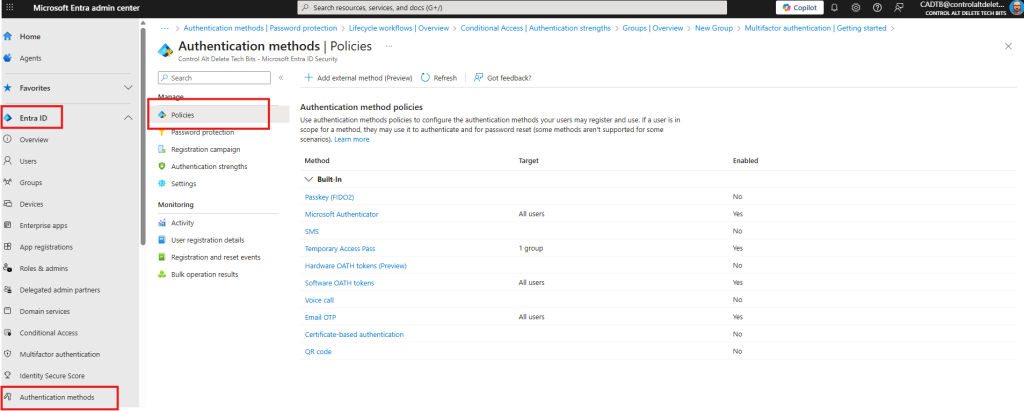
At the time of writing you can have up to three passkey profiles, including the default one. Synced passkeys don’t support attestation, which is why the admin profile sticks to device-bound keys. I compare the two in my synced vs device-bound passkeys guide.
Tip: users must complete MFA within the previous five minutes before they can register a passkey. For new starters, or anyone stuck on SMS, issue a Temporary Access Pass and let them register a passkey straight away. It beats talking someone through it on the phone while they look for their glasses.
If you already run a PKI, certificate-based authentication is the other phishing-resistant option on the same policies page. It takes more setup, and the authentication binding must be multifactor or it won’t satisfy the strength.
Step 3: Deploy Windows Hello for Business through Intune
Windows Hello for Business doesn’t appear in the Entra authentication methods policy, so don’t go hunting for it there. You configure it on the devices, usually with Intune.
- In the Microsoft Intune admin centre, check Devices > Windows > Windows Enrollment > Windows Hello for Business. This tenant-wide setting only applies when a device enrols.
- For devices that are already enrolled, go to Endpoint security > Account protection > Create Policy, then choose Windows and the Account protection profile.
- Enable Windows Hello for Business, set your PIN rules, and assign the policy to a pilot group.
When a device is Microsoft Entra joined, Windows tries to enrol the user in Windows Hello for Business automatically unless a policy turns it off. In a cloud-only tenant you may find half the work is already done.
Gotcha: Windows Hello for Business only satisfies the strength when it is the primary sign-in. If a user signs in with a password first, Entra won’t prompt for Windows Hello. They have to restart the sign-in, select Sign-in options and pick a method the strength accepts.
Step 4: Create the phishing-resistant MFA policy in report-only
Microsoft has a ready-made Conditional Access template called Require phishing-resistant multifactor authentication for administrators. It targets 14 admin directory roles, from Global Administrator to User Administrator, and applies to all resources.
For a pilot I prefer something smaller: the pilot group and the Microsoft Admin Portals resource. That grouping covers the Azure portal, the Exchange admin centre, the Microsoft Office 365 Portal and the Microsoft 365 security and compliance portal.
- Go to Entra ID > Conditional Access > Policies > New policy.
- Name it, for example CA-PR-Pilot-Admin-Portals.
- Under Users, include the PR-Pilot-Admins group and exclude the EmergencyAccess group.
- Under Target resources, choose Select resources and pick Microsoft Admin Portals.
- Under Grant, select Grant access, then Require authentication strength, and choose Phishing-resistant MFA.
- Set Enable policy to Report-only and select Create.
Leave it in report-only for at least a week. Report-only policies don’t prompt anyone, so nobody notices, which is exactly what you want while you gather evidence.
Good to know: you can’t use Require multifactor authentication and Require authentication strength in the same policy. Conditional Access also only enforces built-in directory roles, so admins holding administrative unit-scoped or custom roles slip past a role-targeted policy.
Step 5: Watch the pilot in the logs
This is the step most rollouts skip, and the one that saves you a Monday morning of angry Teams messages.
First, make sure sign-in logs reach Log Analytics. Go to Entra ID > Monitoring & health > Diagnostic settings, add a diagnostic setting, tick SignInLogs (AuditLogs is worth having too) and send them to your workspace. There is no separate Conditional Access log category; the policy results travel inside SignInLogs.
Then open Entra ID > Conditional Access > Insights and reporting, select your report-only policy and pick a time range. The impact summary sorts sign-ins into four buckets.
| Result | What it means for the pilot |
|---|---|
| Success (Report-only: Success) | The user already met the strength. Nothing to do. |
| Failure (Report-only: Failure) | Conditions matched but a non-interactive control failed. Investigate before enforcing. |
| User action required | The user would have been prompted. Check they have a phishing-resistant method registered. |
| Not applied | The policy didn’t apply, for example an excluded user or a different app. |
If you prefer a query to a dashboard, this KQL lists pilot users who would have been prompted or blocked in the last seven days. Swap in your own policy name.
SigninLogs
| where TimeGenerated > ago(7d)
| mv-expand CAPolicy = ConditionalAccessPolicies
| where tostring(CAPolicy.displayName) == "CA-PR-Pilot-Admin-Portals"
| extend Result = tostring(CAPolicy.result)
| where Result in ("reportOnlyFailure", "reportOnlyInterrupted")
| summarize SignIns = count(), Apps = make_set(AppDisplayName) by UserPrincipalName, Result
| order by SignIns desc
Anyone on that list without a passkey or Windows Hello for Business gets a friendly email and, if needed, a Temporary Access Pass. Anyone on it twice gets a cup of tea and a demo.
Step 6: Enforce phishing-resistant MFA, then widen the net
- Open the pilot policy and switch Enable policy from Report-only to On.
- Watch the sign-in logs for a few days and keep the helpdesk in the loop.
- Widen Users to the admin directory roles from the Microsoft template, and Target resources to All resources.
- Create a second policy for everyone else once registrations catch up, starting in report-only again.
- Retire the pilot policy once the broader one covers the same people.
Admins first isn’t just tradition. Microsoft’s list of roles that should require phishing-resistant MFA runs to 14 entries, because those are the accounts attackers want most.
How to prove phishing-resistant MFA is working
Trust, but check the logs. Three places tell you whether the policy is doing its job.
- Sign-in logs: go to Entra ID > Monitoring & health > Sign-in logs, open a sign-in and select Authentication Details. The Requirement column shows the authentication strength that applied.
- Conditional Access tab: in the same sign-in, select the policy name and check Grant Controls for Phishing-resistant MFA.
- Registration: Entra ID > Authentication methods > Activity shows how many users are passwordless capable and which methods they registered.
For a quick admin readiness check, the Microsoft Graph PowerShell SDK pulls the same registration report. You need at least Reports Reader, Security Reader or Global Reader.
Connect-MgGraph -Scopes "AuditLog.Read.All"

Get-MgReportAuthenticationMethodUserRegistrationDetail -All |
    Where-Object { $_.IsAdmin } |
    Select-Object UserPrincipalName, IsPasswordlessCapable,
        @{ Name = 'Methods'; Expression = { $_.MethodsRegistered -join ', ' } } |
    Sort-Object IsPasswordlessCapable |
    Format-Table -AutoSize
The report can lag by up to 36 hours, so don’t panic if yesterday’s passkey hasn’t appeared. Passwordless capable also counts Authenticator phone sign-in, so read the Methods column rather than trusting the flag alone.
To test a scenario before it happens for real, run the Conditional Access What If tool against a pilot user and the Microsoft Admin Portals resource. If a sign-in fails and the reason isn’t obvious, the authentication strengths troubleshooting page covers the usual suspects.
Phishing-resistant MFA gotchas
QR code sign-in. Lovely for shared devices on a shop floor, but it is single-factor and won’t satisfy a phishing-resistant MFA policy. Scope it to frontline groups with its own Conditional Access controls, and keep those users out of policies that require this strength.
Authenticator phone sign-in. It is passwordless and it is MFA, but it isn’t phishing-resistant. Users who think they are finished because they stopped typing a password will get a surprise.
Registering mid-sign-in. Some methods can’t be registered during a sign-in that a strength is blocking, and others need extra setup. Get registration done before enforcement, not after.
Sign-in frequency. When a resource needs both an authentication strength and a sign-in frequency, users can satisfy them at different times. A passkey sign-in yesterday plus a Windows Hello unlock today can be enough.
External authentication methods. They don’t currently work with authentication strengths. If you use one, stick with Require multifactor authentication for those users.
Guests. What a resource tenant accepts depends on where the guest completed MFA, so test guest access separately before you include them.
Mandatory MFA. Microsoft already enforces MFA on the Azure portal and the Entra and Intune admin centres. Phishing-resistant MFA goes further, so treat mandatory MFA as the floor, not the finish line.
Should you roll out phishing-resistant MFA?
Yes, starting with your admins this month. Passkeys cost nothing to switch on, the policy template already exists, and report-only lets you measure the impact before anyone is inconvenienced.
The hard part isn’t the policy, it’s registration. Plan the security keys, the Temporary Access Pass process and the comms, and enforcement day becomes a non-event.
If you only do three things today: enable passkeys for your admins, create the policy in report-only, and book a review for next week. Then go and put the kettle on.
Phishing-resistant MFA FAQs
Which methods count as phishing-resistant MFA in Entra ID?
The built-in Phishing-resistant MFA strength accepts Windows Hello for Business or platform credential, passkeys (FIDO2) and certificate-based authentication (multifactor). SMS, voice, push approvals, OATH codes, Authenticator phone sign-in and QR codes don’t qualify.
Is QR code authentication phishing-resistant?
No. QR code authentication is a single-factor method, a QR code plus a PIN, designed for frontline workers on shared mobile devices. It isn’t part of any built-in authentication strength.
What licence do I need for phishing-resistant MFA?
Conditional Access needs Microsoft Entra ID P1, which is included in Microsoft 365 Business Premium, E3 and E5. Passkeys (FIDO2) are available in every Entra ID edition with no extra licence.
What happens if a user has no phishing-resistant method registered?
Once the policy is on, they are blocked from the targeted resources. Run the policy in report-only first, find those users in the logs, and give them a Temporary Access Pass to register a passkey.
Should break glass accounts be excluded from phishing-resistant MFA policies?
Exclude them from the Conditional Access policy through a dedicated group, but still protect them with passkeys (FIDO2) or certificate-based authentication. Mandatory MFA on the admin portals applies to emergency accounts whatever your exclusions say.
Why is the Conditional Access insights and reporting workbook empty?
The workbook reads from Log Analytics, so you need a diagnostic setting sending SignInLogs to a workspace. Only sign-ins after you connected the workspace appear, and the policy list fills from recent sign-in activity.
Further reading
- Conditional Access authentication strengths (Microsoft Learn)
- Require phishing-resistant multifactor authentication for administrators (Microsoft Learn)
- How to enable passkeys (FIDO2) in Microsoft Entra ID (Microsoft Learn)
- Plan a phishing-resistant passwordless authentication deployment (Microsoft Learn)
- Conditional Access insights and reporting (Microsoft Learn)
- Break glass accounts: setup, passkeys and alerting
- Synced vs device-bound passkeys in Microsoft Entra
- Temporary Access Pass and custom banned passwords
Found this useful? Buy me a coffee, and if you handle subject access requests, have a look at Redact Ninja for redacting PDFs without sending files to a server.
Tags: Entra ID
[…] Entra ID phishing-resistant MFA: a staged rollout […]
[…] enforced attestation only lets device-bound passkeys register. Pair it with the approach in my phishing-resistant MFA guide so admins can’t fall back to a push prompt […]
[…] approvers should use MFA, ideally phishing-resistant MFA. An account that can let Microsoft into everyone’s mailbox deserves better than a reused […]