Temporary Access Pass: The Only Password You Should Happily Hand Out
A Temporary Access Pass is the one password-shaped thing in Microsoft Entra ID you can hand out without feeling guilty. It is time-limited, it can be single use, and it exists to get people signed in long enough to set up something better.
Here is the problem it solves. A new starter turns up on Monday, you want them on passkeys from day one, but they need to sign in with MFA to register a passkey. They have no MFA yet. Cue the classic chicken and egg, usually solved by emailing a password to a personal Gmail account and hoping nobody notices.
The other half of this guide covers custom banned passwords. While some users are going passwordless, everyone else still picks passwords, and left to their own devices they will pick the company name followed by a 1.
This guide covers how to configure a Temporary Access Pass, create one in the portal and with PowerShell, use it for passkey onboarding and recovery, then lock down weak passwords with a custom banned password list, in the cloud and on-premises.
Never miss a guide: subscribe here and check out my YouTube channel.
The short version (for anyone whose new starter is sitting in reception right now)
- Enable Temporary Access Pass under Entra ID > Authentication methods > Policies and scope it to a group, not all users.
- Keep lifetimes short. The default is one hour, and passes can last anywhere from 10 minutes to 30 days.
- Create a pass from the user’s Authentication methods blade, or with New-MgUserAuthenticationTemporaryAccessPassMethod.
- Use it to register a passkey or Windows Hello for Business, then let it expire. It is a bootstrap, not a way of life.
- Turn on the custom banned password list under Entra ID > Authentication methods > Password protection. It needs Microsoft Entra ID P1 or P2.
In this guide
I walk through both features in my video if you prefer watching to reading:
What is a Temporary Access Pass?
A Temporary Access Pass (TAP) is a time-limited passcode that an admin issues to a user. It can be configured for one sign-in or several within its lifetime, and Microsoft Entra ID treats it as strong authentication. That last part is the trick: a user with a TAP can sign in and register new methods without already having MFA.
The main jobs for a Temporary Access Pass are:
- Onboarding. New starters register a passkey, Microsoft Authenticator or Windows Hello for Business without ever being given a password.
- Recovery. Someone drops their phone in the canal, and you need them back on a new method without disabling MFA for them.
- Device setup. During Microsoft Entra join, users can authenticate with a TAP to join the device and set up Windows Hello for Business.
- Passwordless rollout. It is the cleanest way to move people onto synced or device-bound passkeys without a password step in the middle.
A Temporary Access Pass does not replace the user’s password. If they have one, it still works. Think of the pass as a visitor badge from reception: it gets you through the door once, and you should not still be wearing it in March.
Why pair it with custom banned passwords?
Because most tenants are halfway between two worlds. Some users are moving to passkeys, while the rest still type passwords into a browser every morning.
Microsoft Entra Password Protection already applies a global banned password list to every tenant, built from Microsoft’s own telemetry. The custom banned password list lets you add the words that are specific to you: your brand, your products, your town and the football team half the office supports.
Before you start: roles and licensing
Use the least privileged role for each Temporary Access Pass and password protection job. Global Administrator can do all of this, but so can a sledgehammer open a jar of pickles.
| Task | Least privileged role |
|---|---|
| Enable and configure the Temporary Access Pass policy | Authentication Policy Administrator |
| Create, view or delete a TAP for standard users | Authentication Administrator |
| Create, view or delete a TAP for admins | Privileged Authentication Administrator |
| View TAP details (without the code) | Global Reader |
| Configure the custom banned password list | Authentication Policy Administrator |
| Register the first on-premises password protection proxy | Global Administrator |
Neither admin role can create a TAP for themselves, which is sensible. Licensing for Password Protection looks like this:
| Feature | Cloud-only users | Users synced from AD DS |
|---|---|---|
| Global banned password list | Microsoft Entra ID Free | Microsoft Entra ID P1 or P2 |
| Custom banned password list | Microsoft Entra ID P1 or P2 | Microsoft Entra ID P1 or P2 |
| Custom smart lockout values | Microsoft Entra ID P1 or higher | Microsoft Entra ID P1 or higher |
Microsoft Entra ID P1 is included in Microsoft 365 Business Premium, E3 and E5. The TAP configuration article on Learn doesn’t list a premium licence for the pass itself, but any Conditional Access policy you build around it does need P1.
Temporary Access Pass settings explained
These are the policy settings, their defaults and the ranges you can choose from. Individual passes can pick a lifetime anywhere between your minimum and maximum.
| Setting | Default | Allowed values | My take |
|---|---|---|---|
| Minimum lifetime | 1 hour | 10 to 43,200 minutes (30 days) | Drop to 10 or 15 minutes for recovery scenarios |
| Maximum lifetime | 8 hours | 10 to 43,200 minutes (30 days) | A working day is plenty for most onboarding |
| Default lifetime | 1 hour | 10 to 43,200 minutes (30 days) | Fine as it is |
| One-time use | No | Yes or No | Yes forces every pass in the tenant to be single use |
| Length | 8 characters | 8 to 48 characters | Leave at 8 unless someone reads it over the phone a lot |
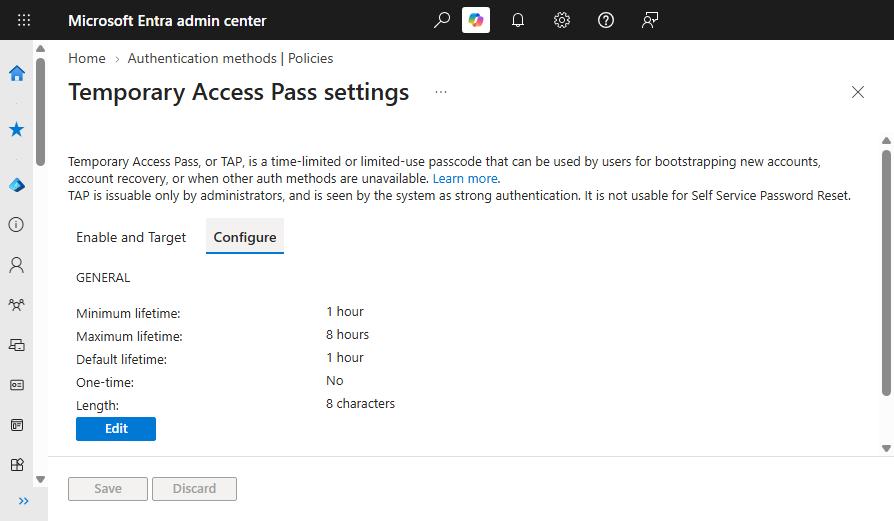
Tip: single use is safer, because a stolen pass can’t be replayed. Learn’s Zero Trust guidance recommends it. The catch is Windows device setup, covered in step 5.
How to set up a Temporary Access Pass and custom banned passwords in 7 steps
Step 1: Enable the Temporary Access Pass policy
- Sign in to the Microsoft Entra admin centre as at least an Authentication Policy Administrator.
- Go to Entra ID > Authentication methods > Policies.
- Select Temporary Access Pass.
- Switch Enable on, then under Include choose Select groups and add a group such as TAP-Users.
- Select Save.

You can create a pass for anyone, but only users in scope of this policy can sign in with it. If a user swears blind the TAP prompt never appeared, this is the first place to look.
Step 2: Configure lifetime, length and one-time use
On the same page, open the Configure tab and select Edit. Set your minimum, maximum and default lifetime, decide on one-time use, set the length, then select Update and Save.
For most organisations I would leave one-time use off at the policy level and choose it per pass. That keeps the multi-use option for Windows device setup without making every recovery pass reusable.
Step 3: Create a Temporary Access Pass for a user
- Sign in as at least an Authentication Administrator.
- Go to Entra ID > Users and select the user.
- Select Authentication methods, then Add authentication method.
- Choose Temporary Access Pass, set the activation time, duration and one-time use, then select Add.
- Copy the pass and select OK.
Gotcha: you only see the code once. Close the pane without copying it and it is gone for good, so you will be creating another one while the new starter watches you pretend that was intentional.
Each user can only have one TAP. Creating a new one replaces the existing pass, whether or not it has expired.
Step 4: Create a Temporary Access Pass with PowerShell
For bulk onboarding, or for a helpdesk script, use the Microsoft Graph PowerShell SDK. The account running it still needs the Authentication Administrator role (or Privileged Authentication Administrator for admin accounts).
# Connect with a scope that allows TAP management
Connect-MgGraph -Scopes "UserAuthMethod-TAP.ReadWrite.All"

$userId = "new.starter@contoso.com"

# One-hour, single-use pass
$params = @{
    isUsableOnce      = $true
    lifetimeInMinutes = 60
}

$tap = New-MgUserAuthenticationTemporaryAccessPassMethod -UserId $userId -BodyParameter $params
$tap.TemporaryAccessPass
Add a startDateTime value to the hashtable if the pass should only become valid on the person’s first morning. To check or remove a pass later:
# Check the current pass (the code itself isn't returned)
Get-MgUserAuthenticationTemporaryAccessPassMethod -UserId $userId |
    Select-Object CreatedDateTime, StartDateTime, LifetimeInMinutes, IsUsableOnce, IsUsable, MethodUsabilityReason

# Remove it once the user has registered a proper method
$existing = Get-MgUserAuthenticationTemporaryAccessPassMethod -UserId $userId
Remove-MgUserAuthenticationTemporaryAccessPassMethod -UserId $userId -TemporaryAccessPassAuthenticationMethodId $existing.Id
Good to know: a MethodUsabilityReason of NotYetValid simply means the start time is in the future. It is not broken, it is just early, like the new starter who arrives at 7:30am.
Step 5: Hand over the pass and register a passkey
Give the pass over a channel that is separate from the username: in person, by phone, or through the line manager. Plain-text email to a personal address is how this all goes wrong.
The user then goes to Security info, enters their UPN and is prompted for the Temporary Access Pass. From there they add a passkey, Microsoft Authenticator or a FIDO2 security key. They can also add their work account in Authenticator directly and sign in with the TAP to register a passkey or phone sign-in from the app.
For Windows, it depends on how the device is joined:
| Scenario | How the TAP works |
|---|---|
| Microsoft Entra join during setup | User signs in with the TAP, joins the device and registers Windows Hello for Business, no password needed |
| Already Microsoft Entra joined | User signs in with another method first, then uses the TAP to set up Windows Hello for Business |
| Microsoft Entra hybrid joined | User signs in with another method first, then uses the TAP for Windows Hello for Business |
| Web sign-in enabled | User can sign in to Windows with the TAP, meant for first setup or recovery only |
Single-use passes have a timing catch. Registration of a new method must finish within 10 minutes of the TAP sign-in, so a slow Autopilot build can run past it. Either issue a second single-use pass, or use one multi-use pass with a short lifetime and keep an eye on the sign-in logs.
Step 6: Turn on the custom banned password list
- Sign in as at least an Authentication Policy Administrator.
- Go to Entra ID > Authentication methods > Password protection.
- Set Enforce custom list to Yes.
- Add your terms to Custom banned password list, one per line.
- Select Save.

The rules for the list are short:
- Up to 1,000 terms. It is not designed for importing a breach dump.
- Each term must be between 4 and 16 characters.
- It is case-insensitive and already handles common substitutions such as 0 for o and @ for a.
- Changes can take several hours to apply, so don’t test it straight after saving and declare it broken.
Add base terms, not variations. Brand names, product names, your town, internal project names and the local football team are all good candidates. You don’t need “Burnley1”, “Burnley2026” and “B@rnley!” because the algorithm handles those for you.
Step 7: Extend password protection to on-premises Active Directory
If you still have domain controllers, the same global and custom lists can apply to on-premises password changes. You need two components from the Microsoft Download Center:
- The proxy service (AzureADPasswordProtectionProxySetup.exe) on a domain-joined member server. Microsoft recommends at least two per forest, and it must not share a server with the Microsoft Entra application proxy connector.
- The DC agent (AzureADPasswordProtectionDCAgentSetup.msi) on every domain controller. Installing it needs a reboot, because password filter DLLs only load at startup.
After installing the proxy, register it and the forest from an elevated 64-bit PowerShell session:
Import-Module AzureADPasswordProtection

# Register the proxy and the forest (interactive sign-in, supports MFA)
Register-AzureADPasswordProtectionProxy -AccountUpn "admin@contoso.onmicrosoft.com"
Register-AzureADPasswordProtectionForest -AccountUpn "admin@contoso.onmicrosoft.com"

# Check everything is talking to Microsoft Entra ID
Test-AzureADPasswordProtectionProxyHealth -TestAll
Then, back on the Password protection page, set Enable password protection on Windows Server Active Directory to Yes and leave Mode on Audit. Run in audit for a few weeks, read the DC agent event logs, and only then switch to Enforced.
Gotcha: install the DC agent on every domain controller. Windows clients choose which DC handles a password change, so a partial rollout means some changes are checked and others are not. Fine for a test, useless as a control.
How the banned password check actually works
The banned list is cleverer than a simple lookup, and knowing how it scores passwords saves you stuffing it with variations.
- Normalisation. The password is lowercased, then common substitutions are reversed, so “Bl@nK” becomes “blank”.
- Fuzzy matching. Anything within an edit distance of one from a banned term counts as a match, so one changed, added or removed character won’t sneak past.
- Substring matching. The user’s first name, last name and the tenant name are checked if they are at least four characters long. On-premises DCs skip the tenant name check.
- Scoring. Each banned term found scores one point, and every other character scores one point. The password needs at least five points to pass.
Example scenario: imagine a firm in Burnley that adds “burnley” and “clarets” to its custom list. “Burnley1” normalises to “burnley1”, scores two points and is rejected. “Clarets2026!” scores one point for “clarets” plus five for the rest, so it squeaks through on six. By design, which is why the list works best alongside MFA.
Where SSPR and My Staff fit in
Self-service password reset (SSPR) is where the banned list earns its keep. Every reset or change through Microsoft Entra ID is checked against the combined global and custom lists, so the weak choice gets blocked at the moment it is made.
One thing a Temporary Access Pass can’t do is help with SSPR itself. The TAP policy page in the portal says the pass isn’t usable for self-service password reset, so treat them as separate tools.
My Staff lets a team leader or store manager help their own people, scoped through administrative units. According to Learn, managers with the right role can reset passwords, add or change phone numbers and manage QR code authentication for frontline workers.
Learn’s My Staff documentation doesn’t list issuing a TAP, so I’ve removed that claim from the older version of this guide. Managers who need a pass for someone still use the Entra admin centre or Graph, with the Authentication Administrator role scoped to their administrative unit.
Prove your Temporary Access Pass setup worked
- Sign in as a test user at Security info, enter the TAP and register a passkey. If the TAP prompt doesn’t appear, check the user is in the policy group and give replication a few minutes.
- Run Get-MgUserAuthenticationTemporaryAccessPassMethod and confirm IsUsable is false after a single-use pass has been used.
- In Entra ID > Monitoring & health > Audit logs, filter the Service to Authentication Methods to see admin activity such as Admin registered security info.
- As a test user, go to My Apps, open your profile and select Change password, then try a variation of a banned term. You should see an error saying the password contains blocked words.
- On a DC, check Applications and Services Logs > Microsoft > AzureADPasswordProtection > DCAgent > Admin for validation events.
If a user can’t sign in for reasons you can’t see, the Entra Sign-in Diagnostic is quicker than guessing.
Temporary Access Pass gotchas
Registration interrupt mode. Users in scope of the SSPR registration policy or the ID Protection MFA registration policy get pushed into interrupt mode after a TAP sign-in in a browser. That mode doesn’t support FIDO2 or phone sign-in registration, which is exactly what you wanted them to register.
Authentication strengths. A TAP counts towards the built-in MFA strength, but not passwordless or phishing-resistant. If your security info registration policy demands phishing-resistant MFA, use a custom authentication strength that includes TAP, or new starters can never register anything.
Sessions outlive the pass. Tokens issued during a TAP sign-in are capped at the TAP expiry, but an expired pass doesn’t end sessions already established. Use a sign-in frequency control if that worries you.
NPS and AD FS. A TAP can’t be used with the NPS extension or the AD FS adapter.
External guests. Only internal guests can be given a TAP. Try it on a B2B guest and the portal tells you no.
Old methods. After a recovery, remove the lost phone or key from the user’s methods. Otherwise whoever finds it in the canal has a head start.
Should you use a Temporary Access Pass?
Yes. If you are rolling out passkeys or Windows Hello for Business, a Temporary Access Pass is the cleanest way to get people from nothing to phishing-resistant without a password in the middle. It also turns “I’ve lost my phone” from a half-day saga into a ten-minute job.
Turn on the custom banned password list as well if you have P1. It takes five minutes, costs nothing extra, and it is a lot easier than explaining to the head teacher why the school’s name followed by 123 was everyone’s password.
If you only do three things today: scope TAP to a group, keep lifetimes short, and add your organisation’s name to the banned list. Then have a cup of tea.
Temporary Access Pass FAQs
What is a Temporary Access Pass in Microsoft Entra ID?
A Temporary Access Pass is a time-limited passcode an admin issues so a user can sign in and register strong methods such as passkeys or Windows Hello for Business, or recover after losing a device.
How long can a Temporary Access Pass last?
Between 10 minutes and 30 days (43,200 minutes). The default lifetime is one hour, and each pass must fall within the minimum and maximum set in your tenant policy.
Who can create a Temporary Access Pass?
Authentication Administrators can create one for standard users, and Privileged Authentication Administrators for admins and standard users. Neither can create one for themselves.
Is a Temporary Access Pass phishing-resistant?
No. It counts towards the built-in MFA authentication strength, but not passwordless or phishing-resistant MFA. Use it to register a phishing-resistant method, then let it expire.
Can managers issue a Temporary Access Pass from My Staff?
Learn’s My Staff documentation covers password resets, phone numbers and QR code authentication, but not TAP. Create passes in the Microsoft Entra admin centre or with Microsoft Graph.
Do custom banned passwords need a licence?
Yes. The custom banned password list needs Microsoft Entra ID P1 or P2. The global banned password list is free for cloud-only users.
Further reading
- Configure Temporary Access Pass to register passwordless authentication methods (Microsoft Learn)
- Eliminate bad passwords using Microsoft Entra Password Protection (Microsoft Learn)
- Tutorial: Configure custom banned passwords (Microsoft Learn)
- Plan and deploy on-premises Microsoft Entra Password Protection (Microsoft Learn)
- Conditional Access authentication strengths (Microsoft Learn)
- Entra ID phishing-resistant MFA: a staged rollout
- Microsoft Entra Lifecycle Workflows for onboarding
- Break glass accounts in Microsoft 365
Found this useful? Buy me a coffee, and if you handle subject access requests, have a look at Redact Ninja for redacting PDFs without sending files to a server.
Tags: Entra ID
[…] five minutes before they can register a passkey. For new starters, or anyone stuck on SMS, issue a Temporary Access Pass and let them register a passkey straight away. It beats talking someone through it on the phone […]