Microsoft Entra Sign-in Diagnostic tool stop Hunting Sign-in Logs Manually
Someone can’t sign in. Your phone pings, you open the Microsoft Entra admin centre, navigate to sign-in logs, set the user filter, scroll through a wall of events, click into a failed entry, try to decode the failure reason, then open a browser tab to look up the error code.
Sound familiar? I’ve been there more times than I care to admit.
There’s a tool built directly into Microsoft Entra ID that does most of that work for you. It analyses the sign-in event, tells you exactly what happened, names the Conditional Access policy that blocked it, identifies whether MFA failed and why, and gives you recommended actions, all from a single screen.
Most admins have never opened it.
Never miss an article — subscribe here, and don’t forget the YouTube channel, Control Alt Delete Tech Bits.
That tool is the Sign-in Diagnostic, and if you’re still trawling through raw sign-in logs every time a user gets blocked, this article is for you.
Why the Sign-in Logs Alone Aren’t Enough
The sign-in logs in Microsoft Entra ID are powerful, but they’re built for breadth. You get the raw event data, who signed in, from where, with what client, and what the outcome was. If you know exactly what you’re looking for, they’re great. If you’re trying to diagnose a user who just got blocked and can’t describe the error clearly, they can be a rabbit hole.
Consider a real scenario. A user calls to say they can’t access Microsoft Teams. You pull the logs. There are forty sign-in events in the last hour, some successful, some failed, some non-interactive service tokens that are completely irrelevant. You click into the failed one. The failure reason says AADSTS53003 - Access has been blocked by Conditional Access policies. You now know it’s a Conditional Access block, but not which policy caused it, whether there’s an easy fix, or whether the user needs something changing on their account.
The Sign-in Diagnostic takes that same event and does the analysis for you. It names the policy, explains what condition triggered it, and tells you what to do next.
This site and my YouTube channel are supported by Tech-Source.
Tech-Source is a UK-based technology supplier that works closely with IT teams across education, public sector, and commercial environments. They provide hardware, licensing, and infrastructure solutions, with a strong focus on practical advice rather than upselling.
Their support helps keep this site running and allows me to continue publishing in-depth, admin-focused content and walkthroughs without paywalls.
You can find out more about what they do at https://tech-source.co.uk/
What the Sign-in Diagnostic Actually Does
The Sign-in Diagnostic is a guided troubleshooting tool built into the Microsoft Entra admin centre. It analyses sign-in events, including flagged sign-ins raised by users themselves and surfaces a plain-language summary of what happened during the authentication attempt.
It covers the scenarios you’ll encounter most often in day-to-day support:
- Sign-ins blocked or interrupted by Conditional Access
- MFA failures, including per-user MFA vs Conditional Access MFA
- MFA “proofup” where a user hasn’t completed MFA registration
- Account lockout from repeated failed attempts
- Invalid credentials, and whether it’s a user error or a cached password in an app
- Legacy authentication blocks
- Risk-based Conditional Access blocks from Identity Protection
- Pass-through authentication failures in hybrid environments
- Enterprise app configuration issues, on both the Entra ID side and the service provider side
- Successful sign-ins that should have been interrupted, which is just as important to know
That last point deserves a moment. If a user is signing in without hitting your MFA policy, the Sign-in Diagnostic will flag that too. It’s not just a reactive tool, it can confirm whether your policies are actually applying the way you expect.
The Three Ways to Access It
There are three entry points, and each suits a different situation.
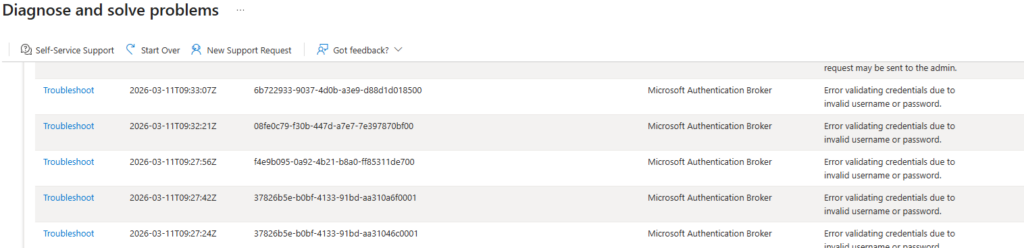
Method 1 Diagnose and Solve Problems
This is the most flexible entry point. You search for any user’s sign-in event by providing details manually. Use this when you’re starting an investigation without a specific event already in front of you.
- Sign in to
https://entra.microsoft.comas at least a Global Reader. - Select Diagnose & solve problems from the top of the left-hand navigation.
- Find the Sign-in Diagnostic tile and select Troubleshoot.
- Select the All Sign-In Events tab.
- Enter the details you have — the user’s name or email address, the application, and a date and time window. If the user has a Correlation ID from the error screen they saw, paste it here. The more you provide, the more precise the results.
- Select Next and review the results.

Method 2 From the Sign-in Logs
If you’re already in the sign-in logs and you’ve spotted the failed event, this is the fastest path. It launches the diagnostic directly against the event you’ve selected, no searching required.
- Sign in to
https://entra.microsoft.comas at least a Reports Reader. - Navigate to Entra ID > Monitoring & health > Sign-in logs.
- Filter by user or application and locate the failed sign-in event.
- Select the event to open the Activity Details panel.
- On the Basic info tab, select Launch the Sign-in Diagnostic.
Method 3 From a Support Request
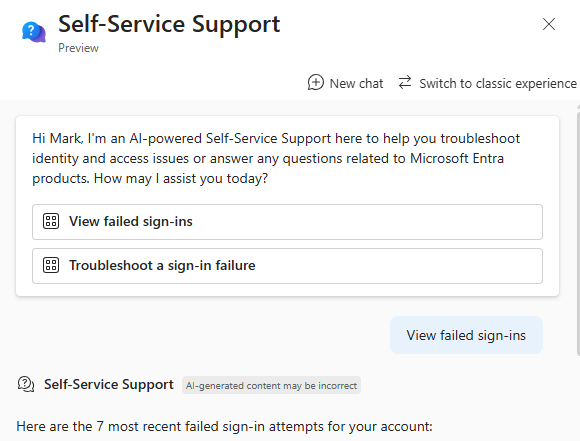
If you’re opening a Microsoft support ticket for a sign-in issue, the portal will prompt you to run the diagnostic automatically. Select Microsoft Entra Sign-in and multifactor authentication as the service type when raising the ticket. It’s worth running this before the ticket progresses,it resolves a large proportion of issues before they ever need escalating.
Reading the Results
Once the diagnostic runs, you get two key sections.
The Authentication summary lists all sign-in events that matched your search. If the user made multiple attempts, they all appear here. You can customise the columns displayed using View Columns in the upper-right corner.
The Diagnostic results section is where the value is. This is the plain-language explanation of what happened. It names the Conditional Access policy that blocked the sign-in, identifies the specific condition that triggered it, device compliance, location, MFA requirement, and tells you what to do next. Where relevant, it links directly to the troubleshooting documentation for that exact scenario.
In most cases, you’ll have your answer in under a minute. The failure reason, the policy at fault, and the recommended fix are on one screen.
Roles, Licensing, and What You Need
The minimum role required depends on how you access the tool. Global Reader is sufficient to access Diagnose and Solve Problems. To launch the diagnostic from the sign-in logs directly, you also need the Reports Reader role. Both roles are appropriate for helpdesk or support staff who need to investigate sign-in issues without broader administrative permissions.
The Sign-in Diagnostic is available on all Microsoft Entra ID licence tiers, you don’t need P2. Bear in mind that sign-in log retention is 7 days on the free tier and 30 days on P1/P2, so the tool can only analyse events within the available retention window. If you’re on the free tier and investigating something that happened more than a week ago, the data won’t be there.
Flagged Sign-ins: Let Your Users Help You
Microsoft Entra ID allows users to flag a sign-in event as unusual during their own authentication experience. When they do, the flagged event surfaces automatically inside the Sign-in Diagnostic under Diagnose and Solve Problems, you don’t need to search for it.
This is worth telling your users about. If someone gets an unexpected MFA prompt or sees an authentication they don’t recognise, having them flag it in the moment gives you a precise event to investigate immediately, no correlation ID hunting, no trawling through time windows trying to find the right entry.
It also has a security dimension. A user flagging an unexpected sign-in is an early indicator of a potential account compromise. The diagnostic gives you the details. Identity Protection handles the risk scoring. These tools work together.
If your investigation reveals that sessions are persisting far longer than they should, the article on Conditional Access Session Controls covers exactly how to tighten that up, including the sign-in frequency and persistent browser session controls that most admins leave at their defaults.
The Sign-in Diagnostic is one of those tools that pays back the five minutes it takes to learn immediately. Most sign-in issues your helpdesk deals with, Conditional Access blocks, MFA failures, account lockouts, legacy auth attempts are all covered, and the results tell you not just what happened but what to do about it.
Stop decoding AADSTS error codes manually. Stop reading raw sign-in logs, hoping the failure reason is specific enough to act on. The tool is already there, built into the admin centre. Use it.
What’s the minimum role needed to use the Sign-in Diagnostic?
It depends on how you access it. From Diagnose and Solve Problems, the minimum role is Global Reader. If you launch it directly from the sign-in logs, you also need the Reports Reader role. Both are appropriate for support staff investigating sign-in issues without needing wider admin access.
Do I need Microsoft Entra ID P2 to use the Sign-in Diagnostic?
No. The Sign-in Diagnostic is available on all Microsoft Entra ID licence tiers, including free. Keep in mind that sign-in log retention is 7 days on the free tier and 30 days on P1/P2. The diagnostic can only work with events that are still within the retention window
Can the Sign-in Diagnostic tell me which Conditional Access policy blocked a sign-in?
Yes it can, this is one of its most useful capabilities. The diagnostic results name the specific policy that blocked or interrupted the sign-in, and explain which condition triggered it, whether that’s device compliance, location, MFA requirement, or something else.
What’s the difference between launching from Diagnose and Solve Problems versus from the sign-in logs?
From Diagnose and Solve Problems, you search for the event by entering user, application, and time details. From the sign-in logs, you select a specific event first and launch the diagnostic directly against it, no searching required. If you’ve already found the failed event in the logs, launching from there is faster. If you’re starting an investigation without a specific event, use Diagnose and Solve Problems.
What are flagged sign-ins and how do they help with troubleshooting?
Microsoft Entra ID lets users flag a sign-in event as unusual during their own authentication experience. Flagged events appear automatically in the Sign-in Diagnostic without you needing to search for them. If you train users to flag unexpected prompts, you get a precise event to investigate immediately and an early signal of potential account compromise.
Can the Sign-in Diagnostic identify sign-ins that should have been blocked but weren’t?
Yes. As well as explaining why a sign-in failed, the diagnostic can surface successful sign-ins that should have been interrupted by Conditional Access or MFA but weren’t. This makes it a useful audit tool as well as a reactive troubleshooting one, particularly useful if you suspect gaps in your Conditional Access coverage
Tags: Entra ID