Microsoft Entra PIM Secure Admin Access Without Standing Privileges
Microsoft Entra PIM is one of those controls most admins know they should use, but many tenants still leave too much privilege permanently assigned.
That is the bit that causes the damage.
A user does not need to be a Global Administrator all day because they occasionally reset Conditional Access, approve an enterprise app, update Intune settings or check a risky sign-in. They need access for a task, for a short period, with enough friction to prove it is really them.
That is where Privileged Identity Management comes in.
Microsoft Entra PIM changes the question from:
“Who is an admin?”
To:
“Who is allowed to become an admin, when do they need it, how do they prove who they are, who approves it, and when does the access end?”
That is a healthier way to run Microsoft 365 and Entra administration in 2026, especially with phishing-resistant authentication, Conditional Access authentication contexts, PIM for Groups and access reviews now sitting around the same control set.
Never miss an article and subscribe, and don’t forget to check out my YouTube channel, Control Alt Delete Tech Bits
Like the article? Feel free to buy me a coffee
Also check out my redact app, Redact PDFs and images, review email evidence and manage subject access requests without sending source files to a processing server.: https://redactninja.com
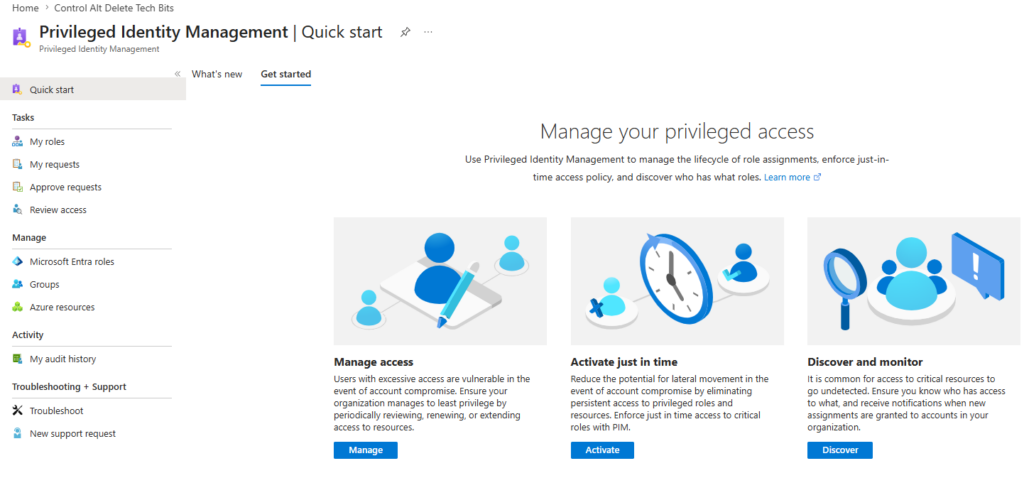
Microsoft Entra PIM gives you just-in-time, time-bound, approval-led access to Microsoft Entra roles, Azure resource roles and privileged groups.
Configure role settings before assigning users. If you assign people first and fix the settings later, you turn a security task into a people problem.
Use Conditional Access authentication contexts for role activation, especially for privileged roles such as Global Administrator, Privileged Role Administrator, Conditional Access Administrator and Security Administrator.
Do not treat the authentication context as a full admin-session cage. It protects the activation event. If you also want controls to apply after activation, create Conditional Access policies scoped to the directory role.
Keep emergency access accounts separate from daily admin work. They should be cloud-only, monitored, tested and protected carefully, not used as normal admin accounts.
Finish the job with PIM access reviews. Eligible assignments still pile up if nobody reviews them.
PIM has been around for years
So it is easy to file it under “we’ll get to that later”. That is risky now.
Most tenants have spent the last few years tightening Conditional Access, moving away from older MFA and SSPR configuration, pushing users towards stronger authentication methods and trying to reduce the blast radius of compromised accounts. At the same time, admin roles have often stayed exactly where they were: permanently assigned to too many people.
That gap matters.
If an account has permanent admin access, the attacker does not need to wait for an activation workflow. They inherit whatever the user already has. MFA helps, but it should not be the only thing standing between a compromised account and your tenant-wide controls.
Microsoft Entra PIM adds another layer. A user can be eligible for a role without holding it all day. When they need the role, they activate it, prove who they are, provide a reason, wait for approval where required, then lose the role again when the activation window ends.
The second reason PIM matters is the growth of non-human access. AI agents, app registrations, service principals, automation accounts and workload identities all increase the amount of privileged activity administrators need to govern. Even when PIM is mainly used for human admins, it helps create the operating model: time-bound access, clear ownership, logged activity and regular review.
The third reason is Conditional Access. PIM role activation can now be tied to a Conditional Access authentication context. That means you can require a stronger control at the point of elevation, such as phishing-resistant MFA.
For high-impact roles, that is exactly where the challenge should happen.
This site and my YouTube channel are supported by Tech-Source.
Tech-Source is a UK-based technology supplier that works closely with IT teams across education, public sector, and commercial environments. They provide hardware, licensing, and infrastructure solutions, with a strong focus on practical advice rather than upselling.
Their support helps keep this site running and allows me to continue publishing in-depth, admin-focused content and walkthroughs without paywalls.
You can find out more about what they do at https://tech-source.co.uk/
The five PIM concepts to understand first
PIM has a small vocabulary, but it trips people up if they rush through it.
Eligible means the user can activate the role when they need it. They do not hold the role all day.
Active means the user has the role now and can use the permissions without going through activation first.
Permanent means the assignment has no end date.
Time-bound means the assignment has a start and end date.
Activate means turning an eligible assignment into an active one, usually with authentication, justification, approval or ticket information depending on the role settings.
Those terms combine into four common assignment shapes:
Permanent eligible: the user can activate the role whenever they need it, subject to the configured activation controls.
Permanent active: the user always has the role. This should be rare and heavily justified.
Time-bound eligible: the user can activate the role during a fixed date range.
Time-bound active: the user has the role during a fixed date range without needing activation.
In a healthier tenant, normal admins are eligible rather than permanently active. Your emergency access accounts are the exception, not the pattern.

Where PIM applies
PIM is not only for Global Administrator.
It works across three useful areas.
The first is Microsoft Entra roles. These are directory roles such as Global Administrator, Privileged Role Administrator, Conditional Access Administrator, Security Administrator, Exchange Administrator, SharePoint Administrator, Intune Administrator and Global Reader.
The second is Azure resource roles. These are Azure RBAC roles applied to subscriptions, resource groups and resources.
The third is PIM for Groups. This is often the bit that gets missed. It lets you bring Microsoft Entra security groups and Microsoft 365 groups under PIM management, so users activate membership or ownership when they need it.
That opens the door to a cleaner model for Intune administration, Azure Key Vault access, app access, third-party SCIM-provisioned apps and project-based administrative groups.
Licensing and readiness check
Before you build the configuration, check licensing properly.
For PIM, plan for Microsoft Entra ID P2 or Microsoft Entra ID Governance licensing for the users who receive privileged assignments, users who approve or reject activation requests, and users involved in PIM access reviews.
Microsoft 365 E5 includes Microsoft Entra ID P2. Microsoft 365 E3 usually gives you Microsoft Entra ID P1, so you may need an add-on. In education tenants, Microsoft 365 A5 is the stronger fit for P2 capabilities, while A3 tenants should check whether Entra ID P2 or Entra ID Governance has been added.
Do not guess this from the product name. Check the tenant.
A simple readiness list looks like this:
Confirm the licensing position for every admin, approver and reviewer.
Create two or more cloud-only emergency access accounts.
Inventory existing permanent admin assignments.
Decide which roles need approval and which can be self-activated.
Decide your authentication strength for privileged role activation.
Create a Conditional Access authentication context for privileged activation.
Identify at least two approvers for each sensitive role.
Decide where PIM notifications should land.
Agree the first access review schedule before you start assigning users.
Emergency access accounts are not normal admin accounts
Break-glass, or emergency access, accounts need special treatment.
You should have two or more cloud-only emergency access accounts with permanent active Global Administrator assignment. They exist for tenant recovery, not daily administration.
Do not put these accounts through the same workflow as your normal administrators. If your Conditional Access policy requires a compliant device, named network location, passkey, authentication context or PIM activation, and that same control fails during an outage, your recovery account can become useless.
At the same time, do not treat emergency access accounts as a blind spot.
The safer pattern is:
Use cloud-only accounts that are not synchronised from on-premises Active Directory.
Keep them separate from named personal admin accounts.
Protect them with strong authentication where practical.
Store credentials securely and offline where required.
Exclude them only from the policies that could block emergency sign-in.
Monitor all sign-ins and failed sign-ins.
Test them on a schedule.
Document exactly why each Conditional Access exclusion exists.
The mistake is not having exclusions. The mistake is excluding them from everything, never testing them, and never watching them.
Configure role settings before assigning people
This is the step that saves pain later.
Open the Microsoft Entra admin centre and go to:
Identity governance > Privileged Identity Management > Microsoft Entra roles > Roles
Select the role you want to configure, then open Role settings.

For a sensitive role such as Global Administrator, I would start with this baseline:
Set the activation maximum duration to 2 hours rather than leaving it at a full working day.
Require a Microsoft Entra Conditional Access authentication context on activation.
Require justification on activation.
Require ticket information if your service desk can issue ticket references quickly enough.
Require approval to activate.
Use approvers who are not the requester.
Avoid permanent eligible assignment unless there is a clear operational reason.
Avoid permanent active assignment except for emergency access accounts.
Send notifications to a monitored mailbox or channel, not an inbox nobody reads.
That does not mean every role needs the same strict configuration. Global Reader, Helpdesk Administrator and Teams Administrator may not need the same approval pattern as Global Administrator or Privileged Role Administrator.
The point is to decide the settings role by role, based on impact.
Conditional Access on PIM role activation
This is one of the best improvements to PIM administration.
PIM used to rely heavily on its own activation controls. You can now bind role activation to a Conditional Access authentication context. In plain English, you create a context for privileged activation, then build a Conditional Access policy that applies when that context is requested.
That lets you say:
“When someone activates this privileged role, require phishing-resistant MFA.”
For high-impact roles, I would use a phishing-resistant authentication strength. That usually means passkeys, FIDO2 security keys, Windows Hello for Business or certificate-based authentication, depending on what your tenant supports and what you have rolled out.
The basic flow is:
Go to Protection > Conditional Access > Authentication contexts.
Create a context such as c1 – Privileged role activation.
Create a Conditional Access policy that targets that authentication context.
Under Grant, require an authentication strength such as phishing-resistant MFA.
Under Session, consider Sign-in frequency: Every time for the highest-risk roles.
Return to PIM role settings.
Under On activation, require the Microsoft Entra Conditional Access authentication context.
Select your privileged activation context.
Test with a non-emergency account before applying it to Global Administrator.
There is a caveat that admins need to understand.
The authentication context protects the activation event. It does not automatically control every action the user performs afterwards from every browser, device or session. If you want controls to apply after the role has been activated, create a second Conditional Access policy that targets the directory role itself.
That is the difference between protecting elevation and protecting admin activity after elevation.
For example, you might use the authentication context to force phishing-resistant MFA when activating Global Administrator, then use a separate Conditional Access policy scoped to Global Administrator to require a compliant device or trusted location for admin portals.
Do not skip the testing here. A policy that looks sensible on paper can create a bad day if it blocks the only person who can fix it.
PIM for Groups is the underused win
Many tenants start and stop with Microsoft Entra roles. That is useful, but it leaves a lot of privilege unmanaged.
PIM for Groups lets you make group membership or ownership eligible. A user does not sit in the group all day. They activate membership when they need it, then drop out again when the activation expires.
That is useful in real admin work.
For Intune, you can front a privileged Intune role or scope-tagged admin model with a group. Service desk staff activate the group before performing sensitive tasks such as device wipes.
For Azure Key Vault, you can use a group for access to production secrets. Developers activate access when they have a change ticket, then lose it again after the window ends.
For SharePoint, you can manage a site collection administrator group through PIM, so project-based admin access is not left hanging around forever.
For third-party applications, you can use group membership for app assignment or SCIM provisioning, then make that membership time-bound through PIM.
There are two gotchas worth calling out.
If you want to assign a Microsoft Entra role through a group, the group must be created as a role-assignable group. You cannot take an old security group and convert it afterwards.
For automation and non-human identities, do not assume the same eligible activation pattern you use for human admins. Check the current support for the identity type you are assigning, keep assignments time-bound where supported, and log every change.
Approvals need more thought than people expect
Approval looks simple until the first request sits untouched.
A few practical rules help.
Use at least two named approvers for each sensitive role. One approver is a single point of failure.
Do not rely on the requester’s manager unless managers understand what the role does.
Do not let approvers approve their own activation. The platform blocks self-approval, but your process should also make it clear.
Make sure approvers know where requests arrive and what good justification looks like.
For high-volume teams, route approval notifications into a place people actually check. A shared mailbox can work. A Teams channel fed by mailbox notifications can work even better, as long as ownership is clear.
Approvals should not become theatre. If every request is approved without reading the reason, you have added delay without adding control.
Close the loop with PIM access reviews
PIM reduces standing access, but it does not magically clean up eligibility.
A user can be eligible for Global Reader because of a migration that ended three months ago. Another admin can be eligible for Security Administrator because they covered annual leave. Someone else can stay eligible for Intune Administrator because nobody wanted to remove it just in case.
That is how privileged access creeps back in.
Use PIM access reviews to check whether eligible and active assignments are still required.
A practical review schedule could be:
Monthly for Global Administrator, Privileged Role Administrator, Conditional Access Administrator, Security Administrator and Billing Administrator.
Quarterly for other roles ending in Administrator.
Every six months for lower-risk reader roles, unless your organisation has a stricter review policy.
For reviewers, use the resource owner, role owner, manager or selected reviewers depending on the role. Self-review can help as a first pass, but do not rely on it for the most sensitive roles without another layer.
Where suitable, auto-apply review results and remove access when reviewers do not respond. That may feel strict, but stale privileged access is worse than a user having to request access again.
A practical 10-step rollout plan
Start with discovery, not configuration.
- Export your current privileged role assignments from Microsoft Entra.
- Identify every permanent active assignment and ask whether it is still needed.
- Create or validate two or more cloud-only emergency access accounts.
- Confirm Microsoft Entra ID P2 or Microsoft Entra ID Governance licensing for admins, approvers and reviewers.
- Create your Conditional Access authentication context for privileged activation.
- Build the Conditional Access policy that backs the authentication context.
- Configure role settings for the five most sensitive roles first.
- Convert a small group of friendly admins from permanent active to eligible.
- Pilot the process for a week and measure the friction.
- Expand to PIM for Groups and set up recurring access reviews.
Do this one role at a time. Do not try to fix every privileged assignment in one afternoon.
Suggested first five roles
The first five roles I would usually bring under proper PIM control are:
Global Administrator
Privileged Role Administrator
Conditional Access Administrator
Security Administrator
Intune Administrator
Your tenant may be different. If you run heavy Exchange administration, Exchange Administrator may sit higher. If your main risk is app consent, Application Administrator and Cloud Application Administrator deserve early attention.
The order should follow risk, not alphabetic order.
Common mistakes to avoid
The first mistake is assigning users before configuring role settings. Get the settings right first.
The second is keeping the default activation duration for every role. A full working day of elevated access is rarely needed for the most sensitive roles.
The third is treating emergency access accounts as normal admins. They are for recovery, not daily work.
The fourth is using Conditional Access authentication contexts without understanding the scope. They protect activation. If you also need to control admin activity after activation, use separate Conditional Access policies scoped to the role.
The fifth is leaving PIM for Groups untouched. Some of your most useful privileged access reduction will come from group membership, not directory roles.
The sixth is forgetting access reviews. Eligibility still needs ownership.
The seventh is making approval too slow. If approval blocks normal work for hours, admins will push for permanent access again. PIM needs to be secure, but it also needs to be usable.
Microsoft Entra PIM is not just another checkbox in the admin centre. It is the control that helps you stop treating admin access as something people own forever.
A good PIM rollout gives admins the access they need, when they need it, with proof, approval and expiry wrapped around it. That is a much better model than leaving Global Administrator, Intune Administrator or Conditional Access Administrator permanently assigned because it feels easier.
Start with the most dangerous roles. Configure the role settings before assigning users. Use phishing-resistant authentication for activation. Keep emergency access separate. Bring privileged groups into scope. Then review the assignments regularly.
If your tenant still has a long list of permanent Global Administrator assignments, this is one of the best cleanup jobs you can do next.
You might also like this article Shadow AI in Microsoft 365 Detect and Block It
What is Microsoft Entra PIM?
Microsoft Entra PIM, or Privileged Identity Management, is a Microsoft Entra ID Governance capability that helps manage privileged access. It lets admins use just-in-time role activation instead of holding powerful roles permanently.
What is the difference between eligible and active in PIM?
Eligible means the user can activate the role when needed. Active means the user currently has the role and can use the permissions. The safer model is to keep normal admins eligible and require activation when they need to perform privileged work.
Does Microsoft Entra PIM require Microsoft Entra ID P2?
Yes, you should plan for Microsoft Entra ID P2 or Microsoft Entra ID Governance licensing for users with PIM assignments, approvers and reviewers. Microsoft 365 E5 includes Entra ID P2, while E3 and A3 tenants may need extra licensing depending on what has been purchased.
Should emergency access accounts be managed through PIM?
No. Emergency access accounts are there for recovery when normal controls fail. They usually need permanent active Global Administrator assignment, but they should be cloud-only, protected, monitored, tested and excluded only from the Conditional Access controls that could block emergency sign-in.
Can Conditional Access protect PIM role activation?
Yes. You can use a Conditional Access authentication context in PIM role settings, then create a Conditional Access policy that applies to that context. This is a good way to require phishing-resistant MFA when activating sensitive roles.
Does a Conditional Access authentication context protect everything after activation?
Not by itself. It protects the activation event. If you want to control what happens after the role is active, use a separate Conditional Access policy scoped to the directory role.
Should PIM activation require approval?
For sensitive roles, yes. Approval adds a second person to the elevation decision. For lower-risk roles, self-activation with justification and strong authentication may be enough.
How long should PIM activation last?
For highly privileged roles, 1 to 2 hours is usually a sensible starting point. Lower-risk roles may justify longer. Avoid giving every role an 8-hour window just because it is convenient.
How often should PIM access reviews run?
Run monthly reviews for the most sensitive roles, quarterly reviews for other administrator roles, and at least six-monthly reviews for lower-risk privileged access. The exact cadence should match your risk and compliance requirements.
Tags: Cybersecurity, Entra ID, Microsoft Entra
[…] You might also like this article […]