Shadow AI in Microsoft 365: Finding the AI Agent Dave Installed on Friday
Shadow AI is the AI agent nobody asked IT about, and the Shadow AI Microsoft 365 page is Microsoft’s first proper attempt at finding it on your devices.
Picture Dave from accounts. He installs a desktop AI agent on Friday, points it at his Documents folder, and by Monday it has read every spreadsheet he owns. Nobody approved it, nobody knows where the data went, and Dave thinks he has discovered fire.
The Shadow AI page in the Microsoft 365 admin centre is a Frontier preview. It uses Microsoft Defender for Endpoint to find unmanaged AI agents on Intune-managed Windows devices, and for OpenClaw it can push an Intune policy that blocks it.
This guide covers what you need, how detection and blocking work, how to prove the block landed, and the gotchas from my lab. Everything here is correct as of October 2026, which in preview terms is roughly a geological era.
Never miss a guide: subscribe here and check out my YouTube channel.
The short version (for anyone reading this while Dave’s agent reorganises the finance share)
- Shadow AI lives in the Microsoft 365 admin centre under Agents > Shadow AI, and it’s a Frontier preview.
- You need Microsoft 365 E5, Frontier opt-in, Defender for Endpoint on the devices and Intune-enrolled Windows devices.
- Detection covers seven agents, including ChatGPT Desktop, Claude Desktop, Ollama Desktop and OpenCode. Blocking covers OpenClaw only.
- Blocking creates an Intune policy called
A365 - Block OpenClaw, which takes 15 minutes to 8 hours to apply. - Developer tools like Claude Code and GitHub Copilot CLI sit on a separate Local agents page, which needs Microsoft 365 E3.
In this guide
What is shadow AI in Microsoft 365?
Shadow AI means consumer AI apps and standalone agents that people install without IT knowing or approving. It’s shadow IT’s younger sibling, except this one can read files, run commands and talk to the internet on its own.
The Shadow AI documentation on Microsoft Learn lists four risks: data leakage, compliance violations, security vulnerabilities and a lack of auditability. In plain English, sensitive data can leave through a tool you don’t manage, and you can’t prove what happened afterwards.
Local agents are the awkward bit. They run with the user’s own permissions, so anything Dave can open, his agent can open too.
Most people aren’t being malicious. They’re trying to clear their inbox before the school run, and the AI tool helps. That’s why this feature works best as visibility first and enforcement second.
Why shadow AI matters for schools, councils and everyone else
In education, healthcare, legal, finance and local government, this stops being a pure IT problem very quickly. An agent indexing pupil records, safeguarding notes or client files is a data protection conversation, and quite possibly a call to your DPO.
It overlaps heavily with insider risk. Most data loss comes from a well-meaning employee using the wrong tool, which I cover in my guide to insider threats in Office 365.
There’s also a cost to doing nothing. If an auditor asks which AI tools touched personal data last term, “no idea” is not an answer that ends the meeting early.
Shadow AI Microsoft 365 prerequisites and licensing
Here’s the prerequisite list from the Shadow AI page, with a note on what each piece does. Check all of it before you go hunting for the page, because a missing prerequisite usually means an empty or missing page rather than a helpful error.
| Requirement | Why you need it |
|---|---|
| Microsoft 365 E5 | Required to view Shadow AI agents |
| Frontier preview opt-in | Shadow AI is a Frontier feature |
| Microsoft Defender for Endpoint on devices | Does the detection itself |
| Microsoft Intune enrolment (Windows) | Needed to apply the blocking policy |
| Global Secure Access (optional) | Fills in traffic, users, most recent activity and last scanned |
| A supported admin role | See the role list below |
Supported roles are Security Administrator, AI Administrator, Global Reader, Security Reader, Security Operator, Reports Reader, User Experience Success Manager and Intune Administrator. Pick the least privileged one that does the job, even when you’re in a hurry.
Gotcha: the first version of this guide said Microsoft 365 E3, because that’s what the page said at the time. The Shadow AI page now names Microsoft 365 E5. E3 applies to the separate Local agents page, which I cover further down.
If you work in education, the Shadow AI page names Microsoft 365 E5 and doesn’t mention the Education A plans at all. Check in your own tenant before promising the head teacher anything.
On the Defender side, local AI agent discovery needs Defender for Endpoint Plan 2, which Microsoft 365 E5 includes. Devices must be onboarded, with Microsoft Defender Antivirus in active mode and real-time protection on. Sovereign and national clouds aren’t supported.
Global Secure Access needs its own licence: Microsoft Entra Internet Access, Microsoft Entra Suite or Microsoft 365 E7, according to the Local agents page. Frontier has a requirement too, as the Frontier getting started guide says joining needs a Microsoft Copilot licence.
Which AI agents can shadow AI Microsoft 365 detect and block?
The list has grown since May, when OpenClaw was the only agent on it. During the preview, the Shadow AI page supports these:
| Agent | Detection | Blocking |
|---|---|---|
| OpenClaw | Available | Available |
| ChatGPT Desktop | Available | Not available |
| Ollama Desktop | Available | Not available |
| Poe Desktop | Available | Not available |
| Claw/ZeroClaw | Available | Not available |
| OpenCode | Available | Not available |
| Claude Desktop | Available | Not available |
So you can see seven agents but only stop one of them from this page. For the other six, detection gives you evidence and a conversation starter, and you’ll need another control if you decide to block.
Good to know: blocking applies only to managed Windows devices enrolled in Intune. Personal devices, unmanaged laptops and the Mac in the design team that nobody admits to owning are all out of scope here.
Shadow AI vs Local agents: which page do you need?
There’s a second Frontier page that causes confusion, called Local agents. It covers developer tools that people install on purpose, like Claude Code, GitHub Copilot CLI, Cursor and VS Code extensions.
| Shadow AI | Local agents | |
|---|---|---|
| Licence | Microsoft 365 E5 | Microsoft 365 E3 |
| What it covers | Unmanaged consumer AI apps and agents | Developer CLIs, IDEs and extensions |
| Where to find it | Agents > Shadow AI | All agents > Local Agents (Frontier) |
| Blocking | OpenClaw only | Gemini CLI and six VS Code extensions |
| Devices | Intune-managed Windows | Intune-managed Windows |
The VS Code extensions you can block from Local agents are Claude Code, Cline, Codex, Gemini Code Assist, GitHub Copilot and Roo Code. If your developers live in VS Code, that page may matter more to you than Shadow AI does.
How to detect and block shadow AI in Microsoft 365 in 6 steps
Step 1: Check licences and pick your admin role
- In the Microsoft 365 admin centre, go to Billing > Licenses and confirm you have Microsoft 365 E5.
- Give your admin account one of the supported roles. For someone who only needs to look, Global Reader or Security Reader is plenty.
- If you want traffic data later, check you own a licence that covers Global Secure Access.
This is the boring step, and usually the reason someone can’t find the page. Five minutes here saves an afternoon of refreshing the admin centre and muttering.
Step 2: Onboard Windows devices to Defender for Endpoint
Detection comes from Defender rather than Intune, so devices that aren’t onboarded are invisible to Shadow AI. If you already deploy the onboarding package through Intune endpoint security, you’re most of the way there.
- Confirm your Windows devices appear in the Microsoft Defender portal device inventory.
- Make sure Microsoft Defender Antivirus runs in active mode with real-time protection on. Passive mode alongside another antivirus product won’t do.
- Keep Defender Antivirus on current monthly platform and engine updates.
There’s no extra agent or script to deploy. Once a device meets the prerequisites, discovery starts on its own. To check a device quickly, run this in PowerShell on it:
# Check Defender Antivirus mode and real-time protection
Get-MpComputerStatus |
    Select-Object AMRunningMode, RealTimeProtectionEnabled, AMProductVersion, AntivirusSignatureLastUpdated

# Check the Defender for Endpoint sensor service is running
Get-Service -Name Sense | Select-Object Name, Status, StartType
You want AMRunningMode to say Normal and RealTimeProtectionEnabled to say True. Anything else and Defender is sitting on the sidelines with its arms folded.
Step 3: Opt in to the Frontier preview
- In the Microsoft 365 admin centre, go to Copilot > Settings and select the View all tab.
- Search for Frontier and select Copilot Frontier.
- Choose All users or Specific users, then save.
Allow up to three hours for Frontier features to appear. That’s a cup of tea, or three if you’re doing it properly.
Tip: Frontier is a tenant-level preview programme. Start with a specific pilot group rather than handing every preview feature to the whole organisation on a Friday afternoon.
Step 4: Open the Shadow AI page
- Sign in to the Microsoft 365 admin centre.
- Select Agents > Shadow AI. If your navigation is trimmed, select Show all first.
- The Shadow AI (Frontier) page lists the known shadow AI agents that can be detected in your environment.
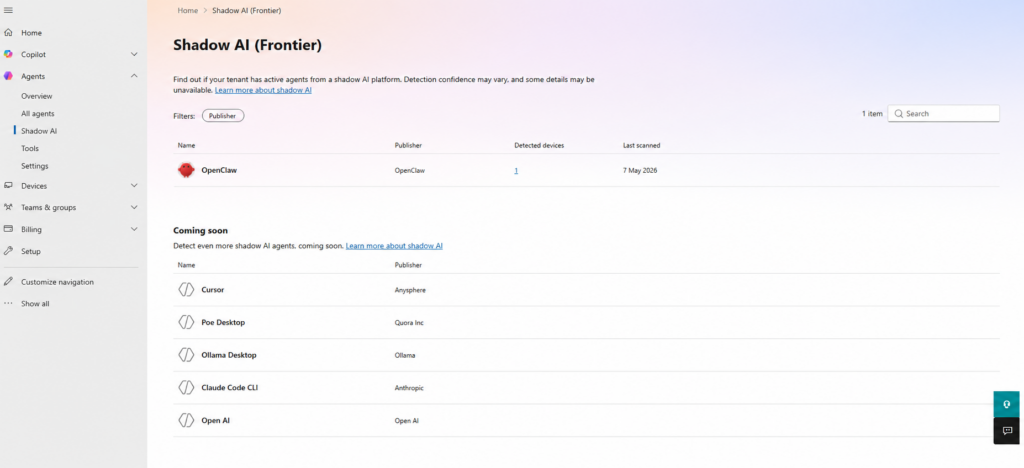
Select an agent to open its details pane. The Details tab shows first accessed, most recent activity and last scanned dates, device and user counts, a Security policies tile and a Total traffic tile.
Good to know: users, most recent activity, last scanned and the whole Total traffic tile only fill in when Global Secure Access is enabled (traffic forwarding tutorial). Without it, expect a few blank tiles next to your device count.
Step 5: Review the detected devices
Open the Detected devices tab. You’ll see the device name, model, operating system and when Defender last saw the agent, and you can search by device name.
This is the screen to take to your leadership team. It turns “people might be using AI tools” into “these laptops are running it”, which makes for a much shorter meeting.
Before you block anything, talk to the device owners. Some will have a genuine business reason, and the right answer may be an approved alternative rather than a ban.
For more depth, the Defender portal shows the same discovery data under Assets > AI agents > Local agents, including any MCP servers configured for each agent. Risk levels and recommendations there need Microsoft 365 E7 or Microsoft Agent 365.
Step 6: Block OpenClaw with Intune
Blocking happens from the same details pane, and it creates the Intune policy for you. You don’t build anything by hand first.
- In the OpenClaw details pane, select Security policies.
- Select Block, then Apply Policies.
- Shadow AI creates an Intune policy named
A365 - Block OpenClaw, which blocks common ways of running OpenClaw on managed Windows devices.
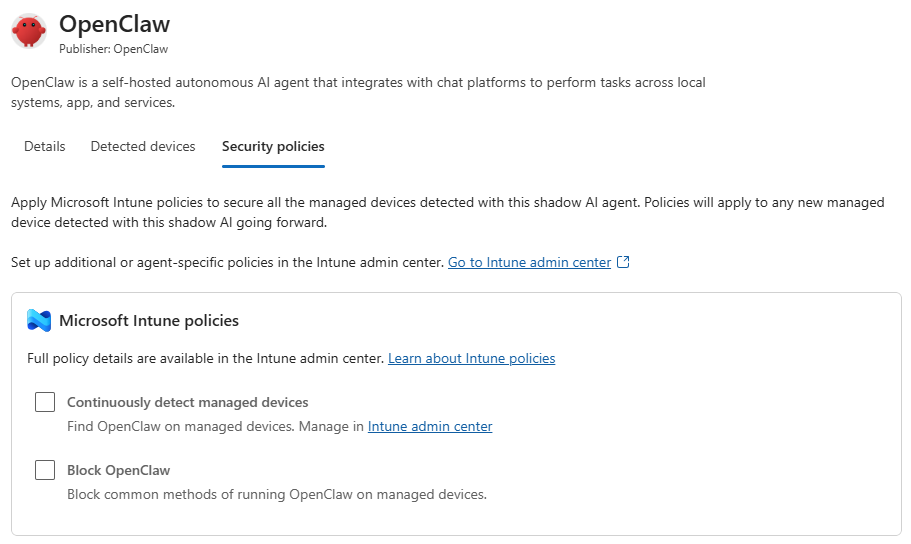
In my lab, the Security policies tab offered two options: Continuously detect managed devices and Block OpenClaw. The wording has shifted during the preview, so expect your screen to differ slightly.
Gotcha: the policy can take anywhere from 15 minutes to 8 hours to apply, depending on how Intune is configured. Don’t trigger the block at 4:55pm and promise it’s done before you leave.
You can edit the generated policy in Intune to add more controls. It’s now part of your Intune estate, so it belongs in your change log like everything else.
How to prove the shadow AI block worked
Trust, but verify. Preferably before the auditor asks.
Check the policy exists. In the Intune admin centre, go to Devices > Manage devices > Configuration > Policies and search for A365 - Block OpenClaw. Open it and review the device check-in status (monitoring device policies).
Check a device. Go to Devices > All devices, select a device that had OpenClaw, then Device configuration. The policy should show a successful status once the device has checked in.
Find devices that haven’t checked in. A device that hasn’t synced for a week won’t get the policy, so list the stragglers with Microsoft Graph PowerShell:
Connect-MgGraph -Scopes "DeviceManagementManagedDevices.Read.All"

# Windows devices that haven't synced with Intune in the last 7 days
Get-MgDeviceManagementManagedDevice -Filter "operatingSystem eq 'Windows'" -All |
    Where-Object { $_.LastSyncDateTime -lt (Get-Date).AddDays(-7) } |
    Select-Object DeviceName, UserPrincipalName, LastSyncDateTime |
    Sort-Object LastSyncDateTime
Hunt for agents in Defender. Advanced hunting has an AgentsInfo table, and this query lists current local AI agents and how many devices each one is on:
AgentsInfo
| where Platform == "LocalAgents"
| summarize arg_max(Timestamp, Name, Version, LifecycleStatus, RawAgentInfo) by AgentId
| where LifecycleStatus !in~ ("Deleted", "Uninstalled")
| extend Device = tostring(RawAgentInfo.localAgentMetadata.deviceName)
| summarize DeviceCount = dcount(Device), Devices = make_set(Device, 100) by Agent = Name
| sort by DeviceCount desc
Run it before and after the block. If OpenClaw is still running on a device a day later, check that device’s Intune status before you question your own sanity.
Shadow AI Microsoft 365 gotchas
It’s a preview. Supported agents, page names and behaviour can change before general availability. The licence requirement has already changed once since I first wrote this guide.
Windows only for blocking. Blocking applies only to Intune-managed Windows devices. Defender can discover agents on macOS in preview, but the Shadow AI block won’t reach them.
Browser AI is a different problem. This finds installed agents, not someone pasting a contract into a chatbot in a browser tab. That needs Purview data loss prevention, browser controls and a clear AI usage policy.
OAuth apps are separate too. Cloud AI tools that users connect to their mailbox through consent won’t show up here, so make sure you’ve also restricted app consent in Entra ID.
The licensing pages don’t fully agree. The Agent 365 Frontier page lists Shadow AI as an Agent 365 preview feature needing at least one Microsoft 365 E7 licence, while the Shadow AI page says E5. If the page doesn’t appear with E5, raise it with Microsoft support.
Blank tiles aren’t broken. Without Global Secure Access, users, traffic and activity dates stay empty. Your device count is still accurate.
Tell people. Let staff know you monitor for unmanaged AI tools, ideally in the AI usage policy itself. Nobody enjoys finding out about monitoring in a disciplinary meeting.
What to do after you find shadow AI
Finding it is the easy bit. What you do next decides whether staff work with you or just get better at hiding things.
- Write a short AI usage policy that names approved tools and explains why others are blocked.
- Offer an approved alternative, such as Microsoft Copilot under your existing data protections, before you block a popular tool.
- Use Intune App Inventory to spot installs the Shadow AI list doesn’t cover yet.
- Tighten Windows itself with my Intune Windows 11 25H2 settings guide, which covers Copilot, Recall and bloatware controls.
- Review the Detected devices list monthly, and treat each new agent as the start of a conversation.
Should you turn on Shadow AI detection?
If you already have Microsoft 365 E5 and Defender for Endpoint deployed, yes. Detection costs you an opt-in and a few minutes, and the evidence it gives you is hard to get any other way.
Be more careful with blocking. OpenClaw is the only agent you can block from this page today, and a block without a conversation tends to produce a workaround by lunchtime.
My approach is detect first, talk to people second, block third. Then have a cup of tea while Intune takes its sweet time.
Shadow AI Microsoft 365 FAQs
What is shadow AI in Microsoft 365?
Shadow AI is consumer AI apps and standalone agents used without IT approval. The Shadow AI page in the Microsoft 365 admin centre detects these agents on managed Windows devices and can block some of them.
Where is the Shadow AI page in Microsoft 365?
In the Microsoft 365 admin centre under Agents > Shadow AI, as of October 2026. Your tenant must be opted in to the Frontier preview first.
What licence do I need for shadow AI detection?
Microsoft 365 E5, plus Frontier opt-in, Defender for Endpoint on the devices and Intune enrolment for Windows. Global Secure Access is optional for traffic and user data. The separate Local agents page needs Microsoft 365 E3.
Which agents can Shadow AI block?
Only OpenClaw during the preview. ChatGPT Desktop, Claude Desktop, Ollama Desktop, Poe Desktop, Claw/ZeroClaw and OpenCode are detection only.
Does Shadow AI work on BYOD or unmanaged devices?
No. Blocking applies only to managed Windows devices enrolled in Intune, so personal and unmanaged devices are out of scope.
How long does the OpenClaw block take to apply?
Between 15 minutes and 8 hours, depending on your Intune configuration. The generated policy is called A365 - Block OpenClaw.
Further reading
- Shadow AI in Microsoft 365 admin center (Microsoft Learn)
- Local agents in Microsoft 365 admin center (Microsoft Learn)
- Discover local AI agents with Microsoft Defender for Endpoint (Microsoft Learn)
- Get started with the Microsoft Copilot Frontier Program (Microsoft Learn)
- View and monitor device configuration policies in Microsoft Intune (Microsoft Learn)
- How to restrict app consent in Microsoft Entra ID
- Insider threats in Office 365
- Intune Windows 11 25H2 settings
Found this useful? Buy me a coffee, and if you handle subject access requests, have a look at Redact Ninja for redacting PDFs without sending files to a server.
Tags: Intune
[…] You might also like this article Shadow AI in Microsoft 365 Detect and Block It […]
[…] Shadow AI in Microsoft 365 Detect and Block It says: 8 May 2026 at 10:47 […]