5 New Intune Settings Catalog Features (Windows Restore, Silent Print & More)
Intune Settings Catalog Windows Restore is one of the useful settings covered in this guide, alongside Silent Printing, Edge geolocation controls and the Edge for Business information page.
Microsoft Intune’s Settings Catalog is one of the best places to find useful Windows and Microsoft Edge policies without building custom profiles from scratch.
Some settings are obvious. Others are tucked away and easy to miss.
Never miss an article and subscribe, and don’t forget to check out my YouTube channel, Control Alt Delete Tech Bits
Like the article? Feel free to buy me a coffee
Also check out my redact app, Redact PDFs and images, review email evidence and manage subject access requests without sending source files to a processing server.: https://redactninja.com
In this article, I am covering five newer or useful Settings Catalog features that are worth knowing about if you manage Windows devices with Intune:
- Windows Restore
- Silent Printing in Microsoft Edge
- Allow precise geolocation on trusted sites
- Block geolocation on specific sites
- Stop the Edge for Business information page after major updates
For this guide, each setting gets its own Settings Catalog profile.
1. How to configure Intune Settings Catalog Windows Restore
The first setting is Enable Windows Restore.
Windows Restore is part of Windows Backup for Organizations. It helps users restore backed up Windows settings and preferences when moving to a new or reimaged device.
This is useful if a user gets a replacement device, or if a Windows device is reset and needs to be set up again. The aim is to reduce the time it takes to get the user back to a familiar Windows experience.
However, this is not a full device backup.
Windows Restore does not replace Windows Autopilot, OneDrive Known Folder Move, Intune app deployment or your normal rebuild process.
Microsoft describes Windows Backup for Organizations as backing up user settings, preferences and the list of installed Microsoft Store apps. That means it is best to think of it as a user experience recovery feature, not a full device recovery tool.
For this profile, use a name like:
Win – Windows Restore
To configure Windows Restore in the Settings Catalog:
- Create a new Settings Catalog profile.
- Name it Win – Windows Restore.
- On Configuration settings, select Add settings.
- Search for Windows Restore.
- Expand Windows Backup And Restore.
- Tick Enable Windows Restore.
- Close the settings picker.
- Set Enable Windows Restore to Enabled.
- Select Next.
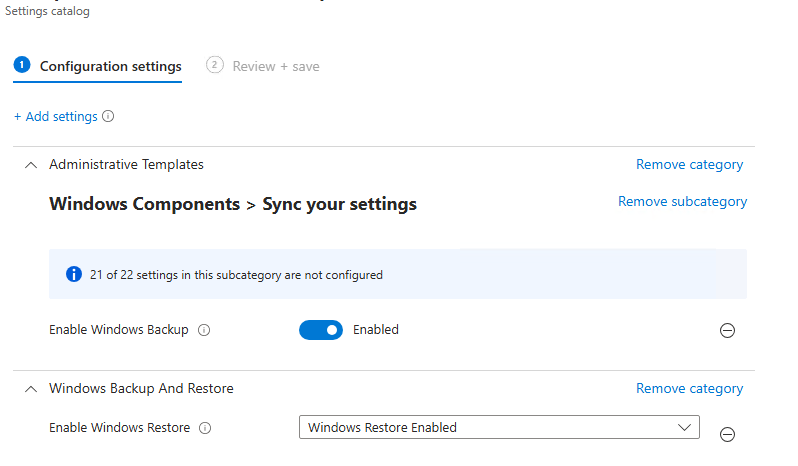
There is an important caveat with Windows Restore.
Enabling Windows Restore on its own is not the full setup. You also need backup configured. If a user’s device has never backed anything up, there will be nothing useful to restore.
You should also check the restore settings under Windows enrolment.
In Intune, Windows Backup for Organizations is configured in more than one place:
- Backup settings in the Settings Catalog
- Restore settings under Windows enrolment
- The correct Windows version, build and join scenario
To check the enrolment side:
- Go to Devices.
- Select Enrollment.
- Select Windows Backup and Restore.
- Review the restore setting.
- Configure it based on your tenant and test plan.
This is one of those features you should test properly before talking about it as production-ready.
Use a spare Windows device. Check the Windows version and build. Confirm the device join type. Test the backup side. Then test the restore experience.
For the video, the key point is simple: Enable Windows Restore is useful, but it is only one part of the wider Windows Backup for Organisations setup.
This site and my YouTube channel are supported by Tech-Source.
Tech-Source is a UK-based technology supplier that works closely with IT teams across education, public sector, and commercial environments. They provide hardware, licensing, and infrastructure solutions, with a strong focus on practical advice rather than upselling.
Their support helps keep this site running and allows me to continue publishing in-depth, admin-focused content and walkthroughs without paywalls.
You can find out more about what they do at https://tech-source.co.uk/
2. Enable Silent Printing in Microsoft Edge
The second setting is Enable Silent Printing.
This is a Microsoft Edge policy that allows Edge to print without leaving the print preview window open. When the policy is enabled, Edge sends the job to the default printer using the default print settings.
This can be useful on devices that have one clear printing job.
Examples include:
- Reception desks
- Label printer devices
- Kiosk devices
- Ticketing stations
- Warehouse or stock room devices
I would not enable Silent Printing for every user.
For this profile, use a name like:
Edge – Silent Printing
To configure Silent Printing in Intune:
- Create a new Settings Catalog profile.
- Name it Edge – Silent Printing.
- On Configuration settings, select Add settings.
- Search for Silent Printing.
- Expand Microsoft Edge.
- Tick Enable Silent Printing.
- Close the settings picker.
- Set Enable Silent Printing to Enabled.
- Select Next.
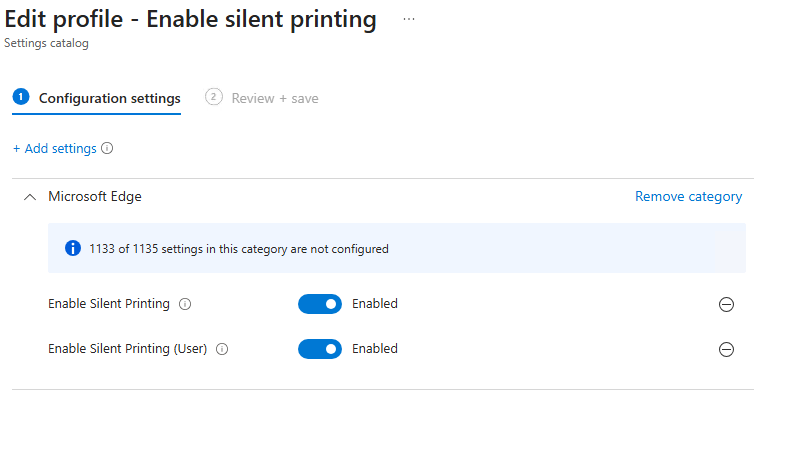
Silent Printing is a convenience setting, not a security setting.
If a user or web app triggers printing, Edge sends the job straight to the default printer. The user does not get the usual chance to check the printer, page range, paper size or destination.
That might be exactly what you want on a dedicated label printing device. It could be a bad idea on a normal user laptop.
Before using this policy, check the default printer on the target device and test the exact print workflow.
Do not just assume the policy has worked because Intune says the device has checked in. Test the actual printing behaviour.
3. Allow precise geolocation on trusted sites
The third setting is Allow precise geolocation on these sites.
This Microsoft Edge policy lets you define sites that can access high accuracy geolocation without prompting the user.
That can be useful, but only for trusted websites with a real business need.
Example use cases could include:
- A trusted internal mapping portal
- A site survey tool
- A dispatch or route planning web app
- An asset tracking system
- A line of business web app with a genuine location requirement
For this profile, use a name like:
Edge – Allow Precise Geolocation
To configure the policy:
- Create a new Settings Catalog profile.
- Name it Edge – Allow Precise Geolocation.
- On Configuration settings, select Add settings.
- Search for Precise Geolocation.
- Expand Microsoft Edge.
- Expand Content settings.
- Tick Allow precise geolocation on these sites.
- Close the settings picker.
- Select Add.
- Enter the URL pattern for the trusted site.
- Select Next.
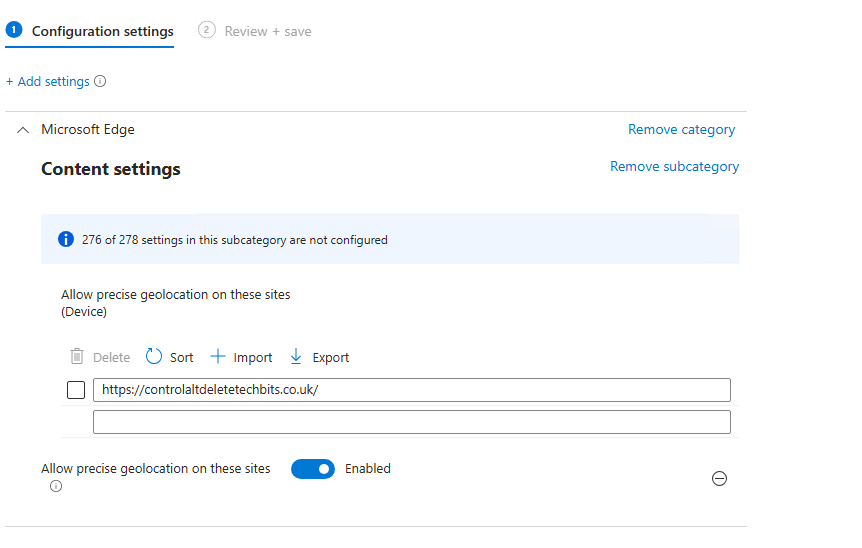
The first example targets a specific site.
The second example targets a domain and its subdomains.
Microsoft’s URL list format supports optional schemes and wildcards, so be careful with broad entries. Do not use a wide domain pattern unless you are happy for every matching site to receive the behaviour you are configuring.
This setting removes the normal user permission prompt for sites in the list. Treat it as a trusted site policy.
If the site does not have a clear reason to know the user’s precise location, do not add it.
4. Block geolocation on specific sites
The fourth setting is Block geolocation on these sites.
This does the opposite of the previous setting. It lets you define sites that are blocked from accessing geolocation. Microsoft Edge also stops those sites from prompting the user for location permissions.
This can be useful when a website repeatedly asks users for location access, or when you want to make sure certain sites cannot request location at all.
For this profile, use a name like:
Edge – Block Geolocation
To configure the policy:
- Create a new Settings Catalog profile.
- Name it Edge – Block Geolocation.
- On Configuration settings, select Add settings.
- Search for Block Geolocation.
- Expand Microsoft Edge.
- Expand Content settings.
- Tick Block geolocation on these sites.
- Close the settings picker.
- Select Add.
- Enter the URL pattern you want to block.
- Select Next.
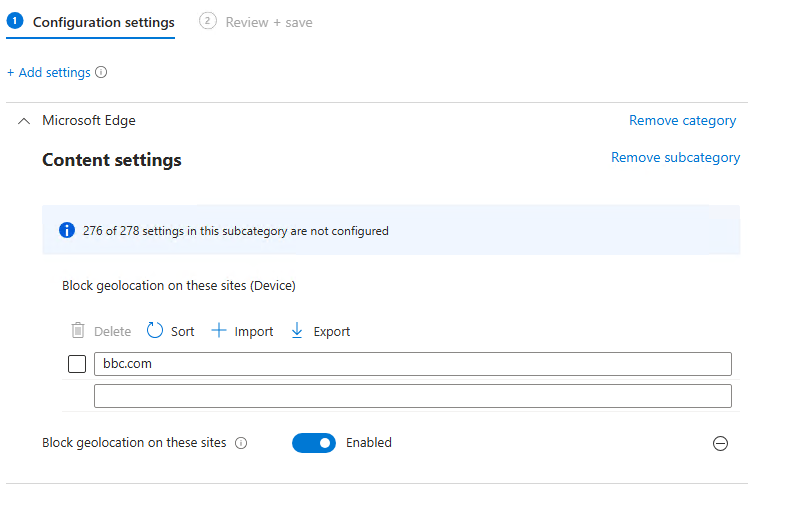
I would test this alongside the allow policy, especially if you use wildcard entries.
Do not assume broad URL patterns will behave exactly as expected without testing. Use a pilot group, check the behaviour in Edge, and confirm the result before assigning it to more devices.
5. Stop the Edge for Business information page after major updates
The fifth setting controls whether Microsoft Edge for Business shows an information page in a new tab after major browser updates.
Control whether an informational webpage for Edge for Business is shown in the new tab after major browser updates
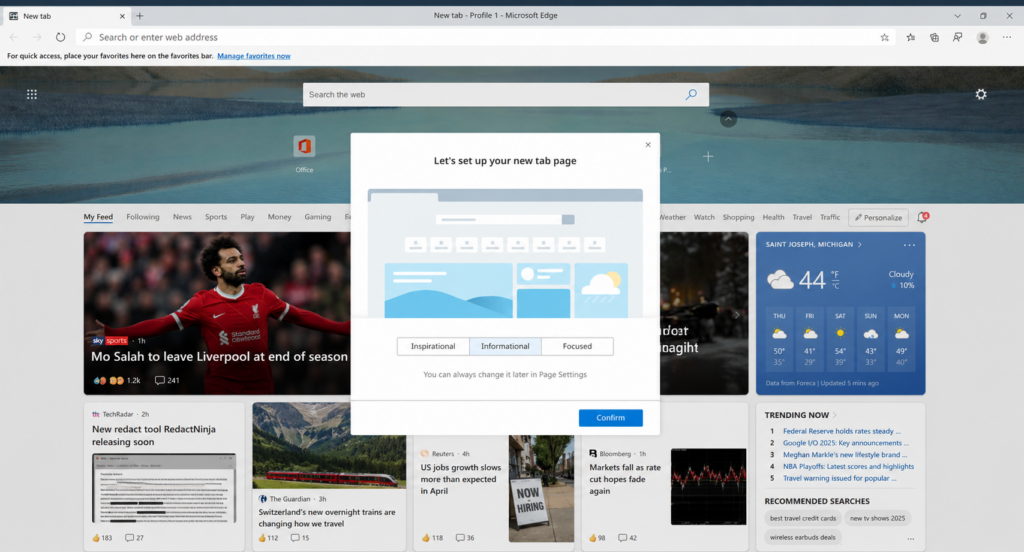
This applies to Microsoft Entra ID profiles in Edge for Business.
For managed devices, I normally prefer to stop extra update pages appearing after browser updates. It keeps the browser experience cleaner and reduces questions from users who are not sure whether a new page is expected.
For this profile, use a name like:
Edge – Disable What’s New Page
To configure the policy:
- Create a new Settings Catalog profile.
- Name it Edge – Disable What’s New Page.
- On Configuration settings, select Add settings.
- Search for informational webpage.
- Expand Microsoft Edge.
- Tick Control whether an informational webpage for Edge for Business is shown in the new tab after major browser updates.
- Close the settings picker.
- Set the policy to Disabled.
- Select Next.
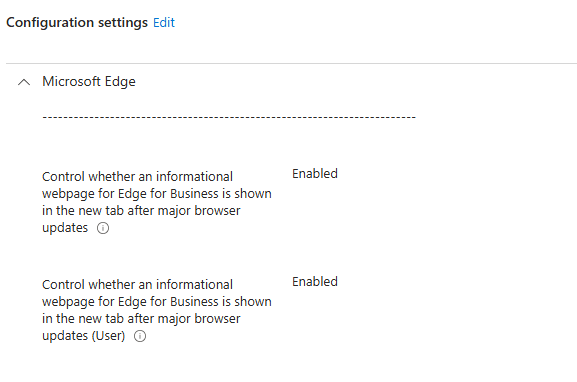
The toggle direction matters.
Enabled means the page can be shown.
Disabled means the page is not shown.
This is the type of setting where it is easy to click through too quickly. In the video, I would pause on the setting name and the configured value so viewers can see exactly what has been selected.
Assign each Settings Catalog profile to a pilot group
Once each profile has been created, assign it to a test group first.
Do not go straight to All devices.
This is especially important for Silent Printing and geolocation policies because they can change the user experience straight away.
For each profile:
- Go to Assignments.
- Under Included groups, select Add groups.
- Choose a small pilot group.
- Select Next.
- Review the policy.
- Select Create.
I would use a different pilot approach depending on the setting.
For Windows Restore, use a spare test device that you can reset or re-enrol.
For Silent Printing, use a device connected to the correct printer.
For geolocation settings, use a test site or trusted internal site where you can confirm the behaviour.
For the Edge information page setting, use a managed Edge profile and check the policy state.
Sync and test the device
After assigning the profile, sync a test device.
On the Windows device:
- Open Settings.
- Go to Accounts.
- Select Access work or school.
- Select the connected work or school account.
- Select Info.
- Select Sync.
You can also trigger a sync from the Intune admin centre by opening the device record and selecting Sync.
Once the device has checked in, open Microsoft Edge and go to:
edge://policy
Select Reload policies and check whether the policy appears.
Useful policy names include:
SilentPrintingEnabled
PreciseGeolocationAllowedForUrls
GeolocationBlockedForUrls
WhatsNewPageForEntraProfilesEnabled
You can also check the common Microsoft Edge policy registry location with PowerShell:
Get-ItemProperty -Path "HKLM:\SOFTWARE\Policies\Microsoft\Edge" |
Select-Object SilentPrintingEnabled, WhatsNewPageForEntraProfilesEnabled
For list-based policies, you can check for related policy keys like this:
Get-ChildItem -Path "HKLM:\SOFTWARE\Policies\Microsoft\Edge" |
Where-Object { $_.Name -match "Geolocation" } |
Select-Object PSChildName
If the settings do not appear straight away, give the device time to check in, run another sync, then restart Edge.
These five Intune Settings Catalog features are small, but they show how much control Intune gives you over Windows and Microsoft Edge.
Windows Restore can help users get back to a familiar setup after a device replacement or reset, but it needs the wider Windows Backup for Organisations configuration behind it.
Silent Printing can remove friction on dedicated printing devices, but it should not be enabled broadly.
Precise geolocation allow lists can help trusted web apps work without repeated prompts, but they should only be used for sites that genuinely need that level of access.
Geolocation block lists can stop known sites from requesting location and reduce user confusion.
The Edge for Business information page setting helps keep the browser experience cleaner after major updates.
You might also like this article Manage Intune Windows 11 25H2 Settings
Feel free to donate buymeacoffee.com/cadtb
Does Windows Restore replace Autopilot?
No. Windows Restore does not replace Autopilot. Autopilot handles device provisioning and enrolment. Windows Restore helps restore backed up Windows settings and preferences in supported scenarios.
Does Windows Backup for Organisations restore all apps?
No. It backs up settings, preferences and the list of installed Microsoft Store apps. You should still use Intune to deploy the required business apps.
Should Silent Printing be enabled for everyone?
No. Silent Printing is best for dedicated devices with a known printer and a clear workflow, such as label printing or kiosk printing.
Does precise geolocation still prompt the user?
For sites listed in the policy, Microsoft Edge can allow high accuracy geolocation without prompting the user. Only use this for trusted sites.
What happens when a site is blocked from geolocation?
The site cannot access geolocation and cannot prompt the user for location permissions.
How do I check whether the Edge policies applied?
Open Microsoft Edge and go to edge://policy. Select Reload policies, then check whether the expected policy names appear.
Tags: Intune