How to configure Storage Sense with Microsoft Intune
Storage space is one of those issues that creeps up slowly and then suddenly becomes a problem. Devices start missing Windows updates, users complain about low disk space, and support tickets begin to stack up.
If you are managing cloud-only Windows devices with Microsoft Intune, Storage Sense is one of the easiest ways to improve things without relying on Group Policy or manual cleanup.
In this post, I will walk through how to configure Storage Sense using Microsoft Intune, what each setting does, how to verify it landed on the device, and a few things to watch out for before rolling it out more widely.
This is based on a Microsoft Intune-enrolled Windows device in a cloud-only environment, with no on-premises Group Policy involved.
Never miss an article — subscribe here, and don’t forget the YouTube channel, Control Alt Delete Tech Bits.
Like the article? Feel free to buy me a coffee
Also check out my redact app, Redact PDFs and images, review email evidence and manage subject access requests without sending source files to a processing server.: https://redactninja.com
What is Storage Sense?
Storage Sense is a Windows feature that helps free up disk space automatically. Microsoft says it can be used to clean up temporary files, remove older items from the Recycle Bin, delete older files from Downloads, and dehydrate cloud-backed content so it becomes online-only instead of staying stored locally. Microsoft also allows you to control how often it runs, either on a schedule or only when disk space is low.
Why use Storage Sense with Intune?
For cloud-only devices, Storage Sense is a good example of a small policy that can make a real difference. If you have devices with limited SSD capacity, or users who never clean out temporary files and old downloads, this can help keep machines healthier and reduce update failures caused by low disk space.
Microsoft also specifically supports configuring Storage Sense through Intune Settings Catalog, so there is no need to fall back to Group Policy for this scenario.
This site and my YouTube channel are supported by Tech-Source.
Tech-Source is a UK-based technology supplier that works closely with IT teams across education, public sector, and commercial environments. They provide hardware, licensing, and infrastructure solutions, with a strong focus on practical advice rather than upselling.
Their support helps keep this site running and allows me to continue publishing in-depth, admin-focused content and walkthroughs without paywalls.
You can find out more about what they do at https://tech-source.co.uk/
My test setup
For this test, I used:
- A Microsoft Intune-enrolled Windows device
- A cloud-only Microsoft Entra ID joined setup
- No Group Policy
- Intune Settings Catalog to configure Storage Sense
- OneDrive Files On-Demand available on the device
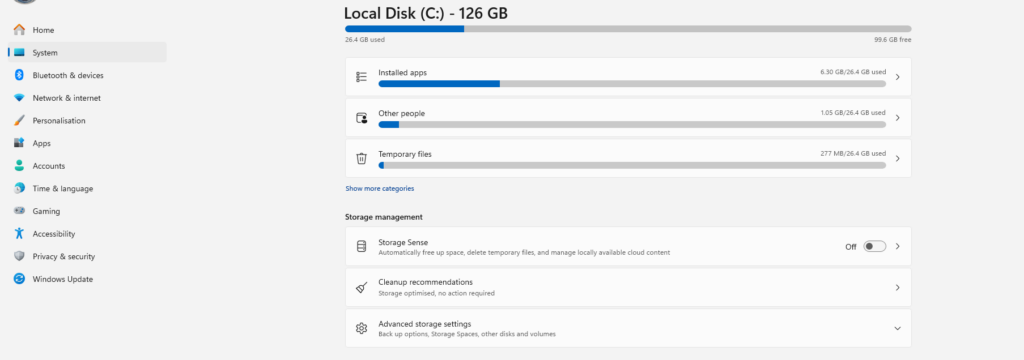
Before the policy was applied, the Storage page in Windows showed Storage Sense as off.
The Storage Sense policy I created
In Intune, I configured the following settings under the Storage category:
- Allow Storage Sense Global > Allow
- Allow Storage Sense Temporary Files Cleanup > Allow
- Config Storage Sense Recycle Bin Cleanup Threshold > 31
- Config Storage Sense Downloads Cleanup Threshold > 31
- Config Storage Sense Cloud Content Dehydration Threshold > 31
- Config Storage Sense Global Cadence > 0
That gives a cautious but still useful configuration.
Here is what each setting means.
Allow Storage Sense Global
This is the master setting that enables Storage Sense for the machine. Microsoft states that when this is enabled, Storage Sense is turned on for the device. If it is disabled, Storage Sense is turned off. If it is not configured, Storage Sense remains off until the device runs into low disk space or the user enables it manually.
In simple terms, this is the on or off switch for the feature.
Allow Storage Sense Temporary Files Cleanup
This allows Storage Sense to remove temporary files that are no longer in use. Microsoft documents this as a supported Intune Storage setting and notes that when enabled, users cannot disable this behaviour in Storage settings.
This is usually one of the safest settings to enable because temporary files are exactly the sort of data most admins want removed automatically.
Config Storage Sense Recycle Bin Cleanup Threshold
This setting controls how long items can stay in the Recycle Bin before Storage Sense deletes them. In my test, I set it to 31 days.
Microsoft says the supported range is 0 to 365 days. A value of 0 means Storage Sense will not delete files from the Recycle Bin. The default behaviour, if not configured, is 30 days.
I like 31 days for a production-style test because it is not aggressive, but it still stops the Recycle Bin turning into long-term storage.
Config Storage Sense Downloads Cleanup Threshold
This tells Storage Sense how long a file can remain unopened in the Downloads folder before it is deleted. I also set this to 31 days.
Microsoft says the supported range is 0 to 365 days, and a value of 0 means Storage Sense will not delete files from Downloads.
This is the setting I would be most careful with. It can definitely help save space, but a lot of users still treat Downloads as if it were permanent storage. That is not good practice, but it is common. Because of that, I would strongly recommend pilot testing this before broad rollout.
Config Storage Sense Cloud Content Dehydration Threshold
This is the OneDrive-related setting. I configured it for 31 days as well.
Microsoft says this controls how long a cloud-backed file can remain unopened before Storage Sense dehydrates it from the sync root. In practice, that means the local copy is removed and the file becomes online-only, while the file still remains in the cloud. A value of 0 means cloud-backed content is never dehydrated.
This setting only really matters if you are using OneDrive or another supported cloud-backed content model. In my case, OneDrive Files On-Demand was present on the device, which makes this setting much more relevant.

Config Storage Sense Global Cadence
This controls when Storage Sense runs.
Microsoft documents the supported values as:
- 0 > only when disk space is low
- 1 > daily
- 7 > weekly
- 30 > monthly
I set this to 0, which means the device will only run Storage Sense when storage pressure is low enough to trigger it.
That is a cautious choice. It makes sense if you want cleanup to be reactive rather than aggressive. The trade-off is that it is less dramatic for a live demo, because you might not see cleanup happen straight away unless the device is actually low on space.
How to configure Storage Sense in Intune
To configure this in Intune, I used a Settings Catalog policy.
In the Intune admin centre, go to:
Devices > Configuration > Create > New policy
Set:
- Platform > Windows 10 and later
- Profile type > Settings catalog
Give the policy a name, then go to Configuration settings and add the Storage category settings you want to manage.
Microsoft lists the following settings for Intune:
- Allow Storage Sense Global
- Allow Storage Sense Temporary Files Cleanup
- Config Storage Sense Cloud Content Dehydration Threshold
- Config Storage Sense Downloads Cleanup Threshold
- Config Storage Sense Recycle Bin Cleanup Threshold
- Config Storage Sense Global Cadence

After that, assign the policy to a test group or device group and create it.
What I saw on the device before deployment
Before applying the policy, the Windows device showed Storage Sense as off under:
Settings > System > Storage
That is an easy before-and-after point to capture if you are doing a video or screenshots.
What I saw in Intune after deployment
Once the policy had been assigned and the device checked in, Intune reported the profile as succeeded.
That is useful, but I never rely on the portal status alone. I always check the device as well.
How to verify Storage Sense on the device
There are a few ways to verify whether the setting is in place.
- Check Windows Settings
Go to:
Settings > System > Storage
If the policy has been applied correctly, you should see Storage Sense managed according to the settings you configured.
- Check the registry
Microsoft maps these Storage Sense settings to policy-backed values under:
HKEY_LOCAL_MACHINE\SOFTWARE\Policies\Microsoft\Windows\StorageSense
That makes PowerShell a very easy way to show the before-and-after state of the setting.
Before the policy was applied, the key did not exist on the machine. That is normal.
After policy deployment, you can check it with this command:
if (Test-Path 'HKLM:\SOFTWARE\Policies\Microsoft\Windows\StorageSense') {
    (Get-ItemProperty 'HKLM:\SOFTWARE\Policies\Microsoft\Windows\StorageSense').AllowStorageSenseGlobal
}
else {
    'Not configured'
}


How to read it:
- Not configured = the policy has not landed, or the key does not exist
- 1 = Storage Sense enabled by policy
- 0 = Storage Sense disabled by policy
If you also want to see cadence:
if (Test-Path 'HKLM:\SOFTWARE\Policies\Microsoft\Windows\StorageSense') {
    Get-ItemProperty 'HKLM:\SOFTWARE\Policies\Microsoft\Windows\StorageSense' |
    Select-Object AllowStorageSenseGlobal, ConfigStorageSenseGlobalCadence
}
else {
    'Storage Sense not configured'
}

For demos, this is one of the easiest checks you can use because it gives a very clean before-and-after result.
Important behaviour to understand
A few points are worth calling out.
The cadence value matters
If you set cadence to 0, Storage Sense only runs when disk space is low. That is great for a cautious real-world rollout, but it can make live testing less obvious.
If you want a more visible demo, weekly or monthly might be easier to explain.
Downloads cleanup can surprise users
This is probably the biggest practical risk. If people leave documents, installers, or personal files in Downloads and do not open them for a month, Storage Sense can remove them. The policy is doing exactly what you told it to do, but users may not expect it.
Cloud content dehydration is not file deletion
This is important. When cloud-backed files are dehydrated, the local copy is removed but the file remains available in the cloud. This works well with OneDrive Files On-Demand. It is a space-saving feature, not the same as deletion.
Intune-only works fine here
This whole setup works perfectly well without Group Policy. Microsoft explicitly documents Storage Sense configuration for Intune using Settings Catalog.
My view on this configuration
Overall, I think this is a sensible starting point.
What I like:
- Storage Sense is enabled
- temporary file cleanup is enabled
- recycle bin cleanup is set to a reasonable threshold
- cloud-backed content can be dehydrated if OneDrive is being used
- cadence is cautious and only reacts to low storage
What I would be careful with:
- Downloads cleanup after 31 days can absolutely catch users out
If I were rolling this out in production, I would probably pilot it like this:
- Enable Storage Sense
- Enable temporary files cleanup
- Enable Recycle Bin cleanup
- Decide carefully whether Downloads cleanup is right for that user group
- Use cloud content dehydration if OneDrive Files On-Demand is part of the design
Troubleshooting tip
If the Intune portal says the policy succeeded but the device still does not show the setting, check:
- the device actually synced after assignment
- the registry path exists
- the machine is running a supported Windows version
- the policy was assigned to the correct device or group
The absence of the registry key is often the simplest indicator that the setting has not landed yet.
Or you can check the report via Intune

Storage Sense is not a flashy Intune feature, but it is a useful one. It is simple to deploy, supported in cloud-only environments, and can help keep Windows devices healthy without depending on users to manage storage manually.
For devices with smaller SSDs, or for tenants where Windows update failures due to low space are becoming a pattern, this is one of those easy wins worth testing.
If you are in a cloud-only Intune environment, this is a straightforward way to improve storage hygiene using Microsoft-supported settings and no Group Policy at all.
You might also like this article
What is Storage Sense in Windows?
Storage Sense is a Windows feature that helps free up disk space automatically. Microsoft says it can clean up temporary files, remove older items from the Recycle Bin, delete old files from Downloads, and dehydrate cloud-backed content so it becomes online-only instead of staying stored locally.
Can I configure Storage Sense with Intune only?
Yes. Microsoft supports configuring Storage Sense through Microsoft Intune using a Settings Catalog policy. You do not need on-premises Group Policy for this scenario.
Which Intune settings are used for Storage Sense?
Allow Storage Sense Global
Allow Storage Sense Temporary Files Cleanup
Config Storage Sense Cloud Content Dehydration Threshold
Config Storage Sense Downloads Cleanup Threshold
Config Storage Sense Recycle Bin Cleanup Threshold
Config Storage Sense Global Cadence
What does Allow Storage Sense Global do?
This is the main switch for the feature. When enabled, Storage Sense is turned on for the machine. When disabled, Storage Sense is turned off. If not configured, Windows leaves it off until the user enables it manually or the device runs low on disk space.
What does the cadence setting mean?
The cadence controls when Storage Sense runs. Microsoft documents these values:
0 > only when disk space is low
1 > daily
7 > weekly
30 > monthly
Will Storage Sense delete files from the Downloads folder?
It can, if you configure the Downloads cleanup threshold. Microsoft says Storage Sense can delete files in the user’s Downloads folder if they have not been opened for more than the number of days you specify.
Will Storage Sense empty the Recycle Bin?
It can, if you configure the Recycle Bin cleanup threshold. Microsoft says Storage Sense can delete files in the user’s Recycle Bin once they have been there longer than the number of days you set.
Does Storage Sense delete OneDrive files?
Not exactly. If you configure the cloud content dehydration threshold, Storage Sense can dehydrate unopened cloud-backed content. That means the local copy is removed and the file becomes online-only, but the file still remains in the cloud.
Tags: Intune