How to Update Secure Boot 2026 Certificates Using Intune and or Group Policy
Secure Boot 2026 is approaching, and Microsoft has issued guidance around the expiry of Secure Boot certificates that are fundamental to how Windows devices trust the boot process.
The original Microsoft Secure Boot certificates issued in 2011 begin expiring from June 2026, with additional expirations later in 2026.
These certificates are used to verify boot components such as the Windows Boot Manager. Devices that are not updated to trust the newer Windows UEFI CA 2023 certificate will no longer be able to receive future boot-related security updates. This places them out of security compliance and, in some scenarios, can lead to boot or recovery media issues when trust chains and revocations no longer align.
This is not simply a Windows Update setting. The process updates UEFI Secure Boot variables stored in firmware (DB, KEK, DBX) within the device’s NVRAM. Windows orchestrates the deployment, but the end result is a firmware-level change.
This guide explains how to prepare devices and deploy the update using Microsoft Intune or Group Policy.
Prerequisite: BIOS updates and firmware support
You cannot deploy the Secure Boot certificate update if the system firmware does not support it.
Before deploying any policy, confirm that your hardware platform and BIOS version support the 2023 Secure Boot certificates. Many devices released before 2024 require a specific BIOS update to allow the new keys to be written to firmware.
If you attempt to deploy the update on unsupported firmware, the request will be ignored or fail silently.
In this article and YouTube video, I am using an HP G245 G8 on BIOS F.70 from 2023. The device is managed by Intune and is corporately owned.


Never miss an article and subscribe, and don’t forget to subscribe to my YouTube channel, Control Alt Delete Tech Bits
This site and my YouTube channel are supported by Tech-Source.
Tech-Source is a UK-based technology supplier that works closely with IT teams across education, public sector, and commercial environments. They provide hardware, licensing, and infrastructure solutions, with a strong focus on practical advice rather than upselling.
Their support helps keep this site running and allows me to continue publishing in-depth, admin-focused content and walkthroughs without paywalls.
You can find out more about what they do at https://tech-source.co.uk/
OEM guidance varies by vendor and model. HP have published timelines indicating when firmware support is expected to be available across their commercial portfolio. Always verify against the vendor’s official documentation for your exact model.
General guidance based on HP’s published targets:
- 2024 releases and newer
These devices typically ship with firmware that already supports the 2023 Secure Boot certificates. - 2022 to 2023 releases
BIOS updates are targeted by late September 2025. - 2018 to 2021 releases
BIOS updates are targeted by late December 2025. - 2017 and earlier
These platforms are generally out of support and are unlikely to receive firmware updates for this change.
The device I was using needed an update
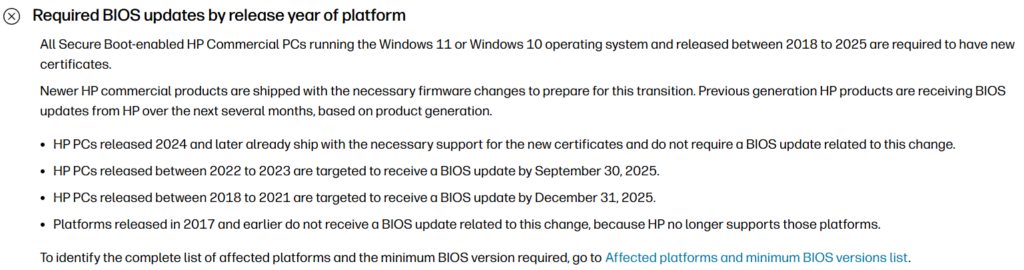

I updated from F.70 to F.77
If you manage older devices, your remediation timeline may depend entirely on when firmware support becomes available.
Checking your current BIOS version
You can audit BIOS details across your estate using PowerShell.
Get-CimInstance Win32_BIOS | Select-Object Manufacturer, SMBIOSBIOSVersion, ReleaseDate
How to check if a device is already updated
A device is considered updated once the Windows UEFI CA 2023 certificate is present in the Secure Boot database.
Run the following PowerShell command on a device with Secure Boot enabled:
[System.Text.Encoding]::ASCII.GetString(
    (Get-SecureBootUEFI db).Bytes
) -match 'Windows UEFI CA 2023'
True means the device already trusts the 2023 certificate. False or an error means the update has not yet been applied.
Microsoft Intune Secure Boot settings
Create the configuration profile
- Go to Intune admin centre
- Devices > Windows > Configuration profiles
- Create > New policy
- Platform: Windows 10 and later
- Profile type: Settings catalog
Name: Secure Boot Certificate Update 2026
In the Settings picker:
- Search for Secure Boot
- System > Secure Boot
Configure the following:
- Enable Secure Boot Certificate Updates > Enabled
- Configure Microsoft Update Managed Opt In > Enabled
Assign the policy to supported devices only.

**Article updated 03/02/26 to include **
Secure Boot status report in Windows Autopatch
Monitoring Secure Boot readiness using the Intune Secure Boot status report
Microsoft provides a built-in report in the Intune admin centre that makes it much easier to track which devices are affected by the Secure Boot certificate expiry in 2026. This is the Secure Boot status report, documented by Microsoft here:
https://learn.microsoft.com/en-us/windows/deployment/windows-autopatch/monitor/secure-boot-status-report
This report gives you a tenant-wide view of Secure Boot configuration and certificate health, without needing to run scripts or manually check devices.
You can access it in Intune by going to:
Intune Admin > Reports > Windows Autopatch > Windows quality updates>Reports tab and then Boot status
Once loaded, the report shows every enrolled Windows device and highlights three key states:
• Up to date
• Not up to date
• Not applicable
The most important column to watch is Certificate status. Devices marked as Not up to date are still using Microsoft Secure Boot certificates that expire in 2026 and have not yet received the updated UEFI CA certificates.
The banner message at the top of the report is particularly useful. If you see a warning stating that devices are using Secure Boot certificates that expire in 2026, this confirms you still have remediation work to do. This aligns directly with the registry-based checks shown earlier in this article.
The report also allows you to quickly filter and export results. This makes it ideal for:
• Identifying which hardware models are affected
• Prioritising pilot groups
• Tracking progress after BIOS updates or Intune policy deployment
• Providing evidence for audits and change management
One important detail is that this report reflects device readiness, not just policy assignment. A device can have the correct Intune policy assigned and still show as Not up to date if the firmware does not yet support the updated certificates or the device has not rebooted to apply changes.
The screenshot below shows an example tenant view, where Secure Boot is enabled across devices but a large number are still flagged as not up to date due to the 2026 certificate requirement.

This report should be your primary high-level validation tool. Use it alongside on-device checks, such as registry values and Event Viewer, to confirm end-to-end success.
If the Secure Boot status report shows a device as Up to date, and your local checks also confirm the updated UEFI CA values, that device is ready for the 2026 Secure Boot changes.
** Update ends here **
Once the Intune policy has been assigned, you should not assume the update has completed. The policy only requests the update. Firmware support, Windows Update timing, and reboots all affect whether the Secure Boot certificates are actually written to firmware.
The script below performs two checks, It reads the Secure Boot servicing status from the registry to see whether the update is NotStarted, InProgress, Updated, or Failed, and it checks the UEFI Secure Boot database directly to confirm whether the Windows UEFI CA 2023 certificate is present in firmware.
You can run this script locally in an elevated PowerShell session or save it as a .ps1 file for troubleshooting.
# Secure Boot 2026 firmware readiness check (paste-once)
# Run in an elevated PowerShell session (Run as Administrator)

Set-StrictMode -Version Latest
$ErrorActionPreference = "SilentlyContinue"

function Get-BiosInfo {
    try { return Get-CimInstance Win32_BIOS } catch { return $null }
}

function Get-ComputerSystemInfo {
    try { return Get-CimInstance Win32_ComputerSystem } catch { return $null }
}

function Get-ModelInfo {
    $cs = Get-ComputerSystemInfo
    if ($cs) { return $cs.Model }
    return $null
}

function Get-SecureBootEnabled {
    try { return (Confirm-SecureBootUEFI) } catch { return $null }
}

function Get-UefiCa2023ServicingInfo {
    $regPath = "HKLM:\SYSTEM\CurrentControlSet\Control\SecureBoot\Servicing"
    if (Test-Path $regPath) {
        $p = Get-ItemProperty $regPath
        return [PSCustomObject]@{
            Path                  = $regPath
            UEFICA2023Status       = $p.UEFICA2023Status
            WindowsUEFICA2023Capable = $p.WindowsUEFICA2023Capable
            UEFICA2023Error        = $p.UEFICA2023Error
        }
    }

    return [PSCustomObject]@{
        Path                    = $regPath
        UEFICA2023Status         = "Not present"
        WindowsUEFICA2023Capable = $null
        UEFICA2023Error          = $null
    }
}

function Get-WindowsUefiCa2023Presence {
    try {
        $dbBytes = (Get-SecureBootUEFI -Name db).Bytes
        $dbText  = [System.Text.Encoding]::ASCII.GetString($dbBytes)

        return [PSCustomObject]@{
            Present = if ($dbText -match "Windows UEFI CA 2023") { "Yes" } else { "No" }
            Note    = $null
        }
    } catch {
        return [PSCustomObject]@{
            Present = "Unknown"
            Note    = "Get-SecureBootUEFI failed (often due to Secure Boot cmdlets not supported on this device/firmware, or insufficient permissions)."
        }
    }
}

# -----------------------------
# Collect info
# -----------------------------

$bios  = Get-BiosInfo
$model = Get-ModelInfo

$secureBootEnabled = Get-SecureBootEnabled
$servicing         = Get-UefiCa2023ServicingInfo
$certCheck         = Get-WindowsUefiCa2023Presence

$uefiCa2023Status   = $servicing.UEFICA2023Status
$uefiCa2023Capable  = $servicing.WindowsUEFICA2023Capable
$uefiCa2023Error    = $servicing.UEFICA2023Error
$certPresent        = $certCheck.Present

# -----------------------------
# Assessment (no elseif)
# -----------------------------

$assessment = "UNKNOWN"
$action     = "Manual review required"
$failure    = $null

switch ($true) {
    ($secureBootEnabled -eq $false) {
        $assessment = "NOT READY"
        $failure    = "Secure Boot disabled"
        $action     = "Enable Secure Boot in firmware (UEFI/BIOS), then re-run this check"
        break
    }
    ($secureBootEnabled -eq $null) {
        $assessment = "UNKNOWN"
        $failure    = "Unable to query Secure Boot state"
        $action     = "Confirm device is UEFI (not Legacy/CSM) and run PowerShell as Administrator"
        break
    }
    ($uefiCa2023Capable -eq 0) {
        $assessment = "NOT READY"
        $failure    = "Firmware not capable (WindowsUEFICA2023Capable = 0)"
        $action     = "Update BIOS or UEFI firmware for this device model, then re-run the check"
        break
    }
    ($uefiCa2023Capable -eq $null) {
        $assessment = "UNKNOWN"
        $failure    = "Capability flag missing"
        $action     = "Confirm Secure Boot is supported/enabled and device is patched, then re-run the check"
        break
    }
    ($uefiCa2023Capable -eq 1 -and $certPresent -eq "Yes") {
        $assessment = "READY"
        $failure    = $null
        $action     = "No action required"
        break
    }
    ($uefiCa2023Capable -eq 1 -and $certPresent -ne "Yes") {
        $assessment = "CAPABLE BUT NOT COMPLETE"
        $failure    = "Certificate not present yet"
        $action     = "Apply updates or Intune policy and reboot, then re-run the check"
        break
    }
    default {
        $assessment = "UNKNOWN"
        $failure    = "Unrecognised state"
        $action     = "Manual review required"
    }
}

# -----------------------------
# Output
# -----------------------------

Write-Host ""
Write-Host "Secure Boot 2026 readiness"
Write-Host "--------------------------"
Write-Host "Computer name                 : $($env:COMPUTERNAME)"
if ($model) { Write-Host "Model                         : $model" }

if ($bios) {
    Write-Host "BIOS manufacturer              : $($bios.Manufacturer)"
    Write-Host "BIOS version                   : $($bios.SMBIOSBIOSVersion)"
}

Write-Host "Secure Boot enabled            : $secureBootEnabled"
Write-Host "UEFI CA 2023 status            : $uefiCa2023Status"
Write-Host "WindowsUEFICA2023Capable       : $uefiCa2023Capable"
Write-Host "UEFICA2023Error                : $uefiCa2023Error"
Write-Host "Windows UEFI CA 2023 present   : $certPresent"
if ($certCheck.Note) { Write-Host "Cert check note                : $($certCheck.Note)" }

Write-Host ""
Write-Host "Assessment                     : $assessment"
Write-Host "What failed                    : $failure"
Write-Host "What needs doing               : $action"
Write-Host ""

# Summary table
$summary = [PSCustomObject]@{
    ComputerName        = $env:COMPUTERNAME
    Model               = $model
    BIOSManufacturer    = if ($bios) { $bios.Manufacturer } else { $null }
    BIOSVersion         = if ($bios) { $bios.SMBIOSBIOSVersion } else { $null }
    SecureBootEnabled   = $secureBootEnabled
    UEFICA2023Status    = $uefiCa2023Status
    FirmwareCapable2023 = $uefiCa2023Capable
    CertificatePresent  = $certPresent
    Assessment          = $assessment
    WhatFailed          = $failure
    WhatNeedsDoing      = $action
}

$summary | Format-Table -AutoSize
How to interpret the results
SAFE = The device is fully updated and trusts the Windows UEFI CA 2023 certificate.
PENDING = The update has started but has not finished. A reboot is usually required.
NOT READY = The update has not completed. Common causes include unsupported BIOS versions, Secure Boot being disabled, or the policy not yet applying.
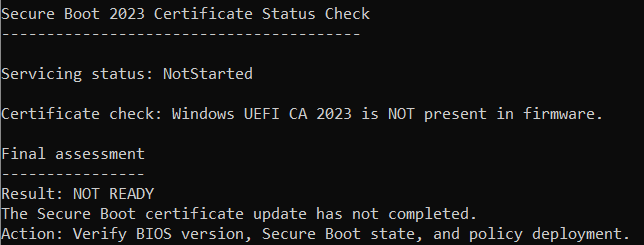
This check is useful during rollout, troubleshooting failed devices, and providing evidence that systems are ready ahead of the 2026 certificate expirations.
Group Policy
For domain-joined devices and servers managed on-premises.
You need administrative templates from Windows 11 22H2 or newer.
- Open Group Policy Management
- Create a new GPO called Secure Boot Certificate Update 2026
Go to:
Computer Configuration > Administrative Templates > Windows Components > Secure Boot
Configure:
- Enable Secure Boot Certificate Deployment > Enabled
- Configure Microsoft Update Managed Opt In > Enabled (if using Microsoft-managed rollout)
Once applied, devices will request the update during their next Windows Update cycle.
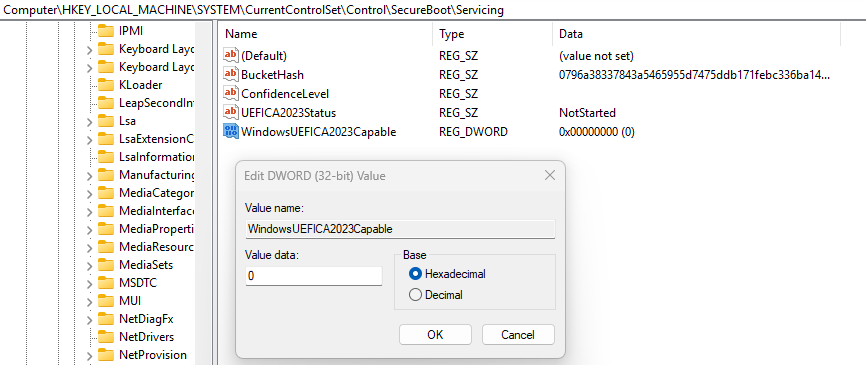
After applying the Group Policy, you may check the registry and see the following values, as shown in the screenshot above:
- UEFICA2023Status = NotStarted
- WindowsUEFICA2023Capable = 0
This often causes confusion, but it is not an error.
UEFICA2023Status = NotStarted
This value means Windows has not begun the Secure Boot certificate update process. It does not mean the Group Policy is missing, broken, or misconfigured.
It simply means Windows is not yet allowed to proceed.
Common reasons you will see NotStarted:
- The BIOS does not support Secure Boot certificate updates
- Secure Boot is disabled in firmware
- The device has not yet received a compatible BIOS update
- The policy has applied successfully, but the device is blocked by firmware capability checks
Until the platform meets the firmware requirements, Windows will not attempt the update.
WindowsUEFICA2023Capable = 0
This value is the key indicator.
A value of 0 means the firmware currently reports that it cannot accept the Windows UEFI CA 2023 certificate. In this state:
- The update will not start
- UEFICA2023Status will remain NotStarted
- Intune, Group Policy, or SCCM cannot override this
This behaviour is intentional. Microsoft blocks the update on unsupported firmware to prevent devices from becoming unbootable.
When WindowsUEFICA2023Capable changes to 1, it means:
- The BIOS supports Secure Boot certificate updates
- The device is eligible to receive the 2023 certificates
- Windows Update can safely proceed with the deployment
In almost all cases, this value only changes from 0 to 1 after installing a specific BIOS update provided by the OEM.
This change is driven by firmware readiness, not policy configuration. If a device cannot accept the Secure Boot certificates, no management tool can force the update. Devices that remain unupdated will be unable to receive future boot-related security updates and will fall out of security compliance after the 2011 certificates expire. Identifying and remediating these devices now avoids unsupported systems, recovery failures, and urgent hardware decisions.
Don’t forget to check out this article Zero Trust Assessment How To Guide for Microsoft 365 Security
What happens if I do nothing before the Secure Boot certificates expire?
Devices that are not updated to trust the Windows UEFI CA 2023 certificate will no longer be able to receive future boot-related security updates. This puts them out of security compliance and increases the risk of boot or recovery media issues once the 2011 certificates expire.
Will devices stop booting immediately in 2026?
Not necessarily. Many devices will continue to boot initially, but they will be unable to accept future Secure Boot–related security updates. Problems typically appear later, especially during recovery scenarios, boot manager changes, or revocation updates.
Is this just a Windows Update setting?
No. While Windows manages the process, the update writes new Secure Boot trust data into firmware (UEFI NVRAM). Firmware support is a hard requirement.
Why does UEFICA2023Status stay at NotStarted?
This usually means the device firmware does not yet support Secure Boot certificate updates, Secure Boot is disabled, or a required BIOS update is missing. It does not mean the policy is broken.
Do all devices need a BIOS update?
Not all. Many devices released in 2024 and later already support the update. Older devices often require a specific BIOS version before the update can proceed.
How do I know when the update has completed successfully?
UEFICA2023Status will show Updated, Event ID 1808 will appear in the System event log, and the Windows UEFI CA 2023 certificate will be present in the Secure Boot database.
Is Secure Boot required for this to work?
Yes. Secure Boot must be enabled in firmware. If Secure Boot is disabled, the update will not apply.
What are 65000 errors that can happen in the process?
You need Enterprise/Education. If you push it to Windows Pro devices, Intune throws Error 65000 (meaning ‘Not Applicable’), even if the registry key technically lands
Tags: Intune, Secure Boot
[…] Don’t forget to check out this article about secure boot certificates […]
[…] You might also like this article […]
[…] You might also like this article […]
[…] may also like this article about secure boot […]