Managing Windows 11 Updates with Intune Update Rings and Feature Updates
Keeping Windows devices secure with intune update rings and feature updates and consistent across an organisation can be a challenge. Microsoft Intune helps administrators manage updates in a structured way, using two main tools: update rings and feature updates. Together, they give you control over when, how, and what version of Windows 11 gets installed, whether that’s rolling out Windows 11 25H2 across classrooms or testing new builds on a small pilot group first.
Never miss an article and subscribe, and don’t forget to subscribe to my YouTube channel, Control Alt Delete Tech Bits
Like the article? Feel free to buy me a coffee
Also check out my redact app, Redact PDFs and images, review email evidence and manage subject access requests without sending source files to a processing server.: https://redactninja.com
This guide walks through how they work, why they matter, and how you can use them effectively. It also covers prerequisites, troubleshooting tips, and where Windows Autopatch fits into a modern update management strategy.
Understanding Windows Update for Business in Intune and Updates with Intune Update Rings and Feature Updates
Windows Update for Business (WUfB) is the service behind all Windows update policies in Intune. It connects managed devices directly to Microsoft’s update service, removing the need for on-premises tools like WSUS or SCCM distribution points.
With WUfB, Intune acts as the management layer, defining rules and timing, while devices still download updates directly from Microsoft’s trusted servers. This design reduces maintenance overhead and provides faster access to new security and feature releases.
These include:
- Cloud-based management: No on-prem servers required.
- Granular control: Set different update policies for pilot and production groups.
- Flexible scheduling: Define active hours, reboot behaviour, and user notifications.
- Version targeting: Choose the exact Windows 11 build your devices should stay on.
Prerequisites and Setup
Before you start creating policies, confirm the basic requirements are in place. This ensures telemetry, device health, and reporting all function correctly.
Device Management and Licensing
All devices must be:
- Enrolled in Intune and either Entra joined or hybrid joined.
- Covered by a Microsoft 365 E3/E5, Business Premium, or Education A3/A5 licence.
If a device is co-managed with Configuration Manager, the Windows Update for Business workload must be moved to Intune.
Connected User Experiences and Telemetry Service
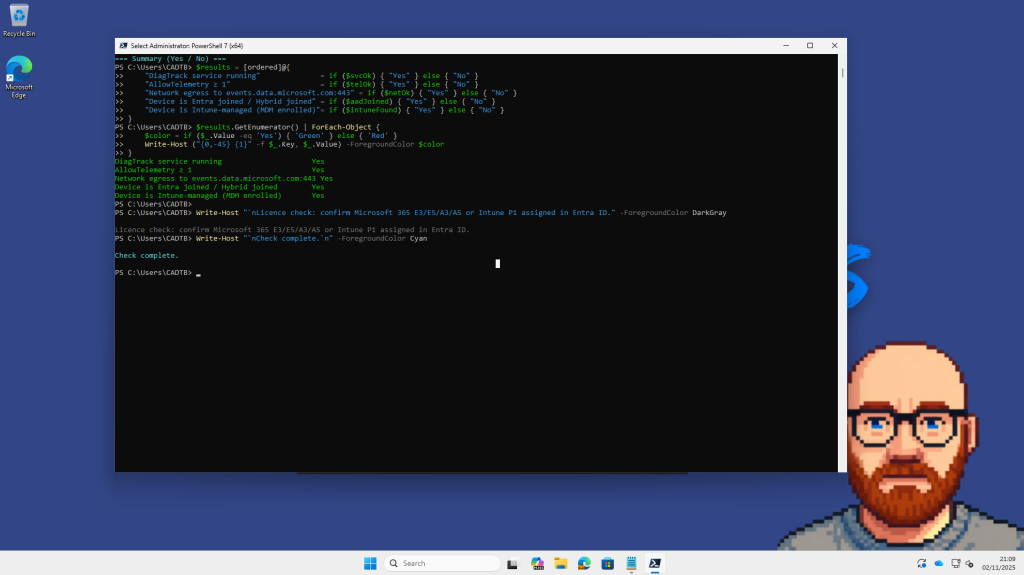
WUfB reporting depends on the Connected User Experiences and Telemetry service (DiagTrack)
Telemetry must be set to Basic (1) or higher, otherwise Windows Health Monitoring data won’t flow to Intune’s reporting dashboards.
Network Access
Ensure that outbound HTTPS access to events.data.microsoft.com (port 443) is allowed. This is the endpoint Windows uses to submit diagnostic and update telemetry.
I created a Powershell scrpit to run on the device to check:
Next Creating Test and Pilot Groups
Intune policies are assigned to groups, typically either user or device groups in Microsoft Entra ID.
It’s good practice to start with a small, well-defined pilot group. For example:
- A few virtual machines.
- A classroom or IT lab.
- Several admin test laptops.
Example setup
- Group name:
Grp-Win11-Test - Description: “Pilot group for Windows 10 to 25H2 and 24H2 to 25H2 upgrade.”
- Membership type: Assigned (manually add the test devices).
Small groups keep reporting easy to interpret and prevent accidental wide rollouts.
Creating Device Filters in Intune
Before assigning policies, it’s good practice to create device filters. Filters give you finer control over which devices a policy applies to, for example, only virtual machines, only Dell laptops, or only Windows 11 devices.
They work alongside groups, letting you include or exclude devices dynamically based on their attributes. This is particularly useful when managing multiple Windows versions or running pilots.
When you target an update ring or feature update, filters prevent accidental deployment to the wrong hardware or OS type. For example, you can use filters to apply Windows 11 25H2 only to test VMs, while production laptops stay on 24H2 until validation is complete.
Intune admin centre > Tenant administration > Filters > + Create
Platform: Windows 10 and later
Filter name: FILT-VM-Only
Description: “Targets Hyper-V virtual machines for testing.”
Choose Edit in rule syntax, then paste:
(deviceManufacturer -contains “Microsoft Corporation”) and
(deviceModel -contains “Virtual Machine”)

You can use filters for any identifiable property Intune collects. Here are a few you can mention or show on screen:
| Use case | Example rule |
|---|---|
| Windows 11 only | (deviceOSType -eq "Windows") and (deviceOSVersion -startsWith "10.0.2") |
| Dell Latitude laptops | (deviceManufacturer -contains "Dell") and (deviceModel -startsWith "Latitude") |
| Physical hardware only | not (deviceModel -contains "Virtual Machine") |
Filters can be used when you assign update rings, feature updates, configuration profiles, and compliance policies.
When assigning your ring and feature update policies later, select:
- Include filter:
FILT-VM-Only - Assignment group:
Grp-Win11-Test
This ensures only your designated VMs (or chosen devices) receive the update first.
How Intune Update Rings Work
An update ring defines when and how Windows updates are applied. It controls timing, user experience, and restart behaviour.
Each ring includes:
- Deferral periods for quality and feature updates.
- Active hours to avoid reboots during work time.
- Automatic behaviour — whether updates install and restart automatically.
- Deadlines and grace periods for enforcing reboots.
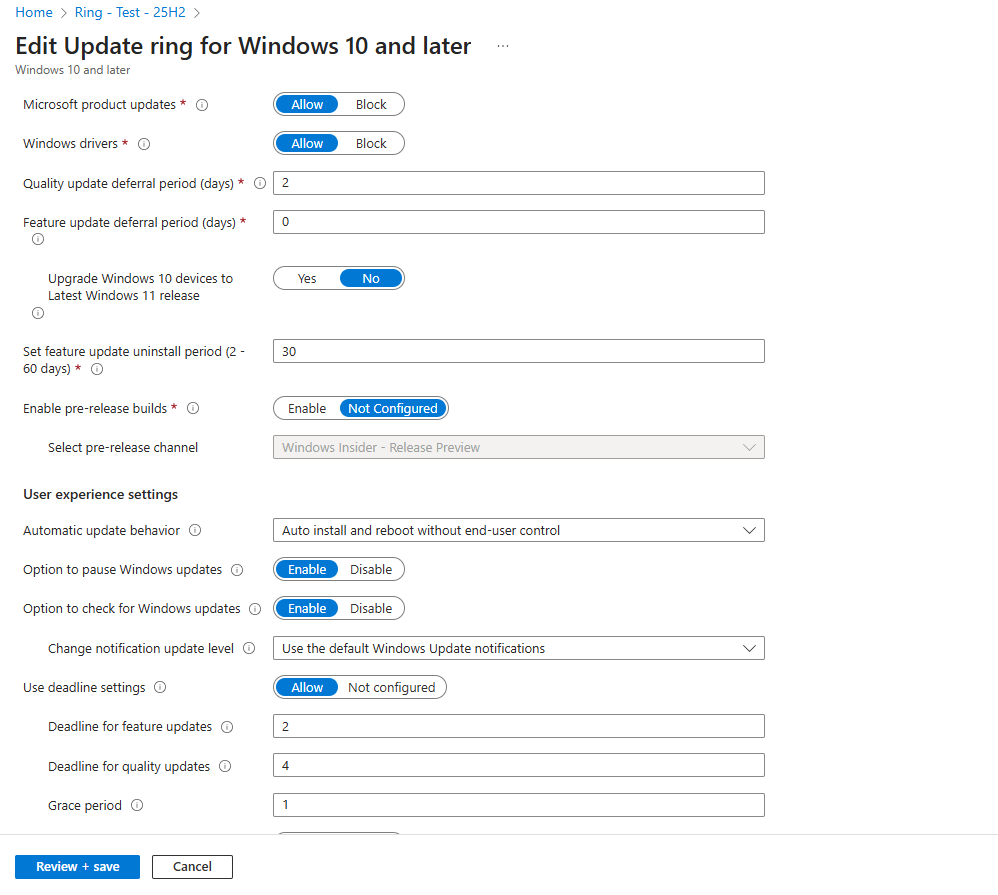
Typical setup for a test ring
| Setting | Recommended for lab/demo | Explanation |
|---|---|---|
| Feature update deferral | 7 days | Allows Microsoft time to detect early issues before release. |
| Quality update deferral | 2 days | Small buffer for Patch Tuesday updates. |
| Uninstall period | 30 days | Lets admins roll back feature updates if issues arise. |
| Active hours | 09:00 – 16:00 | Avoid reboots during work hours. |
| Automatic behaviour | Auto install and restart outside active hours | No manual user action required. |
| Deadline (feature/quality) | 1 day | Forces installation after a day. |
| Grace period | 0 days | Immediate enforcement. |
This ensures devices download and install updates automatically, rebooting only outside active hours. You’ll see toast notifications when the restart is pending, perfect for demonstrating a hands-off update process.

Feature Updates: Pinning to a Specific Version
The Feature Updates policy complements update rings. While the ring defines when updates apply, Feature Updates define what version each device should install.
This is especially useful for avoiding unexpected upgrades. You can hold devices on a stable version like Windows 11 24H2, then later target them to 25H2 when you’re ready.
When creating a Feature Updates policy in Intune:
- Navigate to Devices > Windows > Windows updates > Feature updates.
- Click + Create profile.
- Choose Windows 11, version 25H2.
- Select Rollout options: Immediate start.
- Mark as Required.
- Assign to your pilot group (
Grp-Win11-Test).
This triggers two different experiences depending on the starting point:
- Windows 10 > Windows 11 25H2: Full in-place upgrade.
- Windows 11 24H2 > 25H2: Small enablement package (~100 MB).
You can monitor progress under Reports > Windows updates > Feature updates, where states include Offered, In progress, and Completed.

Monitoring Update Progress
Reporting relies on the Windows Health Monitoring policy. It ensures telemetry from your managed devices reaches Intune promptly, populating dashboards with near-real-time progress.
You’ll find it under:
Intune admin centre > Devices > Windows > Windows health monitoring.
and congfigure here Devices > configuration > Create new policy > Policy type > Template and sreach for Windows Health Monitoring

Enable the policy and choose the Endpoint analytics scope (or Windows Update scope if visible in your tenant Microsoft is gradually rolling this out).
This allows the Windows updates report to display columns such as:
- Policy applied
- Offer state
- In progress
- Success
- Error
I also created a Powershell script to check Windows update progress on a machine to check the progress

Windows Autopatch
While update rings and feature updates give granular control, Windows Autopatch automates the process for enterprise environments.
Autopatch builds on WUfB and Intune but manages patching dynamically across four deployment rings:
- Test – a few devices to validate each release.
- First – early adopters.
- Fast – a broader rollout group.
- Broad – the remaining production estate.
Microsoft monitors telemetry from your tenant and automatically pauses updates if widespread failures are detected. It covers:
- Windows quality and feature updates.
- Microsoft 365 Apps for Enterprise updates.
- Microsoft Edge and Teams updates.
To use Autopatch, devices must be:
- Azure AD joined (not hybrid).
- Managed by Intune.
- Licensed with Windows Enterprise E3/E5 or Education A3/A5.
You enable it from the Microsoft 365 admin centre > Windows Autopatch blade, where Microsoft takes responsibility for scheduling and validation.
Many organisations use Intune update rings and feature updates for granular control over pilot devices, while relying on Autopatch for production to ensure continuous patching without manual oversight.
Using Intune update rings and feature updates allows you to define both the timing and the version of Windows deployed across your organisation.
- Update rings control when and how updates are installed.
- Feature updates control what version is installed.
- Windows Health Monitoring ensures accurate reporting.
- Windows Autopatch adds enterprise-scale automation and intelligent safety checks.
In your environment, always begin with a small test group and verify telemetry before broad deployment. Once configured correctly, updates become predictable, auditable, and low-touch whether upgrading from Windows 10 to 11 25H2 or keeping existing Windows 11 devices current.
Feel free to buy me a coffee to keep this website up and running
Checkout this article Manage Intune Windows 11 25H2 Settings to Block Recall, Remove Bloatware, and Control Copilot
What’s the difference between Intune Update Rings and Feature Updates?
Update Rings control how and when Windows installs updates, things like restart behaviour, deadlines, active hours, and whether the user sees update notifications.
Feature Updates, on the other hand, control what version of Windows a device should run. For example, an Update Ring might allow restarts outside active hours, while a Feature Update locks all devices to Windows 11 version 25H2.
Most organisations use both together, the Update Ring handles rollout timing, and the Feature Update ensures version consistency.
Why should I create separate Update Rings?
Separate Update Rings let you stage updates gradually across your environment.
For example:
Pilot Ring – a few test VMs or IT machines.
Broad Ring – production laptops and desktops once validation is complete.
Catch-up Ring – devices that missed earlier deployments.
This approach limits risk if a faulty update appears, while still keeping devices compliant with your patching policy.
What are Feature Update deadlines and grace periods?
These settings define how quickly devices must install the update after it becomes available.
For instance, you might set:
Feature Update Deadline: 1 day
Grace Period: 0 days
This forces installation within 24 hours of detection. A short deadline is ideal for test groups or labs; longer deadlines (e.g. 7–14 days) are better for production.
How does Intune know which devices are eligible for a Feature Update?
Intune uses telemetry and Windows Update for Business data to determine eligibility. Devices must:
Be Entra joined or Hybrid joined
Be Intune-managed
Have the Connected User Experiences and Telemetry (DiagTrack) service running
Have AllowTelemetry set to 1 or higher
If these aren’t configured, the Feature Update status may show as “Not Applicable” or “Pending.”
How long does it take for a Feature Update to appear on devices?
Typically between 30 minutes and 2 hours after sync, depending on telemetry freshness, Windows Update connectivity, and device check-in frequency.
If you want to accelerate it for demo or testing:
Run Sync from Intune for the device.
Check Settings > Windows Update on the device.
Confirm the update toast or automatic installation starts
What’s Windows Autopatch, and how does it differ from Intune Update Rings?
Windows Autopatch is Microsoft’s managed update service available with Windows Enterprise E3/E5 or Microsoft 365 A3/A5.
It automates everything, dividing devices into deployment rings, managing patch rollout, monitoring health, and pausing if issues occur.
In contrast, Intune Update Rings are manually configured — you set the deadlines, active hours, and assignments yourself.
For smaller or lab tenants, Update Rings and Feature Updates give you complete control. For larger environments, Autopatch handles the process for you automatically.
Tags: Intune