Conditional Access Filters With Custom Security Attributes: Target Apps, Not App Lists
Every Conditional Access policy that targets “Select resources” starts life with a tidy list of three apps. Two years later it has forty, nobody knows why the HR app is in there, and the new payroll system isn’t. You know the one.
The Conditional Access filter for applications fixes that. Instead of adding apps to a policy one by one, you tag the app and the policy picks it up from the tag. The catch is that the first person to try it is usually a Global Administrator, and Global Administrator can’t touch custom security attributes at all. Ask me how I know.
I set this up in my lab tenant from scratch, tagged three Liver Shipping, Blink Software and Mill Town Engineering apps (plus one of Microsoft’s), and tested what the policy actually did in the sign-in logs.
Never miss a guide: subscribe here and check out my YouTube channel.
The short version (for anyone whose app list scrolls further than their inbox):
- The Conditional Access filter for applications lets one policy target every app with a matching custom security attribute.
- Global Administrator has no rights to read, define or assign custom security attributes by default. You need the Attribute Definition Administrator and Attribute Assignment Administrator roles.
- Only String attributes work in the filter. Boolean ones can be created, and the filter won’t even list them.
- Attribute sets and attributes can’t be renamed or deleted, only deactivated, so name them properly first time.
- The app needs a service principal in your tenant, or there’s nothing to tag.
- Custom security attributes are included in all Microsoft Entra ID editions. Conditional Access needs Entra ID P1.
- A newly tagged app was caught by the policy 20 seconds after I saved the tag, and Microsoft’s own Graph Explorer could be tagged and caught too.
- For a single-value attribute the filter offered Equals and Not equals, not the Contains that Learn’s walkthrough uses.
In this guide
How the Conditional Access filter for applications works
A custom security attribute is a key and value pair you define yourself and stick on directory objects. For this, the object is an enterprise app (its service principal). The Conditional Access policy then uses a rule like “AppSensitivity equals High” instead of a list of apps.
Learn says the Conditional Access filter for applications is evaluated at token issuance, not at configuration. In plain terms, tag an app and its next token request is checked against the policy (Test 5 shows how quickly that happened in my tenant: 20 seconds). No policy edit, no change ticket for the Conditional Access team, no forty-item list.
Microsoft’s own example on Learn uses a multi-value attribute called policyRequirement, with values like requireMFA and requireCompliantDevice. That works, but it means the app owner is effectively picking the controls. I went the other way: tag apps by how sensitive they are, and let the policies decide what High means. It keeps the decision about controls with whoever owns Conditional Access, which is where it belongs.
| Approach | You tag the app with | Who decides the controls |
|---|---|---|
| Microsoft’s Learn example | The control it needs (requireMFA) | Whoever tags the app |
| My lab | Its sensitivity (High, Standard) | Whoever owns the policies |
Good to know: the Conditional Access filter for applications can include or exclude. Include is the safe one to start with. If you exclude tagged apps from an “All resources” policy, Learn notes that excluding apps also excludes some low privilege Graph scopes used for basic profile and group information, so check the sign-in logs before you trust it.
The Global Admin gotcha and the roles you need
This is the bit that catches everyone. Learn is very clear on it: “By default, Global Administrator and other administrator roles do not have permissions to read, define, or assign custom security attributes.”
So you sign in as Global Admin, browse to Entra ID > Custom security attributes, and “Add attribute set” is greyed out. Not hidden, not an error, just greyed out. The page (titled “Custom attributes”, for some reason) even drops the hint in its Get started panel: check you’ve got Attribute Definition Administrator, because Global Administrator and Privileged Role Administrator can’t read or add custom security attributes by default. Both “Add attribute set” buttons are greyed out, and there’s no error text anywhere.

It’s deliberate. Custom security attributes can hold sensitive data and drive access decisions, so Microsoft keeps them away from the usual admin roles. Global Admin can still assign the attribute roles to itself, but that leaves a nice clear entry in the audit log. In my tenant each assignment logged an “Add member to role” entry on the Directory tab of the audit log, plus PIM entries carrying the justification I typed.

Licensing and roles for this guide:
| Task | Role or licence needed |
|---|---|
| Custom security attributes | Included in all Microsoft Entra ID editions |
| Conditional Access | Microsoft Entra ID P1 (in Microsoft 365 E5) |
| Create attribute sets and attributes | Attribute Definition Administrator |
| Tag apps with attribute values | Attribute Assignment Administrator |
| Build the policy with a filter | Conditional Access Administrator plus Attribute Definition Reader |
| Assign the attribute roles | Privileged Role Administrator (or Global Admin) |
Not sure how many of those P1 licences you’re actually using? My Entra license usage guide finds out, and it’s a good conversation to have before someone asks for P2 “just in case”.
Gotcha: if you assign the roles through PIM, you can’t make an eligible assignment scoped to an attribute set. Learn lists that as a current PIM limitation, so use tenant scope for eligible assignments or an active assignment at attribute set scope. If PIM is new to you, start with my Microsoft Entra PIM guide.
Good to know: the read roles matter too. Without Attribute Assignment Reader or Attribute Assignment Administrator, you can’t even filter the enterprise apps list by an attribute, which makes auditing your tags awkward.
Did the roles work straight away? Not quite. Two minutes after the second assignment, “Add attribute set” was still greyed out, and the Refresh button on the blade didn’t change that. A full browser refresh (F5) did. No sign out needed.
Lab walkthrough
My lab setup (no real payroll was harmed):
| Lab item | What I used |
|---|---|
| Tenant | Microsoft 365 E5 developer tenant |
| Admin account | Global Administrator, plus the attribute roles once the gotcha had made its point |
| Test user | My own admin account, already signed in with normal MFA (not phishing-resistant) |
| Apps | Liver Shipping Payroll and Blink Software Timesheets (High), Mill Town Engineering Wiki (Standard) |
| Sign-in test | Each app registered with https://jwt.ms as the redirect URI, so a browser sign-in is all it takes |
| Policy | Report-only, requiring the built-in “Phishing-resistant MFA” authentication strength |
Step 1: Give yourself the attribute roles
Browse to Entra ID > Roles & admins, open Attribute Definition Administrator, then Add assignments and pick your admin account. In my tenant this opens the PIM version of the pane, and the Setting tab defaults to Eligible. I picked Active with Permanently assigned, which then wants a justification before Assign will do anything. Do the same for Attribute Assignment Administrator.

Step 2: Create the attribute set
Browse to Entra ID > Custom security attributes > Add attribute set.
- Name: ConditionalAccess
- Description: Tags used by Conditional Access app filters
- Maximum number of attributes: 10
The name can be up to 32 characters with no spaces or special characters, and it can’t be renamed or deleted later. Spend thirty seconds on it now rather than living with “TestSet1” forever. The maximum number of attributes defaults to 25; I dropped it to 10 because this set only needs one.

Step 3: Create the attribute
Open the ConditionalAccess set and select Add attribute.
- Attribute name: AppSensitivity
- Data type: String
- “Allow multiple values to be assigned”: No
- “Only allow predefined values to be assigned”: Yes
- Predefined values: High, Standard
Predefined values stop someone typing “high”, “HIGH” and “Hihg” across three apps. You can later change “Only allow predefined values” from Yes to No, but not back again, so start strict.

Step 4: Tag the apps
Browse to Entra ID > Enterprise apps, open Liver Shipping Payroll, then Manage > Custom security attributes > Add assignment. Pick ConditionalAccess, then AppSensitivity, then High, and Save.
Tag Mill Town Engineering Wiki as Standard. Leave Blink Software Timesheets untagged for now; it’s the star of Test 5.

Step 5: Build the policy
Browse to Entra ID > Conditional Access > Policies > New policy.
- Name: CA-App-HighSensitivity-PhishingResistantMFA
- Users: include your test group, exclude your break glass accounts (no break glass accounts? Sort that out before anything else in this guide). I included my own admin account for the tests.
- Target resources: Resources (formerly cloud apps) > Include > Select resources, then select None under “Select resources based on attributes”. That opens the Edit filter pane.
- Set Configure to Yes, Attribute to AppSensitivity, Operator to Equals, Value to High, then Done.
- Grant: Grant access > Require authentication strength > Phishing-resistant MFA. New to authentication strengths? My phishing-resistant MFA guide covers them.
- Enable policy: Report-only, then Create.

Good to know: the Conditional Access filter for applications stores its rule as text, and the Rule syntax box under the builder shows it as you go. Mine read CustomSecurityAttribute.ConditionalAccess_AppSensitivity -eq “High”. Learn’s walkthrough uses Contains on a multi-value attribute, but for my single-value AppSensitivity the builder only offered Equals and Not equals. If your attribute is single-value, don’t go hunting for Contains.
Gotcha: once the policy is saved, the Policy details pane in the policy list says “Included resources: Not configured”. Ignore it. Open the policy itself and the filter is there, and the sign-in logs prove it works.
Testing it in the sign-in logs
Each test was a browser sign-in to the app’s jwt.ms sign-in link as my admin account, then a look at Entra ID > Monitoring & health > Sign-in logs, opening the sign-in and checking the Report-only tab. The first sign-in to each new app stops at a consent prompt and shows in the log as Interrupted with error 65001, so the entry you want is the successful one straight after it. If a result ever looks odd, the Entra sign-in diagnostic is the next place to look.
Test 1: Global Admin tries to create an attribute set
Result: “Add attribute set” greyed out in both places, the Get started panel telling me to check for Attribute Definition Administrator, and no error message. I may have clicked it more than once. It didn’t help.
Test 2: Sign in to a High app (Liver Shipping Payroll)
Expected: the policy shows as “Report-only: User action required”, because my session had normal MFA and the policy wants phishing-resistant MFA.
Result: exactly that. CA-App-HighSensitivity-PhishingResistantMFA showed “Report-only: User action required” with Require authentication strength as the grant control. Every other policy in the tenant showed Not applied.
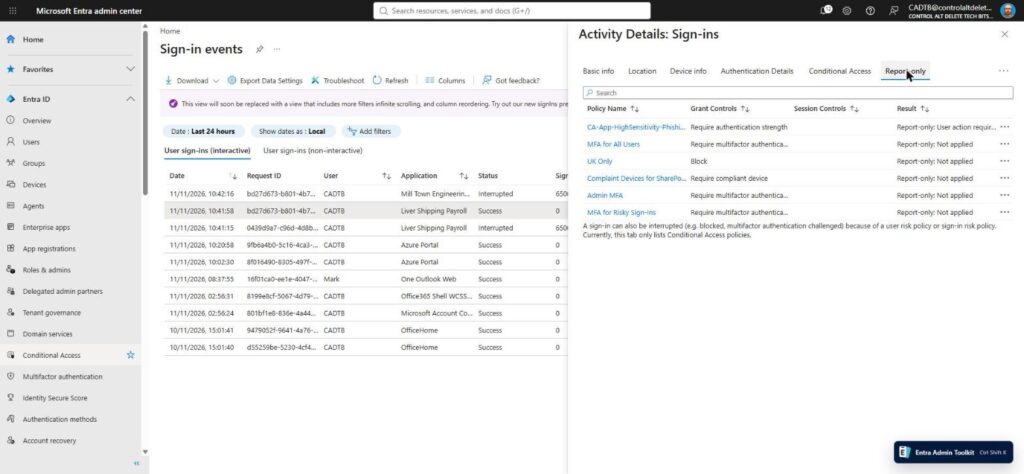
Test 3: Sign in to a Standard app (Mill Town Engineering Wiki)
Expected: “Report-only: Not applied”.
Result: “Report-only: Not applied”. The policy was evaluated and skipped, because Standard doesn’t equal High.

Test 4: Try to tag a Microsoft first-party app
I tried to tag Graph Explorer, one of Microsoft’s own first-party apps, as High. Learn says an app with no service principal in your tenant can’t be targeted, and gives the Office 365 suite as the example. It doesn’t say whether first-party apps that do have a service principal can be tagged. Graph Explorer already had one in my tenant from earlier use.
Result: yes on both counts. The assignment saved without complaint, and a sign-in to Graph Explorer a few minutes later showed “Report-only: User action required” for the policy. Microsoft’s own apps don’t get a free pass, which feels oddly fair. That’s one app tested, not a promise for all of them, and the Office 365 suite caveat still stands.


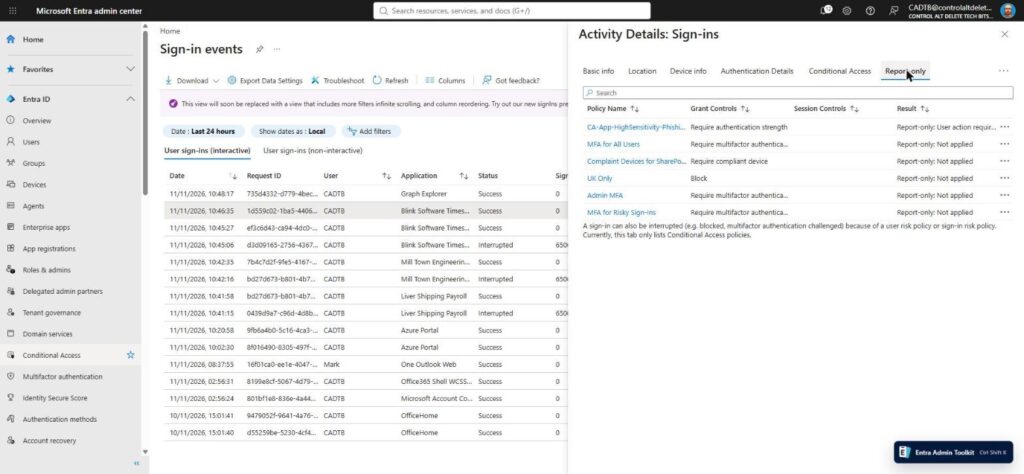
Test 5: Bring a new app into scope by tagging it
This is the whole point. Before tagging, I signed in once as a baseline: Not applied, as you’d expect for an untagged app. Then I tagged Blink Software Timesheets as High, didn’t touch the policy, and signed in again.
Result: the policy applied. The tag saved at 10:46:15 and the sign-in at 10:46:35 already showed “Report-only: User action required”. Twenty seconds, and most of that was me pasting a link.
| Test | App | Tag | Result |
|---|---|---|---|
| 1 | None (Global Admin) | n/a | Add attribute set greyed out, no error |
| 2 | Liver Shipping Payroll | High | Report-only: User action required |
| 3 | Mill Town Engineering Wiki | Standard | Report-only: Not applied |
| 4 | Graph Explorer (Microsoft first-party) | High | Tag saved, Report-only: User action required |
| 5 | Blink Software Timesheets | High (added later) | Report-only: User action required, 20 seconds after tagging |
Gotchas and limits
Gotcha: String only. Learn says the Conditional Access filter for applications only works with custom security attributes of type string. You can happily create a Boolean attribute called IsSensitive, tag every app with it, and the filter won’t use it. It won’t complain, it just won’t be there. The Edit filter pane quietly notes that Integer and Boolean attributes aren’t shown.
Gotcha: nothing can be deleted. Attribute sets can’t be renamed or deleted. Name them like you’re getting them tattooed. Attributes can only be deactivated, and existing assignments aren’t removed automatically when you do. Deactivated attributes don’t count towards the limit, but they don’t go away either.
Gotcha: no service principal, no tag. If the app isn’t in Enterprise apps, there’s nothing to put the attribute on.
Good to know: the limits are generous. You get 500 active attribute definitions per tenant and 100 predefined values per attribute.
Good to know: whoever holds Attribute Assignment Administrator can now move an app in or out of your policies by changing a tag. Treat that role like a Conditional Access role, because in practice it is one.
The Directory tab of the audit log showed an “Update service principal” entry for Blink Software Timesheets the moment I tagged it, with no values in Modified properties. The detail lives on the Custom Security tab, where Learn says it’s logged as “Update attribute values assigned to a servicePrincipal”, and that tab told my Global Admin “You don’t have access to this data”. Reading it needs Attribute Log Reader or Attribute Log Administrator, so add one of those for whoever audits your Conditional Access.

Should you use the Conditional Access filter for applications?
If you’ve got more than a handful of apps that need the same controls, yes. One sensitivity attribute and a policy per tier is far easier to live with than a growing list in every policy, and new apps get the right controls the moment someone tags them. Tiers are also a tidy place to hang other controls, like the sign-in frequency settings in my Conditional Access session controls guide.
If you’ve got three apps and one policy, a list is fine. Don’t build a tagging scheme for the sake of it.
If you only do one thing today, create the attribute set and attribute with names you’ll be happy with in five years. You can’t change them later.
FAQs
Why can’t Global Administrator create custom security attributes?
By design. Global Administrator and the other admin roles have no custom security attribute permissions by default. Assign Attribute Definition Administrator to create them and Attribute Assignment Administrator to tag apps.
Do I need Entra ID P2 for the Conditional Access filter for applications?
No. Custom security attributes are included in all Microsoft Entra ID editions, and Conditional Access needs Entra ID P1.
Can I use a Boolean custom security attribute in a Conditional Access filter?
No. Only String attributes work in the Conditional Access filter for applications. Boolean ones are hidden from the filter builder.
Can I delete a custom security attribute I created by mistake?
No. You can deactivate it, but not delete it, and attribute sets can’t be renamed or deleted at all.
Does the Conditional Access filter for applications work with Office 365 apps?
Only apps with a service principal in your tenant can be targeted. Learn gives the Office 365 suite as an example of one that can’t. In my lab, Microsoft’s Graph Explorer, which did have a service principal, could be tagged and was caught by the policy.
Further reading
- Conditional Access: Filter for applications (Microsoft Learn)
- What are custom security attributes in Microsoft Entra ID? (Microsoft Learn)
- Add or deactivate custom security attribute definitions (Microsoft Learn)
- Manage custom security attributes for an application (Microsoft Learn)
- Troubleshoot custom security attributes (Microsoft Learn)
- Manage access to custom security attributes in Microsoft Entra ID (Microsoft Learn)
- Conditional Access target resources (Microsoft Learn)
- Conditional Access What If tool (my guide)
Found this useful? Buy me a coffee, and if you handle subject access requests, have a look at Redact Ninja for redacting PDFs without sending files to a server.
Tags: Conditional Access, Entra ID, Global Administrator, Microsoft Entra, Microsoft Security