Intune Settings Catalog: 5 Settings for Windows Restore, Silent Printing and Fewer ‘What’s This?’ Calls
The Intune Settings Catalog is where I go first when someone asks “can Intune do that?”, and the answer is usually yes, buried somewhere in a very long list. Finding the good settings is the hard part.
Searching the picker can feel like rummaging through a Windows 98 Start menu on a PC that had every shareware game ever installed. You know the useful thing is in there. You just have to scroll past a lot of Solitaire first.
This guide covers five Intune Settings Catalog settings I think are worth knowing: Windows Restore (part of Windows Backup for Organizations), Edge silent printing, two Edge geolocation lists, and the Edge for Business informational page that appears after major updates.
For each one you get what it does, where it lives, the values to set, how to prove it worked and the bits that catch people out. Each setting gets its own profile, because one giant “misc” profile is how admins end up debugging at 4:55pm on a Friday.
Never miss a guide: subscribe here and check out my YouTube channel.
The short version (for anyone whose tea is going cold)
- Windows Restore needs three things: Enable Windows Backup, a restore setting, and a user who already has a backup.
- The tenant-wide Show restore page switch lives at Devices > Enrollment > Windows > Windows Backup and Restore and only affects devices that enrol after you turn it on.
- Edge silent printing (SilentPrintingEnabled) sends jobs straight to the default printer. Keep it for kiosks and label printers.
- The geolocation allow and block lists take URL patterns such as https://maps.contoso.com and [*.]contoso.com.
- Set WhatsNewPageForEntraProfilesEnabled to Disabled to hide the Edge for Business informational page for Microsoft Entra ID profiles.
- Prove it worked with edge://policy, the Intune enrolment report and the PowerShell checks below.
In this guide
I walk through all five settings in my video, so if you prefer watching someone else click Add settings, here it is.
What the Intune Settings Catalog is and why these five settings
The Settings Catalog is the Intune profile type that lists configurable settings in one searchable picker, grouped by category. The Intune Settings Catalog covers Windows CSPs, administrative templates and Microsoft Edge policies, so you rarely need a custom OMA-URI profile these days.
None of these Intune Settings Catalog settings will change the world. Each one removes a specific annoyance, whether that’s a user rebuilding their desktop after a laptop swap or a receptionist clicking Print twice for every visitor badge.
| Setting | Where it lives in the picker | Policy name | Good for |
|---|---|---|---|
| Enable Windows Backup | Administrative Templates > Windows Components > Sync your settings | EnableWindowsBackup | Backing up user settings and the Store app list |
| Enable Windows Restore | Windows Backup And Restore | EnableWindowsRestore | Offering restore on new or reset devices |
| Enable Silent Printing | Microsoft Edge | SilentPrintingEnabled | Kiosks, label and badge printers |
| Allow precise geolocation on these sites | Microsoft Edge > Content settings | PreciseGeolocationAllowedForUrls | Trusted mapping and dispatch apps |
| Block geolocation on these sites | Microsoft Edge > Content settings | GeolocationBlockedForUrls | Sites that should never ask |
| Control whether an informational webpage for Edge for Business is shown in the new tab after major browser updates | Microsoft Edge | WhatsNewPageForEntraProfilesEnabled | A quieter first launch after updates |
Most of the Edge settings appear twice in the picker, once for the device and once with (User) on the end. Pick one scope per setting and stick to it, or you will spend a happy afternoon working out which one won.
Prerequisites and requirements
| Requirement | Detail |
|---|---|
| Admin role | Intune Administrator to create profiles. The enrolment restore setting needs Intune Administrator or Global Administrator. |
| Microsoft Edge | The four Edge policies in this guide are supported from Edge 144 on Windows. |
| Backup: Windows version | Windows 10 22H2 (19045.6216 or later), Windows 11 22H2 (22621.5768), 23H2 (22631.5768) or 24H2 (26100.4946) or later. |
| Backup: join type | Microsoft Entra joined or Microsoft Entra hybrid joined, with the user signed in using a Microsoft Entra account. |
| Restore during setup (OOBE) | Windows 11 22H2 (22621.3958), 23H2 (22631.3958) or 24H2 (26100.4770) or later, Microsoft Entra joined, and Autopilot user-driven mode if you use Autopilot. |
| Restore at first sign-in | Windows 11 24H2 (26100.7922) or 25H2 (26200.7922) or later, already enrolled, Microsoft Entra joined or hybrid joined. |
| Backup data | The user needs at least one backup from a previous device. |
Good to know: Windows Backup for Organizations is being renamed to Windows settings backup and restore, so you’ll see both names in the portal and on Microsoft Learn for a while. From Windows 11 26H2, backup is switched on by default for eligible devices, but restore still needs configuring.
How to configure Windows Restore in the Intune Settings Catalog in 4 steps
Windows Restore is the restore half of Windows Backup for Organizations. It brings back user settings, preferences and the list of installed Microsoft Store apps when someone sets up a new or reset device.
It isn’t a full device backup. Files belong in OneDrive, apps still come from Intune and Autopilot still does the provisioning. Think of it as getting the user’s wallpaper, accessibility settings and language back before they’ve finished complaining about the new keyboard.
Step 1: Create the backup profile
- In the Microsoft Intune admin centre, go to Devices > Configuration and select Create > New policy.
- Choose Windows 10 and later as the platform and Settings catalog as the profile type, which opens the Intune Settings Catalog picker.
- Give it an obvious name, such as Win: Windows Backup and Restore.
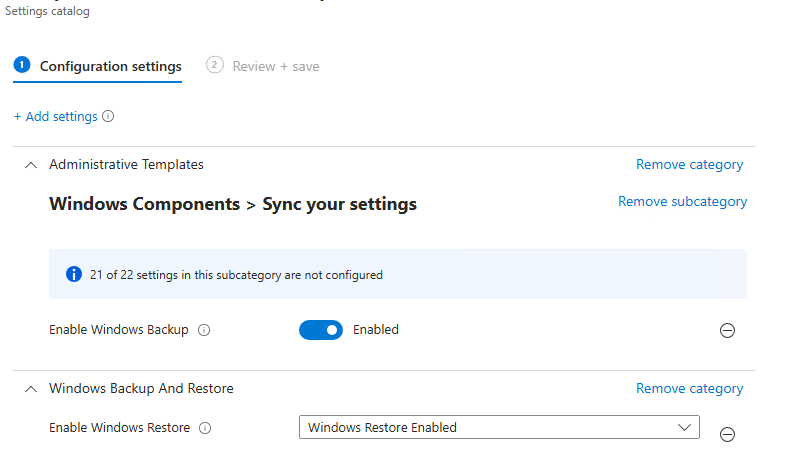
- Select Add settings, search for Enable Windows Backup and pick it from Administrative Templates > Windows Components > Sync your settings.
- Set Enable Windows Backup to Enabled.
Once the policy lands, a scheduled task backs up every eight days. Users can also open the Windows Backup app and select Back up if they don’t fancy waiting.
Step 2: Add Enable Windows Restore to the same profile
- In the settings picker, search for Windows Restore.
- Expand Windows Backup And Restore and tick Enable Windows Restore.
- Close the picker and set the drop-down to Windows Restore Enabled, then select Next.
This version of the restore setting applies after enrolment, during normal policy refresh, so it suits devices that are already managed. My lab Intune Settings Catalog profile has both settings side by side.
Step 3: Turn on the restore page for new enrolments
- Go to Devices > Enrollment and select the Windows tab.
- Under Enrollment options, select Windows Backup and Restore.
- Set Show restore page to On and select Save.
This switch is tenant-wide and defaults to Not configured, which means off. It applies to every Windows device that enrols from then on, and changing it does nothing for devices already enrolled, which is why Step 2 exists.
Gotcha: Restore only works if the user has a backup to restore. Turn backup on weeks before a laptop refresh, not on the morning the new devices arrive on a pallet.
Step 4: Assign and test
Assign the Intune Settings Catalog profile to a pilot group of test users or devices. Sign in on an old device, let it back up, then set up a spare Microsoft Entra joined device with the same account.
After sign-in during setup, the user sees a restore page listing their previous PCs. They pick one and select Continue, or set the device up as new.
To check the result, go to Devices, select the Windows tab, open the device and select Enrollment. Look for the Windows Backup and Restore profile, where statuses include Succeeded, Failed, No Backup Profiles and Setup as New PC Selected.
How to enable Edge silent printing in the Intune Settings Catalog
Enable Silent Printing (SilentPrintingEnabled) makes Edge close the print preview and print straight to the default printer using its default settings. If you disable it or leave it unset, print preview stays open as normal.
It’s brilliant on a reception PC printing visitor badges or a warehouse terminal printing labels. On a normal laptop it’s a fast route to 40 pages of someone’s online shopping basket.
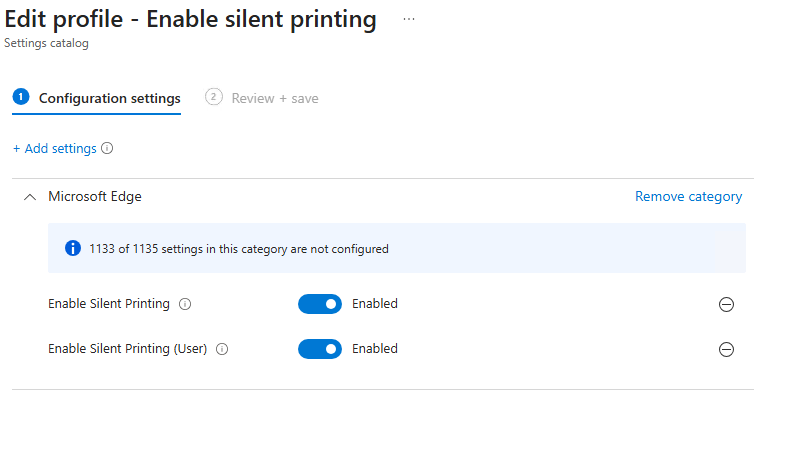
- Create a new Intune Settings Catalog profile for Windows 10 and later named Edge: Silent Printing.
- Select Add settings, search for Silent Printing and choose the Microsoft Edge category.
- Tick Enable Silent Printing, or Enable Silent Printing (User) if you want user scope.
- Set it to Enabled and assign it to a group of dedicated print devices only.
Good to know: if the default printer is Save as PDF, Edge saves the file to the user’s Downloads folder instead. Set the right default printer on the device before you blame the policy.
Allow precise geolocation on trusted sites
Allow precise geolocation on these sites (PreciseGeolocationAllowedForUrls) lists sites that can read the user’s high-accuracy location without asking. If you leave it unset, DefaultGeolocationSetting applies if configured, otherwise the user’s own choice wins.
Use it for things with a genuine need: an internal mapping portal, a field service app or a dispatch tool. A site that wants to show the local weather does not qualify, however hard marketing insists.
- Create an Intune Settings Catalog profile named Edge: Allow Precise Geolocation.
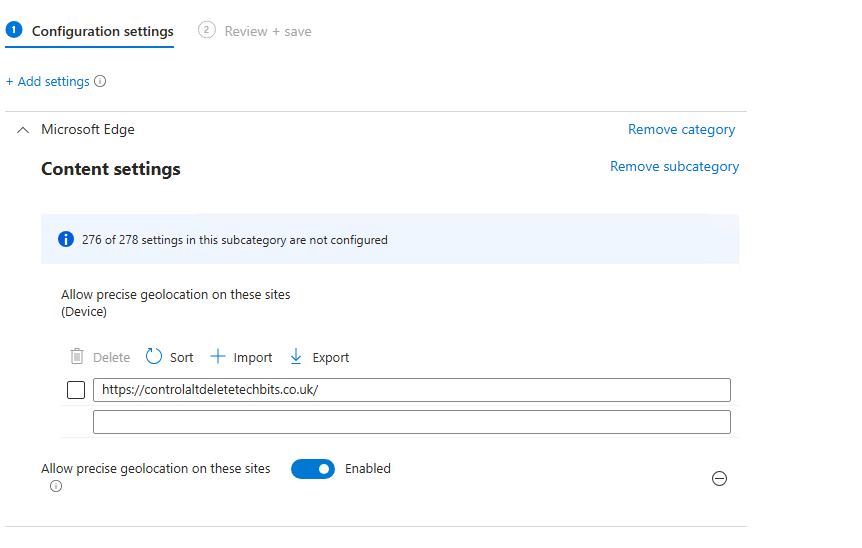
- Search for Precise Geolocation and expand Microsoft Edge > Content settings.
- Tick Allow precise geolocation on these sites and set it to Enabled.
- Add one URL pattern per row, then assign the profile to a pilot group.
The patterns follow the Edge URL pattern format. A plain address matches that exact host, and the [*.] prefix matches a domain plus all of its subdomains.
https://maps.contoso.com
https://dispatch.contoso.com:8443
[*.]fieldops.contoso.com
Line one allows a single HTTPS site, line two pins a port, and line three covers fieldops.contoso.com plus every subdomain under it.
Block geolocation on specific sites
Block geolocation on these sites (GeolocationBlockedForUrls) does the opposite. Listed sites can’t access the user’s location and can’t even prompt for it, which ends the pop-up roulette.
- Create an Intune Settings Catalog profile named Edge: Block Geolocation.
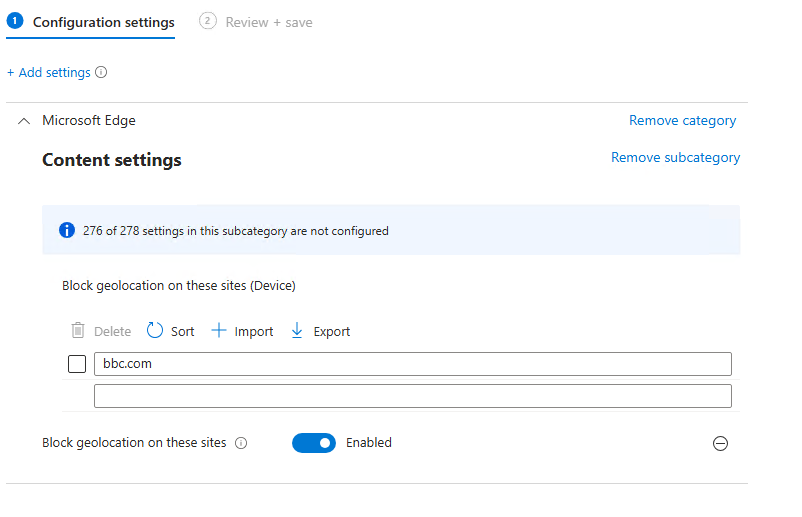
- Search for Block Geolocation and expand Microsoft Edge > Content settings.
- Tick Block geolocation on these sites and set it to Enabled.
- Add the patterns you want to block, then assign to your pilot group.
[*.]contoso-ads.com
https://www.fabrikam.com
fabrikam.net
The first entry blocks a domain and every subdomain. The second blocks one HTTPS site, and the third has no scheme, so it matches fabrikam.net over HTTP or HTTPS but not its subdomains.
Gotcha: Don’t put the same site on both lists. Keep the allow list tight and specific, save broad [*.] wildcards for the block list, and test any overlap in Edge before real users find it for you.
Hide the Edge for Business informational page after major updates
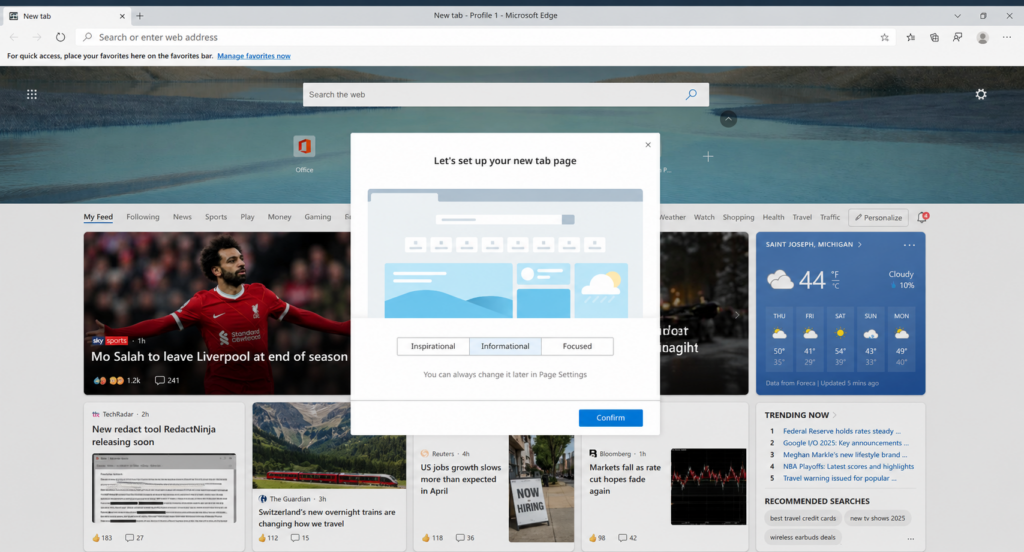
From Microsoft Edge 145, users with Microsoft Entra ID profiles see an informational page about new Edge for Business features in a new tab after major updates. The policy to control it arrived in Edge 144, so you could set it before the page turned up.
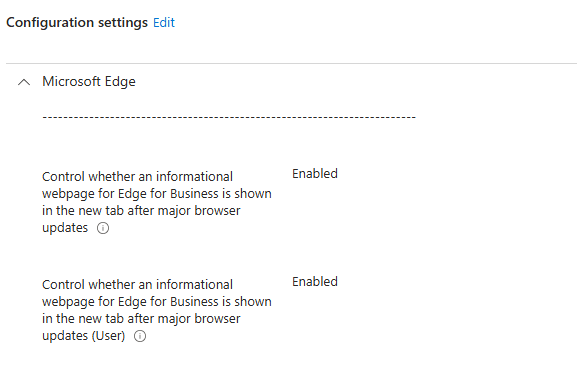
The setting’s full name is a mouthful: Control whether an informational webpage for Edge for Business is shown in the new tab after major browser updates. Its policy name, WhatsNewPageForEntraProfilesEnabled, is barely shorter.
| Value | What users see |
|---|---|
| Enabled | The informational page is shown |
| Not configured | The informational page is shown (the default) |
| Disabled | The page is not shown |
- Create an Intune Settings Catalog profile named Edge: Disable Whats New Page.
- Search for informational webpage and pick the setting from the Microsoft Edge category.
- Set it to Disabled. Read that twice, because Enabled means users see the page.
- Assign it, then restart Edge on a test device, as this policy doesn’t refresh until the browser restarts.
Assign each profile to a pilot group
Every Intune Settings Catalog profile above changes what users see, so start small. All devices is not a pilot group, however confident you feel after a cup of tea.
| Profile | Good pilot |
|---|---|
| Win: Windows Backup and Restore | Test users with a spare device you can reset |
| Edge: Silent Printing | Only the kiosk or label printer devices |
| Edge: Allow and Block Geolocation | IT staff who can test the real web apps |
| Edge: Disable Whats New Page | A few Edge for Business users before the next major update |
In each profile, go to Assignments, add your pilot group under Included groups and create the profile. Widen the assignment once you’ve seen the result on a real device.
How to prove the Intune Settings Catalog policies worked
Intune reporting “Succeeded” is encouraging, but seeing the setting on the device is proof. Start with a sync: open Settings > Accounts > Access work or school, select the work account, select Info, then Sync.
Next, check the Edge side of each Intune Settings Catalog profile: open Edge, go to edge://policy and select Reload policies. You should see SilentPrintingEnabled, PreciseGeolocationAllowedForUrls, GeolocationBlockedForUrls and WhatsNewPageForEntraProfilesEnabled with the values you set.
For a registry check, this script reads the Edge policy keys at device and user level, including the numbered values that list policies use.
# Check Edge policies written by Intune at device and user level
$edgeKeys = @(
    'HKLM:\SOFTWARE\Policies\Microsoft\Edge',
    'HKCU:\SOFTWARE\Policies\Microsoft\Edge'
)
$values = 'SilentPrintingEnabled', 'WhatsNewPageForEntraProfilesEnabled'
$lists  = 'PreciseGeolocationAllowedForUrls', 'GeolocationBlockedForUrls'

foreach ($key in $edgeKeys) {
    if (-not (Test-Path -Path $key)) {
        Write-Output "$key not found"
        continue
    }
    Write-Output "== $key =="
    $props = Get-ItemProperty -Path $key
    foreach ($name in $values) {
        Write-Output ("{0}: {1}" -f $name, $props.$name)
    }
    foreach ($list in $lists) {
        $listKey = Join-Path -Path $key -ChildPath $list
        if (Test-Path -Path $listKey) {
            $item = Get-Item -Path $listKey
            foreach ($valueName in $item.GetValueNames()) {
                Write-Output ("{0}\{1} = {2}" -f $list, $valueName, $item.GetValue($valueName))
            }
        }
    }
}
For Windows Restore, check the build and join state on the target device before testing.
# Confirm the Windows version and build before testing Windows Restore
$cv = Get-ItemProperty -Path 'HKLM:\SOFTWARE\Microsoft\Windows NT\CurrentVersion'
"{0} build {1}.{2}" -f $cv.DisplayVersion, $cv.CurrentBuildNumber, $cv.UBR

# Check the join state (restore during setup needs AzureAdJoined : YES)
dsregcmd /status | Select-String -Pattern 'AzureAdJoined|DomainJoined'
If the build is below the numbers in the requirements table, update the device first. If you’re also tidying up disk space policies, my guide to Storage Sense with Microsoft Intune uses the same testing approach.
Intune Settings Catalog gotchas
Backup dependencies. Windows Backup won’t run if EnableActivityFeed, PublishUserActivities, UploadUserActivities, EnableCDP or AllowConnectedDevices is set to Disabled. Check old GPOs and security baselines before blaming Intune.
Mixing GPO and Intune. Configure Windows Backup through Group Policy or CSP, never both. Mixing them gives unpredictable results, and nobody wants to explain that in a change review.
Conditional Access. A policy covering all cloud apps can block the restore flow with “You don’t have access to this”. The documented fix allows the Microsoft service with app ID d32c68ad-72d2-4acb-a0c7-46bb2cf93873, and the Conditional Access What If tool helps you spot the blocking policy.
Unsupported provisioning. Restore isn’t supported with Autopilot self-deploying mode, the pre-provisioning technician flow, Autopilot reset, manual enrolment from the Settings app, Group Policy enrolment or co-management enrolment. Shared and userless devices are out too.
Hyper-V labs. With phishing-resistant MFA enforced, a security key or smart card prompt can’t pass through to a Hyper-V VM during setup. Give your test account a Temporary Access Pass instead.
Silent printing scope. Use the device version of the setting and a device group, so the policy stays with the label printer PC rather than following a user to their laptop.
Should you use these Intune Settings Catalog settings?
Yes, with sensible targeting. These Intune Settings Catalog settings are small, quick to deploy and easy to undo. Windows Restore is the one I’d switch on for almost everyone, as long as backup has been running for a while before your next hardware refresh.
Silent printing and the geolocation lists are scalpel settings: great for a known device or a known site, messy when assigned broadly. Hiding the Edge for Business page is a quick win if your users panic at unexpected tabs, though some organisations will want staff to see what’s new.
If you’re working through Windows 11 policies at the same time, my guide to Intune Windows 11 25H2 settings covers more Settings Catalog options worth a look.
Intune Settings Catalog FAQs
What is the Intune Settings Catalog?
It’s an Intune profile type that lists configurable settings in a searchable picker for Windows, macOS and iOS/iPadOS. It covers Windows CSPs, administrative templates and Microsoft Edge policies in one place.
Does Windows Restore replace Windows Autopilot?
No. Autopilot provisions and enrols the device. Windows Restore brings back the user’s Windows settings, preferences and Microsoft Store app list during setup or first sign-in.
Does Windows Backup for Organizations back up files and apps?
It backs up settings, preferences and the list of installed Microsoft Store apps. Files should live in OneDrive, and line-of-business apps still need deploying with Intune.
Why doesn’t the restore page appear during setup?
Check that Show restore page is On, the device is Microsoft Entra joined, the build meets the minimum and the user has a backup. Autopilot self-deploying mode and pre-provisioning aren’t supported.
What URL format do the Edge geolocation policies use?
They use Edge URL patterns, such as https://maps.contoso.com for one site or [*.]contoso.com for a domain and its subdomains.
How do I check Edge policies applied from Intune?
Open edge://policy on the device and select Reload policies. You can also read the Edge policy keys under HKLM and HKCU with the PowerShell script in this guide.
Further reading
- Windows Backup for Organizations in Microsoft Intune (Microsoft Learn)
- Windows settings backup and restore overview (Microsoft Learn)
- SilentPrintingEnabled policy (Microsoft Learn)
- PreciseGeolocationAllowedForUrls policy (Microsoft Learn)
- Enterprise policy URL pattern format (Microsoft Learn)
- Manage Intune Windows 11 25H2 settings
- Configure Storage Sense with Microsoft Intune
- Intune update rings and feature updates
Found this useful? Buy me a coffee, and if you handle subject access requests, have a look at Redact Ninja for redacting PDFs without sending files to a server.
Tags: Intune
[…] Intune Settings Catalog Windows Restore & Silent Print says: 7 June 2026 at 21:51 […]