Conditional Access Session Controls: Because ‘Stay Signed In?’ Isn’t a Security Policy
Conditional Access session controls are the section at the bottom of the policy blade that most of us scroll straight past on the way to the Create button.
You built the MFA policy, you targeted All resources, and you went to put the kettle on. Meanwhile, a user on a hotel PC ticked Stay signed in? and walked off, and Entra was perfectly happy to keep that session going for weeks.
This guide explains what the two main Conditional Access session controls, sign-in frequency and persistent browser session, really do and what the defaults are. It also covers why the device filter in Microsoft’s own template catches more devices than most people expect. Then we build two policies, one for unmanaged devices and one for admins, and test them before anyone gets locked out.
Never miss a guide: subscribe here and check out my YouTube channel.
The short version (for anyone reading this between two Teams calls)
- Out of the box, Microsoft Entra ID uses a rolling 90-day sign-in frequency and lets users on personal devices choose Stay signed in.
- Conditional Access session controls shorten that where it matters: sign-in frequency sets how often users reauthenticate, persistent browser session decides whether the browser remembers them.
- Microsoft’s template filter also catches compliant Microsoft Entra joined devices, so on a cloud-only estate everyone gets the 1-hour prompt.
- For cloud-native estates I recommend the filter device.isCompliant -ne True instead, tested in report-only first.
- Give admins their own policy: 4 hours or less, never persistent.
- Turn off the legacy remember MFA on trusted devices setting before you start.
In this guide
What are Conditional Access session controls?
Conditional Access session controls change what happens after a user signs in, rather than whether they can sign in at all. Grant controls are the bouncer on the door. Session controls decide how long you can stay at the bar before someone checks your wristband again.
The Session pane has several options, from app enforced restrictions to token protection. This guide sticks to the two that every tenant should look at.
| Control | What it does | Values |
|---|---|---|
| Sign-in frequency | How long a user can access resources before they must sign in again | Periodic reauthentication (hours or days) or Every time |
| Persistent browser session | Whether the browser session survives closing and reopening the browser | Always persistent or Never persistent |
Both need Microsoft Entra ID P1, which is included in Microsoft 365 Business Premium, E3 and E5. The full background is in Conditional Access adaptive session lifetime policies.
What Entra does without Conditional Access session controls
The default sign-in frequency is a rolling window of 90 days. If nothing changes about the session’s security posture, Entra won’t ask the user for credentials again. A password change, a device falling out of compliance or a disabled account all revoke the session, so it isn’t quite as lawless as it sounds.
The reasoning is sensible. Users who get prompted constantly start typing their password into anything that asks, including the phishing page that looks a bit like the real one.
For browsers, the default is the Stay signed in? prompt. Users on personal devices get to choose, and they always choose yes, because nobody in history has clicked No on that box.
Example scenario: Dave from accounts checks SharePoint on a hotel lobby PC, ticks Stay signed in? out of habit, closes the browser and goes for breakfast. The next guest opens the browser and lands in your SharePoint as Dave, with no password and no MFA, because the authentication already happened.
Conditional Access session controls don’t stop cookie theft on their own, but they shrink how long a stolen or forgotten session stays useful.
Sign-in frequency: periodic or every time?
Sign-in frequency sets how long a user can access a resource before being asked to sign in again. It now applies to MFA as well as the first factor, so a 4-hour policy means fresh MFA every 4 hours, not just a password.
| Option | When to use it | Watch out for |
|---|---|---|
| Periodic reauthentication | Unmanaged devices, admin roles, sensitive apps | Prompts arrive when a new token is needed, so timing is never exact |
| Every time | Risky users and sign-ins, Intune enrolment, PIM elevation | Use sparingly; it can cause MFA fatigue or sign-in loops |
It works with apps that use OAuth2 or OIDC properly. That covers most Microsoft clients on Windows, Mac and mobile, plus Office.com, Word, Excel and PowerPoint for the web, Exchange Online, SharePoint and OneDrive, the Teams web client, the Microsoft 365 admin centre and the Azure portal. Non-Microsoft SAML apps work too, as long as they redirect back to Entra and don’t drop their own cookies.
Every time is a sharper tool. It forces full reauthentication when the session is evaluated, with five minutes of clock skew so users aren’t prompted more than once every five minutes.
Gotcha: Every time without an MFA requirement can trap users in a sign-in loop, and Microsoft Entra Private Access doesn’t support it at all. Keep it for a handful of targeted policies.
One testing quirk: on Microsoft Entra joined and hybrid joined devices, unlocking Windows refreshes the Primary Refresh Token every four hours, and that refresh can satisfy sign-in frequency. A 1-hour policy on a joined laptop doesn’t always mean a prompt every hour.
Persistent browser session: why it needs All resources
Persistent browser session controls whether the browser keeps the user signed in after it’s closed. Never persistent means closing the browser ends the session. Always persistent keeps the user signed in, prompt or no prompt.
The policy must target All resources. Browser persistence is tied to the authentication session token, and every tab shares that token, so Entra can’t make SharePoint persistent and Exchange not.
When a persistent browser session policy applies, it overrides the Stay signed in? setting in company branding for those users. That’s handy, because company branding is tenant-wide while Conditional Access can be targeted.
Conditional Access session controls prerequisites
| What you need | Why |
|---|---|
| Microsoft Entra ID P1 (Business Premium, E3 or E5) | Conditional Access, including session controls |
| Conditional Access Administrator role | Least-privileged role that can create the policies |
| Intune compliance policies assigned to devices | The recommended device filter relies on isCompliant |
| Two break glass accounts in an exclusion group | So one bad policy can’t lock out every admin |
| A test user and a personal device | To prove the policy before everyone else meets it |
If you haven’t set up emergency access yet, do that first with my break glass account guide. It’s ten minutes well spent.
The device filter in Microsoft’s template, explained honestly
Microsoft’s template for this job is Require reauthentication and disable browser persistence. It targets All users and All resources, sets sign-in frequency to 1 hour and browser persistence to Never persistent, and includes devices matching this filter:
device.trustType -ne "ServerAD" -or device.isCompliant -ne TrueRead it slowly, ideally with a cup of tea. A device is caught if it isn’t hybrid joined, or if it isn’t compliant. The only devices that escape are ones that are both Microsoft Entra hybrid joined and compliant.
So a compliant Microsoft Entra joined laptop, with trustType AzureAD, still matches because AzureAD is not ServerAD. On a cloud-only estate every device in the building gets the 1-hour prompt. The old version of this article said compliant Entra joined machines were excluded, and that was wrong.
Unregistered devices count too. An unregistered device has no properties in the directory, so every attribute is null, and negative operators like -ne apply to it (see filter for devices). That part is what you want: the hotel PC is caught.
Here’s how the template compares with the two filters I recommend instead.
| Device | Template filter | isCompliant -ne True | isCompliant -ne True -and trustType -ne “ServerAD” |
|---|---|---|---|
| Unregistered personal or hotel PC | Included | Included | Included |
| Entra registered, not enrolled in Intune | Included | Included | Included |
| Personal device enrolled and compliant | Included | Excluded | Excluded |
| Entra joined, compliant | Included | Excluded | Excluded |
| Entra joined, not compliant | Included | Included | Included |
| Entra hybrid joined, compliant | Excluded | Excluded | Excluded |
| Entra hybrid joined, not compliant | Included | Included | Excluded |
For a cloud-native estate, I recommend device.isCompliant -ne True. Compliant devices are treated as managed and everything else gets the short leash. If you also want hybrid joined devices treated as managed, compliant or not, use the second filter.
That’s my recommendation rather than Microsoft’s template, so test it in report-only and with the What If tool before you trust it with real users.
Good to know: if the Intune setting Mark devices with no compliance policy assigned as is left on its default of Compliant, enrolled devices with no compliance policy count as compliant and escape the filter. Set it to Not compliant under Endpoint security > Device compliance > Compliance policy settings.
How to set up Conditional Access session controls in 6 steps
Step 1: Turn off remember MFA on trusted devices
Remember MFA on trusted devices and sign-in frequency don’t mix. Leave both on and users get prompted at times nobody can explain, usually just before a board meeting.
- Sign in to the Microsoft Entra admin centre as at least an Authentication Policy Administrator.
- Go to Entra ID > Multifactor authentication > Additional cloud-based MFA settings. This opens the legacy per-user MFA service settings page, which you can also reach from Entra ID > Users > Per-user MFA > Service settings.
- Clear Allow users to remember multifactor authentication on devices they trust, then select Save.
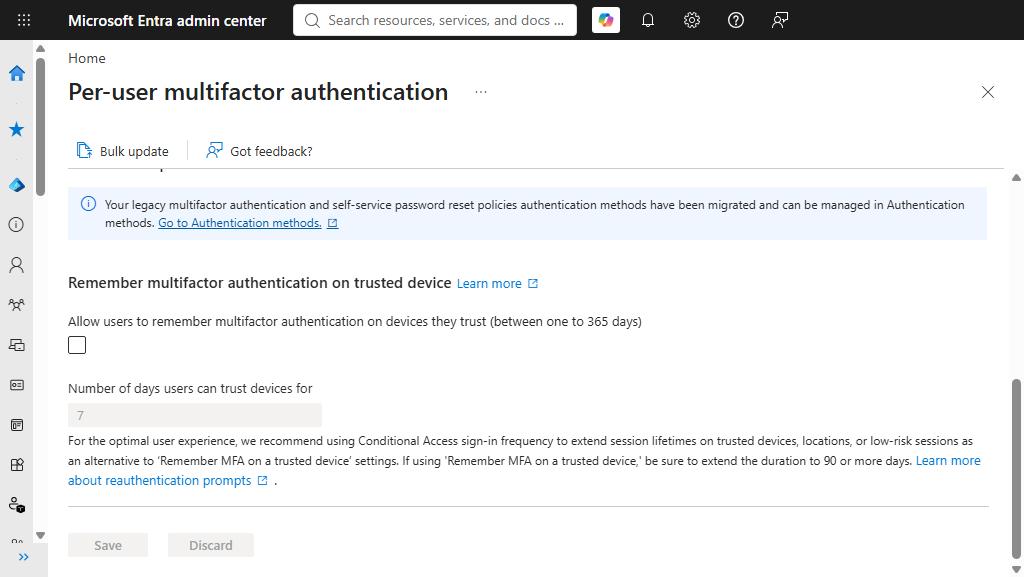
It lives in the legacy service settings, not under Authentication methods, which is where the previous version of this guide wrongly sent you. Windows 98 had fewer hidden settings pages.
Step 2: Choose your device filter
Cloud-only with Intune compliance in place: device.isCompliant -ne True. Hybrid estate that counts domain-joined machines as managed: the -and version. No compliance policies yet? Use the template filter, and accept that everyone gets the shorter session until Intune catches up.
Step 3: Create the unmanaged device policy
- Sign in to the Microsoft Entra admin centre as at least a Conditional Access Administrator.
- Go to Entra ID > Conditional Access > Policies > New policy.
- Name it something your future self will understand, such as CA-Session-UnmanagedDevices-BrowserControls.
- Under Users, include All users and exclude your break glass group.
- Under Target resources, include All resources (formerly ‘All cloud apps’).
- Under Conditions > Filter for devices, set Configure to Yes, choose Include filtered devices in policy, and paste your filter into the rule syntax box.
- Under Session, tick Sign-in frequency, choose Periodic reauthentication and set it to 1 Hours.
- Tick Persistent browser session, choose Never persistent, then Select.
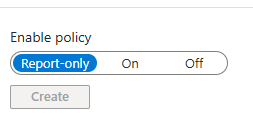
- Set Enable policy to Report-only and select Create.

One hour is aggressive for someone on their own laptop at home. If the helpdesk phone starts ringing, 4 to 8 hours on unmanaged devices is a reasonable compromise, as long as browser persistence stays off.
Step 4: Create the admin session policy
Admins get their own policy whatever device they’re on. An admin session that coasts for 90 days is a standing invitation.
- Create a new policy named something like CA-Session-Admins-SignInFrequency.
- Under Users > Include, choose Select users and groups > Directory roles. Add your privileged roles: at least Global Administrator, Privileged Role Administrator, Privileged Authentication Administrator, Security Administrator, Conditional Access Administrator, User Administrator, Exchange Administrator, SharePoint Administrator, Intune Administrator and Application Administrator.
- Exclude your break glass group.
- Target All resources.
- Under Session, set Sign-in frequency to Periodic reauthentication, 4 Hours, and Persistent browser session to Never persistent.
- Create it in Report-only.
Four hours matches the CIS Microsoft 365 Foundations Benchmark, which asks for periodic reauthentication of 4 hours or less and never persistent browser sessions for admin roles. Its list of roles is longer than mine, so check it if you’re being audited against it.
Some older benchmark versions allowed up to 24 hours for E5 tenants using PIM. I’d stick with 4 hours whatever your licence. PIM limits how long a role is active, but a stolen session inside that window is just as dangerous.
Gotcha: directory role targeting covers built-in roles with an active assignment. PIM-eligible admins are only in scope once they activate, and roles scoped to an administrative unit or custom roles aren’t covered at all. Add a group of your dedicated admin accounts too. My Microsoft Entra PIM guide covers the setup.
Step 5: Test with What If and report-only
Before anything goes On, run the Conditional Access What If tool for three people: a test user on a compliant device, a test user on an unregistered device, and an admin. Session controls appear in the results, so you can see which policy gives which user a 1-hour session.
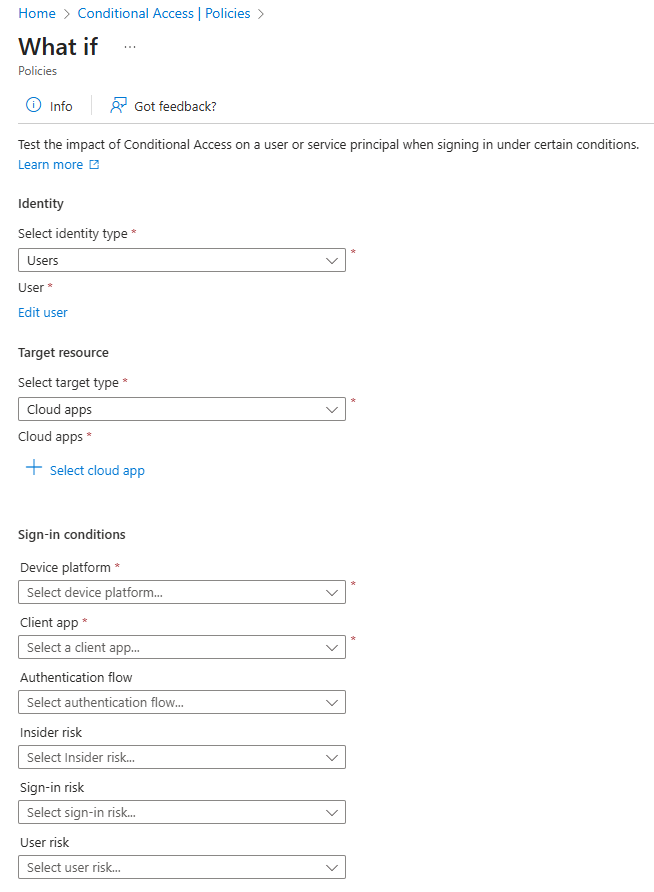
Then leave both policies in report-only for at least a week. In Entra ID > Monitoring & health > Sign-in logs, open a few sign-ins and check the Report-only tab. Any result other than Report-only: Not applied means the policy would have applied.
- Compliant Entra joined laptops should show Not applied for the unmanaged device policy. If they don’t, your filter or compliance setup needs a look.
- Service accounts and shared mailboxes shouldn’t appear. Exclude them properly or replace them with managed identities.
- Admins should hit the admin policy, including anyone who only gets roles through PIM.
Tip: the Entra Sign-in Diagnostic is quicker than squinting at raw logs when a test user is prompted and you can’t see why.
Step 6: Switch on and keep an eye on it
Move each policy from Report-only to On, ideally on a Tuesday morning rather than 4:55pm on a Friday. Once Conditional Access session controls are enforced, expect a short spike in prompts on personal devices and a few questions from people who liked never signing in.
If you need to cut off a session right now, for example after a lost laptop, don’t wait for sign-in frequency. Revoke the user’s sessions with Microsoft Graph PowerShell:
Connect-MgGraph -Scopes "User.RevokeSessions.All"
Revoke-MgUserSignInSession -UserId "dave@contoso.com"
Prove your Conditional Access session controls are working
- On an unregistered device, sign in to Outlook on the web, close the browser, reopen it and go back. You should be asked to sign in again.
- Stay on that device for more than an hour, then open a new app. You should get a fresh sign-in and MFA prompt.
- On a compliant Entra joined device, the unmanaged device policy should show Not applied in the Conditional Access tab of the sign-in log.
This PowerShell lists every policy with Conditional Access session controls, showing its sign-in frequency, browser persistence and device filter. It’s handy for documentation and for spotting the forgotten policy from 2022.
Connect-MgGraph -Scopes "Policy.Read.All"

Get-MgIdentityConditionalAccessPolicy -All |
    Where-Object { $_.SessionControls.SignInFrequency.IsEnabled -or $_.SessionControls.PersistentBrowser.IsEnabled } |
    ForEach-Object {
        $sif = $_.SessionControls.SignInFrequency
        [pscustomobject]@{
            Policy            = $_.DisplayName
            State             = $_.State
            SignInFrequency   = if ($sif.FrequencyInterval -eq "everyTime") { "Every time" } elseif ($sif.IsEnabled) { "$($sif.Value) $($sif.Type)" } else { "Not set" }
            PersistentBrowser = $_.SessionControls.PersistentBrowser.Mode
            DeviceFilter      = $_.Conditions.Devices.DeviceFilter.Rule
        }
    } | Format-Table -AutoSize
Conditional Access session controls gotchas
Prompt timing. Users are prompted when an app next needs a token, so the timing never looks as neat as the policy. Someone may get through a 1-hour meeting and be prompted the moment they open a new file.
Mobile devices. Reauthentication after the interval can take around 30 seconds on mobile. On iOS, apps using certificates as the first factor with Intune app protection can block sign-in when sign-in frequency triggers.
Token lifetime policies. Configurable refresh and session token lifetimes were retired on 30 January 2021 and replaced by Conditional Access session controls. If an old token lifetime policy is still lurking, don’t run it alongside sign-in frequency for the same user and app.
Stale compliance. A device that stops checking in is marked not compliant after the compliance status validity period, 30 days by default. From then on it meets the unmanaged device policy, which tends to surface the laptop that lives in a drawer.
Should you bother with Conditional Access session controls?
Yes, and Conditional Access session controls are a short job. Two policies, a week in report-only and a tidy-up of the legacy MFA setting close the biggest gaps without bothering people on compliant devices, provided you pick the right filter.
If you only do three things today: turn off remember MFA on trusted devices, check which devices your filter really includes, and put the admin policy in report-only. Then have a cup of tea while the sign-in logs fill up.
Conditional Access session controls FAQs
What are Conditional Access session controls?
They are settings in a Conditional Access policy that control the session after sign-in, such as sign-in frequency and persistent browser session. They need Microsoft Entra ID P1.
What is the default sign-in frequency in Microsoft Entra ID?
A rolling window of 90 days. Users are not asked to sign in again unless something changes, such as a password reset, a device becoming non-compliant or an admin revoking the session.
Will the unmanaged device policy affect compliant Entra joined devices?
With Microsoft’s template filter, yes, because only devices that are both hybrid joined and compliant are excluded. With device.isCompliant -ne True, compliant devices are excluded and keep their normal sessions.
What sign-in frequency should I use for admins?
Four hours or less with never persistent browser sessions, which matches the CIS Microsoft 365 Foundations Benchmark. Save Every time for specific cases such as risky sign-ins.
What is the difference between sign-in frequency and token lifetime policies?
Configurable refresh and session token lifetimes were retired on 30 January 2021. Sign-in frequency in Conditional Access replaced them and is the supported way to control how often users reauthenticate.
Further reading
- Conditional Access adaptive session lifetime policies (Microsoft Learn)
- Configure adaptive session lifetime policies (Microsoft Learn)
- Conditional Access: filter for devices (Microsoft Learn)
- Configure Microsoft Entra multifactor authentication settings (Microsoft Learn)
- Conditional Access What If tool: test before you enforce
- PIM for Groups: stop assigning roles to users
Found this useful? Buy me a coffee, and if you handle subject access requests, have a look at Redact Ninja for redacting PDFs without sending files to a server.
Tags: Entra ID
[…] investigation reveals that sessions are persisting far longer than they should, the article on Conditional Access Session Controls covers exactly how to tighten that up, including the sign-in frequency and persistent browser […]
[…] to go further? My Conditional Access session controls guide and phishing-resistant MFA rollout are good next steps, and both are worth a What If test of their […]