Intune Update Rings and Feature Updates: Patch Windows 11 Without the 10am Reboot
Intune update rings decide when Windows 11 installs updates and how hard it nags before restarting, which is the difference between a calm Patch Tuesday and the head teacher ringing because the whiteboard PC rebooted mid-assembly. Pair them with feature update policies and you also decide which version of Windows each device runs.
Plenty has changed since I first wrote this guide. Windows Update for Business is now called Windows Update client policies, its deployment service now sits inside Windows Autopatch, and Windows 11 26H2 started rolling out on 29 September 2026.
Below I cover how Intune update rings and feature update policies work together, my lab settings, pinning devices to 25H2 or 26H2, proving it worked with reports and PowerShell, and where Windows Autopatch fits. Kettle on.
Never miss a guide: subscribe here and check out my YouTube channel.
The short version (for anyone reading this with a restart countdown on screen)
- Intune update rings control timing: deferrals, deadlines, grace periods and restarts.
- Feature update policies control the version: devices get the release you pick and nothing newer.
- With a feature update policy in place, set the ring’s feature update deferral to 0 days.
- Windows 11 24H2 Home and Pro stop getting updates on 13 October 2026, so pin devices to 25H2 or 26H2 now.
- Windows Autopatch uses the same policy types, supports Microsoft Entra hybrid joined devices and is included with Business Premium, E3/E5, A3/A5, F3 and VDA.
In this guide
I walk through the original lab build in my video, and the steps below bring it up to date for 2026:
How Intune update rings and feature update policies fit together
Both policy types live under Devices > Windows > Windows updates in the Microsoft Intune admin centre. Both sit on top of Windows Update client policies, so devices download straight from Microsoft and no WSUS server hums away in a cupboard.
Intune update rings are client-side settings. They tell Windows how long to defer quality updates, when a deadline forces the install, whether users can pause, and when a restart is acceptable.
Feature update policies are cloud-side. Intune hands them to the Windows Update service, which offers each device that exact version and holds it there, even after Microsoft ships the next release.
| Policy | What it controls | Where it’s enforced |
|---|---|---|
| Intune update rings | Deferrals, deadlines, grace period, restarts, pause and uninstall | On the device, through the Update CSP |
| Feature update policy | Target Windows version and rollout schedule | Windows Update service |
Good to know: Intune now uses Windows Autopatch behind the scenes for feature, quality and driver update policies. That’s why feature update policies need a Windows licence with the Autopatch entitlement, even if you never create an Autopatch group.
Prerequisites and licensing for Intune update rings
Intune update rings only need Intune Plan 1 and a supported Windows edition. Feature update policies and their reports ask for more, and the reports fail quietly, which is a lovely way to lose a Tuesday afternoon.
| Requirement | Intune update rings | Feature update policies |
|---|---|---|
| Licences | Microsoft Intune Plan 1 | Intune Plan 1 plus a Windows licence with the Autopatch entitlement (Business Premium, Microsoft 365 E3/E5/F3, A3/A5 or Windows Enterprise VDA) |
| Windows editions | Pro, Pro Education, Enterprise, Education, IoT Enterprise | Pro, Pro Education, Enterprise, Education (not LTSC) |
| Device identity | Enrolled in Intune | Microsoft Entra joined or Microsoft Entra hybrid joined |
| Diagnostic data | Not needed for the ring itself | Required level or higher |
| Services | Microsoft Account Sign-In Assistant (wlidsvc) enabled | wlidsvc enabled and running |
Co-managed devices also need the Windows Update policies workload switched to Intune. For the feature update reports to fill in, turn on Windows data for the tenant:
- In the Microsoft Intune admin centre, go to Tenant administration > Connectors and tokens > Windows data.
- Set Enable features that require Windows diagnostic data in processor configuration to On (it’s Off by default).
- Save, then give it a day before judging the reports.
Gotcha: The Microsoft Account Sign-In Assistant service (wlidsvc) looks like something a hardening script should disable. Don’t. With it disabled, Windows Update stops offering feature updates and the failures report shows a DeviceRegistrationInvalidGlobalDeviceId alert.
Check a device with PowerShell before you build anything
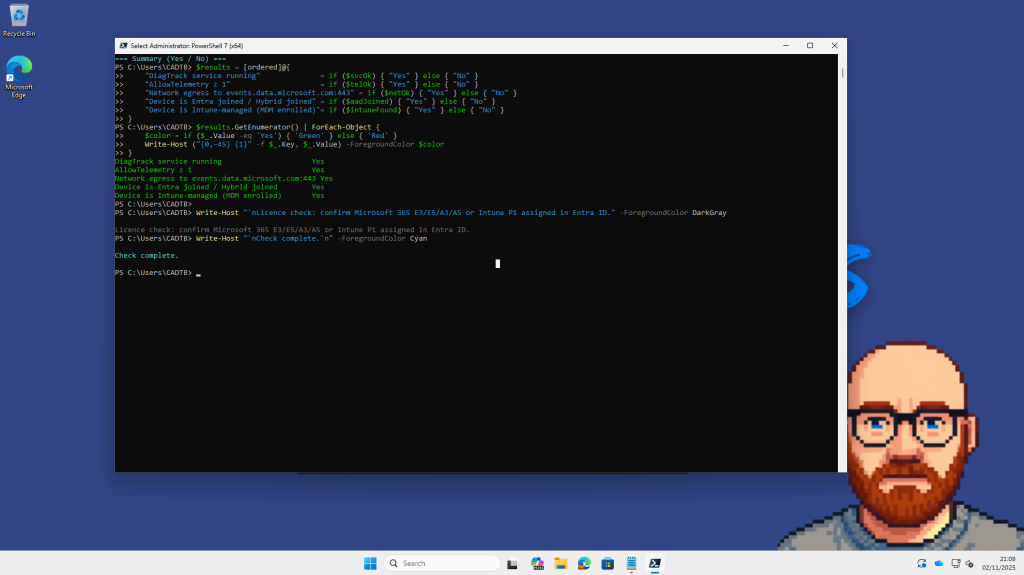
I wrote a check script for my lab VMs before creating any Intune update rings. The screenshot shows the original run, and the version below is tidied up, read-only and runs as administrator in Windows PowerShell 5.1 or PowerShell 7.
# Read-only readiness check for Intune update rings and feature update policies
# Run as administrator in Windows PowerShell 5.1 or PowerShell 7
$diag = Get-Service -Name DiagTrack -ErrorAction SilentlyContinue
$wlid = Get-Service -Name wlidsvc -ErrorAction SilentlyContinue

$telemetryPaths = @(
    'HKLM:\SOFTWARE\Microsoft\PolicyManager\current\device\System',
    'HKLM:\SOFTWARE\Policies\Microsoft\Windows\DataCollection',
    'HKLM:\SOFTWARE\Microsoft\Windows\CurrentVersion\Policies\DataCollection'
)
$telemetry = $telemetryPaths | ForEach-Object {
    (Get-ItemProperty -Path $_ -Name AllowTelemetry -ErrorAction SilentlyContinue).AllowTelemetry
} | Where-Object { $null -ne $_ } | Select-Object -First 1

$net = Test-NetConnection -ComputerName 'v10c.events.data.microsoft.com' -Port 443 -WarningAction SilentlyContinue

$dsreg = dsregcmd /status
$entraJoined  = [bool]($dsreg | Select-String -Pattern 'AzureAdJoined\s*:\s*YES')
$domainJoined = [bool]($dsreg | Select-String -Pattern 'DomainJoined\s*:\s*YES')
$joinType = if ($entraJoined -and $domainJoined) { 'Microsoft Entra hybrid joined' }
            elseif ($entraJoined) { 'Microsoft Entra joined' }
            else { 'Not joined to Microsoft Entra' }

$mdm = Get-ChildItem -Path 'HKLM:\SOFTWARE\Microsoft\Enrollments' -ErrorAction SilentlyContinue |
    Get-ItemProperty -ErrorAction SilentlyContinue |
    Where-Object { $_.ProviderID -eq 'MS DM Server' }

$results = [ordered]@{
    'DiagTrack service running'               = if ($diag.Status -eq 'Running') { 'Yes' } else { 'No' }
    'AllowTelemetry set to 1 or higher'       = if ($telemetry -ge 1) { "Yes ($telemetry)" } else { 'No or not set by policy' }
    'wlidsvc not disabled'                    = if ($wlid -and $wlid.StartType -ne 'Disabled') { 'Yes' } else { 'No' }
    'Reaches v10c.events.data.microsoft.com'  = if ($net.TcpTestSucceeded) { 'Yes' } else { 'No' }
    'Join type'                               = $joinType
    'Enrolled in Intune (MDM)'                = if ($mdm) { 'Yes' } else { 'No' }
}

$results.GetEnumerator() | ForEach-Object {
    $ok = ($_.Value -like 'Yes*') -or ($_.Value -like 'Microsoft Entra*')
    $colour = if ($ok) { 'Green' } else { 'Red' }
    Write-Host ('{0,-42} {1}' -f $_.Key, $_.Value) -ForegroundColor $colour
}
Anything in red needs fixing before you blame Intune. Check licences manually in the Microsoft 365 admin centre, and remember an authenticating proxy can fail the network test on a healthy device.
How to set up Intune update rings and feature updates in 6 steps
This is the order I use in my lab and with customers. Test first, pin the version, then widen the rings once nothing has caught fire.
Step 1: Create a pilot group and an assignment filter
Policies target Microsoft Entra groups, so start small. I use an assigned device group called Grp-Win11-Test with a few Hyper-V VMs and one real laptop, because VMs never have dodgy fingerprint reader drivers and real users always do.
- In the Microsoft Entra admin centre, go to Entra ID > Groups > All groups > New group.
- Set Group type to Security and name it Grp-Win11-Test.
- Set Membership type to Assigned, add your test devices and select Create.
Assign Intune update rings to device groups rather than user groups. A device group applies without anyone signing in first, which matters for the shared PC in the staff room.
Assignment filters narrow an assignment further. Create one under Tenant administration > Assignment filters > Create > Managed devices, choose Windows 10 and later, then edit the rule syntax. This one matches Hyper-V VMs:
(device.manufacturer -eq "Microsoft Corporation") and (device.model -eq "Virtual Machine")
| Use case | Example rule |
|---|---|
| Dell Latitude laptops | (device.manufacturer -startsWith “Dell”) and (device.model -startsWith “Latitude”) |
| Physical hardware only | (device.model -notContains “Virtual Machine”) |
| Windows 11 24H2 devices | (device.osVersion -startsWith “10.0.26100”) |
Gotcha: Assignment filters work on Intune update rings but not on feature update policies, which are on Learn’s list of unsupported filter workloads. Scope those with groups, or Dave from accounts gets the new version before IT does.
Step 2: Create your first Intune update ring
- Go to Devices > Windows > Windows updates and select the Update rings tab.
- Select Create profile and give it a clear name such as Ring-Test-25H2.
- Configure Update settings and User experience settings using the table below.
- Assign the ring to Grp-Win11-Test, then select Review + create and Create.
| Setting | Allowed range | My lab test ring | Suggested broad ring |
|---|---|---|---|
| Quality update deferral period (days) | 0 to 30 | 2 | 7 |
| Feature update deferral period (days) | 0 to 365 | 0 | 0 |
| Set feature update uninstall period | 2 to 60 days | 30 | 14 to 30 |
| Automatic update behaviour | Several options | Auto install and reboot without end-user control | Auto install at maintenance time |
| Deadline for feature updates | 2 to 30 days | 2 | 7 |
| Deadline for quality updates | 2 to 30 days | 4 | 3 |
| Grace period | 0 to 7 days | 1 | 2 |
| Auto reboot before deadline | Yes or No | Yes | Yes |
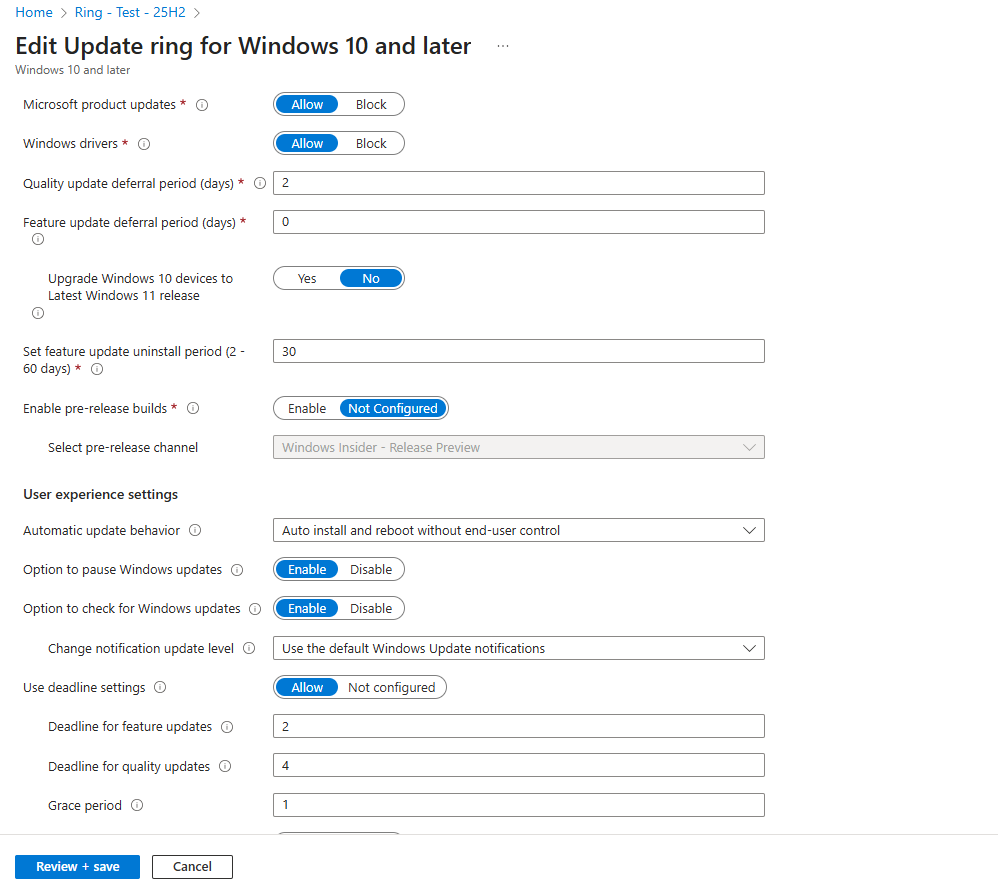
Deadlines count from when the device first discovers the update, not from Patch Tuesday. The grace period then guarantees users a minimum number of days to restart before Windows does it for them.
Tip: Leave Auto reboot before deadline set to Yes. Windows then restarts outside active hours when nobody is using the device, instead of waiting for the deadline and possibly restarting during the 10am budget meeting.
Step 3: Pin a version with a feature update policy
Without a feature update policy, the ring’s deferral is your only brake on new versions. A feature update policy names a version and holds devices there until you change it. These dates from Windows 11 release information explain why 24H2 devices need to move this month.
| Version | Available | End of updates (Home, Pro) | End of updates (Enterprise, Education) |
|---|---|---|---|
| Windows 11 24H2 | 1 October 2024 | 13 October 2026 | 12 October 2027 |
| Windows 11 25H2 | 30 September 2025 | 12 October 2027 | 10 October 2028 |
| Windows 11 26H2 | 29 September 2026 | 10 October 2028 | 9 October 2029 |
- Go to Devices > Windows > Windows updates > Feature updates and select Create profile.
- Name it, for example Feature-Pin-Win11-25H2.
- Under Feature update to deploy, choose Windows 11, version 25H2 (or 26H2 when you’re ready).
- Choose Make available to users as a required update.
- Set Rollout options: Immediate start for a test group, gradual rollout for production.
- Assign to device groups, then select Create.

A feature update policy never downgrades a device, so a laptop already on 26H2 ignores a 25H2 policy. If a device sits in several feature update policies, Windows Update offers the newest applicable version.
Moving from 24H2 or 25H2 to 26H2 uses a small enablement package and a single restart. Windows 10 devices get a full in-place upgrade instead.
Gotcha: The ring’s Uninstall action can’t roll back a feature update applied through an enablement package. That covers 24H2 to 25H2 and 25H2 to 26H2, so test properly in your first ring before going wide.
Step 4: Stop the ring and the feature policy fighting
When both policy types target a device, ring deferrals can delay or block what the feature update policy offers. Switch over in this order:
- Create and assign the feature update policy first.
- Wait for the Windows Feature Update Report to show OfferReady for your devices (processing usually takes about 10 minutes).
- Then set Feature update deferral period (days) to 0 in your Intune update rings.
- Check feature updates aren’t paused on that ring.
Do it the other way round and a device can scan in the gap and grab a version you never approved. Murphy’s law applies doubly to Friday afternoon changes.
Step 5: Turn on the data the reports need
The feature update report mixes service-side data, which arrives within about an hour, with client-side data that refreshes every eight hours. The client-side half only appears when devices send diagnostic data at Required or higher and the tenant Windows data toggle is on.
Set the level with a Settings catalog profile: System > Allow Telemetry set to Basic, the old name for Required. I add Configure Telemetry Opt In Settings Ux set to Disabled so users can’t turn it down again.
The first version of this guide said you needed a Windows health monitoring profile with the Windows updates scope. Learn now documents that profile for Endpoint analytics, so treat it as optional for update reporting.

Step 6: Widen the rollout in rings
Once the test group is happy, clone the ring and stretch the timings. Three Intune update rings cover most organisations I work with: Test for IT kit, Pilot for friendly users in each department, and Broad for everyone else.
Keep ring groups mutually exclusive. Two Intune update rings with different values on one device create setting conflicts, and conflicts make for very confusing reports.
How to prove your Intune update rings worked
Never trust a policy just because the portal says Succeeded. Check the ring, the report and the device itself.
- Ring overview: open the ring under Devices > Windows > Windows updates and check Device and user check-in status and Per setting status.
- Feature update report: go to Reports > Windows updates > Reports tab > Windows Feature Update Report, pick your profile and select Generate report.
- Failures: Devices > Monitor > Feature update failures lists alerts such as SafeguardHold, DiskFull or PolicyConflictDeferral.
- The device: open Settings > Windows Update and run the status script below.

My second script shows the build, the ring settings written to the device, any pending restart, Delivery Optimisation jobs and recent Windows Update and Setup events:
# Read-only Windows Update status check for a device in an Intune update ring
$cv = Get-ItemProperty -Path 'HKLM:\SOFTWARE\Microsoft\Windows NT\CurrentVersion'
Write-Host ('{0}, version {1}, build {2}.{3}' -f $cv.ProductName, $cv.DisplayVersion, $cv.CurrentBuild, $cv.UBR) -ForegroundColor Cyan

# Settings the update ring has written to the device (blank means not configured)
Get-ItemProperty -Path 'HKLM:\SOFTWARE\Microsoft\PolicyManager\current\device\Update' -ErrorAction SilentlyContinue |
    Select-Object DeferQualityUpdatesPeriodInDays, DeferFeatureUpdatesPeriodInDays,
        ConfigureDeadlineForQualityUpdates, ConfigureDeadlineForFeatureUpdates,
        ConfigureDeadlineGracePeriod, ActiveHoursStart, ActiveHoursEnd |
    Format-List

# Is a restart waiting?
$pending = Test-Path -Path 'HKLM:\SOFTWARE\Microsoft\Windows\CurrentVersion\WindowsUpdate\Auto Update\RebootRequired'
Write-Host "Pending reboot: $pending"

# Delivery Optimisation download jobs
$do = Get-DeliveryOptimizationStatus -ErrorAction SilentlyContinue
if ($do) { $do | Select-Object FileId, Status, BytesFromHttp, BytesFromPeers | Format-Table -AutoSize }
else { Write-Warning 'No active Delivery Optimisation download or upload jobs' }

# Windows Update and Setup events from the last 30 minutes
foreach ($log in 'Microsoft-Windows-WindowsUpdateClient/Operational', 'Setup') {
    Write-Host "[$log]" -ForegroundColor Yellow
    Get-WinEvent -FilterHashtable @{ LogName = $log; StartTime = (Get-Date).AddMinutes(-30) } -ErrorAction SilentlyContinue |
        Select-Object TimeCreated, Id, LevelDisplayName, Message |
        Format-Table -AutoSize -Wrap
}
Devices scan for updates roughly every 22 hours by default. To speed up a test, sync the device from Intune and select Check for updates, rather than waiting until tomorrow’s cup of tea.
Where Windows Autopatch fits with Intune update rings
Windows Autopatch is the managed layer on top of everything above. It creates and maintains Intune update rings and feature update policies for you, then rolls out Windows, Microsoft 365 Apps, Edge, Teams and driver updates in waves.
A lot of older advice about it is now wrong, including what I originally wrote here. The current picture:
- You manage it in the Microsoft Intune admin centre under Tenant administration > Windows Autopatch.
- Devices can be Microsoft Entra joined or Microsoft Entra hybrid joined, but must be corporate-owned.
- Each Autopatch group always has Test and Last deployment rings, with up to 15 rings per group.
- Licensing covers Business Premium, Windows Enterprise E3/E5 (Microsoft 365 E3, E5 and F3), Education A3/A5 and VDA E3/E5.
| Question | Manual Intune update rings | Windows Autopatch groups |
|---|---|---|
| Who builds the policies | You | Autopatch, based on your choices |
| Apps covered | Windows only | Windows, Microsoft 365 Apps, Edge, Teams, drivers |
| Best for | Small estates and labs | Larger estates wanting hands-off patching |
Good to know: Don’t assign your own Intune update rings to devices Autopatch manages. Autopatch maintains its own rings for those devices, and a second ring only creates conflicts.
Common gotchas with Intune update rings and feature updates
Deferral fights. A feature update deferral above 0 days can block the version your feature update policy offers. Set it to 0 once devices show OfferReady.
Paused rings expire. Pausing Intune update rings lasts up to 35 days, then devices scan and install whatever is due. Feature update policies don’t expire, so use those for version control.
Safeguard holds. If Microsoft knows about a compatibility issue, the update won’t install and the failures report shows SafeguardHold. Check Windows release health before raising a ticket.
LTSC devices. Feature update policies don’t support Enterprise LTSC, and the ring’s feature settings don’t apply to it either. Keep LTSC kit in its own group.
Autopilot timing. Feature update policies don’t apply during the out-of-box experience. They take effect at the first Windows Update scan after provisioning, so new devices may briefly run the image’s version.
Should you use Intune update rings or Windows Autopatch?
For a few hundred devices or fewer, manual Intune update rings plus a feature update policy are simple and predictable. That’s what I run in my lab, and what most schools I’ve worked with need.
If you already pay for Business Premium or E3 and patching keeps sliding down the to-do list, try Autopatch on a test group. Either way, get 24H2 Pro devices onto 25H2 or 26H2 before 13 October, because unpatched Windows is the IT equivalent of propping the server room door open with the fire extinguisher.
Intune update rings FAQs
What’s the difference between Intune update rings and feature updates?
Intune update rings control timing and behaviour, such as deferrals, deadlines, grace periods and restarts. Feature update policies control which Windows version a device is offered and keep it there until you change the policy.
What deferral and deadline values can I use in Intune update rings?
Quality updates can be deferred 0 to 30 days and feature updates 0 to 365 days. Deadlines run from 2 to 30 days, the grace period from 0 to 7 days, and the feature update uninstall period from 2 to 60 days.
Do feature update policies need extra licences?
Yes. Alongside Intune Plan 1, you need a Windows licence with the Autopatch entitlement, such as Microsoft 365 Business Premium, Microsoft 365 E3/E5/F3, A3/A5 or Windows Enterprise VDA.
Why is my feature update report empty?
Check the tenant toggle under Tenant administration > Connectors and tokens > Windows data, and confirm devices send diagnostic data at Required or higher. Client-side data refreshes every eight hours.
Can I roll back Windows 11 26H2?
The ring’s Uninstall action can’t roll back a feature update installed through an enablement package, which is how 24H2 and 25H2 devices move to 26H2. Test in a small ring first.
Further reading
- Manage Windows Update ring policies (Microsoft Learn)
- Update rings policy settings (Microsoft Learn)
- Configure Windows feature update policies (Microsoft Learn)
- Windows Autopatch groups overview (Microsoft Learn)
- Windows 11 25H2: how to get it and what changed
- Intune Windows 11 25H2 settings for Recall, Copilot and bloatware
- Secure Boot 2026 certificates and the Autopatch status report
Found this useful? Buy me a coffee, and if you handle subject access requests, have a look at Redact Ninja for redacting PDFs without sending files to a server.
Tags: Intune
[…] Autopilot and Intune do the work, and control versions with feature update policies. My guides on Intune update rings and feature updates and Intune Windows 11 25H2 settings cover the managed […]
[…] Intune update rings and feature updates guide covers the full set-up. Not on Intune? The Group Policy “Select target Feature Update […]
[…] Deploying the setting doesn’t force a restart. The process waits for normal restarts, and the boot manager swap usually needs one. If your users treat shutting down as optional, pair this with sensible restart deadlines from my Intune update rings and feature updates guide. […]