PIM for Groups Nesting: Does One Activation Promote the Whole Team?
PIM for Groups nesting sounds like the sort of thing that should come with a warning label. Put one group inside another, make the outer group grant a Microsoft Entra role, and then let somebody press Activate. Does the whole helpdesk get promoted, or just the person who pressed the button?
Microsoft Learn has a short paragraph on this, tucked away near the bottom of the PIM for Groups page. It says a role-assignable group can’t have another group as an active member, but it can have one as an eligible member, and that an activation only ever applies to the person who asked for it. That’s a big claim to leave in one paragraph, so I built it in my lab tenant and tried it.
Never miss a guide: subscribe here and check out my YouTube channel.
The short version (for anyone whose tea is going cold):
- A role-assignable group can’t contain another group as an active member. Microsoft Graph refuses with “Nesting is currently not supported for groups that can be assigned to a role”.
- PIM for Groups nesting is allowed for eligible membership: a group can be an eligible member of another group, even a role-assignable one.
- Members of the nested group can each activate their own membership of the outer group.
- An activation applies only to the person who requested it. The nested group doesn’t become an active member.
- Adding someone to the nested group makes them eligible for whatever the outer group grants, so the nested group needs the same care as the role itself.
In this guide
What Microsoft Learn says about PIM for Groups nesting
Two Learn pages cover this, and you need both. The role-assignable groups page says plainly that group nesting isn’t supported, so a group can’t be added as a member of a role-assignable group. The PIM for Groups page then narrows that down: the restriction applies to active membership, and one group can be an eligible member of another group, even if one of them is role-assignable.
The bit that matters is the last sentence. If a user is an active member of Group A, and Group A is an eligible member of Group B, the user can activate their membership in Group B. That activation is only for the user who requested it. It doesn’t mean the whole of Group A becomes an active member of Group B.
| Nesting type | Allowed for a role-assignable group? | What happens |
|---|---|---|
| Group A as an active member of Group B | No | Refused when you try to add it |
| Group A as an eligible member of Group B | Yes | Members of Group A can activate Group B membership one at a time |
| User as an eligible member of Group B | Yes | Standard PIM for Groups, no nesting involved |
Good to know: Role-assignable is a property you choose when you create the group, and Learn says it can’t be changed afterwards. You can’t turn an existing group into a role-assignable one, and a tenant can have a maximum of 500 of them.
Licensing and roles for this guide
| Requirement | Detail |
|---|---|
| Role-assignable groups | Microsoft Entra ID P1 |
| PIM for Groups and just-in-time activation | Microsoft Entra ID P2 or Microsoft Entra ID Governance (P2 is included in Microsoft 365 E5) |
| Create a role-assignable group | Privileged Role Administrator at least |
| Manage membership of a role-assignable group | Privileged Role Administrator, Global Administrator or a group owner |
| Graph permission to change role-assignable group membership | RoleManagement.ReadWrite.Directory (Learn says Group.ReadWrite.All won’t work) |
My lab setup
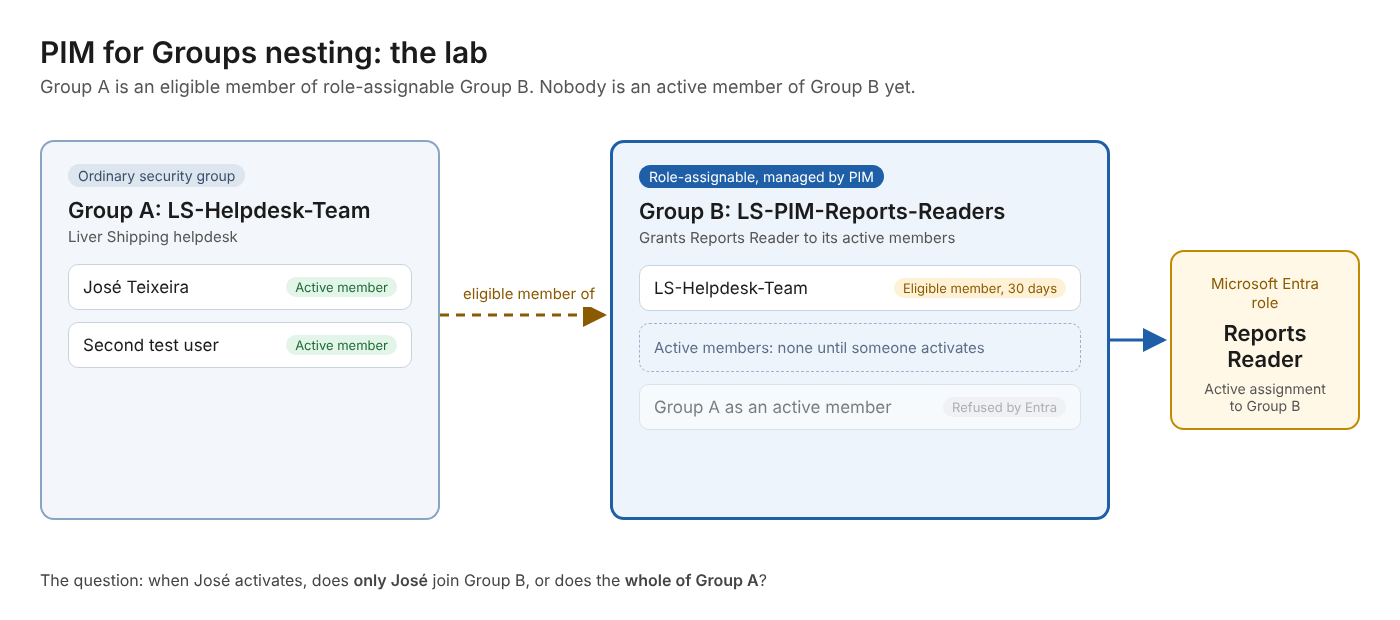
I used my Microsoft 365 E5 developer tenant and two groups for Liver Shipping, my long-suffering fictional shipping company. Group A is the helpdesk team, an ordinary security group. Group B is a role-assignable group that holds Reports Reader, which I chose because it’s harmless and easy to prove: if you can open the sign-in logs, you’ve got it.
| Lab item | What I used |
|---|---|
| Group A | LS-Helpdesk-Team, an ordinary security group |
| Group A members | José Teixeira and a second user with no roles, both active members |
| Group B | LS-PIM-Reports-Readers, role-assignable, managed by PIM for Groups |
| Group B role | Reports Reader, active |
| Nesting | Group A is an eligible member of Group B for 30 days |
| Test user | José Teixeira, no Entra roles of his own |
I built it with PowerShell so you can repeat it. The script uses Invoke-MgGraphRequest, so it only needs the Microsoft.Graph.Authentication module. I learnt that the hard way, when my first version fell over because the Identity Governance module wasn’t installed on the machine I was using. The full script is further down.
Test 1: Nest Group A inside Group B as an active member
First, the thing Learn says you can’t do. I tried to add Group A straight into Group B as an ordinary active member, the same way you’d nest any two security groups.
Microsoft Graph said no, quickly and politely:
HTTP/1.1 400 Bad Request
{"error":{"code":"Request_BadRequest",
 "message":"Nesting is currently not supported for groups that can be assigned to a role. paramName: Members, paramValue: , objectType: Microsoft.Online.DirectoryServices.Group"}}
So the first half of Learn’s statement holds. You can’t sneak a group into a role-assignable group through the front door. The word “currently” is doing some work in that message, but for today it’s a firm no.
Test 2: Make Group A an eligible member of Group B
Next, the PIM route. I created an eligibility request in PIM for Groups with Group A as the principal and Group B as the target, for 30 days. It came back with a status of Provisioned, no complaints.
There’s no separate “onboard to PIM” step when you do this through Graph. Learn says PIM onboards a group automatically the first time you create an assignment or eligibility for it. It also says that once a group is onboarded, you can’t offboard it. You can remove the assignments, but the group stays under PIM management, so don’t test this on a production group you might want to retire quietly later.
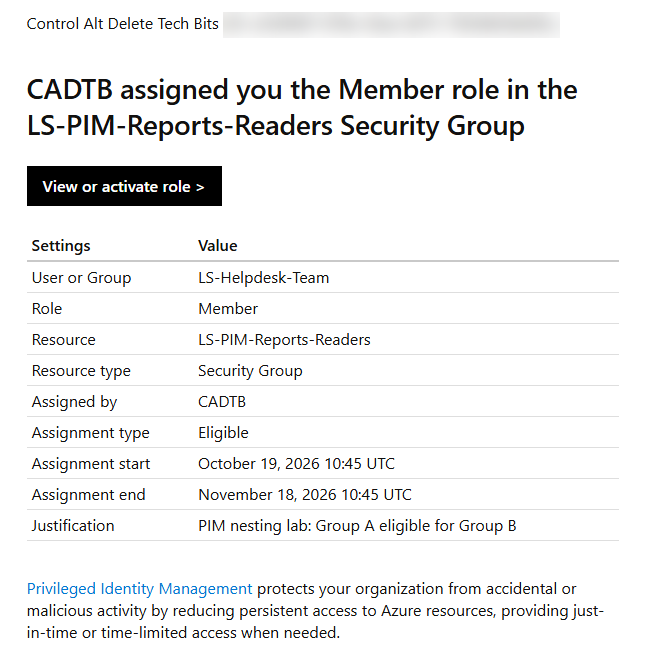
PIM also sent a notification email, titled “PIM: You now have the Member role”. The detail is worth a look: the User or Group line says LS-Helpdesk-Team, so the email is about the group’s eligibility, not any one person’s.
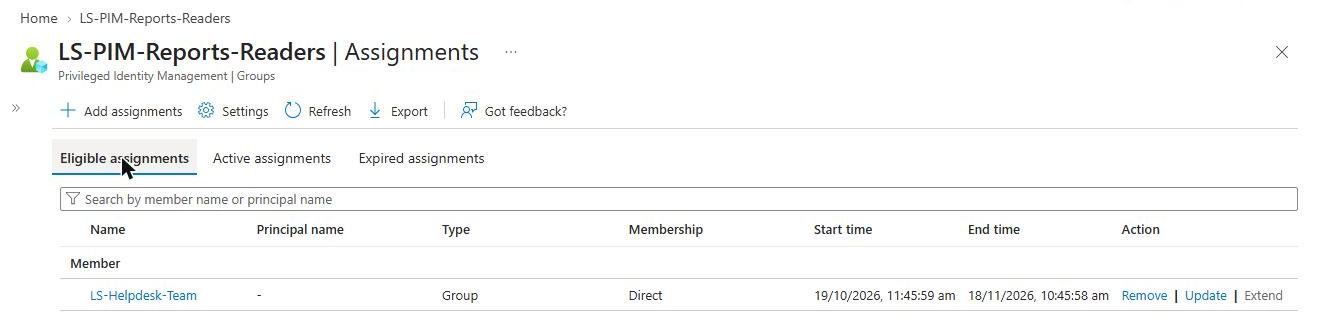
In PIM, Group B’s eligible assignments showed exactly one entry: LS-Helpdesk-Team, type Group, membership Direct. Not José, not his colleague. The group itself is the eligible principal.
Test 3: José activates Group B membership
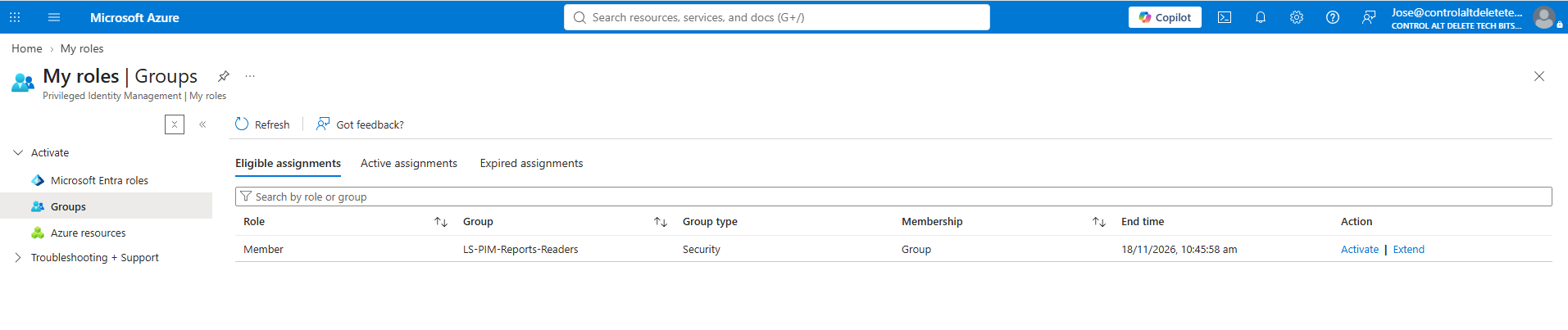
Now the main event. José signed in and went to ID Governance > Privileged Identity Management > My roles > Groups. His eligible assignment was waiting: Member of LS-PIM-Reports-Readers, with an end date matching the 30-day eligibility.
The column to look at is Membership. It says Group, not Direct. PIM knows José is only eligible because he’s in LS-Helpdesk-Team, and it tells him so. It’s a small detail, but it’s the first sign that PIM for Groups nesting is tracked per person rather than per group.
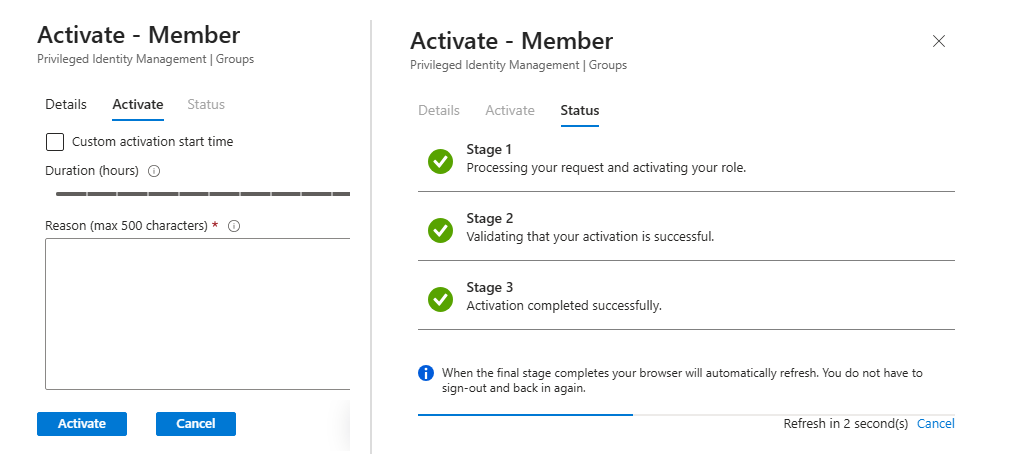
He selected Activate, gave a reason and confirmed. With the default PIM for Groups settings on my new group, there was no approval step, just the duration slider and a mandatory reason. PIM then ran through its three stages and finished with a reassuring note that he didn’t need to sign out and back in.
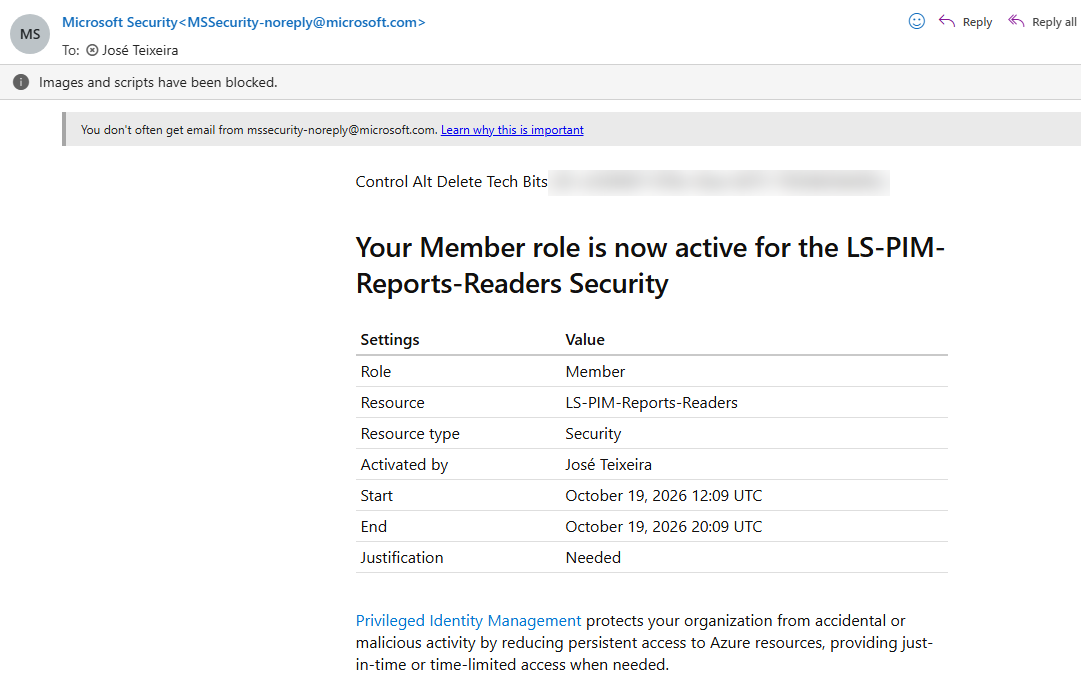
A couple of seconds later José’s inbox got the confirmation. Activated by José Teixeira, start 12:09 UTC, end 20:09 UTC. The justification field reads “Needed”, which is my test user’s entire contribution to the art of change management.
Test 4: Did the whole helpdesk get promoted?
This is the question the whole article hangs on. Straight after José’s activation I listed Group B’s members and its PIM active assignments with Microsoft Graph.
---- Before removing José from Group A 13:11:01
Group B members: José Teixeira
PIM active: principal bce4db98-... memberType group ends 10/19/2026 20:09:38
One member. José. The second user in LS-Helpdesk-Team, sitting right next to him in Group A, wasn’t added, and Group A itself didn’t appear as an active member either. Learn’s statement holds: the activation was for José and nobody else.
The other useful detail is memberType. PIM recorded José’s active assignment with a memberType of group, which is how you can tell from Graph that someone got their access through PIM for Groups nesting rather than a direct eligible assignment. The end time was eight hours after activation, the maximum Learn allows for an activation.
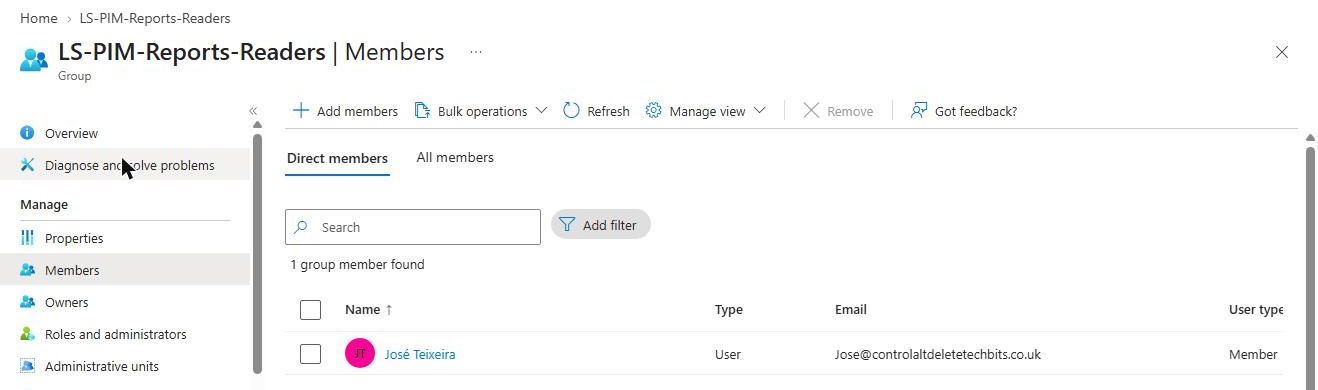
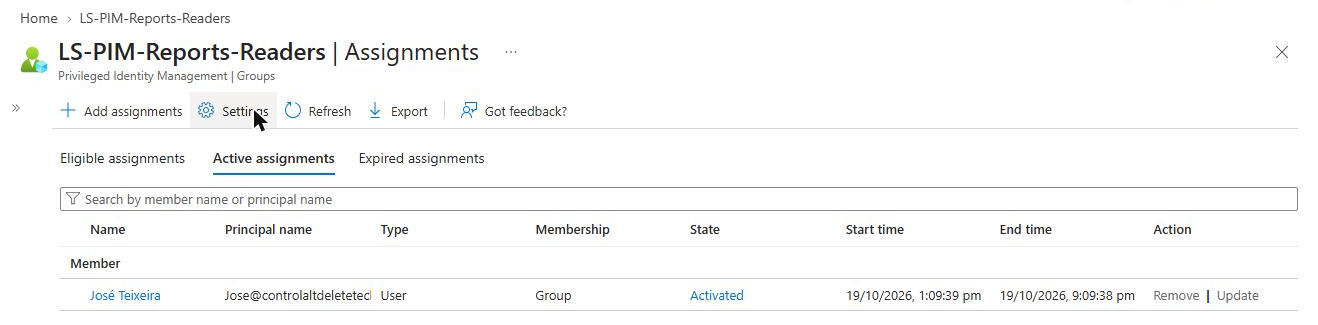
The portal agreed. Group B’s members list showed one direct member, and PIM’s active assignments listed José as a User with Membership set to Group, state Activated, and an end time eight hours after his start time.
Good to know: Learn describes memberType as showing whether an assignment is derived from a group assignment, with the values direct or group, and it supports filtering. Add memberType eq ‘group’ to an assignmentScheduleInstances query and you get every activation that came through a nested group, which is the list your auditors will ask for first.
Test 5: Remove José from Group A while he’s active
Learn doesn’t cover this one, which is exactly why I wanted to try it. If José has an active Group B membership that he got through Group A, and someone removes him from Group A halfway through, does he keep Group B until the activation expires?
I removed José from LS-Helpdesk-Team while his activation was live, then checked Group B and its PIM active assignments every minute.
---- Before removing José from Group A 13:11:01
Group B members: José Teixeira
PIM active: principal bce4db98-... memberType group ends 10/19/2026 20:09:38
Removed José from Group A
---- After 1 minute(s) 13:12:02
Group B members: José Teixeira
PIM active: principal bce4db98-... memberType group ends 10/19/2026 20:09:38
---- After 3 minute(s) 13:14:05
Group B members: José Teixeira
PIM active: principal bce4db98-... memberType group ends 10/19/2026 20:09:38
---- After 5 minute(s) 13:16:09
Group B members: José Teixeira
PIM active: principal bce4db98-... memberType group ends 10/19/2026 20:09:38
---- After 10 minute(s) 13:21:15
Group B members: José Teixeira
PIM active: principal bce4db98-... memberType group ends 10/19/2026 20:09:38
José kept his Group B membership. Ten minutes after I removed him from LS-Helpdesk-Team he was still a member, his PIM active assignment was unchanged, and the end time still said 20:09. The admin center told the same story: Active assignments still showed him as Activated, with Membership Group, through a group he no longer belonged to.
So removing someone from the nested group stops them activating again, but it doesn’t cut short an activation that’s already running. Learn doesn’t say either way, and I only watched for ten minutes before putting José back in the group, so I can’t tell you whether PIM would have tidied it up before the eight hours ran out. What I can tell you is that you shouldn’t count on it.
Gotcha: When someone leaves the team, removing them from the nested group isn’t enough on its own. Check the outer group’s Active assignments in PIM and remove their live activation as well, or they keep the access until it expires.
What the audit log shows
The group’s Resource audit in PIM tells the story in four lines. CADTB added LS-Helpdesk-Team as an eligible member, a request and a completion. Then José requested his own membership and PIM completed it. The subject on those last two lines is José Teixeira, not the group, so the audit trail records each person’s activation individually.
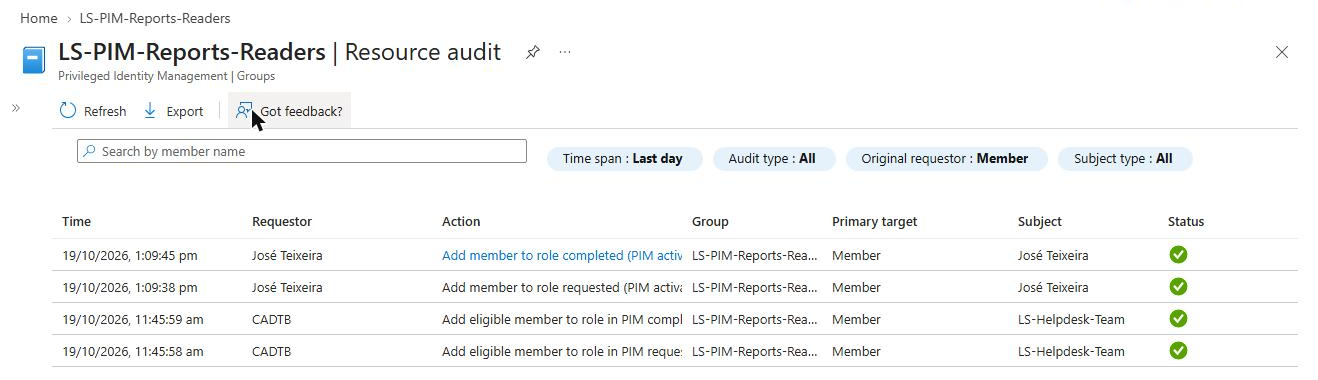
There’s no entry here for José leaving LS-Helpdesk-Team. That change happened in Group A, which PIM doesn’t manage, so you’ll find it in the Entra audit logs under the group, not in PIM.
PIM for Groups nesting gotchas
The nested group is now a privileged group. Anyone added to Group A becomes eligible for whatever Group B grants. Group A is an ordinary group, so Learn’s list of people who can manage ordinary groups applies, including Groups Administrators and User Administrators. Lock down who can change Group A’s membership, or make Group A role-assignable too so that only Privileged Role Administrators and owners can touch it.
Require approval. Learn recommends an approval process for eligible member assignments on groups used for elevating into Microsoft Entra roles. With nesting, that advice matters more, because the list of people who can activate is now whoever happens to be in Group A this week.
Gotcha: Learn says administrators and group owners can change group membership through the normal Groups experience, overriding changes made in PIM. If someone adds a user directly to Group B, PIM nesting doesn’t come into it at all. Check Group B’s direct members as part of your reviews, not just the eligible assignments.
Group B can’t leave PIM. Once a group is onboarded to PIM for Groups, it stays there. Plan your group names before you start, not after.
Activation time is capped. Learn says an activation is always time-bound to a maximum of eight hours, and you can set a lower maximum in the group’s PIM settings.
SharePoint, Exchange and Purview roles. Learn recommends PIM for Microsoft Entra roles rather than PIM for Groups for roles with permissions in those services, because activation through a group can take significant time to apply. Nesting doesn’t change that.
The PowerShell I used to build the lab
Run this in a test tenant as a Privileged Role Administrator or Global Administrator. It creates both groups, assigns Reports Reader to Group B, adds the users to Group A, tries the active nesting so you can see the error, and then makes Group A an eligible member of Group B. Swap the user IDs and names for your own.
# PIM for Groups nesting lab. Needs only the Microsoft.Graph.Authentication module.
Connect-MgGraph -Scopes "Group.ReadWrite.All","User.Read.All","RoleManagement.ReadWrite.Directory","PrivilegedEligibilitySchedule.ReadWrite.AzureADGroup"

$userIds = @("<user1-object-id>", "<user2-object-id>")   # the people in Group A

function New-LabGroup($body) {
    Invoke-MgGraphRequest -Method POST -Uri "https://graph.microsoft.com/v1.0/groups" -Body ($body | ConvertTo-Json)
}
function Add-GroupMember($groupId, $objectId) {
    $ref = @{ "@odata.id" = "https://graph.microsoft.com/v1.0/directoryObjects/$objectId" } | ConvertTo-Json
    Invoke-MgGraphRequest -Method POST -Uri "https://graph.microsoft.com/v1.0/groups/$groupId/members/`$ref" -Body $ref
}

# Group A: ordinary security group. Group B: role-assignable.
$groupA = New-LabGroup @{ displayName = "LS-Helpdesk-Team"; mailEnabled = $false; mailNickname = "ls-helpdesk-team"; securityEnabled = $true }
$groupB = New-LabGroup @{ displayName = "LS-PIM-Reports-Readers"; mailEnabled = $false; mailNickname = "ls-pim-reports-readers"; securityEnabled = $true; isAssignableToRole = $true }
Start-Sleep -Seconds 30

# Give Group B the Reports Reader role
$ra = @{ principalId = $groupB.id; roleDefinitionId = "4a5d8f65-41da-4de4-8968-e035b65339cf"; directoryScopeId = "/" } | ConvertTo-Json
Invoke-MgGraphRequest -Method POST -Uri "https://graph.microsoft.com/v1.0/roleManagement/directory/roleAssignments" -Body $ra

# Active members of Group A
$userIds | ForEach-Object { Add-GroupMember $groupA.id $_ }

# Test 1: active nesting into a role-assignable group (expect a 400)
try { Add-GroupMember $groupB.id $groupA.id } catch { $_.ErrorDetails.Message }

# Test 2: Group A as an eligible member of Group B for 30 days
$elig = @{
    accessId = "member"; principalId = $groupA.id; groupId = $groupB.id; action = "adminAssign"
    justification = "Group A eligible for Group B"
    scheduleInfo = @{ startDateTime = (Get-Date).ToUniversalTime().ToString("o"); expiration = @{ type = "afterDuration"; duration = "P30D" } }
} | ConvertTo-Json -Depth 5
Invoke-MgGraphRequest -Method POST -Uri "https://graph.microsoft.com/v1.0/identityGovernance/privilegedAccess/group/eligibilityScheduleRequests" -Body $elig
Gotcha: The script assigns Reports Reader to Group B directly rather than through PIM, so don’t be surprised if PIM’s “Roles are being assigned outside of Privileged Identity Management” alert pops up. In the lab that’s fine. In production, assign the role through PIM.
Should you use PIM for Groups nesting?
Yes, with care. PIM for Groups nesting does exactly what Learn says it does. Making a team group eligible for a role-assignable group saves you maintaining the same list of people twice, and each activation stays personal: one person presses Activate, one person gets the role, and the audit log names them.
The catch is that the nested group quietly becomes part of your privileged access. Treat LS-Helpdesk-Team like the role it unlocks: limit who can change its membership, require approval on the outer group, and remember that leaving the team doesn’t end a live activation. If you’re not prepared to give the nested group that level of attention, assign people individually and keep it simple.
FAQs
Can you nest a group inside a role-assignable group?
Not as an active member. Microsoft Graph refuses with “Nesting is currently not supported for groups that can be assigned to a role”. You can make a group an eligible member through PIM for Groups instead.
Does PIM for Groups nesting activate the whole nested group?
No. Learn says that when a member of the nested group activates, the activation applies only to that user. The nested group doesn’t become an active member of the outer group.
What licence does PIM for Groups nesting need?
Role-assignable groups need Microsoft Entra ID P1. PIM for Groups and just-in-time activation need Microsoft Entra ID P2 or Microsoft Entra ID Governance. Microsoft 365 E5 includes P2.
Can I remove a group from PIM for Groups management?
No. Learn says that once PIM onboards a group, it can’t be offboarded. You can remove its eligible and time-bound assignments, but the group stays managed.
How long does a PIM for Groups activation last?
A maximum of eight hours, according to Learn. You can set a lower maximum in the group’s PIM settings.
Can I make an existing group role-assignable?
No. The role-assignable property can only be set when the group is created and can’t be changed afterwards.
Further reading
- Privileged Identity Management (PIM) for Groups (Microsoft Learn)
- Use Microsoft Entra groups to manage role assignments (Microsoft Learn)
- Activate your group membership or ownership in PIM (Microsoft Learn)
- Govern membership and ownership of groups by using PIM for Groups (Microsoft Learn)
- PIM for Groups: stop hand-assigning admin roles
- Microsoft Entra PIM guide
Found this useful? Buy me a coffee, and if you handle subject access requests, have a look at Redact Ninja for redacting PDFs without sending files to a server.
Tags: Entra ID, Microsoft Entra, Microsoft Security