How to Set Up Microsoft Entra Terms of Use with Conditional Access
Microsoft Entra Terms of Use is a Conditional Access feature that allows organisations to present users with an agreement during sign-in and require them to accept it before they can access selected applications or resources.
The agreement itself is provided as a PDF, but the useful part is what Microsoft Entra can do around it.
You can decide which users need to accept the agreement, which applications it applies to, how often users need to accept it, whether a new version needs to be accepted again, and whether users need to accept it separately on each registered device.
Terms of Use can also be used with external guest users, Microsoft Intune enrolment and individual enterprise applications rather than only Microsoft 365.
Microsoft Entra records the acceptance as well, giving administrators a way to see who accepted an agreement, who declined it and which version they accepted.
In this guide I am going to break down what Microsoft Entra Terms of Use is, the different ways it can be used, the licensing requirements, the options available and then go through how I configured it in my Microsoft 365 developer tenant.
Never miss an article and subscribe, and don’t forget to check out my YouTube channel, Control Alt Delete Tech Bits
Like the article? Feel free to buy me a coffee
Also check out my redact app, Redact PDFs and images, review email evidence and manage subject access requests without sending source files to a processing server.: https://redactninja.com
What is Microsoft Entra Terms of Use?
Microsoft Entra Terms of Use is part of the Conditional Access process.
Conditional Access evaluates a sign in and determines whether additional requirements need to be met before access is granted. Microsoft describes Conditional Access as an if and then policy engine.
For example, you might have:
If a user signs into Microsoft 365, require MFA.
If an administrator accesses an administration portal, require phishing resistant authentication.
If an unmanaged device attempts to access SharePoint, block access.
Terms of Use adds another possible requirement:
If a selected user accesses a selected application, require them to accept an agreement.
Microsoft Entra Terms of Use requires the agreement to be uploaded as a PDF. That agreement is then selected as a Grant control inside a Conditional Access policy.
The result is that Microsoft Entra can make accepting the document part of the authentication process rather than relying on somebody being sent a policy by email.
Terms of Use is not limited to Microsoft 365
The video I created demonstrates the feature against Microsoft 365 because it makes for a nice, easy example.
A user attempts to access Microsoft 365.
Microsoft Entra detects that the user is included in my Conditional Access policy.
The Terms of Use agreement appears.
Once they accept it, access can continue.
If he declines, access is denied.
But you do not have to target Microsoft 365.
Microsoft states that Terms of Use can be applied to enterprise applications that use modern authentication.
That means the feature could potentially be used for a range of different scenarios.
For example, an organisation might have one general acceptable use agreement for Microsoft 365 and another agreement that is only presented when somebody accesses a sensitive finance application.
A contractor could have to accept a project confidentiality agreement before accessing a particular application.
An external consultant could have to accept data handling conditions before being given access to company resources.
You could also have different Conditional Access policies targeting different groups and applications.
That gives you far more flexibility than simply presenting the same disclaimer to every account in the tenant.
This site and my YouTube channel are supported by Tech-Source.
Tech-Source is a UK-based technology supplier that works closely with IT teams across education, public sector, and commercial environments. They provide hardware, licensing, and infrastructure solutions, with a strong focus on practical advice rather than upselling.
Their support helps keep this site running and allows me to continue publishing in-depth, admin-focused content and walkthroughs without paywalls.
You can find out more about what they do at https://tech-source.co.uk/
Using Terms of Use for contractors and external users
External users are probably one of the better use cases for this feature.
Imagine you invite an external consultant into your Microsoft Entra tenant.
Before they begin accessing company applications, you might want them to acknowledge things such as:
- Appropriate use of company systems.
- Confidentiality requirements.
- Data handling responsibilities.
- Account sharing restrictions.
- Security incident reporting procedures.
- Conditions under which access can be removed.
Microsoft Entra B2B guest users can be targeted by Conditional Access Terms of Use policies.
Microsoft also supports presenting the agreement during the guest invitation redemption process.
There is an important limitation here.
The guest must actually have a guest account in Microsoft Entra ID.
Microsoft notes that some SharePoint external sharing experiences allow content to be shared without creating a guest object. In that situation the Microsoft Entra Terms of Use policy is not displayed.
You can have more than one Terms of Use agreement
You are not restricted to one agreement per tenant.
Microsoft currently supports up to 40 Terms of Use objects in a Microsoft Entra tenant.
You could therefore have agreements such as:
General Acceptable Use Policy
External Contractor Agreement
Finance System Confidentiality Agreement
BYOD Acceptable Use Agreement
Third Party Support Access Agreement
You can then build Conditional Access policies around those agreements.
It is also possible for one user to fall within the scope of multiple Terms of Use policies.
When that happens, Microsoft Entra presents the applicable agreements one at a time and the user must accept each one.
That could be useful where somebody needs to acknowledge both a general company policy and additional conditions for accessing a sensitive application.
Terms of Use can be provided in different languages
Another useful feature is support for multiple languages.
You can upload multiple versions of the same agreement and associate each PDF with a language.
Microsoft Entra then uses the user’s browser language preferences to decide which document to display.
If Microsoft Entra cannot find a document matching the preferred language, the first document uploaded becomes the default.
For an organisation operating internationally, you could therefore upload:
English
French
German
Spanish
Rather than maintaining completely separate Conditional Access policies for each language.
Languages can also be added later by editing the existing Terms of Use object.
Can users be required to open the document?
Yes.
Microsoft provides an option called:
Require users to expand the terms of use
When this is enabled, the user must expand the agreement before they are allowed to accept it.
I enabled this in my demonstration.
It obviously cannot prove that somebody carefully read every paragraph, but it at least prevents the experience from simply being an Accept button presented without opening the agreement.
For longer agreements I would also make sure the PDF is easy to read.
Microsoft recommends approximately 24 point text because the agreement may be viewed on mobile devices.
Can acceptance expire?
This is one of the more useful parts of the feature.
You do not have to let somebody accept an agreement once and have that acceptance remain valid forever.
Microsoft provides two different ways to make acceptance expire.
The first option is a fixed schedule.
For example:
Expire starting on: 1 September
Frequency: Monthly
With this configuration, everybody follows the same expiration schedule.
The second option is:
Duration before reacceptance required
This works from the date each individual user accepted the agreement.
For example, setting this to 365 days would allow you to create something similar to an annual acknowledgement.
If Olavi accepts on 1 September, his acceptance can expire 365 days later.
Another user accepting on 15 September would follow their own 365 day period.
Microsoft allows both methods to be configured together, although its documentation says that you would normally use one or the other.
One point worth knowing is that expiration does not necessarily interrupt an existing session immediately.
Microsoft says users are prompted to reaccept once their consent has expired and their session has also expired.
Require acceptance on each device
There is also an option called:
Require users to consent on every device
This changes the behaviour from recording acceptance only against the user to considering the registered device as well.
The user’s device must be registered in Microsoft Entra ID so that Entra can use the device ID when checking the agreement.
For example:
Olavi accepts the agreement on Laptop 1.
Olavi then attempts to access the resource from Laptop 2.
Laptop 2 can require its own acceptance.
I left this option disabled for my demonstration because I wanted to show the simplest possible configuration.
There are also some limitations.
Microsoft Entra B2B users are not supported with per device Terms of Use.
The Microsoft Intune Enrollment application also cannot be targeted by a Conditional Access policy requiring per device Terms of Use.
Terms of Use and Microsoft Intune
There is an interesting Intune use case that is slightly different from the per device option above.
Microsoft allows a Conditional Access policy to target the Microsoft Intune Enrollment application and require users to accept Terms of Use before a device can be enrolled into Intune.
That means you could potentially present a device usage agreement before enrolment.
For example, an organisation might want somebody enrolling a personal device to acknowledge conditions relating to:
Company management of the device.
Security requirements.
Remote removal of company data.
Acceptable use.
Reporting lost or stolen devices.
It is important to distinguish this from Microsoft’s separate Intune terms and conditions feature.
Microsoft states that if both Microsoft Entra Terms of Use and Intune terms and conditions are configured, users need to accept both.
That could be a useful separate article or video by itself.
Terms of Use and protected documents
Microsoft also documents using Terms of Use with the Azure Information Protection application.
A Conditional Access policy can require an agreement before somebody accesses a protected document for the first time.
That could be useful where access to particularly sensitive information carries additional conditions.
Again, this shows why I would not think of Terms of Use as just a login disclaimer.
The agreement can relate directly to the resource that somebody is trying to access.
Microsoft Entra Terms of Use licensing requirements
Microsoft Entra Terms of Use requires Microsoft Entra ID P1 licensing.
Conditional Access itself also requires Microsoft Entra ID P1.
Microsoft Entra ID P2 includes the P1 Conditional Access functionality and adds further capabilities such as risk based Conditional Access.
Microsoft also confirms that Microsoft 365 Business Premium customers can use Conditional Access.
For administrators, the roles are also worth checking.
An administrator who only needs to read the Terms of Use configuration requires at least Security Reader.
An administrator creating or modifying Terms of Use and Conditional Access policies requires at least Conditional Access Administrator.
For the setup demonstrated in this guide, Microsoft Entra ID P2 is not specifically required.
P1 is sufficient.
What do you need before setting this up?
For the configuration I used in my developer tenant, you will need a Terms of Use PDF, a Microsoft Entra ID P1 or P2 licence, an administrator with the appropriate Conditional Access permissions, a test account and an application or Microsoft 365 resource to target.
I used my existing test account:
Olavi King
I would recommend starting with one test account or a small test group rather than immediately targeting everybody in the tenant.
Conditional Access policies take effect immediately once enabled, so it is worth being cautious with the initial scope.
Create your agreement
The first job is creating the document users are going to accept.
For my demonstration, I created:
Control Alt Delete Tech Bits External User Acceptable Use Agreement
The document covered basic conditions including authorised use of Microsoft 365, protecting credentials, handling confidential information and reporting suspected security incidents.
Once completed, export the document as a PDF.
For a production environment I would have the wording approved by whoever owns the relevant organisational policy.
That might be HR, legal, information governance, compliance or another appropriate team.
IT might configure the feature, but that does not necessarily mean IT should write the agreement.
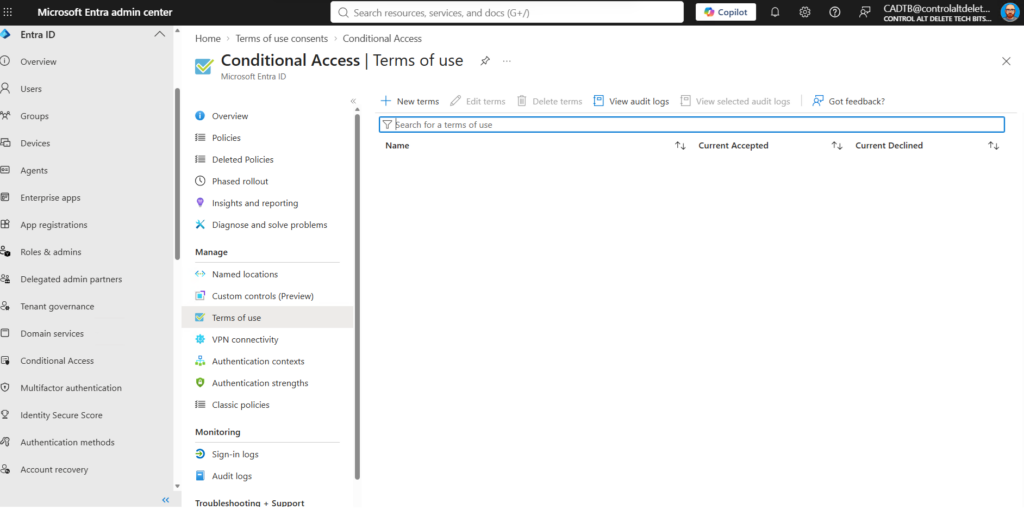
Create the Terms of Use object
Sign into:
Then go to:
Entra ID > Conditional Access > Terms of use
Select:
New terms
Enter an internal name.
I used:
Control Alt Delete Tech Bits External User Acceptable Use v1
Upload the PDF.
Choose the document language.
For my tenant I selected:
English United Kingdom
Then enter a Display name.
I used:
Control Alt Delete Tech Bits Acceptable Use Agreement
The Display name is what the user sees during authentication.
Configure the acceptance settings
For the demonstration I configured:
Require users to expand the terms of use: On
Require users to consent on every device: Off
Expire consents: On
Frequency: Monthly
These settings are entirely dependent on what your organisation is trying to achieve.
For something such as a yearly acceptable use acknowledgement, monthly acceptance would probably be excessive.
For a demonstration it makes the expiration behaviour easier to show.
For a real policy you might choose 365 days instead.
Connect it to Conditional Access
Towards the bottom of the Terms of Use configuration you will find:
Enforce with Conditional Access policy templates
You have two options.
Custom policy
or
Create Conditional Access policy later
Custom policy opens the Conditional Access policy builder as soon as the Terms of Use object has been created.
Creating the policy later simply makes the agreement available in the Conditional Access Grant controls so it can be selected in another policy.
I selected:
Custom policy
and then selected Create.
Choose who the policy applies to
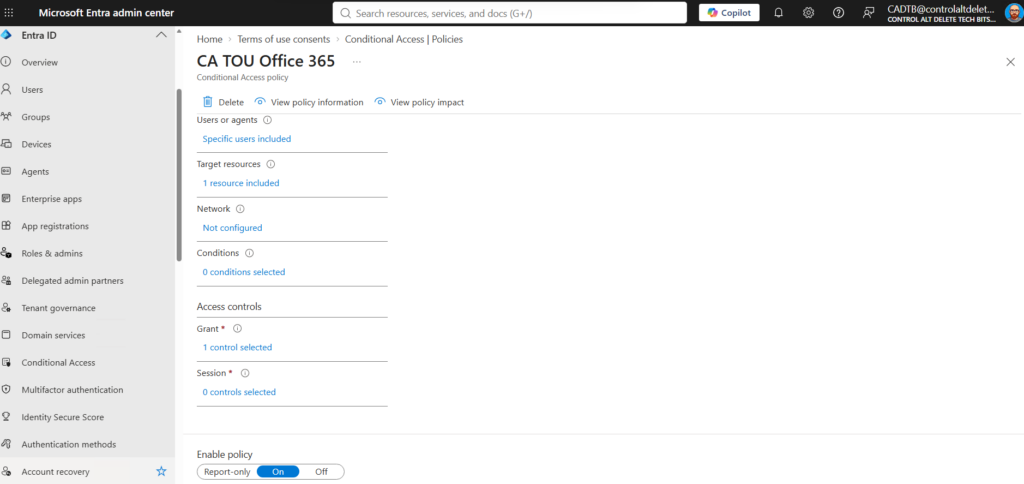
Inside the Conditional Access policy, give it a descriptive name.
For example:
CA TOU Office 365
Under Users, choose:
Select users and groups
I selected:
Olavi King
For production I would generally prefer using a group rather than adding individual users directly to the policy.
For testing though, a single account keeps things simple.
Choose which resource requires the agreement
Under:
Target resources
I selected Office 365.
This means Olavi is required to satisfy the Terms of Use control when accessing resources covered by the Office 365 application grouping.
You could instead select another enterprise application.
This is where the feature becomes particularly useful because the agreement does not have to be organisation wide.
You can make it specific to the application being accessed.
Add the Terms of Use Grant control
Open:
Access controls > Grant
Select:
Grant access
Then select your Terms of Use agreement.
For my example that was:
Control Alt Delete Tech Bits Acceptable Use Agreement
The Conditional Access policy now has its required control.
When the targeted user accesses the targeted resource, Microsoft Entra checks whether the agreement has been accepted.
Test the policy before enabling it
I initially set:
Enable policy: Report only
This lets Microsoft Entra evaluate the policy without actually forcing the user through the agreement.
Conditional Access requires Microsoft Entra ID P1 and Microsoft recommends testing policies before broader deployment.
Check the user.
Check the resource.
Check the Terms of Use Grant control.
Once everything is correct, change the policy from:
Report only
to:
On
Test the user experience
I then opened a separate browser session and signed into Microsoft 365 as Olavi King.
Instead of being taken directly into Microsoft 365, Olavi was presented with:
Control Alt Delete Tech Bits Acceptable Use Agreement
Because I enabled Require users to expand the terms of use, the agreement had to be opened before it could be accepted.
The user can then choose:
Accept
or:
Decline
Selecting Accept records the agreement and, assuming all other Conditional Access requirements have been met, allows access to continue.
In my demonstration, Outlook opened successfully.
Selecting Decline blocks access to the application.
Microsoft states that the user must sign in again and accept the Terms of Use before access can be granted.
That blocking behaviour makes for a good video demonstration, but the recorded acceptance and policy options are where I think most of the practical value sits.
Checking who accepted your Terms of Use
Return to:
Entra ID > Conditional Access > Terms of use
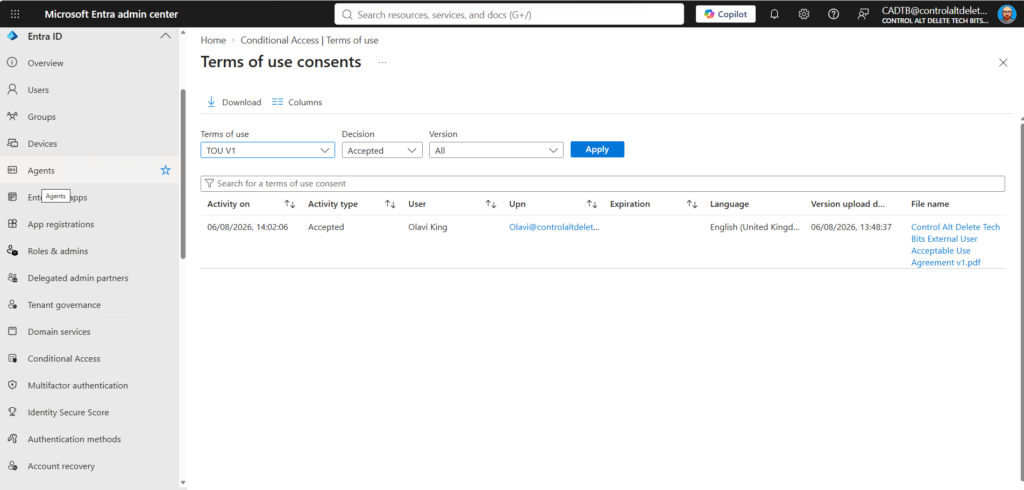
Microsoft Entra provides Accepted and Declined information for the agreement.
You can open the results and inspect individual users.
There is also a Version filter and the ability to view a user’s history.
Microsoft notes that the overview figure represents aggregated acceptance for the current version and is updated daily.
Acceptance history is still retained even when agreements expire or a new version is published.
That provides far better evidence than emailing a policy to everybody and assuming that it has been read.
Audit logging
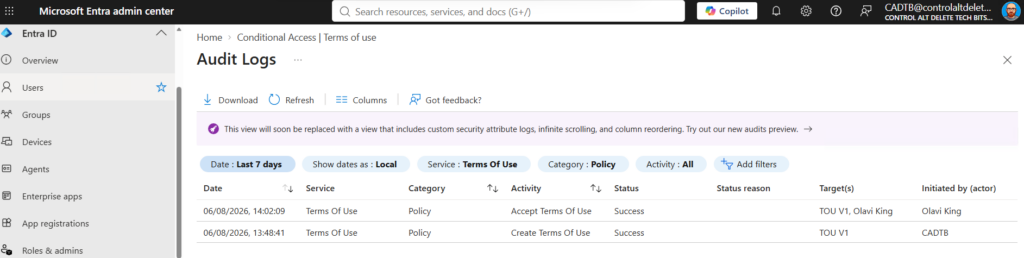
Terms of Use activity is also recorded by Microsoft Entra.
This gives administrators another way to investigate agreement activity and confirm when changes or acceptance events occurred.
The Terms of Use page provides access to the relevant audit information, and administrators can also export reporting information.
One behaviour that may initially look strange is seeing an interrupted sign in followed by a successful sign in.
This can happen while the Terms of Use requirement is being completed.
The first authentication is interrupted while Microsoft Entra obtains the acceptance, after which authentication can continue.
Updating the agreement
Eventually your agreement is likely to change.
You do not have to delete the existing Terms of Use object.
Go back to:
Entra ID > Conditional Access > Terms of use
Open the agreement.
Select:
Edit terms
Find the required language and select:
Update
Upload the revised PDF.
You then have the option:
Require reaccept
If this is enabled, users are required to accept the new version when they next access the protected resource after their existing session expires.
If Require reaccept is left disabled, existing acceptance remains valid.
New users and users whose acceptance has expired will see the latest document.
Previous versions can also be viewed and downloaded through the language and version history section.
Users can see what they previously accepted
Terms of Use is not completely hidden away from the user after acceptance.
Users can review previously accepted agreements from their Microsoft account experience.
This is useful if somebody later asks:
“What exactly did I agree to?”
Rather than needing IT to send them another copy of the document.
A couple of limitations worth knowing
There are a few things I would check before a wider deployment.
Terms of Use is an interactive authentication requirement, so it is not suitable for service accounts.
Microsoft specifically says Conditional Access controls including Terms of Use do not support enforcement against service accounts and recommends excluding them from these policies.
There is also currently no button for an administrator to take one user’s existing acceptance and simply mark it as unaccepted.
Microsoft confirms that previously accepted Terms of Use can be reviewed, but there is no direct unaccept function.
Where the agreement itself changes, publishing a new version and requiring reacceptance is the better approach.
Where I think Terms of Use is most useful
The feature is much more flexible than I first expected.
I can see it being particularly useful for external contractors, guest users, sensitive applications, confidentiality requirements, annual acceptable use acknowledgement, device enrolment agreements and situations where an organisation needs a record showing that particular conditions were accepted before access was provided.
It is also useful that the agreement can sit alongside the rest of your Conditional Access configuration rather than becoming a completely separate access system.
You decide who it applies to.
You decide what resource it protects.
You decide how long acceptance remains valid.
You decide whether an updated version needs to be accepted again.
Microsoft Entra handles the authentication and records the result.
For something that takes relatively little time to configure, there is quite a lot you can do with it.
You might also like this article
What is Microsoft Entra Terms of Use?
Microsoft Entra Terms of Use allows an organisation to upload a PDF agreement and require selected users to accept it as part of a Conditional Access policy before accessing selected applications or data.
What licence do I need?
Microsoft Entra Terms of Use and Conditional Access require Microsoft Entra ID P1. Microsoft Entra ID P2 includes the P1 capabilities as well. Microsoft 365 Business Premium customers can also use Conditional Access.
Do I need Microsoft Entra ID P2?
No. P1 is sufficient for Terms of Use. P2 becomes relevant when using capabilities such as risk based Conditional Access.
Can guest users accept Terms of Use?
Yes. Microsoft Entra B2B guest users can be targeted and can be presented with the agreement during invitation redemption. Per device Terms of Use is not supported for B2B users.
Can I use more than one agreement?
Yes. Microsoft currently allows up to 40 Terms of Use objects per tenant. A user can also be required to accept multiple agreements when several applicable Conditional Access policies target them.
Can the agreement be shown in different languages?
Yes. Multiple PDFs can be uploaded and associated with different languages. Microsoft Entra uses the user’s browser language preference to select the most appropriate document.
Can I make users accept it every year?
Yes. You can configure either a common expiration schedule or a duration before reacceptance is required
Can Terms of Use be used with Intune?
Yes. The Microsoft Intune Enrollment application can be targeted so users must accept Terms of Use before device enrolment. Per device Terms of Use cannot be used with the Intune Enrollment application.
Can Terms of Use apply alongside MFA?
Yes. Conditional Access evaluates all applicable policies, so Terms of Use can form one part of a wider Conditional Access configuration that also includes controls such as MFA or device requirements.
Tags: Conditional Access, Entra ID