Intune LAPS: Stop Sharing One Local Admin Password Like the Office Biscuit Tin
Intune LAPS is the fix for the local admin password that everyone knows. You know the one. It was set in 2019, it’s written on a sticky note under a keyboard in accounts, and three people who left the company could still type it from memory. Windows LAPS gives every device its own local admin password, rotates it on a schedule and backs it up to Microsoft Entra ID, and Intune is how you switch it on without a single Group Policy Object.
I’ve rebuilt my Windows LAPS setup from scratch in my lab tenant for this guide, on Windows 11 25H2, with the newer options that only arrived in 24H2: passphrases and automatic account management. Every screenshot below is from that build, including the bits that didn’t go to plan first time.
Never miss a guide: subscribe here and check out my YouTube channel.
The short version (for anyone whose tea is going cold):
- Turn on “Enable Microsoft Entra Local Administrator Password Solution (LAPS)” in Entra device settings first. Microsoft Entra joined devices need it.
- Create the policy in Intune under Endpoint security > Account protection > Create Policy > Windows > Local admin password solution (Windows LAPS).
- Set Backup Directory to Microsoft Entra ID, or nothing gets backed up at all. The default is disabled.
- On Windows 11 24H2 and later, automatic account management can create the admin account for you. Its default leaves that account disabled.
- Assign one LAPS policy per device, to device groups, never user groups.
- Check the device with
Invoke-LapsPolicyProcessingand look for event 10029 in the LAPS Operational log. - Nobody can rotate a password from Intune until you give them a custom role. No built-in role includes it, not even Intune Administrator.
In this guide
What Intune LAPS does
Windows LAPS is built into Windows. Intune doesn’t install anything; it sends settings to the Windows LAPS configuration service provider (CSP) on each device. The device then generates a password for one local administrator account, rotates it when it expires and backs it up to Microsoft Entra ID or on-premises Active Directory.
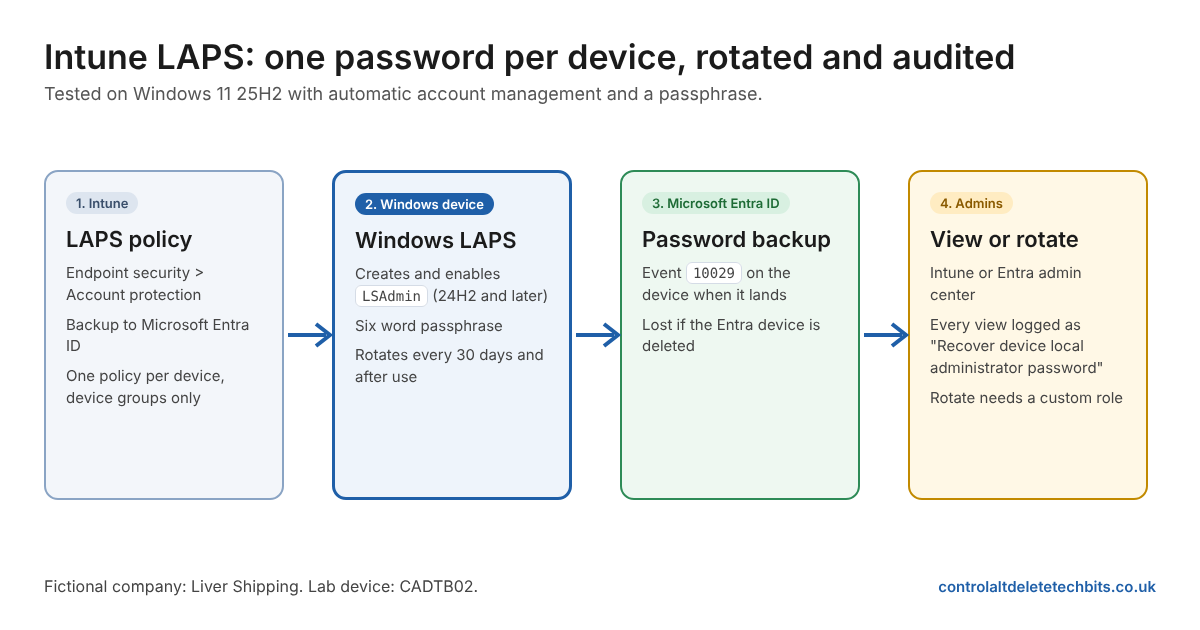
Learn says the CSP takes precedence over, and overwrites, LAPS settings from Group Policy and Legacy Microsoft LAPS. If a device has both, Intune wins. That’s handy when you’re moving off the old MSI, and confusing if somebody forgot there was a GPO still linked to an OU.
| Intune LAPS can | What that means in practice |
|---|---|
| Set password rules | Length, complexity or a passphrase for the managed account |
| Rotate passwords | On a schedule, after the account is used, or on demand from Intune |
| Back up the password | To Microsoft Entra ID or on-premises Active Directory, never both |
| Manage the account itself | On Windows 11 24H2 and later, create, name, enable or disable it for you |
| Show who looked | Every password view and rotation is logged in the Microsoft Entra audit logs |
Intune LAPS prerequisites: licences, Windows versions and roles
The good news is the licensing. Learn lists Microsoft Intune Plan 1 and Microsoft Entra ID Free, so there’s no P1 or P2 conversation to have with finance.
| Requirement | Detail |
|---|---|
| Intune licence | Microsoft Intune Plan 1 |
| Entra licence | Microsoft Entra ID Free covers all LAPS features |
| Windows 11 | 22H2 (22621.1555 or later) or 21H2 (22000.1817 or later), from the April 2023 updates |
| Windows 10 | 22H2, 21H2 or 20H2 with the April 2023 updates, or LTSC 2019 and later (Windows 10 support ended on 14 October 2025) |
| Passphrases and automatic account management | Windows 11 24H2 (10.0.26100) and later |
| Join type | Microsoft Entra joined or Microsoft Entra hybrid joined; workplace-joined devices aren’t supported |
| Turn on LAPS in Entra | Cloud Device Administrator |
| Create the Intune policy | Endpoint Security Manager, or a custom role with the Security baselines permissions |
| Read passwords | Cloud Device Administrator or Intune Administrator |
| Read metadata only | Security Reader, Helpdesk Administrator or Security Administrator |
| Rotate from Intune | A custom Intune role with Remote tasks > Rotate Local Admin Password |
Gotcha: The Remote tasks permission for rotating passwords isn’t in any built-in Intune role, and the Intune Administrator role in Entra doesn’t include it either. Learn’s FAQ also says the Local admin password button can be greyed out without it. If your service desk can’t see the button, this is why.
My lab setup
Same tenant as my other guides, and the same long-suffering fictional company, Liver Shipping. One Windows 11 25H2 virtual machine called CADTB02, Microsoft Entra joined and managed by Intune, in a new device group called LS-LAPS-Pilot-Devices.
My tenant already had a LAPS policy from an earlier test, assigned to a different group. CADTB02 had never had a LAPS password because it wasn’t in that group. Nothing was broken. LAPS just wasn’t told to do anything, and its event log said so: event 10024, “LAPS policy is configured as disabled”. Keep that one in mind for later.
Step 1: Turn on LAPS in Microsoft Entra ID
Start in the Microsoft Entra admin center, not Intune. Go to Entra ID > Devices > Device settings and set “Enable Microsoft Entra Local Administrator Password Solution (LAPS)” to Yes, then select Save.
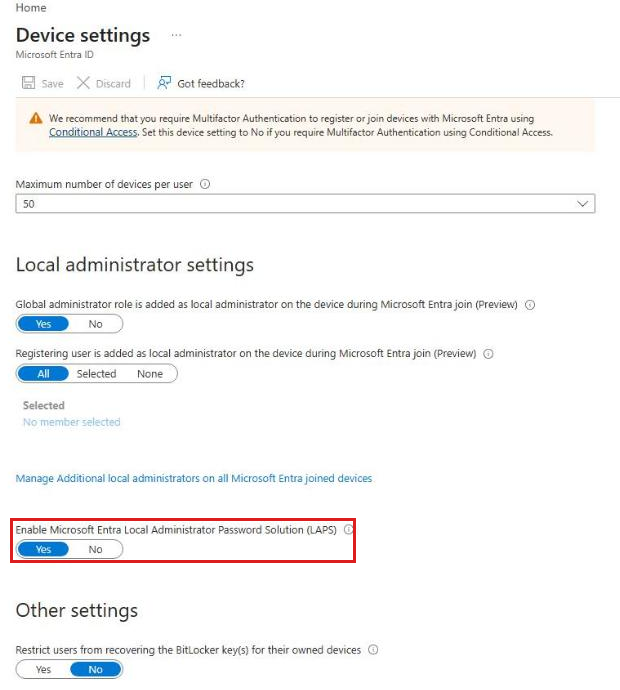
Learn says Microsoft Entra joined devices need this setting. Microsoft Entra hybrid joined devices don’t. If you skip it on a cloud-only estate, the Intune policy deploys cleanly, the device accepts it, and the password backup fails. Turn it on first and save yourself the head-scratching.
Step 2: Create the Intune LAPS policy
In the Intune admin center, go to Endpoint security > Account protection and select Create Policy. Set Platform to Windows and Profile to Local admin password solution (Windows LAPS), then select Create.
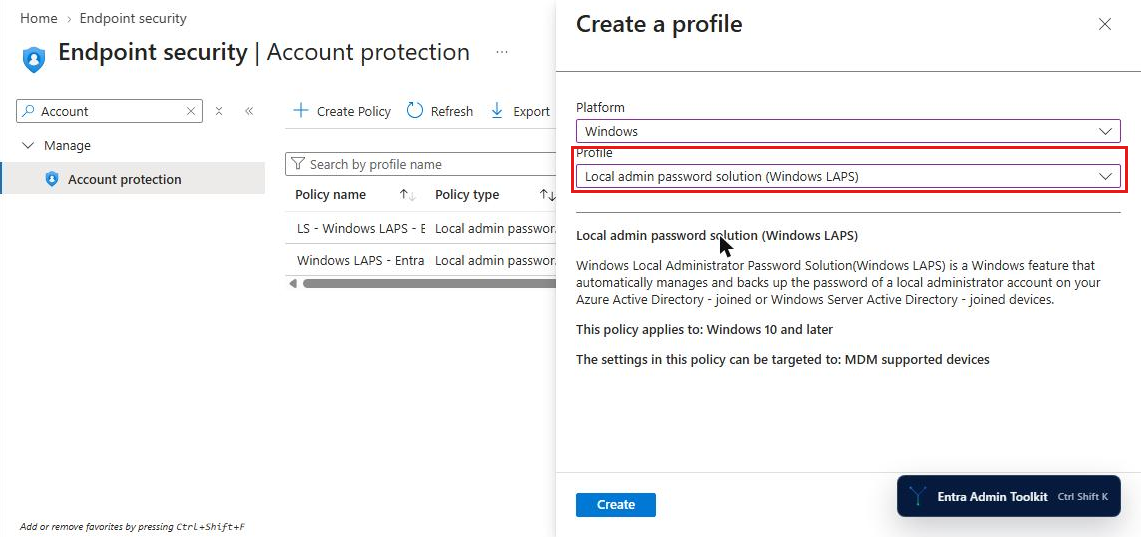
On Basics, give it a name that tells future you which devices it’s for. Mine includes “24H2 and later” in the name for a reason that’ll become clear in a minute.
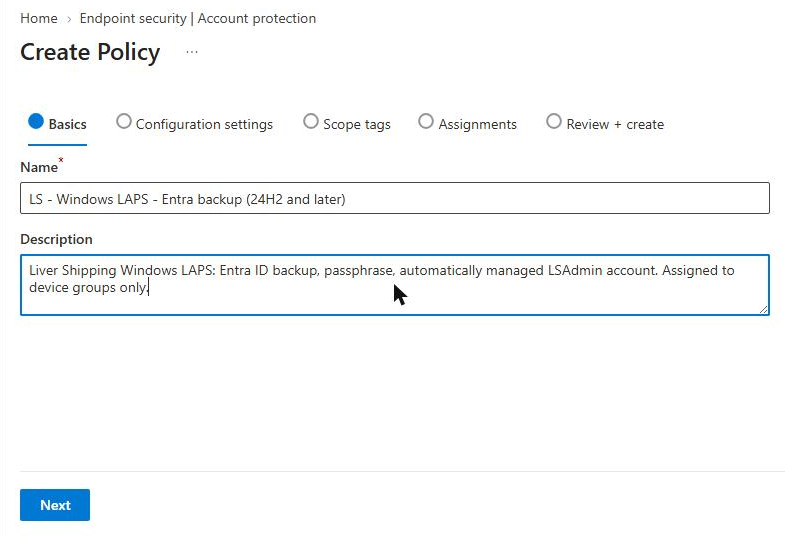
Step 3: Choose your Intune LAPS settings
The settings page is short when you open it, then grows as you pick options. Most settings only appear once something they depend on is set, so work from the top down.
Backup Directory
This is the setting that decides whether LAPS does anything useful at all. Choose “Backup the password to Microsoft Entra ID only” for Microsoft Entra joined devices.
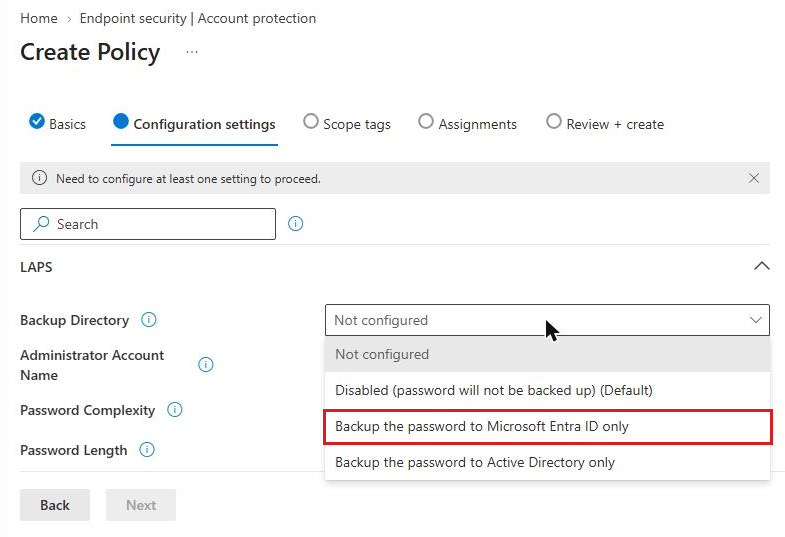
Gotcha: The default for Backup Directory is “Disabled (password will not be backed up)”. If you leave it at Not configured, the device uses that default and every other setting is ignored. The backup directory also has to match the join type: Learn warns that a Microsoft Entra joined device set to Active Directory accepts the policy without error and then can’t back up the password.
Password Age Days
Password Age Days appears once you’ve picked a directory. It’s how many days a password lives before the device rotates it. The default is 30, the maximum is 365, and the minimum is 7 days when backing up to Microsoft Entra ID (1 day for Active Directory). I left mine at 30.
Password Complexity and passphrases
The complexity list has eight options. The first four are the familiar character sets. The last four need Windows 11 24H2 or later: an “improved readability” option that avoids easily confused characters, and three passphrase options.
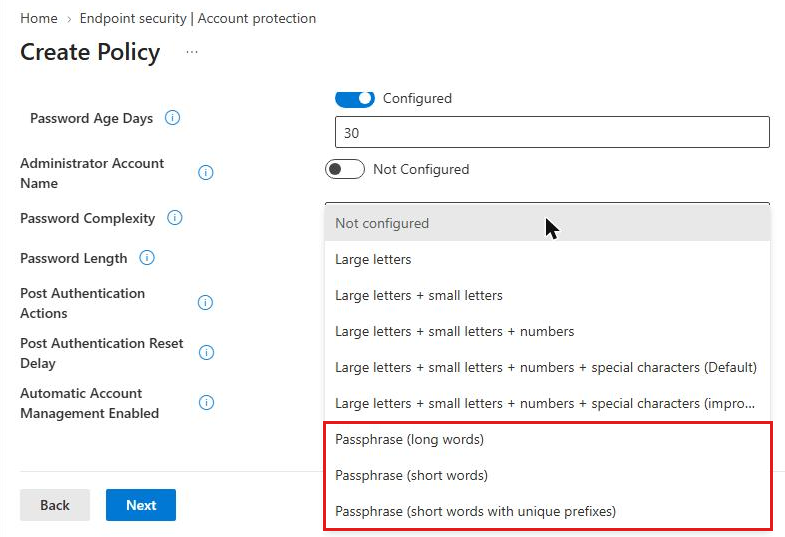
Passphrases are the best thing to happen to LAPS in years. A 64-character random password is lovely until your field engineer has to type it on a laptop with a sticky Shift key while reading it out over the phone. A passphrase is a set of random words, and Passphrase Length sets how many: 3 to 10, default 6. I went with “Passphrase (short words)” and six words.
Gotcha: Learn says that if a device running an older version of Windows receives a complexity value it doesn’t support, such as a passphrase, it falls back to the default of 4. It won’t error. Learn’s advice is two policies, one for older Windows and one for newer, which is why my policy has “24H2 and later” in the name.
Post Authentication Actions and Reset Delay
These settings control what happens after somebody signs in with the LAPS account. Once the grace period runs out, the device resets the password so the one you just read out over the phone is no longer any use.
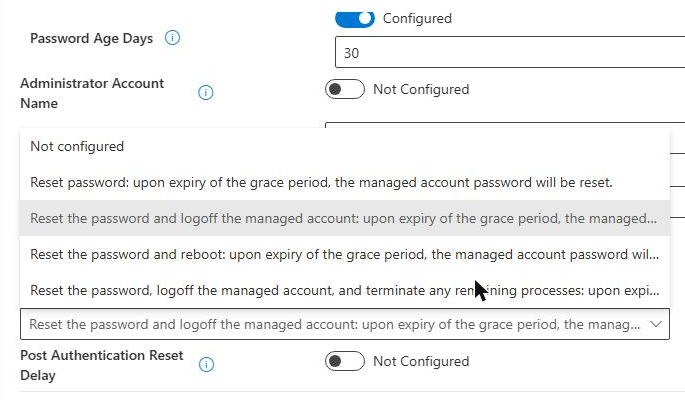
| Value | Action | Notes |
|---|---|---|
| 1 | Reset the password | Gentle. The session carries on until it ends |
| 3 | Reset the password and sign out the managed account | The default |
| 5 | Reset the password and reboot the device | Warn your engineers first |
| 11 | Reset, sign out and terminate any remaining processes | Windows 11 24H2 and later |
Post Authentication Reset Delay is the grace period in hours: 0 to 24, default 24. Setting it to 0 turns post-authentication actions off entirely. I chose 8 hours, which is roughly one working day of fixing whatever made someone need the admin account in the first place. In the lab I kept the gentle option 1, because I’m the only person signing in to CADTB02 and I don’t enjoy being thrown out of my own test machine. For production, the default of 3 is a sensible starting point.
Automatic account management (Windows 11 24H2 and later)
This is the biggest change to Windows LAPS since it moved into Windows. Before 24H2, LAPS could only manage an account that already existed. If you wanted a custom admin account instead of the built-in Administrator, you had to create it yourself with the Accounts CSP, a script or your image, and get the name exactly right in the Administrator Account Name setting.
With Automatic Account Management Enabled set to “The target account will be automatically managed”, Windows LAPS creates the account itself, adds it to the local Administrators group and protects it from tampering. Four more settings appear:
| Setting | Options | Default |
|---|---|---|
| Automatic Account Management Target | Built-in administrator account, or a new custom administrator account | New custom account |
| Automatic Account Management Name Or Prefix | Any valid local account name | WLapsAdmin |
| Automatic Account Management Enable Account | Enabled or disabled | Disabled |
| Automatic Account Management Randomize Name | Adds a random six-digit suffix at each rotation | Off |
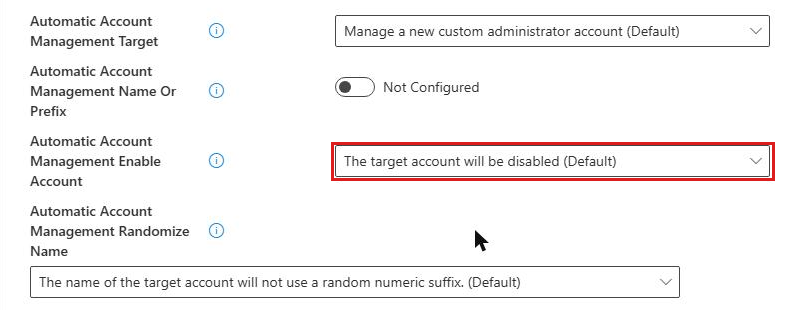
Here’s where my lab earned its keep. My older test policy had automatic account management turned on and the account named ITSUPPORT. It looked perfect. Passwords rotated, the backups landed in Entra, the portal showed the account name. And the account was disabled, because Enable Account defaults to disabled. LAPS was carefully rotating the password for an account nobody could sign in with.
Good to know: The disabled default is deliberate, not a bug. Learn’s account management modes page says a disabled account can’t be the target of a password spray, at the cost of someone having to enable it through policy before it can be used. Microsoft recommends automatic mode with a custom account and the built-in Administrator left disabled. Whether your managed account sits enabled or disabled is a choice, so make it on purpose.
For Liver Shipping I want the account ready to use, so I set the name to LSAdmin and Enable Account to “The target account will be enabled”.
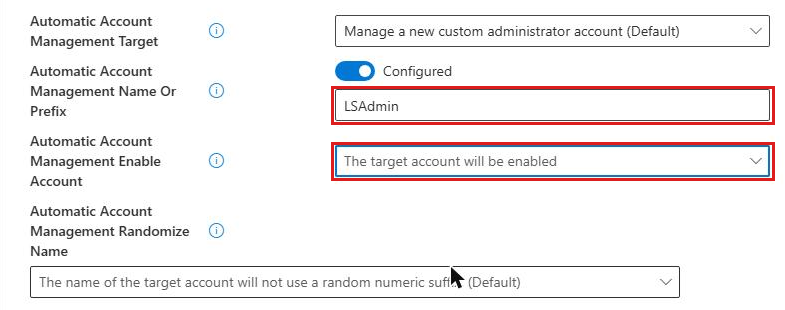
I left Randomize Name off. It adds a random six-digit suffix to the name every time the password rotates, which makes life harder for an attacker and, honestly, for your service desk too. If you use it, Learn notes that the name or prefix gets cut to 14 characters to leave room for the suffix.
Here’s the full set of Intune LAPS settings I ended up with:
| Setting | Liver Shipping value |
|---|---|
| Backup Directory | Backup the password to Microsoft Entra ID only |
| Password Age Days | 30 |
| Administrator Account Name | Not configured (automatic account management handles it) |
| Password Complexity | Passphrase (short words) |
| Passphrase Length | 6 |
| Post Authentication Actions | Reset password (option 1) |
| Post Authentication Reset Delay | 8 |
| Automatic Account Management Enabled | The target account will be automatically managed |
| Automatic Account Management Target | Manage a new custom administrator account |
| Automatic Account Management Name Or Prefix | LSAdmin |
| Automatic Account Management Enable Account | The target account will be enabled |
| Automatic Account Management Randomize Name | Off |
Gotcha: Don’t set Administrator Account Name as well as automatic account management. Administrator Account Name is for manual mode, where LAPS manages an account you created. In automatic mode, the name comes from Name Or Prefix.
Step 4: Assign the Intune LAPS policy to device groups
Scope tags as normal, then Assignments. Assign to a device group. Learn is very clear on this: user group assignments make the policy follow the user from device to device, so a device’s LAPS settings can change every time a different person signs in.
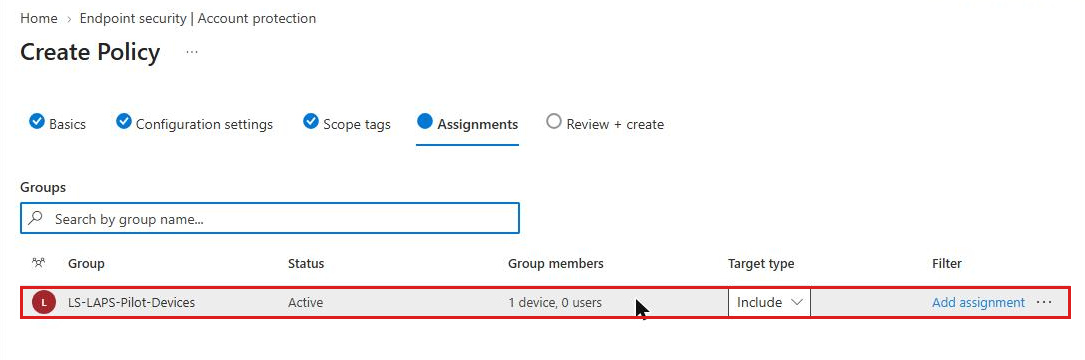
Learn also recommends a single LAPS policy per device. The CSP has one value per setting, so if two policies set different values on the same device, Intune reports a conflict and, if the device didn’t already have LAPS settings, nothing gets applied at all. Give each device exactly one LAPS policy and build your groups around that.
Good to know: If you need one policy for Windows 11 24H2 and later and another for older builds, assignment filters can split them without a second set of groups. Assign both policies to the same device group, with an Include filter on the 24H2 policy and an Exclude filter on the older one, using a rule such as (device.operatingSystemVersion -ge 10.0.26100). Learn lists operatingSystemVersion as a preview filter property, so test it against your own device list before you trust it.
Step 5: Review, create and check the policy status
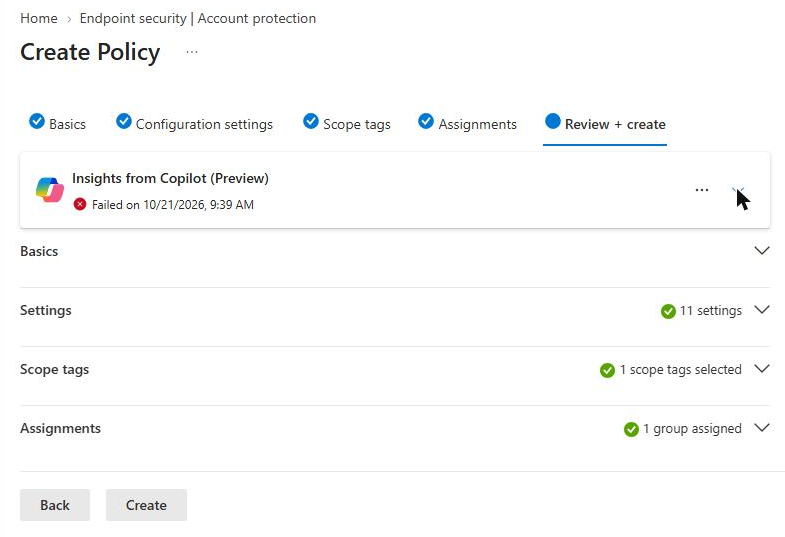
Review + create, then Create. On my build the Copilot insights panel at the top said “An error occurred during policy review”, both times. It doesn’t block anything. It just means you have to read the settings yourself, like it’s 2023.
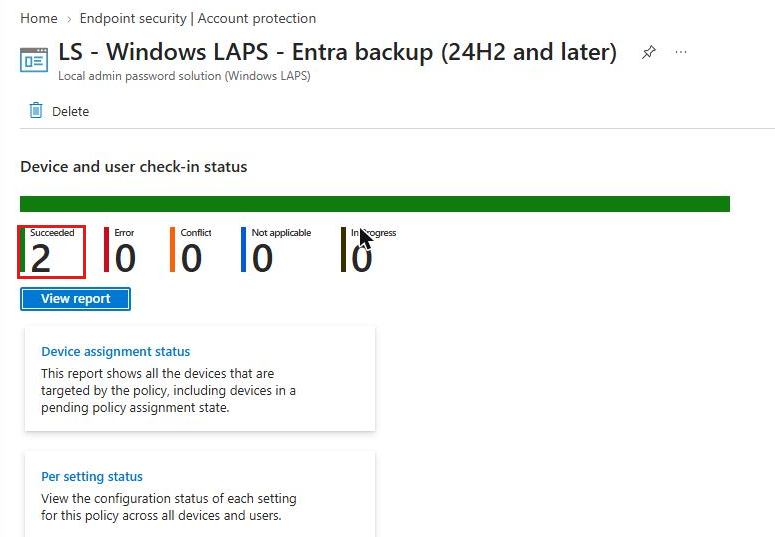
Intune pokes the assigned devices to check in. You can hurry it along from the device’s page with Sync. Once the device has checked in, the policy’s overview shows the result.
Check Intune LAPS worked on the device
Succeeded in Intune means the device accepted the settings. It doesn’t mean the password has been backed up yet. Windows LAPS runs its own background cycle once an hour, and it doesn’t care when Intune last synced.
To skip the wait, run this on the device in an elevated PowerShell window. Invoke-LapsPolicyProcessing tells LAPS to process its policy now, and the second line reads the LAPS Operational event log.
Invoke-LapsPolicyProcessing
Get-WinEvent -LogName "Microsoft-Windows-LAPS/Operational" -MaxEvents 15 |
    Format-Table TimeCreated, Id, Message -Wrap
Here’s what CADTB02 logged, trimmed and read from the bottom up:
09:22:19 10003 LAPS policy processing is now starting.
09:22:19 10024 LAPS policy is configured as disabled.
09:22:19 10004 LAPS policy processing succeeded.
09:29:57 10003 LAPS policy processing is now starting.
09:29:57 10022 The current LAPS policy is configured as follows:
               Policy source: CSP
               Backup directory: Azure Active Directory
               Password complexity: 7
               Automatic account management enabled: 1
               Automatic account management: Target: CustomAdminAccount
               Automatic account management: Name or name prefix: LSAdmin
               Automatic account management: Account enabled: 1
09:29:57 10053 LAPS is processing the current policy in response to an Administrator request.
09:29:58 10015 The managed account password needs to be updated due to one or more reasons (0x33):
               The current password has expired
               The policy authority has changed
               Local state is missing and/or inconsistent with directory state
               One or more account management policy settings have changed
09:29:59 10029 LAPS successfully updated Azure Active Directory with the new password.
09:29:59 10020 LAPS successfully updated the local admin account with the new password.
               Account name: LSAdmin
               Account RID: 0x3EA
09:29:59 10004 LAPS policy processing succeeded.
The first cycle, at 09:22, is CADTB02 before the policy arrived: 10024, LAPS disabled, nothing to do. Seven minutes later the 10022 event confirms the policy source is the CSP, complexity 7 is the short-word passphrase, and LSAdmin is managed and enabled. Then 10029 says the password reached Entra and 10020 says the local account was updated.
Account RID 0x3EA is 1002 in decimal. That’s a brand new local account, not the built-in Administrator (RID 500), so automatic account management really did create LSAdmin. That’s worth knowing, because the Intune deployment page on Learn still says Intune’s LAPS policies don’t create accounts. On Windows 11 24H2 and later with automatic account management, Windows LAPS does it for you.
| Event ID | What it tells you |
|---|---|
| 10003 | A policy processing cycle has started |
| 10004 | The cycle succeeded |
| 10005 | The cycle failed, with an error code to look up |
| 10022 | The policy the device is using, for Microsoft Entra ID backup |
| 10024 | LAPS is disabled, usually because no backup directory is configured |
| 10015 | The password needs changing, and why |
| 10029 | The password was backed up to Microsoft Entra ID |
| 10020 | The local account was updated with the new password |
| 10031 | LAPS blocked something else trying to change the managed account’s password |
| 10041 | Someone signed in with the managed account and the post-authentication timer has started |
Yes, the event text still says Azure Active Directory. Windows hasn’t caught up with the rename. Don’t let it put you off.
View the LAPS password in Intune and Entra
In Intune, go to Devices > Windows > select the device > Local admin password, and select Show local administrator password. The pane shows the account name, its security ID, the password (hidden until you select the eye icon), and the last and next rotation times.
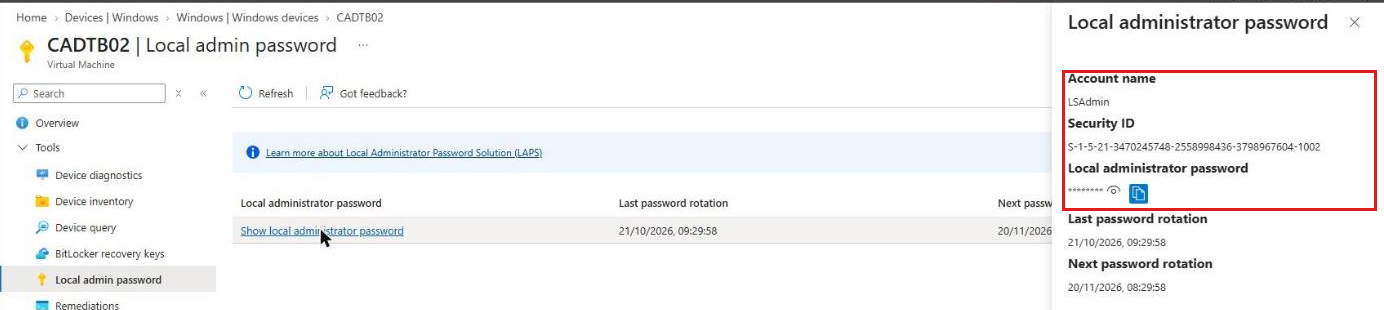
The same information is in the Microsoft Entra admin center under Entra ID > Devices > Local administrator password recovery, with a list of every device that’s backed up a password.
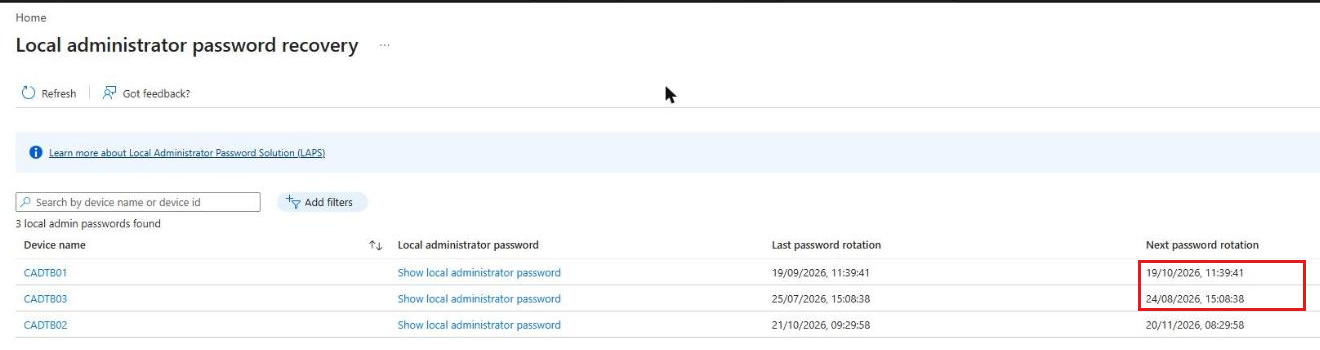
Two things caught my eye here. First, CADTB01 and CADTB03 both have next rotation dates that have already passed. That isn’t LAPS failing. Learn says that with Microsoft Entra ID backup, the device keeps track of its own expiry date. A device that’s switched off, or that no longer gets a LAPS policy, simply doesn’t rotate until it next runs its cycle. A date in the past is a reason to check the device’s last check-in, not a reason to panic.
Second, CADTB02’s last rotation is 09:29:58 on 21 October and the next is 08:29:58 on 20 November. LAPS hasn’t developed a sense of humour. The clocks go back on 25 October, and the admin center showed both times in UK local time. So if your rotation dates look an hour out around late October or March, that’s British Summer Time, not a bug.
Rotate the local admin password from Intune
Scheduled rotation covers most days. For the others, such as the morning after a contractor used the account, you can rotate on demand. On the device’s page in Intune, open Secure and select Rotate local admin password. Learn’s steps put it under the ellipsis (…) menu, but in my tenant it now lives under Secure, next to Rotate BitLocker keys.
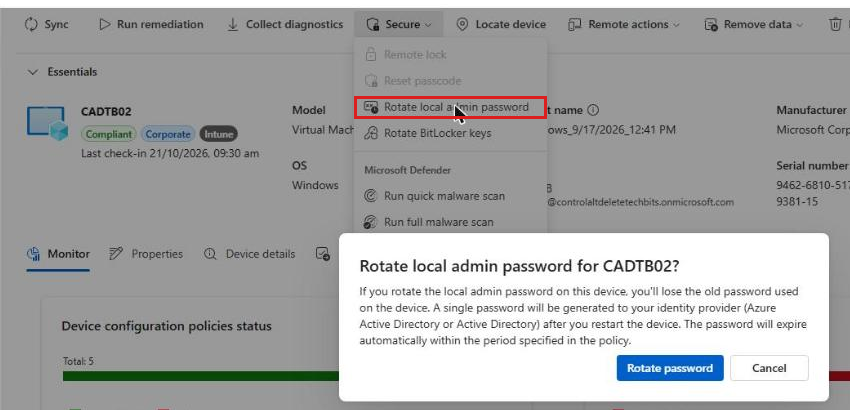
I rotated CADTB02 a little after 10:00. The device page soon showed “Rotate local admin password: Completed”, and the Local admin password page had a new Last password rotation of 10:07:13. Despite the prompt’s talk of restarting, the password changed the same minute it was requested.
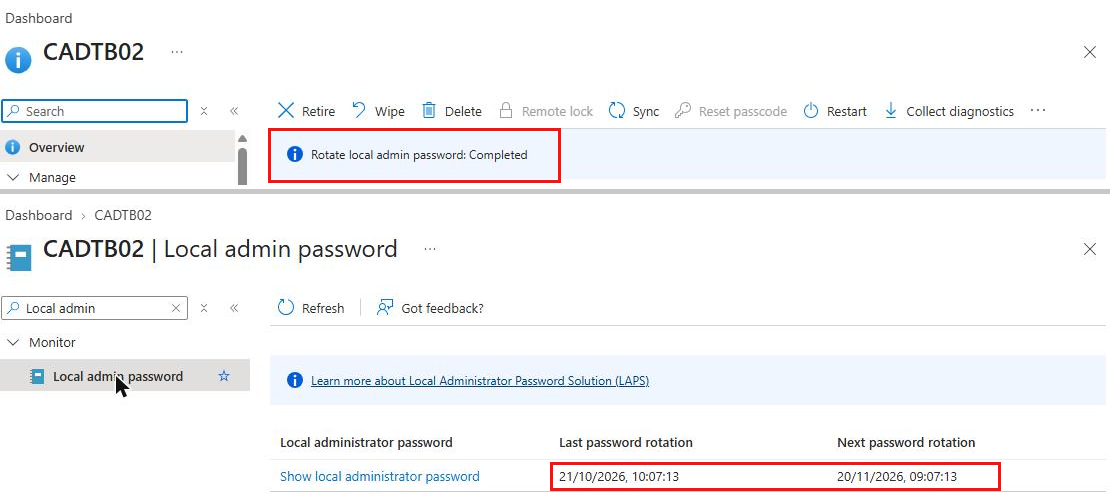
Look at the next rotation date. Before the manual rotation it was 08:29:58 on 20 November. Afterwards it was 09:07:13 on 20 November: 30 days from the manual rotation, with the same British Summer Time hour shift. That’s the Password Age Days reset Learn describes, and it’s handy to know when someone asks why a device rotated on a different day from its neighbours.
| Manual rotation rule | Detail |
|---|---|
| Permissions | Managed devices: Read, Organization: Read and Remote tasks: Rotate Local Admin Password |
| Device must be online | For Microsoft Entra joined devices, or the request fails |
| One device at a time | Rotation isn’t available as a bulk action |
| Resets the schedule | A manual rotation restarts the Password Age Days count from that day |
| Needs a previous backup | A device that has never backed up a password can’t complete a rotation |
Audit who viewed the LAPS password
Every Intune LAPS password view and rotation lands in the Microsoft Entra audit logs. In the Entra admin center, go to Entra ID > Devices > Audit logs and filter Service to Device Registration Service.
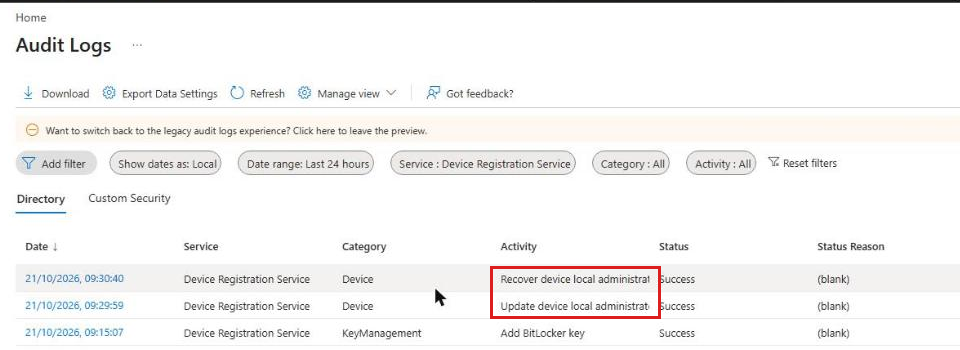
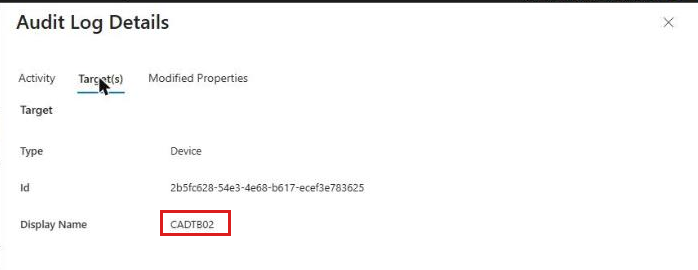
Open a Recover entry and the Target(s) tab names the device. The Activity tab shows the account that did it as an object ID. In my tenant the Display Name field was blank, so keep a way to look up object IDs handy when an auditor asks “who looked at the password for CADTB02 last Tuesday”.
Get the LAPS password with PowerShell
The Windows LAPS PowerShell module includes Get-LapsAADPassword, which queries Microsoft Graph for you. It needs the Microsoft Graph PowerShell SDK installed, and Learn’s setup guide uses an app registration with Device.Read.All plus either DeviceLocalCredential.ReadBasic.All (metadata only) or DeviceLocalCredential.Read.All (passwords too).
# Metadata only: when it was backed up and when it expires
Get-LapsAADPassword -DeviceIds CADTB02

# The password itself, returned as a SecureString
Get-LapsAADPassword -DeviceIds CADTB02 -IncludePasswords

# Password history as well, in plain text. Treat the output like the password it is.
Get-LapsAADPassword -DeviceIds CADTB02 -IncludePasswords -IncludeHistory -AsPlainText
My lab tripped over a real-world problem here. There are two device objects called CADTB02 in my tenant: the one I use today, and a stale one from a rebuild in April. Learn says Get-LapsAADPassword fails if more than one device has the same name. My own setup script hit exactly the same wall, refusing to pick between two Entra devices called CADTB02. The fix is to use the device ID instead of the name. You can find the right one from the Intune device record, which holds the Microsoft Entra device ID of the device Intune manages.
# Find the Entra device ID behind an Intune device, then ask for its LAPS password
Connect-MgGraph -Scopes "DeviceManagementManagedDevices.Read.All","Device.Read.All","DeviceLocalCredential.Read.All"
$md = Invoke-MgGraphRequest -Method GET -Uri "https://graph.microsoft.com/v1.0/deviceManagement/managedDevices?`$filter=deviceName eq 'CADTB02'&`$select=deviceName,azureADDeviceId"
$md.value | Select-Object deviceName, azureADDeviceId
Get-LapsAADPassword -DeviceIds $md.value[0].azureADDeviceId
Intune LAPS gotchas from my lab
Deleting the device deletes the password. Learn says that when a device is deleted in Microsoft Entra, the LAPS password stored with it is gone, with no way to get it back. If you tidy up duplicate or stale device objects, as I should with that old CADTB02, make sure you’re deleting the stale one and not the one with the current password. My Intune device cleanup rules guide covers the cleanup side.
Disabled devices don’t rotate. Learn’s FAQ says Windows LAPS needs the device to be enabled in Microsoft Entra before rotation and backup work.
Only one managed account per device. If you change which account the policy manages, the old account’s details are no longer available in Intune or Entra. Change it deliberately, not by accident through a second policy.
Intune doesn’t wait for LAPS. Policy status can show Succeeded an hour before the device runs its next LAPS cycle. Check for event 10029 before you tell anyone it’s working.
Group Policy still exists, but it loses. If you’re moving from Legacy LAPS or a Windows LAPS GPO, Intune’s CSP settings take precedence on the device. Remove the old GPO anyway, so the next person to look doesn’t spend an afternoon wondering which one applies.
Gotcha: Learn’s Intune pages still mention that Intune LAPS policies don’t create accounts. That’s true for manual mode, where an Administrator Account Name that doesn’t exist on the device quietly does nothing and raises no error. With automatic account management on 24H2 and later, Windows LAPS creates the account, as event 10020 and RID 1002 proved on CADTB02.
Is Intune LAPS worth setting up?
Yes, and it’s one of the easiest security wins in Intune. It costs nothing beyond the Intune Plan 1 licence you already have, it removes the shared local admin password from your estate, and every view of a password is logged against a named account.
If you’re on Windows 11 24H2 or later, use automatic account management with a custom account and passphrases, and decide on purpose whether that account should be enabled. Keep one policy per device, assign it to device groups, give your service desk a custom role for rotation, and check the event log before you declare victory. Then go and peel that sticky note off the keyboard in accounts.
FAQs
What licence do I need for Intune LAPS?
Microsoft Intune Plan 1 and Microsoft Entra ID Free. Learn says Entra ID Free covers all LAPS features, so you don’t need P1 or P2.
Does Intune LAPS work on Microsoft Entra hybrid joined devices?
Yes. Hybrid joined devices can back up to Microsoft Entra ID or on-premises Active Directory. The Entra device setting to enable LAPS is only required for Microsoft Entra joined devices.
Can Intune LAPS create the local admin account?
On Windows 11 24H2 and later, yes, with automatic account management. On older versions, LAPS can only manage an account that already exists.
Why is my LAPS managed account disabled?
Automatic Account Management Enable Account defaults to disabled. Set it to “The target account will be enabled” if you want the account usable without changing policy first.
How often does Windows LAPS check its policy?
Every hour, on its own background cycle. Run Invoke-LapsPolicyProcessing on the device to process the policy straight away.
Who can rotate a LAPS password in Intune?
Anyone with Managed devices: Read, Organization: Read and Remote tasks: Rotate Local Admin Password. That last permission isn’t in any built-in role, so create a custom Intune role.
What happens to the LAPS password if I delete the device from Entra?
It’s lost. Learn says there’s no way to recover the password for a deleted device unless you’ve stored it somewhere else first.
Should I assign LAPS policy to users or devices?
Devices. User group assignments make the policy follow users between devices, which can change LAPS settings each time someone new signs in.
Further reading
- Deploy Windows LAPS policy with Microsoft Intune (Microsoft Learn)
- Microsoft Intune support for Windows LAPS (Microsoft Learn)
- LAPS CSP (Microsoft Learn)
- Windows LAPS account management modes (Microsoft Learn)
- Use Windows LAPS event logs (Microsoft Learn)
- Intune Endpoint Security: what every node does
- Windows 11 local account: what still works
Found this useful? Buy me a coffee, and if you handle subject access requests, have a look at Redact Ninja for redacting PDFs without sending files to a server.
Tags: Intune, Intune Endpoint security, Security, windows 11, Windows LAPS