Entra License Usage: Finally Find Out Who’s Using the P1 and P2 You Pay For
Entra license usage is the question that turns up every renewal season. Finance wants to know whether you need all those Microsoft Entra ID P2 licences, the security team swears they’re essential, and nobody has a number either side can point at. Microsoft’s answer is a page in the Microsoft Entra admin center that compares what you’ve bought with what you use, and it went generally available in April 2026.
I’ve opened it up in my lab tenant, worked out what each number means, and checked those numbers against my own sign-in logs with PowerShell. Along the way I found a month that didn’t add up, which is exactly the sort of thing you want to know before you take a screenshot of this page into a licensing meeting.
Never miss a guide: subscribe here and check out my YouTube channel.
The short version (for anyone whose tea is going cold):
- Find it at Billing > Licenses > License usage in the Microsoft Entra admin center. Reports Reader is the least privileged role that can open it.
- It shows your P1, P2, ID Governance, Verified ID, Private Access and Internet Access entitlements for this month.
- P1 usage is measured by one number: unique users with at least one Conditional Access policy evaluated last month.
- P2 usage is measured by one number: unique users with at least one risk-based Conditional Access policy evaluated last month.
- Guests are counted separately against a 50,000 figure, which matches the External ID free tier for monthly active users.
- In my tenant the September bar chart and the September point on the trend line disagreed (2 users against 3). Read the trend line with care.
In this guide
What the Entra license usage page shows
Learn calls it Microsoft Entra license usage insights. It sits in two parts. The top half lists your licence entitlements for the current month. The bottom half, Product usage insights, compares last month’s feature usage against those entitlements, with a separate tab for each licence tier.
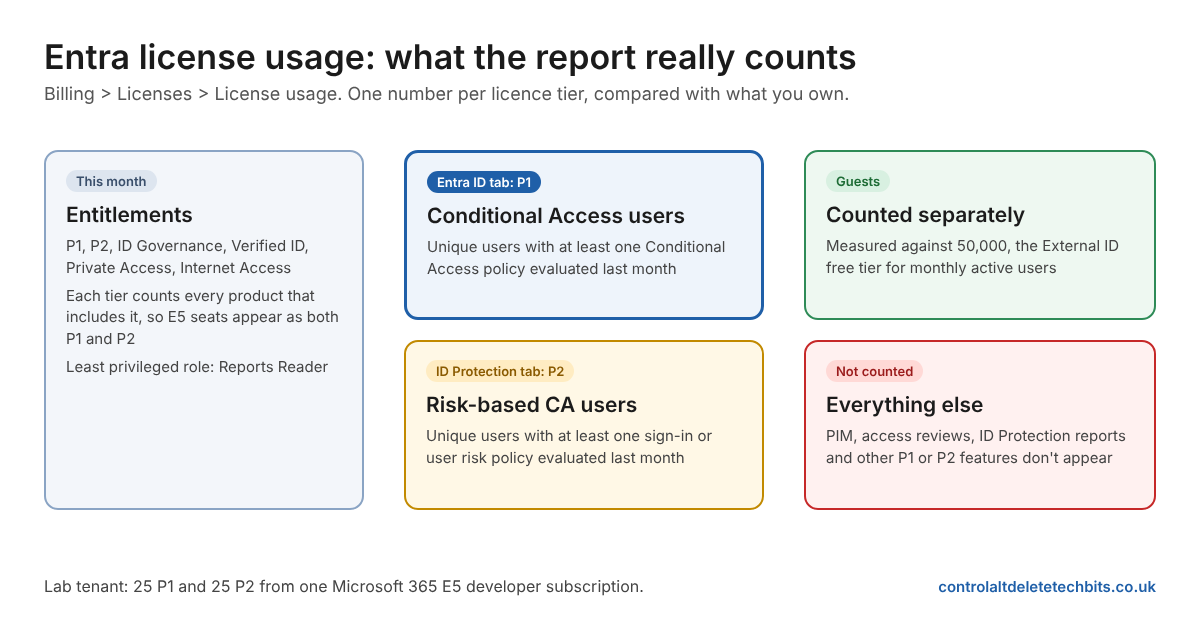
| Part of the page | What it shows |
|---|---|
| License entitlements for this month | How many licences you own for each Entra tier, this month only |
| Entra ID tab | P1 usage, measured by Conditional Access users |
| ID Protection tab | P2 usage, measured by risk-based Conditional Access users |
| Feature usage report | Last month’s usage against your entitlements, as a percentage |
| Monthly usage patterns | The trend over the previous six months, for active users or guest users |
Learn says the page uses a single “hero metric” for each tier. That keeps it simple, but it also means the page isn’t measuring everything P1 and P2 give you. PIM, access reviews, group-based licensing and password writeback don’t appear here at all. If your P2 spend is mostly about Privileged Identity Management, this page won’t show it.
Entra license usage prerequisites
| Requirement | Detail |
|---|---|
| Licence | The tenant needs a paid Entra licence, such as Microsoft Entra ID P1, P2 or Microsoft Entra Suite |
| Cloud | Public cloud only |
| Least privileged role | Reports Reader |
| Other roles that can open it | Application Administrator, Cloud Application Administrator, Global Reader, Security Administrator, Security Reader and Security Operator |
| Data freshness | Last month’s usage, which can take up to three days to update |
Good to know: Reports Reader is all you need. That makes this one of the few Entra reports you can hand to a finance or procurement colleague without giving them anything that can change your tenant.
How to open the Entra license usage report
Sign in to the Microsoft Entra admin center and go to Billing > Licenses > License usage. Learn also gives a direct link to the License usage page, which is handy for bookmarking.
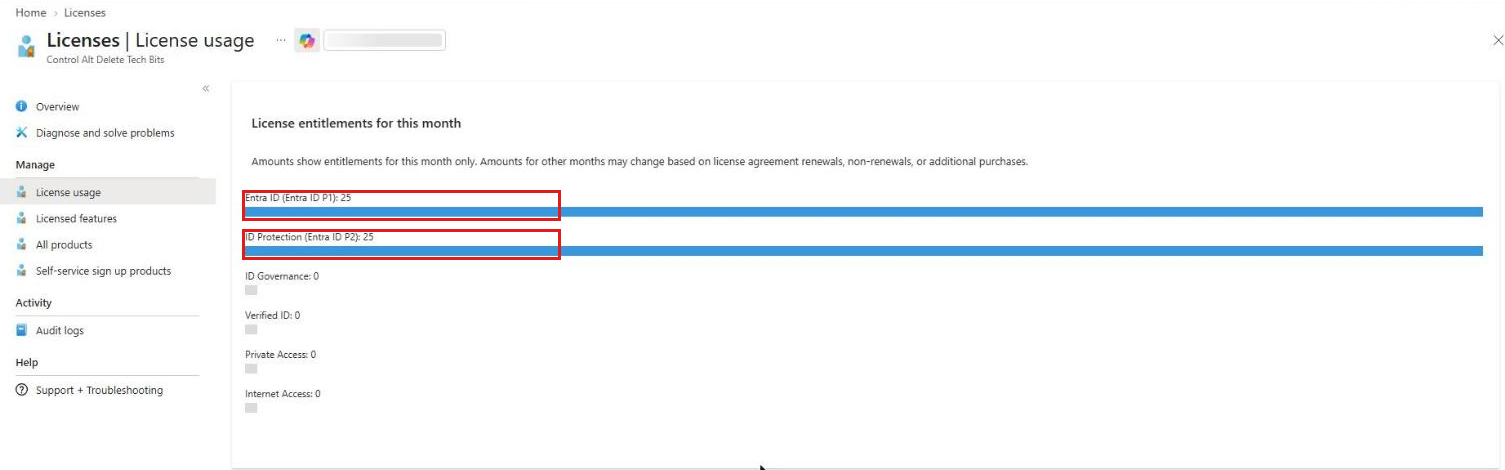
The entitlements list covers Entra ID (P1), ID Protection (P2), ID Governance, Verified ID, Private Access and Internet Access. Learn says each figure is the total across every product that includes that tier, and that other months’ figures can change with renewals and new purchases.
My tenant shows 25 P1 and 25 P2. That isn’t 50 licences. My PowerShell check below found both numbers come from the same product, DEVELOPERPACK_E5, because Microsoft 365 E5 includes P1 and P2. The page counts the same 25 seats once for each tier they unlock, which is correct, but worth explaining before someone adds the two bars together.
Reading the Entra ID tab (P1)
The Entra ID tab measures P1 usage with one number: Conditional Access users. Learn defines it as the number of unique users with at least one Conditional Access policy evaluated during the measurement period.
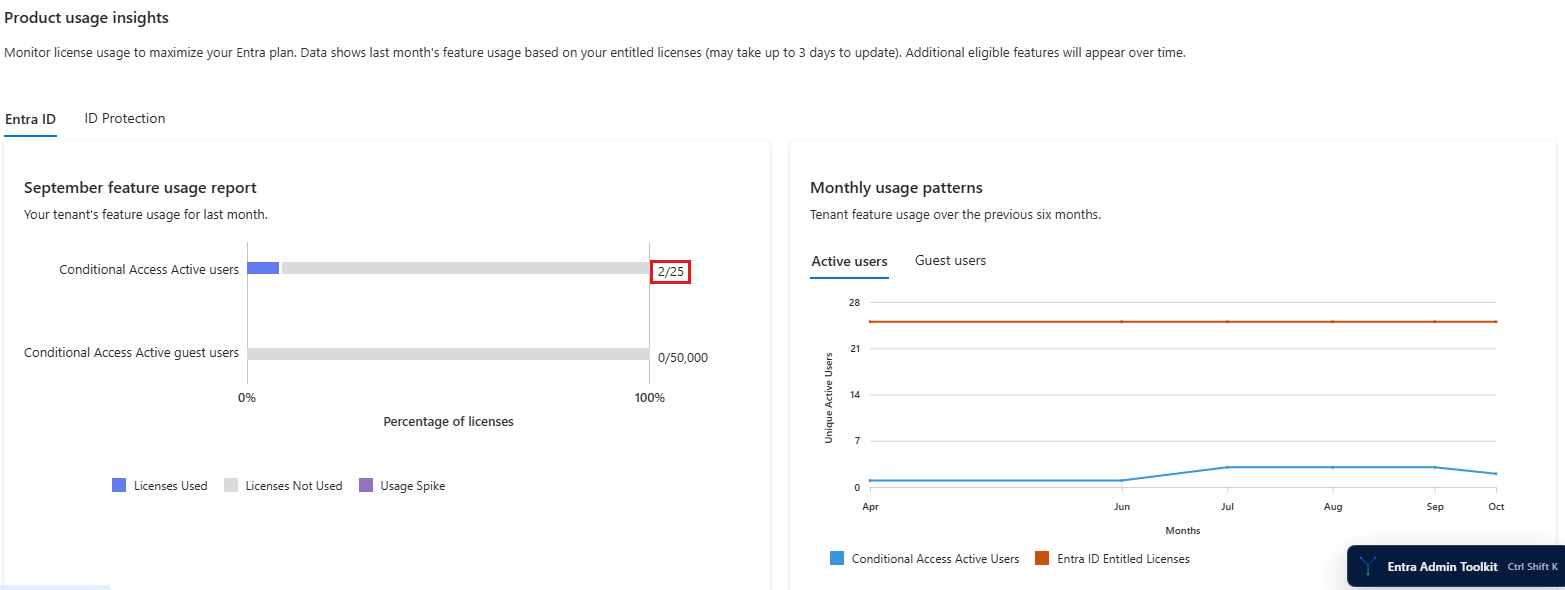
The bar chart has three colours. Licenses Used is the part of your entitlement that usage consumed. Licenses Not Used is the rest. Usage Spike is the bit you really want to look out for: usage above your entitled licence count.
Gotcha: A usage spike means more users were covered by Conditional Access than you have P1 licences for. Learn’s Conditional Access pages say a P1 licence is required for each user subject to Conditional Access policies. Nothing in the portal stops you targeting more users than you’ve licensed, so the spike is often the first place an over-deployment shows up.
Guests and the 50,000 figure
Under the member users bar there’s a second one, Conditional Access Active guest users, measured against 50,000. I don’t own 50,000 of anything. That figure lines up with the Microsoft Entra External ID free tier: Learn’s licensing pages say the first 50,000 monthly active users in External ID can use MFA and other P1 or P2 features for free.
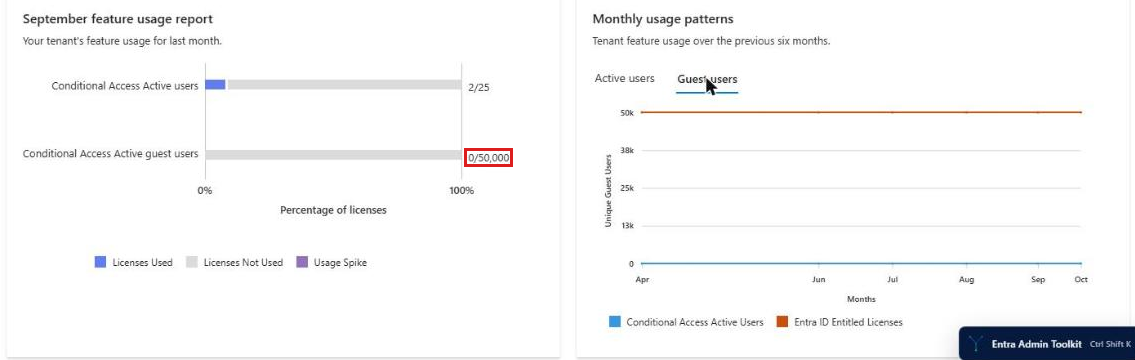
That’s why guests are split out. A tenant with 200 P1 licences and 3,000 guests going through Conditional Access isn’t necessarily over-licensed. Guests are billed on monthly active users, not seats. If you’ve linked a subscription for External ID billing, the free tier applies to P1 and P2 features. Learn is clear that it doesn’t extend to add-ons such as Microsoft Entra ID Governance for guests.
Reading the ID Protection tab (P2)
The ID Protection tab works the same way, with a different hero metric: risk-based Conditional Access users. That’s the number of unique users with at least one risk-based Conditional Access policy evaluated, meaning a policy with a sign-in risk or user risk condition.
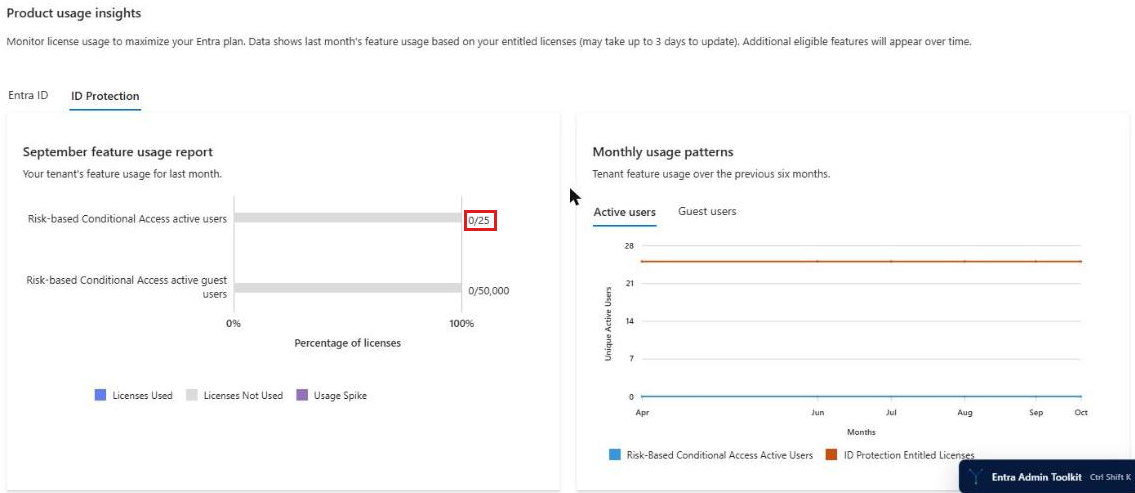
My first thought was that the page was broken. I have three risk-based policies: two that block risky sign-ins, both enabled, and one that requires MFA for risky sign-ins in report-only mode. My PowerShell check (further down) showed each of them was checked against more than 14,000 sign-ins in the last 30 days.
Every one of those results was “notApplied“, or “reportOnlyNotApplied” for the report-only policy. Nobody had a risky sign-in, so the risk condition was never met and no policy applied. The page counted zero, and my sign-in logs agree.
Good to know: Learn’s wording is “at least one risk-based Conditional Access policy evaluated”, but in my tenant that clearly means a policy whose conditions were met, not one that was simply checked. Over 15,000 sign-ins passed through my risk policies and none of them counted. A quiet month for risk produces a low P2 number even with risk-based policies switched on for everyone.
The September that didn’t add up
Here’s the part that made me look twice. The bar chart on the Entra ID tab says September had 2 Conditional Access users. Hover over September on the Monthly usage patterns line and it says 3.
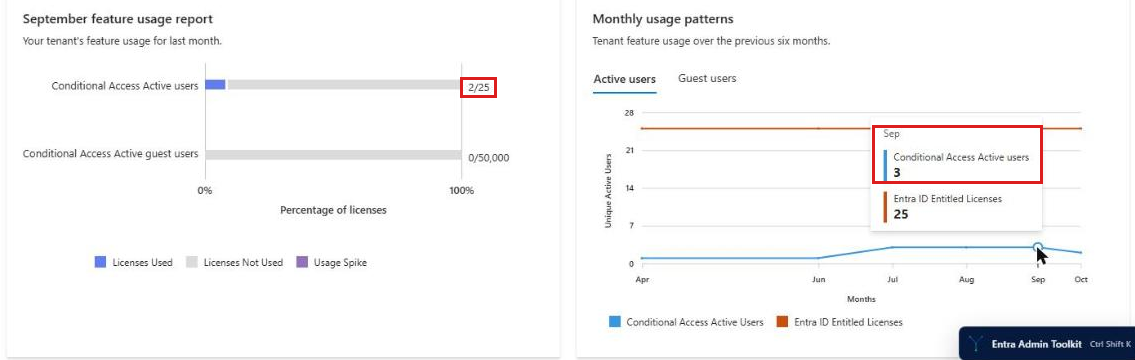
Hover over October, a month that hasn’t finished yet, and the line says 2, which is the bar chart’s September figure.
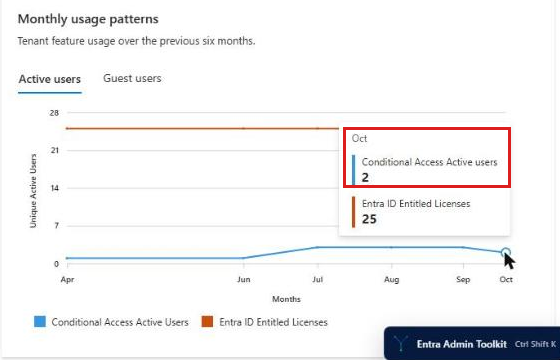
My best explanation is that each point on the trend line is labelled with the month the report was produced, not the month the usage happened. The page says it shows last month’s usage, so October’s report holds September’s data and gets plotted as October. That makes the “September” point August’s usage, and so on back. Learn doesn’t say either way, so treat this as my reading of my own tenant, not a documented behaviour.
The line also skips May. The x axis goes April, June, July, August, September, October, with a double-width gap where May should be. That’s six points for “the previous six months”, but not the six you’d expect.
Gotcha: If you take the trend line into a licensing meeting, quote the bar chart for last month and say which month each line point really covers. Someone in finance will spot the mismatch, and it’s better if it’s you.
Check the Entra license usage numbers with PowerShell
I didn’t want to trust a single hero metric without checking it, so I wrote a read-only script that rebuilds the numbers from Microsoft Graph. It counts entitlements from your subscribed SKUs, finds your risk-based Conditional Access policies, then walks the last 30 days of sign-ins to count unique users where a policy applied. It also tells you whether each of those users holds a P1 or P2 licence.
Here’s what it found in my tenant, next to what the page says:
| Check | License usage page | My sign-in logs (last 30 days) |
|---|---|---|
| P1 and P2 entitlements | 25 and 25 | 25 and 25, both from DEVELOPERPACK_E5 |
| Conditional Access users | 2 (September) | 2: José Teixeira and Mark, both with P1 |
| Risk-based Conditional Access users | 0 (September) | 0, from more than 14,000 sign-ins checked against each risk policy |
| Users only touched by report-only policies | Not counted | Not counted in the 2 above |
The numbers match, and the check answers two things Learn doesn’t spell out. Report-only policies don’t count towards the Conditional Access figure: my CADTB admin account only ever had report-only results, and it isn’t in the 2. A policy that’s checked but doesn’t apply doesn’t count either, which is the zero on the ID Protection tab.
Gotcha: My first version of this script said 3 risk-based users, not 0. It treated every result other than “notApplied” as applied, and report-only policies return “reportOnlyNotApplied” when they don’t apply. If you build your own checks, count only “success” and “failure” for enforced policies, and handle the “reportOnly” results separately.
The script needs only the Microsoft.Graph.Authentication module, and it only reads. Run it as someone who can read sign-in logs and Conditional Access policies, such as a Global Reader.
& {
# Cross-check the Entra License usage report against your own sign-in logs. Read-only.
$ErrorActionPreference = 'Stop'
Connect-MgGraph -NoWelcome -Scopes "Organization.Read.All","AuditLog.Read.All","Policy.Read.All","User.Read.All"
$g = "https://graph.microsoft.com"
function Get-All($uri) { $out = @(); while ($uri) { $r = Invoke-MgGraphRequest -Method GET -Uri $uri; $out += $r.value; $uri = $r.'@odata.nextLink' }; $out }

# 1. Entitlements: every SKU that includes Entra ID P1 or P2
$skus = Get-All "$g/v1.0/subscribedSkus"
$p1Skus = $skus | Where-Object { $_.servicePlans.servicePlanName -contains 'AAD_PREMIUM' }
$p2Skus = $skus | Where-Object { $_.servicePlans.servicePlanName -contains 'AAD_PREMIUM_P2' }
$p1 = ($p1Skus | ForEach-Object { $_.prepaidUnits.enabled } | Measure-Object -Sum).Sum
$p2 = ($p2Skus | ForEach-Object { $_.prepaidUnits.enabled } | Measure-Object -Sum).Sum
Write-Host "Entitlements: P1 $p1 (from $(($p1Skus.skuPartNumber) -join ', ')), P2 $p2 (from $(($p2Skus.skuPartNumber) -join ', '))"

# 2. Risk-based Conditional Access policies (sign-in risk or user risk condition)
$policies = Get-All "$g/v1.0/identity/conditionalAccess/policies"
$riskPolicies = @($policies | Where-Object { $_.conditions.userRiskLevels.Count -or $_.conditions.signInRiskLevels.Count })
$riskIds = @($riskPolicies | ForEach-Object id)
Write-Host "CA policies: $($policies.Count) total, $($riskIds.Count) risk-based"
$riskPolicies | ForEach-Object { Write-Host "  $($_.displayName) | state: $($_.state)" }

# 3. Sign-ins for the last 30 days (interactive and non-interactive)
Write-Host "Reading 30 days of sign-in logs, this can take a minute or two..."
$since = (Get-Date).ToUniversalTime().AddDays(-30).ToString("yyyy-MM-ddTHH:mm:ssZ")
$filter = "createdDateTime ge $since and (signInEventTypes/any(t: t eq 'interactiveUser' or t eq 'nonInteractiveUser'))"
$signIns = Get-All "$g/beta/auditLogs/signIns?`$filter=$([uri]::EscapeDataString($filter))&`$top=999"
Write-Host "Sign-ins in the last 30 days: $($signIns.Count)"

$enforced   = 'success','failure'
$reportOnly = 'reportOnlySuccess','reportOnlyFailure','reportOnlyInterrupted'
$caUsers = @{}; $caReportOnlyUsers = @{}; $riskUsers = @{}; $riskReportOnlyUsers = @{}
$riskResults = @{}
foreach ($s in $signIns) {
    $results = @($s.appliedConditionalAccessPolicies)
    if ($s.conditionalAccessStatus -in $enforced) { $caUsers[$s.userId] = 1 }
    if ($results | Where-Object { $_.result -in $reportOnly }) { $caReportOnlyUsers[$s.userId] = 1 }
    foreach ($r in ($results | Where-Object { $riskIds -contains $_.id })) {
        $riskResults["$($r.displayName) | $($r.result)"]++
        if ($r.result -in $enforced)   { $riskUsers[$s.userId] = 1 }
        if ($r.result -in $reportOnly) { $riskReportOnlyUsers[$s.userId] = 1 }
    }
}

# 4. Who those users are, and whether they hold P1 / P2
function Get-UserInfo($id) {
    try {
        $u = Invoke-MgGraphRequest -Method GET -Uri "$g/v1.0/users/$id`?`$select=displayName,userType,assignedPlans"
        $plans = $u.assignedPlans | Where-Object { $_.capabilityStatus -eq 'Enabled' } | ForEach-Object servicePlanId
        [pscustomobject]@{ User = $u.displayName; Type = $u.userType
            P1 = [bool]($plans -contains '41781fb2-bc02-4b7c-bd55-b576c07bb09d')    # AAD_PREMIUM
            P2 = [bool]($plans -contains 'eec0eb4f-6444-4f95-aba0-50c24d67f998') }  # AAD_PREMIUM_P2
    } catch { [pscustomobject]@{ User = "(deleted or external) $id"; Type = '?'; P1 = $false; P2 = $false } }
}

Write-Host "`n--- Conditional Access users (an enforced policy applied): $($caUsers.Count)"
$caUsers.Keys | ForEach-Object { Get-UserInfo $_ } | Sort-Object Type, User | Format-Table -AutoSize | Out-String | Write-Host
Write-Host "--- Users who only hit report-only CA results are not in that number. Users with a report-only result: $($caReportOnlyUsers.Count)"
Write-Host "--- Risk-based CA users (an enforced risk-based policy applied): $($riskUsers.Count)"
$riskUsers.Keys | ForEach-Object { Get-UserInfo $_ } | Format-Table -AutoSize | Out-String | Write-Host
Write-Host "--- Users with a report-only risk-based result: $($riskReportOnlyUsers.Count)"
Write-Host "--- Risk-based policy results seen in sign-ins (policy | result: sign-ins):"
$riskResults.GetEnumerator() | Sort-Object Name | ForEach-Object { Write-Host "  $($_.Name): $($_.Value)" }
Write-Host "Compare these with the License usage page. The page shows last calendar month; this covers the last 30 days."
}
Good to know: The script reads sign-in logs, so it needs AuditLog.Read.All, and it uses the beta signIns endpoint to include non-interactive sign-ins. Sign-in logs are kept for 30 days on P1 and P2, which is why it covers the last 30 days rather than last calendar month. For a full calendar month, export your sign-in logs to Log Analytics.
What to do with the numbers
A low Conditional Access figure against a big P1 entitlement usually means one of three things. Your policies only target some users, you’ve got licences assigned to accounts that never sign in, or Conditional Access just isn’t deployed widely yet. All three are worth knowing, and only one of them means you should buy fewer licences.
A usage spike means the opposite: more users are covered than licensed. Check the user list from the script for accounts without P1, such as service accounts, shared mailboxes someone signs in to, or test users. Fix the licensing or the policy scope.
A zero on the ID Protection tab, like mine, doesn’t mean P2 is wasted. It means nobody had a risk-based policy apply last month, which is good news if your users stayed out of trouble. P2 also pays for PIM, access reviews and ID Protection reports, and none of those show on this page.
Use the report as a conversation starter, not a verdict. It’s free, it’s read-only, and it’s the first time Microsoft has put licence and usage on the same page. Just quote the bar chart, check the trend line, and don’t let anyone add the P1 and P2 bars together.
FAQs
Where is the Entra license usage report?
In the Microsoft Entra admin center under Billing > Licenses > License usage. You need at least the Reports Reader role.
What does the Entra license usage report count for P1?
Unique users with at least one Conditional Access policy evaluated during last month, compared with your P1 entitlement.
What does it count for P2?
Unique users with at least one risk-based Conditional Access policy evaluated during last month, compared with your P2 entitlement.
Why does the guest bar show 50,000?
Guests are measured separately. The 50,000 matches the Microsoft Entra External ID free tier, where the first 50,000 monthly active users can use P1 and P2 features for free.
Why do my P1 and P2 entitlements look the same?
Learn says each figure counts every product that includes that tier. Microsoft 365 E5 includes both P1 and P2, so the same seats appear in both bars.
How up to date is the report?
It shows last month’s usage, and Learn says it can take up to three days to update.
Does the report show PIM or access reviews usage?
No. It uses one metric per tier: Conditional Access for P1 and risk-based Conditional Access for P2.
Further reading
- Microsoft Entra license usage insights (Microsoft Learn)
- Microsoft Entra licensing (Microsoft Learn)
- Microsoft Entra External ID pricing and billing (Microsoft Learn)
- What is Conditional Access? (Microsoft Learn)
- Conditional Access What If tool
- Microsoft Entra PIM guide
Found this useful? Buy me a coffee, and if you handle subject access requests, have a look at Redact Ninja for redacting PDFs without sending files to a server.
Tags: Conditional Access, Entra ID, Entra licensing, Microsoft Entra, Microsoft Security