How to Set Up Microsoft Intune App Inventory
Microsoft Intune App Inventory gives administrators a more detailed view of the applications installed on their Windows devices. Instead of stopping at an application name and version, it can collect installation locations, uninstall commands, application sizes and installation scope. Collection is configured through a Properties catalog policy.
That is useful when “the application is installed” is only the beginning of the investigation.
Which version is installed? Is it available to everyone using the device, or just one user? Where did the installer put it? What uninstall information has Windows recorded?
Preferably, we want those answers without opening a remote session and asking someone to stop moving the mouse for a minute or using PowerShell.
This guide covers the configuration, explains where the information comes from and includes PowerShell commands for checking the device, comparing application metadata and troubleshooting collection
What is Microsoft Intune App Inventory?
App Inventory is a policy-driven application inventory feature for Windows devices managed through Intune.
The report is available under:
Devices > All devices > select a device > All apps > App inventory
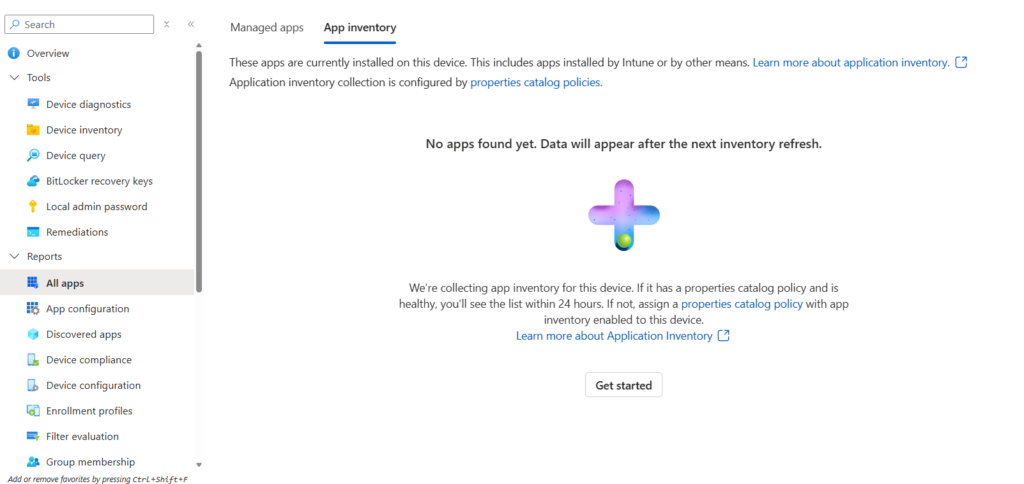
The important distinction is between what an administrator told Intune to deploy and what Windows reports as installed.
An app assignment describes the intended deployment. An inventory record describes an installation detected on the endpoint. Those are related, but they answer different questions.
An application might have been installed manually, included in an image or deployed through Intune. App Inventory reports detected installations rather than limiting itself to applications assigned from Intune. Its names and versions come from the device, so they can differ from the labels used in the managed app configuration.
When troubleshooting, I would establish what is installed first. Then investigate how it arrived and whether it matches the intended deployment.
Watch the video here
Can I query Intune App Inventory across all Windows devices with KQL?
Not yet through Device Query for multiple devices. As of 29 September 2026, Microsoft lists Windows application inventory support for this feature as In Development, rather than Preview or General Availability. Device Query itself is already available; application inventory is the planned addition.
The planned capability will let administrators use Kusto Query Language (KQL) against collected application inventory across Windows devices. That should make it easier to identify installed versions and investigate outdated or unwanted software without opening each device individually.
For now, this guide focuses on configuring collection and viewing the application inventory for individual devices. Check Microsoft’s current release documentation before building a workflow around the planned KQL support.
Never miss an article and subscribe, and don’t forget to check out my YouTube channel, Control Alt Delete Tech Bits
Like the article? Feel free to buy me a coffee
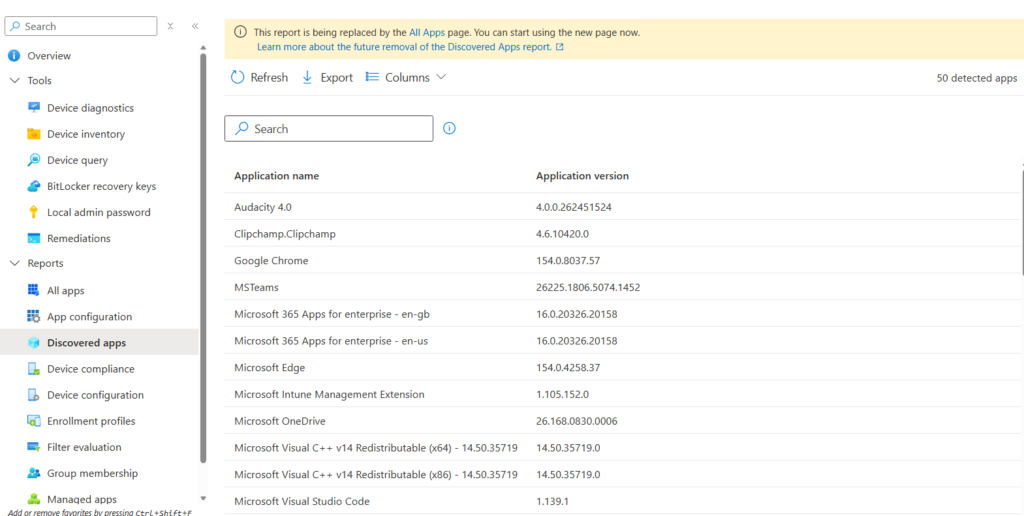
Microsoft Intune App Inventory vs Discovered Apps
Discovered Apps remains useful but is being replaced by All App. It already provides an inventory of detected software, and Microsoft has not switched it off.
The newer App Inventory adds more installation metadata and configurable collection. Microsoft describes it as the intended replacement over time, with both experiences currently operating alongside each other.
| Question | Discovered Apps | App Inventory |
|---|---|---|
| Is a collection policy required? | No dedicated inventory policy | Yes, through Properties catalog |
| What information is available? | Names, versions, publishers and platform information | Those details plus richer installation metadata |
| How often does it refresh? | Generally seven days, with a 24 hour exception for Win32 information collected through IME | Multiple collections per day on active devices |
| Where is the device report? | Device > Discovered apps | Device > All apps > App inventory |
| How are user installations handled? | More limited user handling | Device and user installation records |
| Does enabling App Inventory disable Discovered Apps? | No | Both continue to operate |
The refresh qualification matters. It would be inaccurate to say that all Discovered Apps data takes seven days to refresh. Microsoft documents a 24 hour collection interval for Windows Win32 application information gathered by the Intune Management Extension.
Also, do not confuse Discovered Apps with Managed apps. An app deployment report and an application inventory report serve different purposes.
For a useful comparison, open the same device and search for the same application in both inventory experiences.
Where does App Inventory get its information?
The Windows device inventory agent collects application information from the endpoint.
For traditional Win32 applications, the sources include uninstall registry entries at machine and user level. Store application information comes from the Windows package manager. The collector also accounts for 32 bit applications on 64 bit Windows.
The machine level registry locations used in the PowerShell comparison later in this guide are:
HKLM\SOFTWARE\Microsoft\Windows\CurrentVersion\Uninstall
HKLM\SOFTWARE\WOW6432Node\Microsoft\Windows\CurrentVersion\Uninstall
User level installations can have corresponding entries beneath the user’s registry hive.
This explains an important limitation: inventory quality depends partly on the information supplied by the application and its installer.
A blank installation location does not automatically mean Intune failed. It might mean the source entry does not contain one.
It also means that an inventory report is not a recursive search for every executable on the disk. Microsoft’s PowerShell guidance makes the same distinction when discussing installed software: applications copied into a folder do not necessarily appear in normal uninstall records
Prerequisites and permissions
Microsoft’s App Inventory documentation lists Windows 10/11 devices that are enrolled in Intune and Microsoft Entra joined.
Use a supported Windows configuration for your deployment. The Windows 10 and later platform label in a policy wizard is not, by itself, a statement about the lifecycle of every Windows release.
The administrator account also needs appropriate Intune permissions. Microsoft’s Properties catalog guidance lists Policy and Profile Manager, or a suitable custom role, for creating and assigning collection policies. Viewing collected device information requires device read permissions.
Do not add Endpoint Analytics configuration to this workflow simply because it appears in documentation for Device Query. Microsoft’s App Inventory prerequisites do not list Endpoint Analytics, Advanced Analytics or Defender for Endpoint as requirements for this collection workflow. Device Query is a separate capability with its own requirements.
Check the Windows device locally
The following commands show the operating system and relevant join information:
Get-CimInstance -ClassName Win32_OperatingSystem |
Select-Object Caption, Version, BuildNumber |
Format-List
dsregcmd /status |
Select-String -Pattern ‘^\s*(AzureAdJoined|DomainJoined|DeviceId)\s*:’
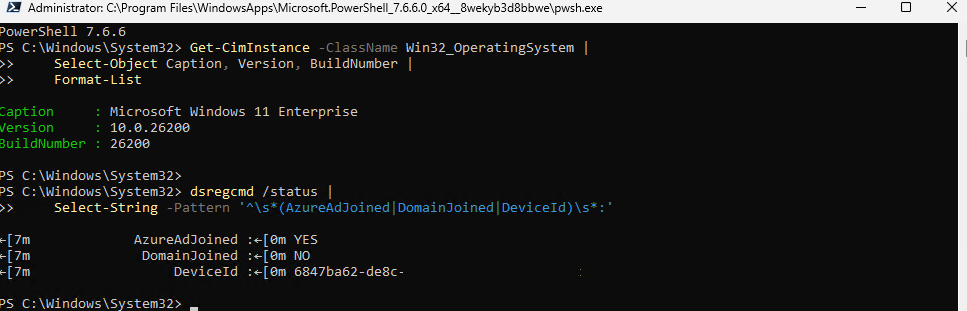
For a Microsoft Entra joined device, AzureAdJoined should be YES. The DomainJoined value helps distinguish a cloud-joined device from a hybrid joined device. Compare the device ID with the corresponding Intune record
You Can Check the Intune device record with PowerShell Too
Microsoft Graph can confirm which device record Intune holds, its ownership and when it last checked in.
Install the required modules if they are not already available:
Install-Module Microsoft.Graph.Authentication -Scope CurrentUser
Install-Module Microsoft.Graph.DeviceManagement -Scope CurrentUser
Then run the following in one PowerShell session. The script prompts for the device name
Import-Module Microsoft.Graph.Authentication
Import-Module Microsoft.Graph.DeviceManagement
Connect-MgGraph -Scopes 'DeviceManagementManagedDevices.Read.All'
-ContextScope Process `
-NoWelcome
$DeviceName = (Read-Host ‘Enter the device name as shown in Intune’).Trim()
if ([string]::IsNullOrWhiteSpace($DeviceName)) {
throw ‘A device name is required.’
}
$EscapedDeviceName = $DeviceName.Replace(“‘”, “””)
$Devices = @(
Get-MgDeviceManagementManagedDevice -Filter "deviceName eq '$EscapedDeviceName'"
-All `
-ErrorAction Stop
)
if ($Devices.Count -eq 0) {
throw “No Intune managed device record was found for $DeviceName.”
}
$Devices |
Select-Object DeviceName,
Id,
OperatingSystem,
OSVersion,
ManagedDeviceOwnerType,
ManagementAgent,
ComplianceState,
LastSyncDateTime,
AzureAdDeviceId |
Format-List
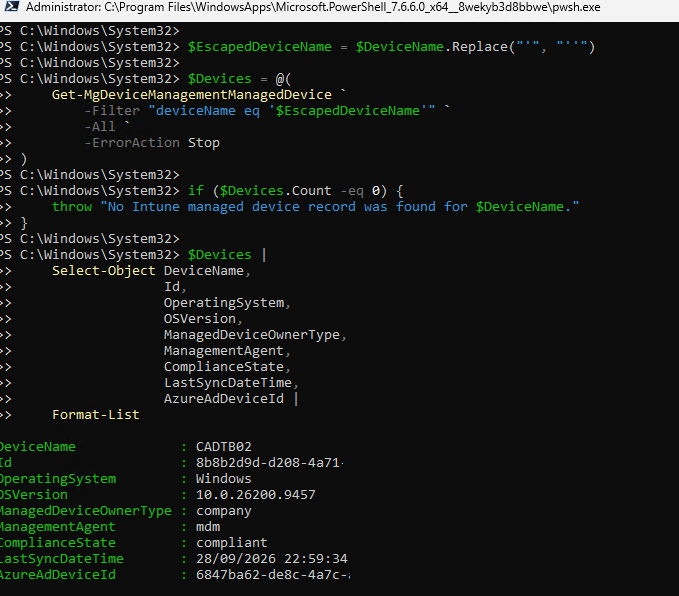
The query uses Microsoft Graph’s documented managed devices API with a read permission. It does not change the device or its ownership.
Pay particular attention to the device IDs and last sync time. Compare AzureAdDeviceId with the DeviceId returned locally by dsregcmd.
If the query returns several records with the same name, investigate before choosing one. A familiar device name is not enough to distinguish a current enrolment from an old record.
This script reads device metadata. It does not retrieve the new App Inventory report.
You Can Establish a local application baseline with PowerShell if you want
Run this on the Windows device using a 64 bit PowerShell session:
$Paths = @(
‘HKLM:\SOFTWARE\Microsoft\Windows\CurrentVersion\Uninstall*’,
‘HKLM:\SOFTWARE\WOW6432Node\Microsoft\Windows\CurrentVersion\Uninstall*’
)
Get-ItemProperty -Path $Paths -ErrorAction SilentlyContinue |
Where-Object { $_.DisplayName } |
Select-Object DisplayName, DisplayVersion, Publisher |
Sort-Object DisplayName |
Format-Table -AutoSize
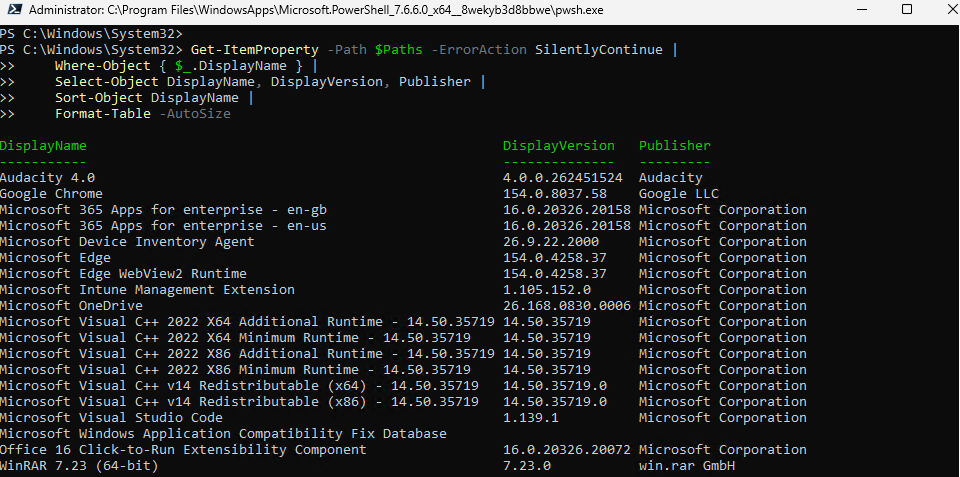
This command only reads the two machine level uninstall locations. It does not include the full collection of user installations and Store packages that App Inventory can report.
I am deliberately not using Win32_Product. Microsoft warns that queries against that class can initiate Windows Installer consistency checks and repairs. Reading inventory should not unexpectedly become an application maintenance exercise
How to Create the Microsoft Intune App Inventory policy
Open the Properties catalog
In the Intune admin centre, go to:
Devices > Manage devices > Configuration > Create > New policy

Select Platform: Windows 10 and later Profile type: Properties catalog
and then create
Properties catalog is the collection profile needed here. This is not a Win32 application deployment or an application configuration policy.
Name the policy
Give the policy a clear name, such as: Windows App Inventory
A suitable description is: Collects Windows application inventory and installation metadata for administration and troubleshooting.
select Application Properties
Under Configuration settings, select:
Add properties
Find the Application Properties category. Microsoft’s App Inventory instructions refer to it as:
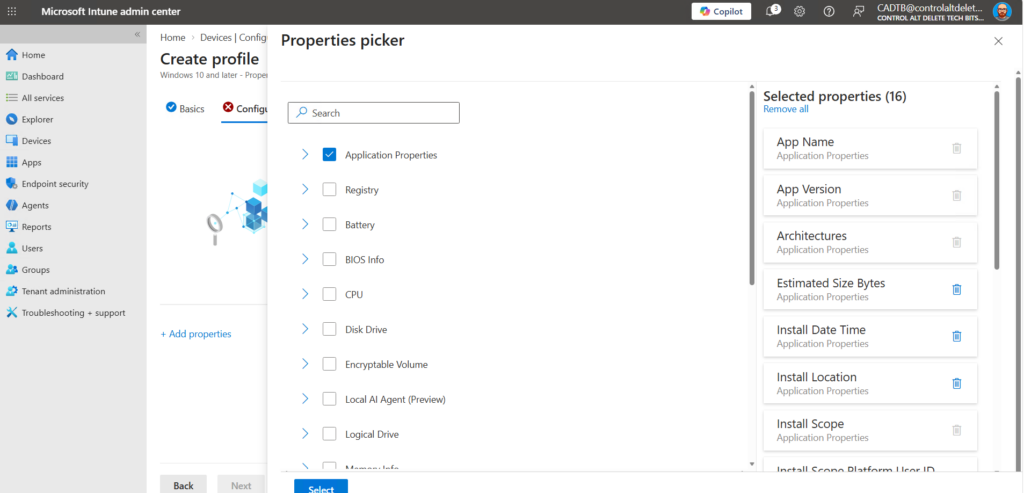
Select the category and keep its required properties. These cover the application identity, architecture and installation scope:
App Name
App Version
Publisher
Architectures
Install Scope
Install Scope Platform User Id
Install Scope User Id
Required properties are automatically included when collection is enabled for that category
choose the additional information to collect
Select the optional properties that support your administration and reporting requirements.
| Property | Why collect it? |
|---|---|
| Install location | Check where the application is installed |
| Install date | Add context to an installation investigation |
| Estimated size | Identify applications worth investigating for storage use |
| Platform specific app ID | Correlate an entry with its package or installer identity |
| Platform Specific App ID Type | Understand which kind of identifier is being reported |
| Uninstall command | Inspect the removal information registered on the device |
| Modify command | Identify the registered maintenance command |
| Languages | Check reported application language information |
| Install Scope User Name | Make user scoped installations easier to interpret |
These are optional collection fields, not guarantees that every application will supply every value. Their availability depends on the underlying registry or package information.
Choose deliberately. Usernames, installation paths and application details deserve an access and data handling decision, not just an enthusiastic click on every checkbox.
Collecting an uninstall command does not execute it. This policy requests inventory information; it is not an instruction to remove applications.
assign the policy
Continue through the wizard and select the intended assignment group.
I would begin with a small group of representative Windows devices. Check the resulting information before broadening collection.
Review the configuration and select Create.
Sync the device and allow time for collection
From the Intune device overview, select:
Sync > Yes
The supported Intune sync action requests a device check-in so pending management actions and policies can be processed. A successful request is not proof that a particular inventory report has finished processing.
Microsoft’s Properties catalog guidance says the initial inventory collection can take up to 24 hours. Leave the device powered on and connected while collection and reporting take place.
View the collected application inventory
Return to:
Devices > All devices > select the device > All apps > App inventory
Once the report has populated, search for one of the applications checked locally.
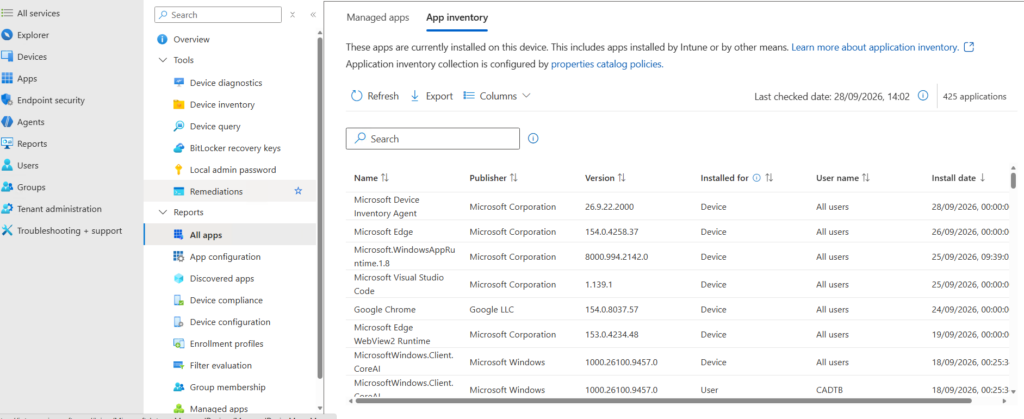
Start with the name, publisher and version. Then use Columns to expose the additional properties selected in the policy. The report reflects installation metadata collected from the device rather than simply repeating the administrator’s managed app configuration.
ompare a handful of known applications rather than assuming a large result count proves everything is correct.
Does the reported version match the local result? Is the installation associated with the device or a particular user? Do populated fields correspond with the application’s source metadata?
Those checks are more useful than simply observing that the page is no longer empty.
How to interpret the results properly
Installed for does not mean installed by
The Installed for field distinguishes a device installation from one associated with a particular user.
A username attached to an inventory record helps identify that installation scope. It is not, by itself, an audit trail proving that the named person manually ran the installer. Microsoft documents these fields as installation scope and associated user information.
That distinction is particularly useful on shared devices.
Repeated names are not automatically duplicate errors
Before removing rows from an export as duplicates, compare the application identifier, version, architecture and user information.
Two rows sharing a display name do not necessarily represent the same installation record. Microsoft also warns that Windows uninstall display names are not guaranteed to be unique.
The total inventory count should therefore not be treated as a count of distinct desktop programs without examining the records behind it.
Install date is not always the original installation date
For MSI applications, Windows Installer’s InstallDate value can change when the product is serviced, including when patches are applied or removed, or certain repairs occur. It is not always an immutable record of the first installation.
I would treat it as supporting information, not the sole evidence in a “who installed this last Tuesday?” investigation.
Estimated size is an estimate
Use the size field to identify candidates for investigation, not as a precise promise of how much disk space an uninstall will recover.
Before making a storage recommendation, inspect the application and its data rather than adding up the inventory column and promising everyone another 20 GB.
An uninstall command still needs testing
Finding the registered uninstall command is useful when investigating an application package.
However, I would not copy it directly into an Intune Win32 uninstall configuration without checking the vendor’s documentation and testing it.
Confirm the execution context, interactive behaviour, silent options and expected exit codes. Inventory provides evidence to work from, not approval to run an arbitrary command across the estate.
Installed software is not the same as software usage
A detected installation does not establish that someone uses it, that the organisation owns the necessary entitlement or that the application is vulnerable.
For those decisions, correlate the inventory with the relevant licensing, usage or security evidence.
App Inventory provides a better starting point. It does not turn one report into every other report.
What happens when several policies target the same device?
Microsoft documents that collection settings are merged when several inventory policies target a device. A request to collect a property takes precedence over a setting not to collect it.
The practical consequence is that editing one policy might not stop collection while another still requests the same information.
When investigating unexpected collection, review every applicable inventory policy rather than just the one with the most obvious name.
What happens when the policy is removed?
Removing the App Inventory policy is not an instant reset.
Microsoft’s app specific guidance describes an approximately three day buffer before collection stops and the application data is removed from the service. This is separate from the retention guidance for general Device Inventory data
Account for that behaviour when planning policy changes or investigating why information remains visible after an assignment is removed.
Know what is installed, not just what was assigned
Microsoft Intune App Inventory helps answer a question that an application assignment cannot answer on its own: what does the device report as installed? The additional version, installation scope and application metadata give you a better starting point for investigating the answer.
The configuration is only part of the job. Start with a small group of devices, collect the properties you need and compare a few familiar applications against their local PowerShell results. Once you are satisfied that collection is working and the information is useful, broaden the assignment.
Keep the limitations in mind, too. An inventory entry is evidence to investigate, not proof that an application is healthy, licensed or being used. More columns are useful only when you understand what they represent.
You might also like this article and video
Also check out my redact app for all your PDF needs, Redact PDFs and images, review email evidence and manage subject access requests without sending source files to a processing server.: https://redactninja.com
And my other projects IntuneAccess and IdentityAtlas
What is Microsoft Intune App Inventory?
It is a configurable Windows application inventory feature in Intune. A Properties catalog policy controls collection, and the resulting report provides installation details beyond basic application names and versions.
Where do I find App Inventory in Intune?
Open Devices > All devices, select the Windows device, then select All apps > App inventory. Do not confuse this tab with Managed apps or the separate Discovered Apps report
Does App Inventory replace Discovered Apps?
Microsoft intends it to replace Discovered Apps over time, but both currently operate alongside each other. Enabling App Inventory does not disable Discovered Apps.
Do I need Endpoint Analytics or Defender for Endpoint?
Neither is listed as a prerequisite in Microsoft’s App Inventory documentation. Appropriate Intune licensing, permissions and an eligible Windows device are still required. Advanced Analytics and Device Query requirements should be checked separately.
How long does Intune App Inventory take to populate?
Allow up to 24 hours for initial inventory collection. Requesting a device sync can help process the assigned configuration, but it does not guarantee an immediately populated report
Can I query this inventory across all Windows devices with KQL?
At the time of verification, Microsoft lists application inventory support for Device Query for multiple devices as In Development. Check the current release documentation before building a workflow around it
Where are the App Inventory troubleshooting logs?
Microsoft documents the inventory agent logs at: C:\Program Files\Microsoft Device Inventory Agent\Logs
Tags: Intune