Microsoft Entra Backup and Recovery: Because Ctrl+Z Doesn’t Work on Conditional Access
Microsoft Entra Backup and Recovery is the undo button many of us have wanted since the first time someone “just tweaked” a Conditional Access policy on a Friday afternoon. It takes a daily backup of key directory objects, keeps seven days of history, and lets you compare and roll back changes from the Microsoft Entra admin centre.
It is built in, switched on by default, and nobody can turn it off. That includes the admin who caused the problem in the first place, which feels like justice.
In this guide I cover what it backs up, the licence and roles you need, and how difference reports and recovery work. There is a worked example of fixing a broken Conditional Access policy, plus how to check recovery history, audit logs and the Graph PowerShell cmdlets.
Never miss a guide: subscribe here and check out my YouTube channel.
The short version (for anyone reading this while the helpdesk phones ring)
- Backups happen automatically once a day and are kept for seven days. Nobody can delete or disable them.
- You need a workforce tenant with Microsoft Entra ID P1 or P2.
- Microsoft Entra Backup Reader can look. Microsoft Entra Backup Administrator can create difference reports and recover.
- Always run a scoped difference report before recovering, because recovery can’t be undone automatically.
- Hard-deleted objects and objects synced from on-premises Active Directory can’t be recovered here.
In this guide
What is Microsoft Entra Backup and Recovery?
Microsoft Entra Backup and Recovery is a built-in service that backs up supported directory objects once a day. You can view those backups, compare any of them with the current state of your tenant, and recover objects to how they looked at backup time.
Microsoft Entra Backup and Recovery keeps backup data in the same geo-location as your tenant. No user or app can turn off, delete or modify the backups, even with Global Administrator. That matters when the threat is an attacker with stolen admin rights rather than Dave from accounts.
Microsoft Entra Backup and Recovery reached general availability in June 2026 after a preview that started in March, when retention was five days. My lab screenshots were taken during the preview, so ignore the “(Preview)” labels.
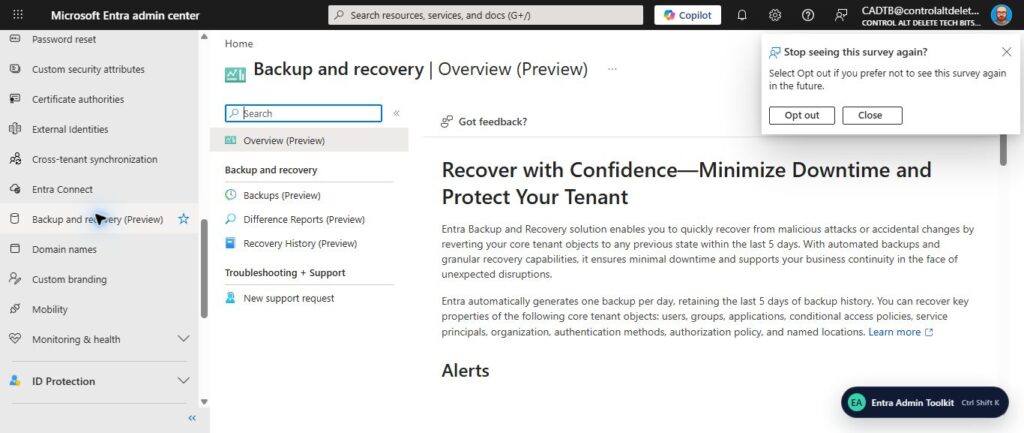
Microsoft Entra Backup and Recovery lives under Entra ID > Backup and recovery, which has four pages: Overview, Backups, Difference Reports and Recovery History. That is the whole product, which is refreshing after some of the other Entra menus.
What Microsoft Entra Backup and Recovery can recover
Microsoft Entra Backup and Recovery covers specific object types and, for most of them, a specific list of properties. It is not a full rollback of every attribute. The list grows over time, so check the supported objects and properties page before you rely on one.
| Object type | What is in scope | Watch out for |
|---|---|---|
| Users | Selected properties such as display name, UPN, job title, department, account enabled and usage location | Manager and sponsor changes aren’t in scope. Passwords are never restored. |
| Groups | Selected properties such as name, description, mail settings and security enabled | Owner changes and dynamic membership rule changes aren’t in scope. |
| Conditional Access policies | All properties | The whole policy goes back to its backup state. |
| Named locations | All properties, including IP ranges and countries | Same as above. |
| Applications and service principals | Selected properties. Service principal recovery also restores admin-consented delegated grants and app role assignments | Grants created by individual user consent aren’t supported. |
| Authentication methods policy | Settings for Passkey (FIDO2), Authenticator, SMS, voice call, Temporary Access Pass, email OTP, third-party OATH and certificate-based authentication | This is the tenant policy. Individual user methods can’t be restored on their own. |
| Authorisation policy | blockMsolPowerShell and the guest user role | Only those two properties. |
| Organisation | Tenant-wide per-user MFA settings, such as remembered devices and app passwords | Legacy per-user MFA settings only. |
Agent identities are covered too, because under the hood they are users, applications and service principals. Mailboxes, OneDrive and SharePoint are not part of this at all. That is Microsoft 365 Backup, a separate product with its own pricing.
Licensing and roles for Microsoft Entra Backup and Recovery
| Requirement | Detail |
|---|---|
| Tenant type | Workforce tenant. External ID and Azure AD B2C tenants aren’t supported. |
| Licence | Microsoft Entra ID P1 or P2 |
| View backups, reports and history | Microsoft Entra Backup Reader |
| Create difference reports and recover | Microsoft Entra Backup Administrator (Global Administrator also has these permissions) |
| Backup frequency | Once a day, automatically |
| Retention | Seven days for backups, difference reports and recovery history |
| Where to find it | Microsoft Entra admin centre > Entra ID > Backup and recovery |
Don’t do this as Global Administrator just because you can. Make Backup Administrator eligible in Microsoft Entra PIM so the role is there when the building is on fire and absent the rest of the time.
Tip: Give your security team Microsoft Entra Backup Reader permanently. They can review difference reports and recovery history without being one click away from rolling back the tenant.
How Microsoft Entra Backup and Recovery works
Every Microsoft Entra Backup and Recovery operation follows the same pattern: pick a backup, compare it with now, and decide what to put back. What recovery does to an object depends on what happened to it after the backup.
| Change since the backup | What recovery does |
|---|---|
| Object was added | Soft-deletes it |
| Object was updated | Sets it back to the backup values |
| Object was soft-deleted | Restores it |
| Object was restored | Soft-deletes it again |
It never creates brand new objects and never hard-deletes anything. The first row is the one that bites. If a colleague created a perfectly good policy yesterday, a broad recovery to last week’s backup will soft-delete it.
Microsoft Entra Backup and Recovery runs only one job at a time, whether it is a difference report or a recovery. The first job against a backup also has to load that backup’s data, so it is slower than later ones. Running the difference report first warms the data up for the recovery.
How to use Microsoft Entra Backup and Recovery in 5 steps
Step 1: Check licences and assign the roles
- Confirm the tenant has Microsoft Entra ID P1 or P2. Entra ID > Overview shows the licence.
- Go to Entra ID > Roles & admins and find Microsoft Entra Backup Reader and Microsoft Entra Backup Administrator.
- Assign Reader to people who need visibility, and make Administrator eligible through PIM for the people who will run recoveries.
Want to try this in a lab first? My guide to setting up a Microsoft Entra ID tenant covers the groundwork, and a test tenant is a much better place to press Recover for the first time.
Step 2: View your backups
- Sign in to the Microsoft Entra admin centre as at least Microsoft Entra Backup Reader.
- Browse to Entra ID > Backup and recovery > Backups.
- Check the list. Each entry shows a backup timestamp and a backup ID.
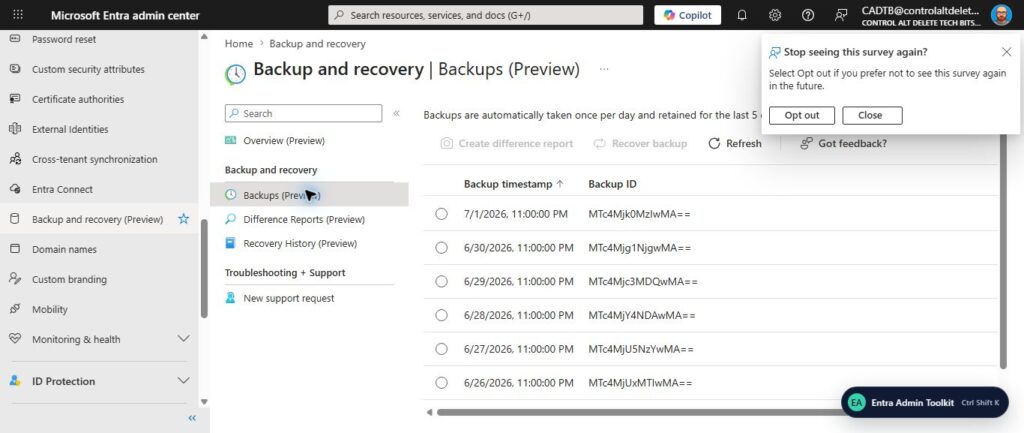
Pick the most recent backup taken before the change you want to undo. Going further back than you need just means more legitimate changes to sift through.
Step 3: Create a scoped difference report
- On the Backups page, select the backup and choose Create difference report.
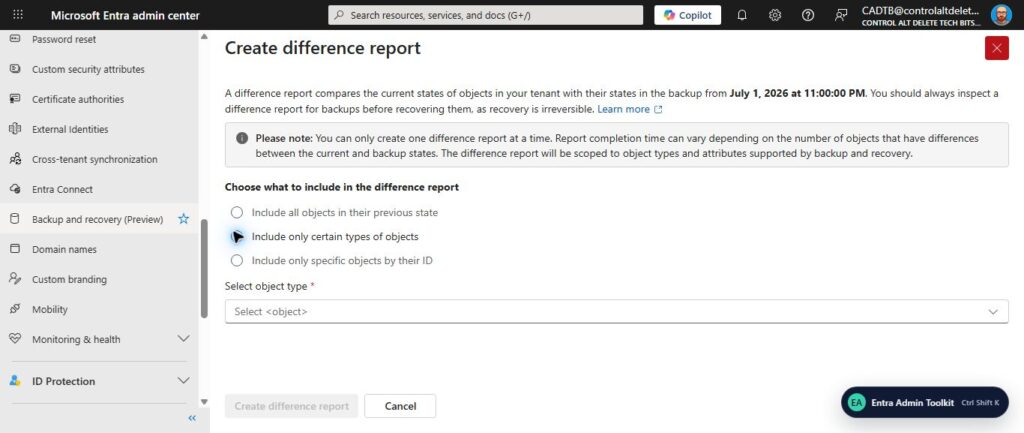
- Choose the scope: Include all objects in their previous state, Include only certain types of objects, or Include only specific objects by their ID (up to 100 object IDs).
- Select Create difference report and wait for it to complete.
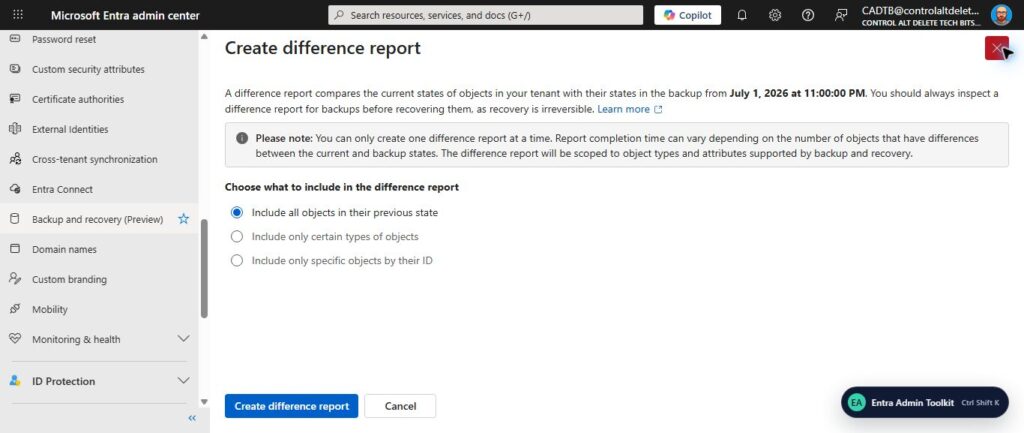
You can’t change the scope after the report is created, and recovering from a report keeps that scope. So narrow is good. A report on just Conditional Access policies is quicker to read and much harder to misuse.
Tip: Microsoft Entra Backup and Recovery difference reports change nothing in your tenant. If you’re unsure what happened, run one anyway. It’s the identity equivalent of looking both ways before crossing the road.
Step 4: Review the changes
Open the report from Difference Reports. It lists objects that were created, modified, soft-deleted or restored since the backup, with changed attributes and changed links such as group membership.
Read every line before going further. The report is a point-in-time comparison, so if people keep changing things afterwards, run a fresh one.
Step 5: Recover only what you need
- From a completed difference report, select Recover to recover everything in that report’s scope.
- Or open one object’s changed attributes and select Recover this object to fix just that one.
- If you skipped the report, the Backups page has Recover backup with the same three scope options.
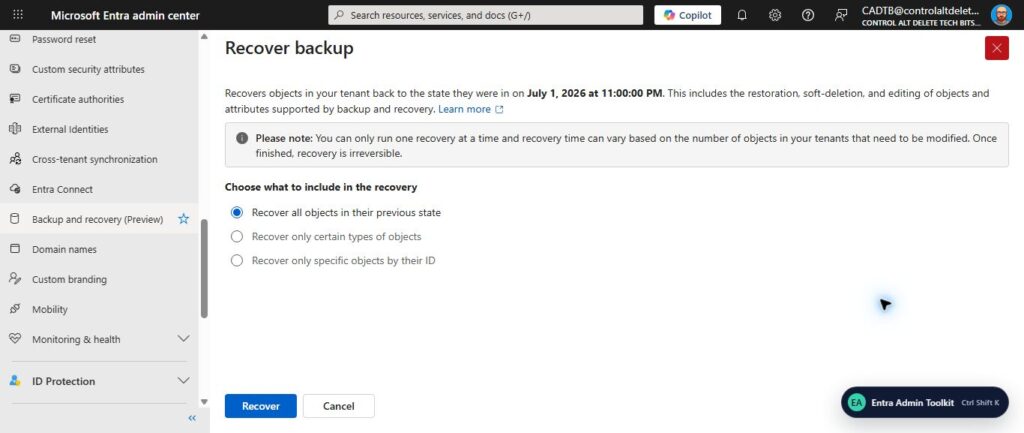
Gotcha: Recovery applies straight to the live tenant and can’t be undone automatically. Recover last Tuesday’s backup with all objects selected and you also roll back every legitimate change made since. Scope it.
Example scenario: someone broke a Conditional Access policy
This is an example, not a real incident. Imagine it’s 4:55pm on a Friday and Dave, who has Conditional Access Administrator, edits the policy “Require MFA for all users”. He meant to tighten it and instead switched the grant control to Block access, then went home.
By 5:05pm the head teacher is ringing. If admins are locked out too, someone still has to sign in to fix it, which is exactly what your break glass accounts are for.
- Sign in (with a break glass account if needed) and go to Entra ID > Monitoring & health > Audit logs. Filter Service to Conditional Access and Activity to Update Conditional Access policy. The Modified Properties tab shows the old and new JSON.
- Note the time of the change and the policy’s object ID. Go to Backup and recovery > Backups and pick the latest backup from before that time.
- Select Create difference report and choose Include only certain types of objects, then Conditional Access policies. To target only the broken policy, use Include only specific objects by their ID instead.
- Open the completed report. You should see the policy with its grant control changed. Look for other Conditional Access changes too, such as a colleague’s new policy, which a broad recovery would soft-delete.
- Open the broken policy’s changed attributes and select Recover this object.
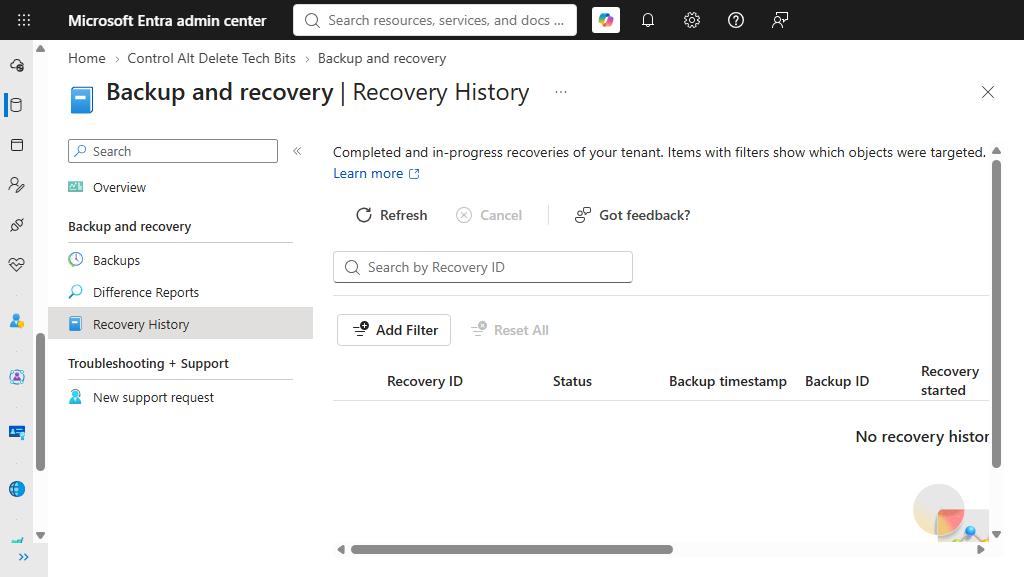
- Watch Recovery History until the status shows Completed, then check the policy in Entra ID > Conditional Access > Policies.
Then prove the fix with the Conditional Access What If tool for a normal user and an admin, and do a real test sign-in. Dave gets a cup of tea and a gentle chat about change control.
Gotcha: Recovering a Conditional Access policy puts back every property as it was at backup time, including whether it is on or off. If someone made a legitimate edit to the same policy after the backup, that edit goes too.
Prove it worked: recovery history and audit logs
In Microsoft Entra Backup and Recovery, the Recovery History page lists every recent recovery with its recovery ID, status, backup timestamp and backup ID. It also shows start and finish times and how many objects and links changed. Backup Reader is enough to see it.
| Status | What it means |
|---|---|
| Loading data | Loading the selected backup. Quicker if a difference report already used it. |
| In progress | Applying the changes. |
| Completed | All supported changes were applied. |
| Completed with warnings | Some changes failed. Select the status to see which objects and why. |
| Failed | The job hit an error and some changes may not have applied. |
| Canceled | Someone stopped it before it finished. |
History is kept for seven days after a job finishes, so capture anything you need for the incident report. Every recovery action is also written to the Microsoft Entra audit logs under the category Backup and Recovery.
Check backups and audit logs with PowerShell
The Microsoft Entra Backup and Recovery APIs are in Microsoft Graph v1.0, and the Microsoft Graph PowerShell SDK can list backups (called snapshots in the API). This read-only script lists them and pulls recent Backup and Recovery audit events.
# Read-only: list Entra backups and recent Backup and Recovery audit events
Connect-MgGraph -Scopes "EntraBackup.Read.All","AuditLog.Read.All"

Get-MgDirectoryRecoverySnapshot -All |
    Sort-Object CreatedDateTime -Descending |
    Select-Object Id, CreatedDateTime, TotalChangedObjects

Get-MgAuditLogDirectoryAudit -Filter "category eq 'Backup and Recovery'" -Top 50 |
    Select-Object ActivityDateTime, ActivityDisplayName, Result,
        @{n='InitiatedBy';e={$_.InitiatedBy.User.UserPrincipalName}}
The account needs Microsoft Entra Backup Reader for the backup list and a role that can read audit logs, such as Reports Reader. The API can also create preview jobs (its name for difference reports) and recovery jobs. I’d keep recovery in the portal unless you have a tested runbook.
To find who changed a Conditional Access policy, filter on the activity name instead:
Get-MgAuditLogDirectoryAudit -Filter "activityDisplayName eq 'Update Conditional Access policy'" -Top 20 |
    Select-Object ActivityDateTime,
        @{n='Policy';e={$_.TargetResources[0].DisplayName}},
        @{n='ChangedBy';e={$_.InitiatedBy.User.UserPrincipalName}}
Good to know: at the time of writing, the Graph API overview on Microsoft Learn still says snapshots are kept for five days. The product documentation and the portal both say seven, so go with those.
Microsoft Entra Backup and Recovery gotchas
Seven days goes quickly. If nobody notices a bad change for a week, the clean backup has gone. Export your key configuration regularly and send audit logs to Log Analytics or Microsoft Sentinel, because they only keep 30 days by default.
Hard deletes are permanent. Microsoft Entra Backup and Recovery can’t recreate hard-deleted objects. Protected actions let you put Conditional Access in front of hard deletion, which is well worth doing.
Synced objects. Changes to objects synced from on-premises Active Directory show up in difference reports but are excluded from recovery, apart from some group membership changes. Fix those at the source.
Not every property. Manager, sponsor, group owners and dynamic membership rules aren’t in scope, and passwords are never restored.
One job at a time. A long-running difference report blocks a recovery, so cancel the report if the recovery is urgent.
Old reports go stale. Recovery applies to the tenant as it is now, so the result can differ from what an older report showed.
No change notifications. Recovery doesn’t generate Graph change notifications or delta records, so apps that sync using delta queries won’t notice the rollback.
Should you rely on Microsoft Entra Backup and Recovery?
Rely on Microsoft Entra Backup and Recovery as your first line of undo, not your only one. It is included with Entra ID P1 or P2, always on and protected from tampering. The difference report alone turns “what did someone change?” from an afternoon of audit log archaeology into a few minutes.
Seven days and a fixed property list mean you still need change control, documented baselines and long-term audit logs. Pair it with break glass accounts, PIM for the Backup Administrator role, and a habit of running a difference report before touching Recover.
My advice: open Microsoft Entra Backup and Recovery today and run a difference report against yesterday’s backup. You may be surprised what Dave has been up to.
Microsoft Entra Backup and Recovery FAQs
How long does Microsoft Entra Backup and Recovery keep backups?
Backups are taken automatically once a day and each one is kept for seven days. Difference reports and recovery history are also kept for seven days.
What licence does Microsoft Entra Backup and Recovery need?
The tenant needs Microsoft Entra ID P1 or P2 and must be a workforce tenant. External ID and Azure AD B2C tenants aren’t supported.
Can it restore hard-deleted objects?
No. It can restore soft-deleted objects and roll back changes to supported properties, but hard-deleted objects are gone for good.
Can I recover a single Conditional Access policy?
Yes. Scope a difference report or recovery to the policy’s object ID, or use Recover this object from the changed attributes panel of a difference report.
Does it back up Exchange, OneDrive or SharePoint?
No. It only covers Microsoft Entra directory objects. Microsoft 365 content is covered by Microsoft 365 Backup, which is a separate product.
Can I use PowerShell with Microsoft Entra Backup and Recovery?
Yes. The APIs are in Microsoft Graph v1.0, and Get-MgDirectoryRecoverySnapshot in the Microsoft Graph PowerShell SDK lists available backups using the EntraBackup.Read.All permission.
Further reading
- Microsoft Entra Backup and Recovery overview (Microsoft Learn)
- Create and review difference reports (Microsoft Learn)
- Recover objects using Microsoft Entra Backup and Recovery (Microsoft Learn)
- Review recovery history (Microsoft Learn)
- Microsoft Entra Backup and Recovery APIs in Microsoft Graph (Microsoft Learn)
- Break glass account setup to avoid a lockout
- How to use the Conditional Access What If tool
- Microsoft Entra PIM explained
Found this useful? Buy me a coffee, and if you handle subject access requests, have a look at Redact Ninja for redacting PDFs without sending files to a server.
Tags: Entra ID
[…] You might also like this article […]