Shadow AI in Microsoft 365 How to Detect and Block Unmanaged AI Agents
Shadow AI in Microsoft 365 is now something IT teams can start to see, not just worry about.
A member of staff installs an AI coding assistant on their work laptop. It helps them work faster, so they keep using it. A few days later, that same tool may have had access to source code, customer records, internal documents, contracts, or other business data. Nobody approved it. Nobody checked where the data was going. Nobody knows what it touched.
That is the problem Microsoft is trying to solve with the new Shadow AI experience in the Microsoft 365 admin centre.
The feature is currently in public preview as part of the Frontier programme. It gives admins a dedicated place to detect unmanaged AI agents running on Intune-managed Windows devices and, where needed, block them using Microsoft Intune policy.
This article walks through what Shadow AI is, why it matters, what licensing you need to check, and how the detection and blocking flow works.
Never miss an article and subscribe, and don’t forget to check out my YouTube channel, Control Alt Delete Tech Bits
Like the article? Feel free to buy me a coffee
Also check out my redact app, Redact PDFs and images, review email evidence and manage subject access requests without sending source files to a processing server.: https://redactninja.com
What is Shadow AI?
Shadow AI is the use of AI tools, assistants, agents, browser extensions, local apps, command line tools, or MCP servers without IT approval.
That could be an AI coding assistant, a local desktop agent, a tool that summarises webpages, or an agent that connects to files and services on a work device. The user may only see the productivity benefit. The IT team sees the problem later, usually when there is a data protection question, a security incident, or an audit.
Microsoft describes Shadow AI as AI-powered tools and agents used by people in the organisation without IT awareness or approval. The new Shadow AI page in the Microsoft 365 admin centre gives admins a way to detect these tools and take action from one place.
At the time of writing, Microsoft lists OpenClaw as the supported agent during public preview. Microsoft has also said support will expand to other widely used agents, including GitHub Copilot CLI and Claude Code.
This site and my YouTube channel are supported by Tech-Source.
Tech-Source is a UK-based technology supplier that works closely with IT teams across education, public sector, and commercial environments. They provide hardware, licensing, and infrastructure solutions, with a strong focus on practical advice rather than upselling.
Their support helps keep this site running and allows me to continue publishing in-depth, admin-focused content and walkthroughs without paywalls.
You can find out more about what they do at https://tech-source.co.uk/
Why Shadow AI is a risk
Shadow AI is not automatically malicious. In most cases, staff are trying to get work done faster. The problem is that unmanaged AI tools can process company data outside the controls you have built around Microsoft 365, Microsoft Purview, Microsoft Defender, Microsoft Intune, and Microsoft Entra ID.
Microsoft calls out four main risk areas: data leakage, compliance violations, security vulnerabilities, and lack of auditability or governance.
In plain English, that means sensitive content may be copied into tools you do not manage. Personal data could be processed somewhere your organisation has not approved. Local agents may run code, open network connections, or ask for permissions that should have gone through change control. If you cannot see the tool, you cannot prove what it accessed, what it sent, or who authorised it.
For schools, colleges, healthcare, legal, finance, and local government, this gets serious very quickly. A coding assistant or local AI agent indexing pupil records, safeguarding notes, patient data, client files, or financial documents is not just an IT issue. It becomes a governance and compliance issue.
That is why visibility matters before blocking. You need to know whether the tool is being used, where it is running, and whether there is a genuine business reason behind it.
Licensing and prerequisites
Before you start, there are a few requirements to check.
Microsoft’s Shadow AI documentation currently says you need a Microsoft 365 E3 licence to view Shadow AI agents. You also need one of the supported roles, such as Security Administrator, AI Administrator, Global Reader, Security Reader, Security Operator, Reports Reader, User Experience Success Manager, or Intune Administrator.
You also need Microsoft Intune enrolment for managed Windows devices, and your tenant needs to be opted in to the Frontier preview experience.
For education tenants, do not read the E3 wording as meaning only commercial E licensing exists in the Microsoft world. Many schools and colleges work with Microsoft 365 Education A3 or A5 rather than E3 or E5. Microsoft’s Intune licensing documentation confirms that Intune Plan 1 for Education is included with Microsoft 365 Education A3 and A5.
That said, Microsoft’s Shadow AI page currently names Microsoft 365 E3 in the published prerequisite, not A3 or A5. So for education, the sensible wording is this: if you are on Microsoft 365 Education A3 or A5, check the Shadow AI page in your own tenant and confirm availability. Do not assume A1, Business Premium, or unmanaged BYOD devices will be covered.
The key technical point is that detection and blocking only apply to managed Windows devices enrolled in Intune. Personal devices, unmanaged endpoints, and machines that never check in to Intune sit outside this control.
How to access Shadow AI in the Microsoft 365 admin centre
The Shadow AI experience is not in the normal device list. It lives under the Agents area in the Microsoft 365 admin centre.
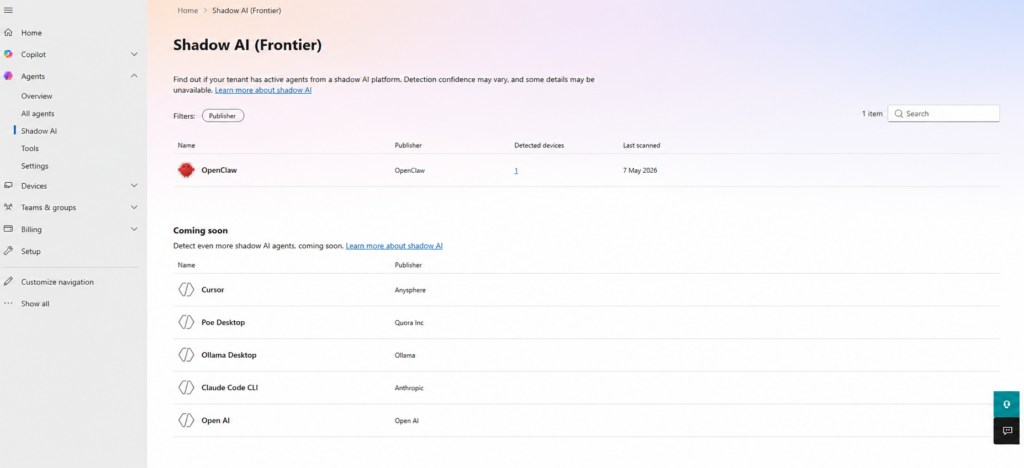
Sign in to the Microsoft 365 admin centre, open Show all from the left navigation, expand Agents, and select Shadow AI (Frontier).
You should then see the Shadow AI page. During the current preview, OpenClaw is the main agent Microsoft lists as available for detection and blocking.
Turning on Shadow AI detection
Detection is not automatically enabled for every agent. You need to select the agent and turn on continuous detection.
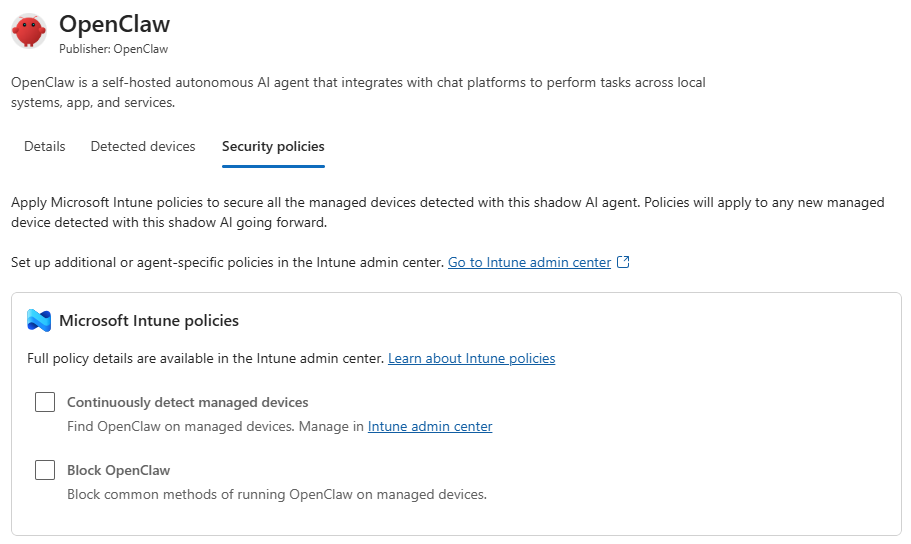
Open the Shadow AI (Frontier) page, select OpenClaw, then open the Security policies tab. From there, choose Continuously detect managed devices and apply the policy.
After that, Intune will begin checking managed Windows devices on their next sync cycle. Do not expect results instantly. If devices are offline, slow to sync, or outside the network for a while, it may take time before the detected device count starts to change.
Reviewing detected devices
Once detection has had time to run, go back into the same agent and open the Detected devices tab.
This is where the feature becomes useful. Instead of talking about Shadow AI as a vague risk, you can see which managed Windows devices have been flagged. Microsoft shows details such as the device name, device type, operating system, and last Intune scan time.
That gives you a practical starting point. You can check who owns the device, whether the tool was installed for a real business reason, and whether an approved alternative should be offered before you block it.
For leadership or audit evidence, this is probably the most valuable screenshot. It turns the conversation from “people might be using unmanaged AI” into “these devices have been detected”.
Blocking OpenClaw with Intune
Blocking is handled from the same Shadow AI agent view.
Open the OpenClaw details pane, go back to Security policies, and choose the option to block AI agents from OpenClaw. The wording may change as Microsoft adds support for more agents, but the flow is the same idea: select the agent, review the security policy option, and confirm the block.
After you confirm the action, Microsoft creates an Intune policy named A365 – Block OpenClaw.
You do not manually create that policy first. The policy is generated after you trigger the block action from the Shadow AI page. Once it exists, you can review it in the Intune admin centre under Devices > Configuration > Policies by searching for A365 – Block OpenClaw.
If you cannot see it straight away, give it time. Microsoft says the policy can take between 15 minutes and 8 hours to apply, depending on Intune sync behaviour and your tenant configuration.
The important detail is that the block only helps where Intune can enforce it. If a device is unmanaged, offline, or not enrolled correctly, the policy cannot do its job until the device checks in or comes under management..
Things to watch out for
This feature is still in preview, so expect change. The agent list, wording, location of settings, and policy behaviour may all change before general availability.
At the time of writing, OpenClaw is the supported public preview example. Microsoft has said support will expand to other agents, including GitHub Copilot CLI and Claude Code, but I would avoid listing extra agents unless Microsoft names them in current documentation.
Also remember that this is not a complete Shadow AI solution for every possible scenario. It helps with supported local AI agents on Intune managed Windows devices. It does not magically detect everything a user can access through a browser, personal device, unmanaged laptop, or mobile app.
For full coverage, this should sit alongside your wider controls: Microsoft Defender, Microsoft Purview, Microsoft Entra ID Conditional Access, browser controls, endpoint management, data loss prevention, and a written AI usage policy that staff can actually understand.
Shadow AI is not going away. Staff are already using AI tools to speed up their work, and blocking everything without a plan is unlikely to work for long.
The Shadow AI (Frontier) experience in the Microsoft 365 admin centre gives IT teams a better starting point. You can detect supported unmanaged AI agents, see which managed Windows devices are involved, and use Intune to block tools such as OpenClaw where required.
For me, the best use of this feature is visibility first, enforcement second. Turn on detection, review what is really happening, speak to the teams involved, and then decide whether to block the tool or provide an approved alternative.
If you work in education, also check this carefully against your own Microsoft 365 Education A3 or A5 tenant. Microsoft’s public prerequisite currently names Microsoft 365 E3, but education licensing often follows the A plan route, and Intune Plan 1 for Education is included with A3 and A5.
For the official Microsoft documentation, search Microsoft Learn for “Shadow AI in Microsoft 365 admin center”.
Check out this article Manage Intune Windows 11 25H2 Settings to Block Recall, Remove Bloatware, and Control Copilot.
What is Shadow AI in Microsoft 365
Shadow AI means AI tools, agents, assistants, browser extensions, MCP servers, or local apps used by staff without IT approval. The risk is that these tools may process company data outside your normal security, compliance, and governance controls
Where is the Shadow AI page in Microsoft 365?
Go to the Microsoft 365 admin centre, select Show all, expand Agents, and then open Shadow AI (Frontier). Your tenant must be opted in to the Frontier preview experience. (Correct as of May 2026)
What licence do I need for Shadow AI detection?
Microsoft’s current documentation says a Microsoft 365 E3 licence is required to view Shadow AI agents. For education tenants, check your own tenant if you use Microsoft 365 Education A3 or A5, as those plans include Intune Plan 1 for Education, but Microsoft has not explicitly named A3 or A5 on the Shadow AI prerequisite page at the time of writing.
Does Shadow AI detection work on unmanaged or BYOD devices?
No. Detection and blocking apply to managed Windows devices enrolled in Microsoft Intune. Personal devices, unmanaged endpoints, and devices not checking in to Intune are outside the scope of this control
Which Shadow AI agent can Microsoft detect today?
During the current preview, Microsoft lists OpenClaw as the supported agent. Microsoft has said support will expand to other agents, including GitHub Copilot CLI and Claude Code.
Where is the Intune policy to block OpenClaw?
You do not create it manually first. Go to Shadow AI (Frontier), select OpenClaw, open Security policies, and choose the block option. After you confirm it, Microsoft creates an Intune policy named A365 – Block OpenClaw. You can then review it in the Intune admin centre under Devices > Configuration > Policies.
Tags: Intune
[…] You might also like this article Shadow AI in Microsoft 365 Detect and Block It […]